
1. Introducció
The KCEVE C212H KVM Switch is designed to allow two USB-C enabled laptops to share a single set of keyboard, mouse, and other USB 3.0 devices, while displaying content on two HDMI monitors. This device supports 4K@60Hz resolution and provides 80W Power Delivery (PD) charging for connected laptops. It offers efficient switching between connected computers for enhanced productivity.

Figure 1: KVM Switch connecting two laptops to two monitors and shared peripherals.
2. Contingut del paquet
Verifiqueu que tots els elements siguin presents al paquet:
- 1 x KVM Switch USB C (Model: C212H)
- 2 x Type-C Cables
- 1 x Wired Remote Control (1.5m)
- 1 x Manual d'usuari
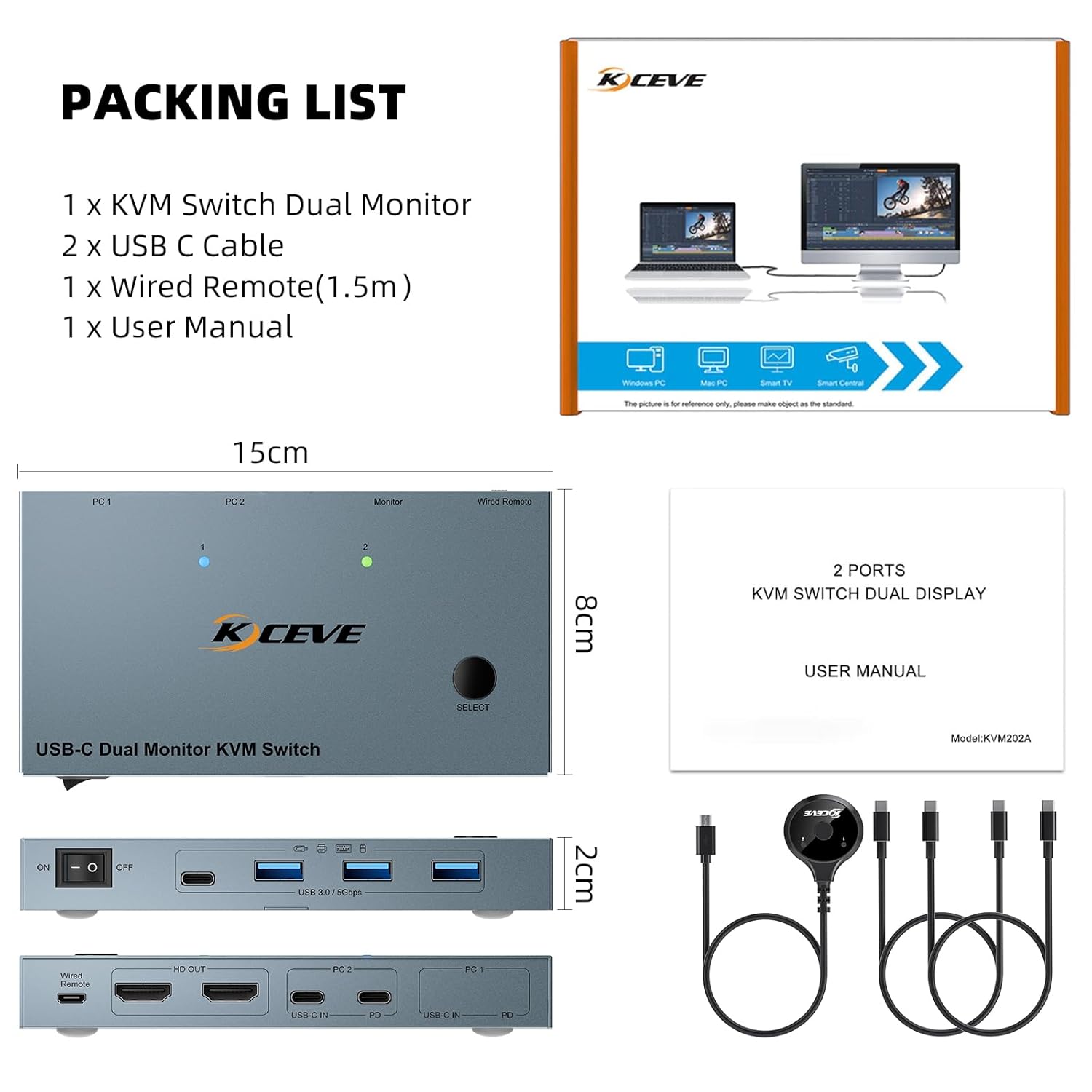
Figure 2: Package contents of the KCEVE C212H KVM Switch.
Vídeo 1: Desempaquetatge i més enllàview of the KVM Switch package contents.
3. Característiques del producte
- Suport de monitor dual: Connects two USB-C laptops to two HDMI monitors.
- Alta resolució: Supports 4K@60Hz resolution with HDMI 2.0 and Deep Color 4:4:4.
- Connectivitat USB 3.0: Features 4 USB 3.0 ports for sharing keyboard, mouse, printer, scanner, and other USB devices with data transfer speeds up to 5Gbps.
- Subministrament d'energia de 80 W: Provides up to 80W charging for connected laptops via the PD port.
- Múltiples mètodes de commutació: Switch between laptops using a button on the device or the included 1.5m wired remote control.
- Plug and Play: No additional driver software required.
- Àmplia compatibilitat: Compatible with Windows 7/8/10/11/XP/Vista, Mac OS, Linux, and Chrome OS.
- Integrated ESD Protection: Built-in electrostatic discharge protection system.

Figure 3: High-definition visual output at 4K@60Hz.

Figure 4: 80W Power Delivery (PD) charging for laptops.

Figure 5: USB 3.0 ports supporting data transfer speeds up to 5Gbps.
4. Instruccions de configuració
Segueix aquests passos per connectar el teu commutador KVM:
- Connectar monitors: Connect your two HDMI monitors to the 'HD OUT_A' and 'HD OUT_B' ports on the KVM switch.
- Connect Laptops (PC1):
- Connect the first laptop's USB-C port to the 'PC1 IN' USB-C port on the KVM switch using a Type-C cable. This cable handles video, data, and PD charging.
- If your laptop requires additional power, connect its charging cable to the 'PD' port next to 'PC1 IN'.
- Connect Laptops (PC2): Repeat the steps for the second laptop, connecting it to the 'PC2 IN' USB-C port and its corresponding 'PD' port if needed.
- Connecteu els perifèrics: Connect your keyboard, mouse, and other USB 3.0 devices (e.g., printer, USB drive) to the USB 3.0 ports on the front of the KVM switch.
- Connecteu el comandament a distància amb cable: Plug the wired remote control into the designated port on the KVM switch for convenient switching.
- Encès: Ensure all connections are secure, then power on the KVM switch using the ON/OFF switch.

Figure 6: Connection diagram for the KCEVE C212H KVM Switch.
Video 2: Step-by-step instructions for connecting the KVM Switch to computers and monitors.
5. Instruccions de funcionament
5.1 Switching Between Laptops
The KVM switch offers two methods for switching between connected laptops:
- Interruptor de botó: Press the 'Switch' button on the front panel of the KVM device to toggle between PC1 and PC2. The LED indicator will show which computer is active.
- Comandament a distància per cable: Use the included 1.5m wired remote control to switch between PC1 and PC2.
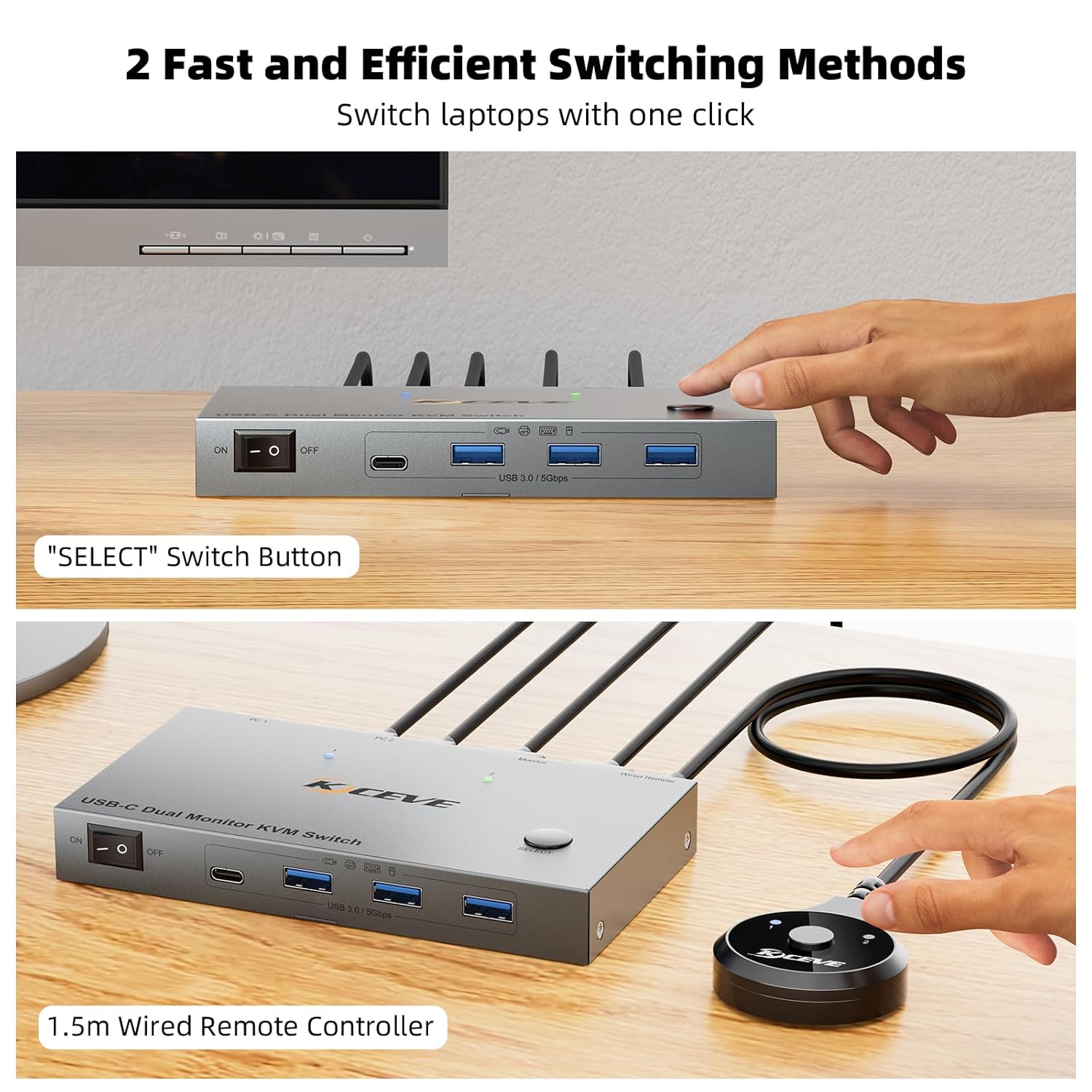
Figure 7: Two methods for switching between connected laptops.
5.2 Modes de visualització
The KVM switch supports different display modes depending on your operating system:
- Windows Laptops: Support expanding to two different screens. Press "Windows+P" to select extended screen mode or mirror mode.
- Mac OS Laptops: Support expanding to two identical screens only, as Mac OS does not support Multi-Stream Transport (MST) for different extended displays through this type of KVM.

Figure 8: Display modes for Windows and Mac OS.
6. Especificacions
| Característica | Especificació |
|---|---|
| Número de model | C212H |
| Dimensions del producte | 15.24 x 7.62 x 2.03 cm (6 x 3 x 0.8 polzades) |
| Pes de l'article | 249 g (0.55 Lb) |
| Sortida de vídeo | 2 x HDMI 2.0 |
| Suport a la resolució | Fins a 4K@60Hz |
| Ports USB | 4 USB 3.0 (transferència de dades de 5 Gbps) |
| Entrada USB-C | 2 x USB Type-C 3.1 Gen 2 |
| Subministrament d'energia (PD) | Up to 80W for laptops |
| Material | Metall |
| Vol. Operatiutage | 12 Volts |
| Mètode de control | Push Button, Wired Remote Control |
| Compatibilitat | Windows, Mac OS, Linux, Chrome OS |
7. Solució De Problemes
- Flickering or Black Screen: If you experience screen flickering or a black screen, ensure you are using high-quality HDMI cables. Using a short 8K HDMI cable can improve signal stability and clarity, resolving these issues.
- Sense visualització als monitors: Verify that all HDMI and USB-C cables are securely connected to both the KVM switch and your laptops/monitors. Ensure the KVM switch is powered on.
- Els dispositius USB no funcionen: Check that the USB 3.0 cables from your laptops are correctly connected to the KVM switch. Ensure the KVM switch is powered on. Try reconnecting the USB devices.
- El portàtil no carrega: Confirm that the Type-C charging cable is connected to the 'PD' port on the KVM switch and that your laptop supports USB-C Power Delivery.
- Mac OS Display Issue: Remember that Mac OS laptops will only expand to two identical screens, not two different extended screens, due to MST limitations.
8. Garantia i Suport
KCEVE provides 12 months of after-sales service and lifetime technical support for this KVM switch. If you encounter any issues or have questions, please contact KCEVE customer support for assistance.