
1. Introducció
The KCEVE KVM Switch (Model KC-201DP) allows you to control two computers using a single set of keyboard, mouse, and a DisplayPort monitor. It also enables sharing of up to four USB 3.0 devices between the connected computers. This device is designed to streamline your workspace, making it ideal for office, business seminars, multimedia teaching, home theater, and gaming environments.

Image: The KVM switch connected to two desktop computers and a single monitor, demonstrating a tidy workspace setup.
2. Informació de seguretat
- Assegureu-vos que tots els cables estiguin connectats correctament abans d'engegar el dispositiu.
- Use only the provided power adapter (DC 5V) to prevent damage.
- Eviteu exposar el dispositiu a la humitat, a temperatures extremes o a la llum solar directa.
- No intenteu desmuntar ni reparar el dispositiu vosaltres mateixos. Demaneu el servei tècnic a personal qualificat.
- Mantingueu el dispositiu allunyat de camps electromagnètics forts.
3. Contingut del paquet
Si us plau, verifiqueu que tots els elements siguin presents al vostre paquet:
- 1 x KCEVE DP KVM Switch
- 2 x USB 3.0 Cables (1.5m)
- 1 x Wired Remote Control (1.5m)
- 1 x Manual d'usuari

Image: Contents of the KVM switch package, including the main unit, cables, remote, and manual.
4. Producte acabatview
The KVM switch features multiple ports for connecting your computers, monitor, and USB peripherals. Familiarize yourself with the port layout:

Imatge: Una imatge detallada view of the KVM switch unit, highlighting its various ports and indicators.
Panell frontal:
- Ports USB 3.0 (4x): For connecting USB devices such as keyboard, mouse, printer, scanner, or USB drive.
- Botó SELECCIÓ: Press to switch between connected computers.
- Indicadors LED: Show which computer is currently active.
Panell posterior:
- Entrada d'alimentació DC 5V: Per connectar l'adaptador de corrent.
- MONITOR DP Output: Connects to your DisplayPort monitor.
- PC1 DP Input: Connects to DisplayPort output of Computer 1.
- PC1 USB 3.0 Input: Connects to a USB 3.0 port on Computer 1.
- PC2 DP Input: Connects to DisplayPort output of Computer 2.
- PC2 USB 3.0 Input: Connects to a USB 3.0 port on Computer 2.
- Port remot: For connecting the wired remote control.
5. Instruccions de configuració
Segueix aquests passos per configurar el commutador KVM:
- Apagar: Assegureu-vos que tant l'ordinador com el monitor estiguin apagats abans de fer cap connexió.
- Connecta el monitor: Connect your DisplayPort monitor to the MONITOR DP Output port del commutador KVM.
- Connecta l'ordinador 1:
- Connect a DisplayPort cable from the DisplayPort output of Computer 1 to the PC1 DP Input port del commutador KVM.
- Connect one of the provided USB 3.0 cables from a USB 3.0 port on Computer 1 to the PC1 USB 3.0 Input port del commutador KVM.
- Connecta l'ordinador 2:
- Connect a DisplayPort cable from the DisplayPort output of Computer 2 to the PC2 DP Input port del commutador KVM.
- Connect the second provided USB 3.0 cable from a USB 3.0 port on Computer 2 to the PC2 USB 3.0 Input port del commutador KVM.
- Connecteu els perifèrics USB: Connect your keyboard, mouse, printer, or other USB devices to the Ports USB 3.0 on the front panel of the KVM switch. (Note: Bluetooth mice are not supported.)
- Connecteu el comandament a distància amb cable (opcional): Plug the wired remote control into the Port remot on the KVM switch.
- Encès: Connect the DC 5V power adapter to the KVM switch. Then, power on your monitor and both computers.
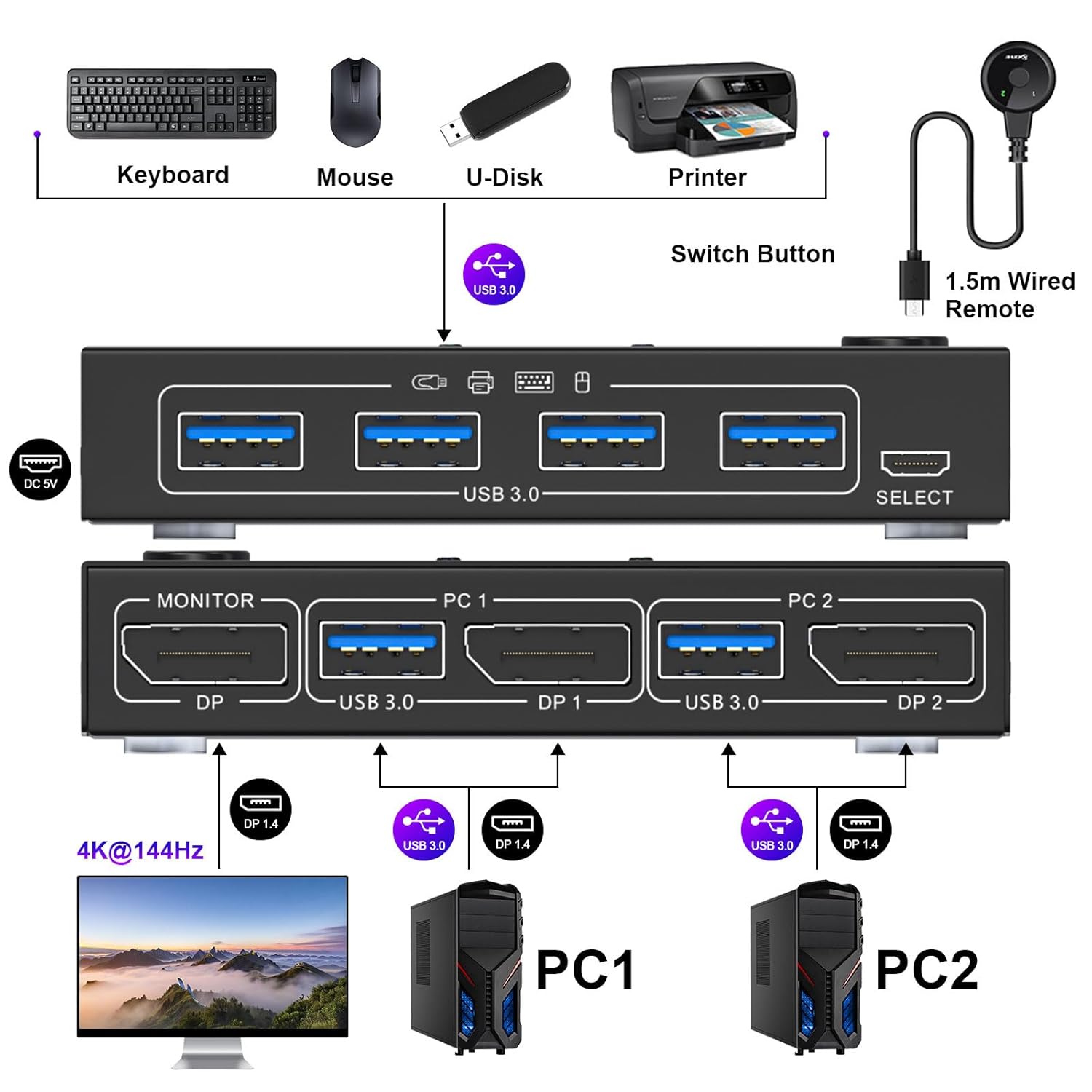
Image: A visual guide illustrating the complete connection setup for the KVM switch.
6. Instruccions de funcionament
El commutador KVM ofereix dos mètodes pràctics per canviar entre ordinadors connectats:
6.1. Interruptor de botó
Premeu el botó SELECCIONA button on the front panel of the KVM switch to toggle between Computer 1 and Computer 2. The LED indicator will illuminate to show which computer is currently active.
6.2. Comandament a distància amb cable
If connected, press the button on the wired remote control to switch between Computer 1 and Computer 2. This provides flexibility for placing the KVM switch out of direct reach.

Image: Demonstrates both the manual button switch on the KVM unit and the use of the wired remote control for switching.
7. Compatibilitat
The KCEVE KVM Switch is designed for broad compatibility:
- Sistemes operatius: Compatible with Windows 11/10/8/8.1/7/XP/Vista, Mac OS, Linux, and Chrome OS systems.
- DP Input Devices: Supports various DisplayPort input devices such as PCs, laptops, TV Boxes, PS3, PS4, PS5, Xbox One, and Apple TV.
- Dispositius USB: Supports keyboard, mouse, printer, scanner, U-disk, and other standard USB devices. (Note: Bluetooth mice are not supported.)

Image: Visual representation of the KVM switch's compatibility with various operating systems and USB peripherals.
8. Resolution and Data Transfer
This KVM switch supports high-resolution video and fast data transfer speeds:
- DisplayPort 1.4 Compliant: Supports resolutions up to 4K@144Hz, 4K@60Hz, and 1920x1080@165Hz.
- Important Note on Resolution: For 4K resolutions, ensure your computers, monitor, and DisplayPort cables all support 4K. Using 8K certified DisplayPort cables is recommended to prevent flickering or black screen issues, especially at higher refresh rates.
- Transferència de dades USB 3.0: Provides data transfer speeds of up to 5Gbps, which is 10 times faster than USB 2.0.

Image: Illustrates the high-resolution capabilities of the KVM switch, supporting up to 4K@144Hz.

Image: Highlights the 5Gbps data transfer speed of the USB 3.0 ports on the KVM switch.
9. Solució De Problemes
If you encounter issues, please refer to the following common problems and solutions:
- Sense pantalla/pantalla parpellejant:
- Ensure all DisplayPort cables are securely connected and are of high quality (preferably 8K certified for optimal performance).
- Verify that your graphics card and monitor support the selected resolution and refresh rate.
- Try reducing the resolution or refresh rate on your computer.
- Ensure the KVM switch is powered by the DC 5V supply.
- El teclat/ratolí no funciona:
- Ensure the USB 3.0 cables from each computer are securely connected to the KVM switch.
- Prova de connectar el teclat/ratolí a diferents ports USB 3.0 del commutador KVM.
- Reinicieu el commutador KVM i els ordinadors connectats.
- Note that Bluetooth mice are not supported.
- Other USB Devices Not Detected:
- Ensure the device is properly connected to a USB 3.0 port on the KVM switch.
- Some high-power USB devices may require an external power source.
- Check if the device works when connected directly to the computer.
- Retard de canvi:
- A slight delay during switching is normal as the system re-establishes connections.
10. Especificacions
| Característica | Detall |
|---|---|
| Número de model | KC-201DP |
| Dimensions del producte | 3.9 x 2.55 x 0.78 polzades (10 x 6.5 x 2 cm) |
| Pes de l'article | 4.8 unces |
| DisplayPort Standard | DisplayPort 1.4 |
| Resolucions suportades | Up to 4K@144Hz, 4K@60Hz, 1920x1080@165Hz |
| Estàndard USB | USB 3.0 |
| Velocitat de transferència de dades USB | Fins a 5 Gbps |
| Font d'alimentació | DC 5V |
| Mètodes de canvi | Button Switch, Wired Remote Control |
| Vol. Operatiutage | 5 Volts |
| Valoració actual | 1 Amps |
11. Manteniment
Per garantir la longevitat i el rendiment òptim del vostre commutador KVM:
- Mantingueu el dispositiu net netejant-lo amb un drap suau i sec.
- Eviteu utilitzar netejadors líquids o aerosols.
- Assegureu-vos una ventilació adequada al voltant del dispositiu per evitar el sobreescalfament.
- Guardeu el dispositiu en un lloc fresc i sec quan no el feu servir durant períodes prolongats.
12. Garantia i Suport
KCEVE provides comprehensive after-sales support for its products. If you encounter any problems or have questions regarding your KVM switch, please contact our customer service team. Our company has been in the field of KVM Switches for more than ten years, ensuring reliable assistance.
For support, please refer to the contact information provided on the product packaging or the official KCEVE weblloc.