
1. Introducció
The HPRT MT620Pro is a compact, inkless portable thermal printer designed for convenient printing on the go. It utilizes advanced thermal printing technology to produce 300 dpi high-definition prints without the need for ink cartridges or toner. This printer supports various thermal paper sizes, including US Letter, Legal, A4, A5, and 4-inch widths. It offers versatile connectivity options, allowing wireless printing via Bluetooth from iOS and Android devices, and wired printing via USB cable from Windows and macOS computers.

Imatge 1.1: acabatview of the HPRT MT620Pro Portable Thermal Printer with key features labeled. Dimensions are 10.4 x 2.2 x 1.7 inches, and weight is 1.16 lb.
The printer features a built-in rechargeable battery, providing up to 96 hours of working time on a full charge. An automatic shutdown function activates after 15 minutes of inactivity to conserve power. Its automatic paper suction mechanism simplifies paper loading, requiring only insertion into the paper inlet.
2. Què hi ha a la caixa
Upon unboxing your HPRT MT620Pro Portable Thermal Printer, please ensure all the following items are present:
- 1 Portable Thermal Printer
- 10 Sheets US Letter Thermal Paper
- 1 Charging Cable (USB-C)
- 1 USB-C Plug Adapter
- 1 Manual d'usuari (aquest document)
3. Configuració
3.1. Càrrega de la impressora
Before initial use, fully charge the printer using the provided USB-C charging cable and adapter. Connect the USB-C cable to the printer's charging port and the other end to a power source. The operational status LED will indicate charging status.
3.2. Càrrega de paper tèrmic
The HPRT MT620Pro printer exclusively uses thermal paper. Ensure the paper is thermal-sensitive and compatible with the printer's width range (4 to 8.5 inches).
- Gently pull the cover-opening button to open the top cover of the printer.
- Adjust the paper separator inside the printer to match the width of your thermal paper.
- Insert the thermal paper face up into the paper inlet. The printer will automatically feed the paper into position.
- Close the top cover until you hear a "click" sound, indicating it is securely latched.

Image 3.1: Illustration of compatible thermal paper sizes and loading methods for the HPRT MT620Pro printer.
3.3. Connecting to Mobile Devices (iOS/Android)
To print wirelessly from your smartphone or tablet:
- Download the "Hereprint" app from your device's app store (Google Play Store for Android, Apple App Store for iOS).
- Assegureu-vos que el Bluetooth estigui habilitat al vostre dispositiu mòbil.
- Turn on the printer by holding the power button for 3 seconds. The operational status LED will illuminate.
- Open the "Hereprint" app and follow the on-screen instructions to search for and connect to your HPRT MT620Pro printer via Bluetooth.
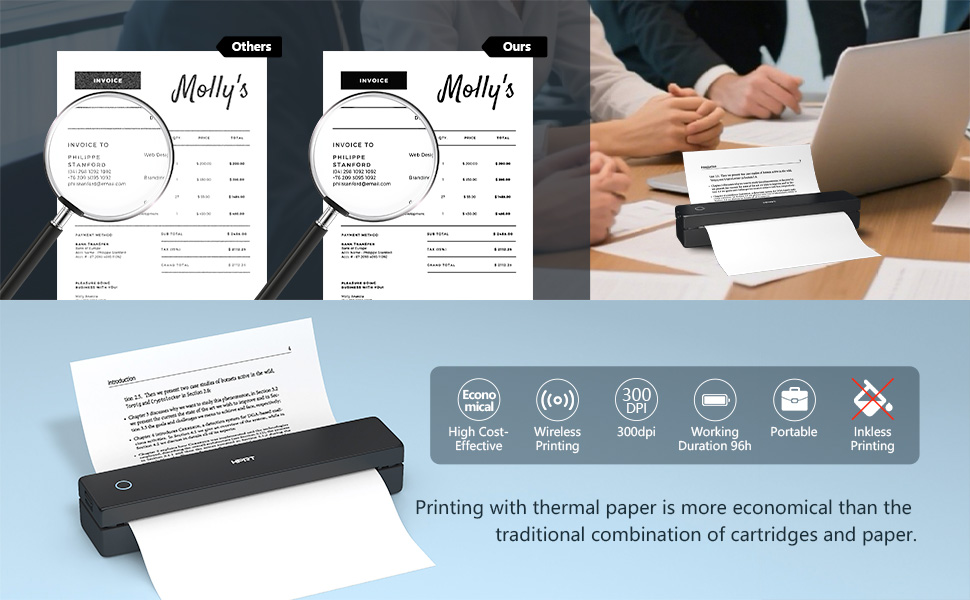
Image 3.2: Steps for connecting the HPRT MT620Pro printer to a mobile device via Bluetooth.
3.4. Connecting to PC (Windows/macOS)
To print from your computer, a USB connection and driver installation are required:
- Turn on the printer by holding the power button for 3 seconds.
- Connecteu la impressora a l'ordinador amb el cable USB-C proporcionat.
- Visit the official HPRT weblloc (https://download.hprt.com/HPRT-MT620) to download the appropriate printer driver for your operating system (Windows or macOS).
- Install the downloaded driver by following the on-screen instructions. Ensure the printer remains connected via USB during installation.
Video 3.1: This video demonstrates the process of connecting the HPRT MT620Pro printer to a PC via USB and installing the necessary drivers for printing.
4. Funcionament
4.1. Printing from Mobile Devices
Un cop connectat per Bluetooth:
- Open the "Hereprint" app.
- Select the type of content you wish to print (e.g., pictures, documents, web pages, or scanned items).
- Adjust print settings such as density, margins, and paper type within the app.
- Toqueu el botó "Imprimir" per iniciar la impressió.

Image 4.1: The 'Hereprint' app interface for mobile printing, showing various content options.
4.2. Printing from PC
After driver installation and USB connection:
- Open the document, image, or web page you wish to print on your computer.
- Access the print function (usually File > Print or Ctrl+P/Cmd+P).
- From the list of available printers, select "HPRT MT620Pro".
- Adjust print preferences such as paper size, orientation, and number of copies as needed.
- Feu clic a "Imprimeix" per enviar la feina a la impressora.
5. Manteniment
5.1. Atenció general
- Mantingueu la impressora neta i sense pols. Feu servir un drap suau i sec per a la neteja exterior.
- Eviteu exposar la impressora a temperatures extremes, llum solar directa o humitat elevada.
- Do not use abrasive cleaners or solvents on the printer's surface.
5.2. Thermal Paper Handling
- Always use high-quality thermal paper to ensure optimal print quality and printer longevity.
- Store thermal paper in a cool, dry place away from direct light and heat to prevent premature fading.
- Avoid touching the thermal-sensitive surface of the paper unnecessarily.
6. Solució De Problemes
If you encounter issues with your HPRT MT620Pro printer, refer to the following common solutions:
| Problema | Causa possible | Solució |
|---|---|---|
| La impressora no s'encén | Problema amb bateria baixa o potència | Charge the printer fully using the provided USB-C cable and adapter. |
| No es pot connectar mitjançant Bluetooth | Bluetooth not enabled, printer not in pairing mode, or app issue | Ensure Bluetooth is on, restart the printer and app, try re-pairing from the app. |
| Printer not recognized by PC | Driver not installed or USB connection issue | Verify driver installation, try a different USB port or cable, restart PC and printer. |
| Mala qualitat d'impressió (línies tènues i en blanc) | Incorrect paper loading, low battery, or print head issue | Ensure thermal paper is loaded face up, charge the printer, clean the print head if necessary (refer to manufacturer guidelines). |
| Embús de paper | Càrrega incorrecta de paper o objecte estrany | Open the top cover, carefully remove any jammed paper or obstructions. Reload paper correctly. |
7. Especificacions
| Característica | Detall |
|---|---|
| Nom del model | MT620 Pro |
| Dimensions del producte | 2.2 "P x 10.4" W x 1.7" H |
| Pes de l'article | 1.16 lliures |
| Tecnologia d'impressió | Tèrmica |
| Tipus de tinta de la impressora | No Ink (Inkless) |
| Sortida de la impressora | Monocrom (Negre) |
| Resolució d'impressió màxima | 300 x 300 punts per polzada (DPI) |
| Velocitat màxima d'impressió (blanc i negre) | 10 ppm (pàgines per minut) |
| Tecnologia de connectivitat | Bluetooth, USB tipus C |
| Dispositius compatibles | Ordinadors portàtils, PC, telèfons intel·ligents, tauletes |
| Tipus de controlador | Android, iOS |
| Mida màxima del suport | 4 to 8.5 inches wide (US Letter, Legal, A4, A5, 4 inch) |
| Capacitat màxima del full d'entrada | 10 fulls |
| Durada de la bateria | Up to 96 hours working time (on full charge) |
| Apagat automàtic | Després de 15 minuts d'inactivitat |
8. Garantia i Suport
For warranty information, technical support, or service inquiries, please refer to the warranty card included with your product or visit the official HPRT weblloc web. Les dades de contacte per a l'atenció al client solen estar disponibles al lloc web del fabricant. weblloc web o dins de l'embalatge del producte.