
1. Introducció
This manual provides essential information for the safe and efficient use of your BOOX Go 7 ePaper Tablet. Please read it thoroughly before operating the device and retain it for future reference.

Figure 1.1: BOOX Go 7 ePaper Tablet
2. Informació de seguretat
- No exposeu el dispositiu a temperatures extremes, llum solar directa ni humitat elevada.
- Eviteu deixar caure o sotmetre el dispositiu a forts impactes.
- Utilitzeu només el cable USB proporcionat per carregar.
- Keep the device away from water and liquids, despite its water-repellent features.
- No intenteu desmuntar ni reparar el dispositiu vosaltres mateixos. Poseu-vos en contacte amb el personal de servei autoritzat.
3. Contingut del paquet
Verifiqueu que tots els elements siguin presents al paquet:
- BOOX Go 7 ePaper Tablet
- Cable USB
- Guia d'inici ràpid (pot variar segons la regió)

Figure 3.1: BOOX Go 7 Package Contents
4. Dispositiu acabatview
4.1 Components físics
Familiarize yourself with the main components of your BOOX Go 7 tablet:
- E Ink Screen: 7-inch monochrome display with 300 ppi resolution.
- Llum frontal: Adjustable illumination for reading in various lighting conditions.
- Botons per passar pàgina: Ergonomically designed buttons for easy navigation.
- Port USB-C: Per a càrrega i transferència de dades.
- Botó d'encesa: Situat a la vora superior.
- Micròfon integrat: Per a entrada d'àudio.
- Built-in Dual Speakers: Per a la sortida d'àudio.

Figure 4.1: Page-Turn Buttons and Water-Repellent Protection
5. Configuració
5.1 Càrrega inicial
Before first use, fully charge your BOOX Go 7 tablet. Connect the provided USB-C cable to the device and a compatible power adapter (not included) or a computer's USB port. The charging indicator will show the charging status.
5.2 Encès/Apagat
- Per encendre: Press and hold the Power button until the BOOX logo appears.
- Per apagar: Mantingueu premut el botó d'engegada i, a continuació, seleccioneu "Apagar" de les opcions que apareixen a la pantalla.
- Per dormir/despertar-se: Premeu breument el botó d'engegada.
5.3 Connexió de xarxa (Wi-Fi)
- From the home screen, swipe down from the top to access the Quick Settings panel.
- Toqueu la icona Wi-Fi per activar el Wi-Fi.
- Toqueu i manteniu premuda la icona de Wi-Fi per obrir la configuració de Wi-Fi.
- Seleccioneu la xarxa desitjada de la llista i introduïu la contrasenya si se us demana.
- Un cop connectat, la icona del Wi-Fi indicarà que la connexió s'ha establert correctament.
6. Instruccions de funcionament
6.1 Navegació bàsica
- Pantalla tàctil: Tap, swipe, and pinch to navigate menus, open applications, and interact with content.
- Botons per passar pàgina: Use the physical buttons on the side to turn pages in documents and books.
6.2 Reading Documents and Books
The BOOX Go 7 supports various document formats. Open your desired file from the library. Use the page-turn buttons or swipe gestures to navigate through pages. Adjust font size, contrast, and frontlight settings for optimal reading comfort.
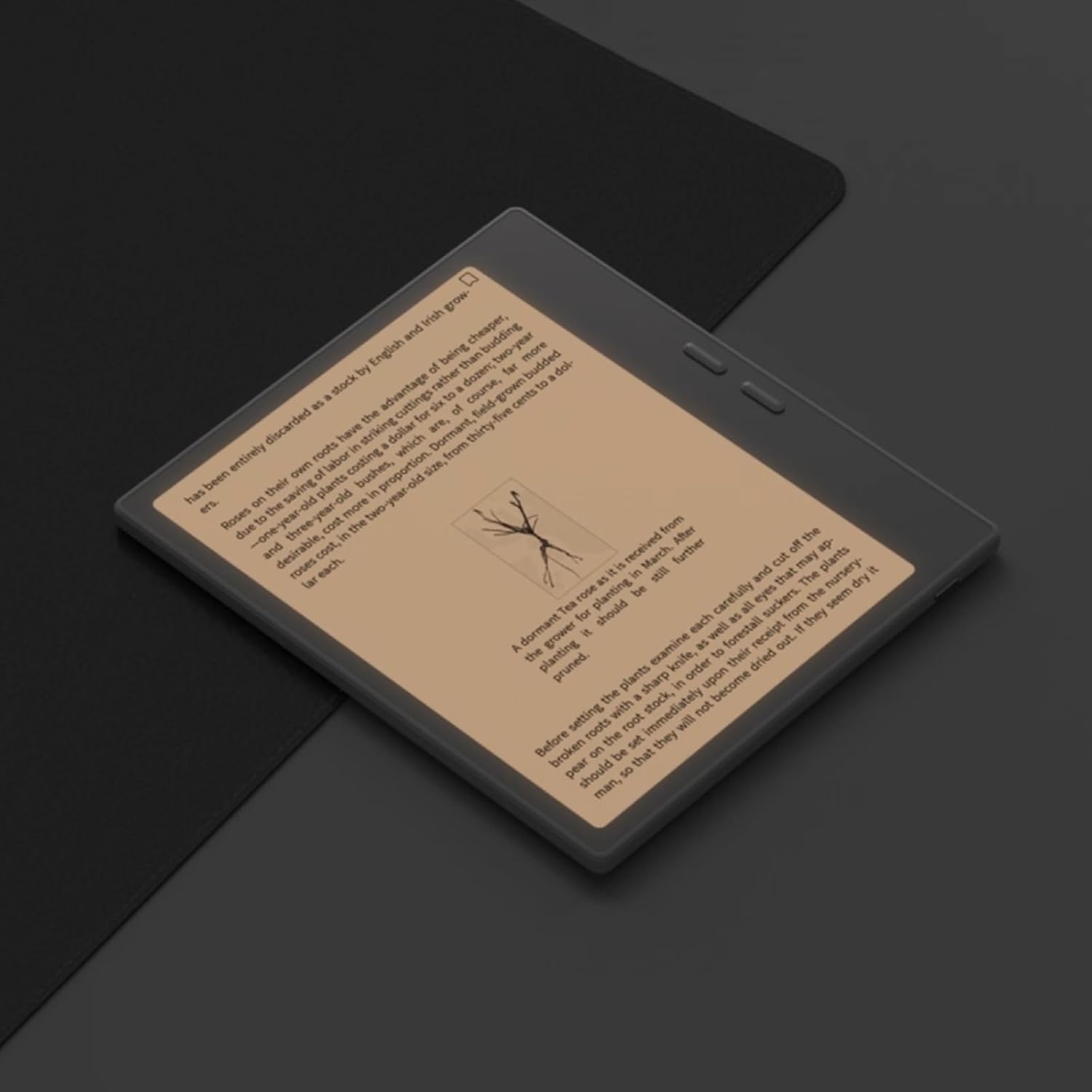
Figure 6.1: Reading with Frontlight
6.3 Using Android Applications
As an Android 13 device, the BOOX Go 7 allows installation of various applications from the Google Play Store. Navigate to the App Store, search for your desired application, and install it. Note that some applications may not be fully optimized for ePaper displays.

Figure 6.2: Various Android Applications on BOOX Go 7
6.4 Note-Taking and Drawing
Utilize the stylus (if included or purchased separately) for note-taking, sketching, and annotating documents. The device offers various templates and tools for creative and organizational tasks.

Figure 6.3: Stylus Use for Note-Taking

Figure 6.4: Handwriting to Text Conversion
7. Manteniment
7.1 Neteja del dispositiu
Use a soft, lint-free cloth to gently wipe the screen and body of the device. Do not use harsh chemicals, abrasive cleaners, or excessive moisture.
7.2 Actualitzacions de programari
Regularly check for and install software updates to ensure optimal performance and access to new features. Connect to Wi-Fi and navigate to Configuració > Sistema > Actualització del sistema per comprovar si hi ha actualitzacions disponibles.
8. Solució De Problemes
- El dispositiu no s'encén: Ensure the device is charged. Connect it to a power source and try again.
- La pantalla no respon: Perform a soft reset by holding the Power button for 10-15 seconds.
- Problemes de connexió Wi-Fi: Verify your Wi-Fi password and router settings. Try restarting your router and the device.
- Les aplicacions es bloquegen: Ensure applications are updated to their latest versions. Clear the app's cache or reinstall if issues persist.
9. Especificacions
| Marca | BOX |
| Nom del model | Aneu 7 |
| Capacitat d'emmagatzematge | 64 GB |
| Mida de la pantalla | 7 polzades |
| Resolució màxima de pantalla | 300 Pixels per inch |
| Sistema operatiu | Android 13 |
| Color | Noir (Negre) |
| Mida de la RAM instal·lada | 4 GB |
| Característiques especials | USB OTG support, Expandable storage, Stylus support |
| Any model | 2025 |
| Tipus de bateria | Ió de liti |
| Contingut d'energia de la bateria | 8.8 watts-hora |
| Marca del processador | Qualcomm |
| Descripció del processador | Qualcomm Snapdragon |
| Càmera | Sense càmera |
| Tipus de sensor | Giroscopi |
| Item Dimensions (LxWxT) | 15.6L x 0.6W x 13.7T centimeters |
| Mètode d'entrada | Touchscreen with stylus |
| Descripció de la targeta gràfica | Integrat |
| Dispositius compatibles | Stylus |
| Tipus de visualització | Tinta electrònica |
| Resolució de pantalla | 1280 x 800 píxels |
| Relació d'aspecte | 16:10 |
| Connectivitat de maquinari | USB |
| Tecnologia sense fils | Bluetooth, Wi-Fi (802.11ax) |
| Ports USB totals | 1 |

Figure 9.1: BOOX Go 7 Energy Label (Enllaç EPREL)
10. Informació de la garantia
The BOOX Go 7 ePaper Tablet comes with a Garantia limitada d'2 any. This warranty covers manufacturing defects under normal use. For specific terms and conditions, please refer to the warranty card included in your package or contact customer support.
The standard return policy allows for returns within 30 days of purchase for refund or replacement.
11. Suport
For technical assistance, troubleshooting, or warranty claims, please contact BOOX customer service. You can find support resources and submit inquiries through the official BOOX help center.
- Actualitzacions de firmware: BOOX commits to at least 3 years of firmware updates for each product.
- Emmagatzematge al núvol: 10 GB of free cloud storage is provided for each user.
- Temps de resposta: Les consultes dels clients normalment es responen en un termini de 24 hores.
Per a més informació, visiteu el BOOX Brand Store on Amazon.


