
1. Producte acabatview
The Newmen GM325Pro is a 104-key wired mechanical keyboard designed for gaming and general use. It features a durable metal panel, hot-swappable linear red switches, rainbow LED backlighting, and customizable software. This manual provides instructions for setup, operation, maintenance, and troubleshooting.

Image 1.1: Newmen GM325Pro Mechanical Keyboard. This image displays the full 104-key layout of the keyboard, highlighting its black keycaps, gray metal panel, and the included detachable USB-C cable. A single red mechanical switch is also shown separately.
Característiques principals:
- Disposició de 104 tecles: Full-size keyboard for comprehensive functionality.
- Panell metàl·lic: Durable construction for enhanced stability and longevity.
- Wired USB-C Connection: Detachable cable for stable and fast data transmission.
- Rainbow LED Backlighting: 13 preset effects and RGB side-edge illumination.
- Interruptors vermells lineals: Smooth, responsive, and quiet operation with 45g actuation force and 50 million click durability.
- Disseny intercanviable en calent: Supports 3-pin switches for easy replacement without soldering.
- Full-Key Rollover: Ensures every keystroke is registered accurately.
- Programari de personalització: Allows remapping keys, recording macros, and personalizing lighting.
- Disseny ergonòmic: Dual-layer adjustable feet and anti-slip pads for comfortable use.
2. Instruccions de configuració
2.1 Contingut del paquet
- 1 x Newmen GM325Pro Wired Mechanical Keyboard
- 1 x cable USB tipus C
- 1 x Manual d'usuari (aquest document)
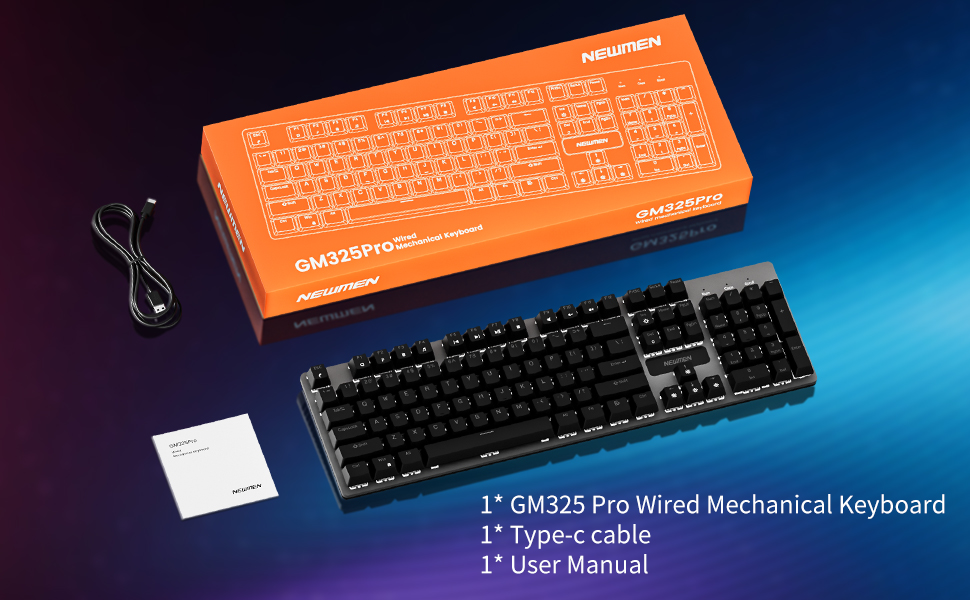
Image 2.1: Package contents of the Newmen GM325Pro Mechanical Keyboard, including the keyboard, USB-C cable, and user manual, displayed alongside the product packaging.
2.2 Connexió del teclat
- Locate the detachable USB-C cable provided in the package.
- Connect the USB-C end of the cable to the port on the Newmen GM325Pro keyboard.
- Connect the USB-A end of the cable to an available USB port on your computer (desktop PC or laptop).
- The keyboard is plug-and-play and should be automatically recognized by your operating system (Windows, macOS). No drivers are typically required for basic functionality.

Image 2.2: Detachable Wired Connection. This image shows the Newmen GM325Pro keyboard connected to a laptop via its USB-C cable, illustrating the plug-and-play setup for stable and fast transmission.
2.3 Ajust de les potes del teclat
The keyboard features dual-layer adjustable feet and four anti-slip pads on the underside. Adjust the feet to your preferred typing angle for ergonomic comfort and stability.
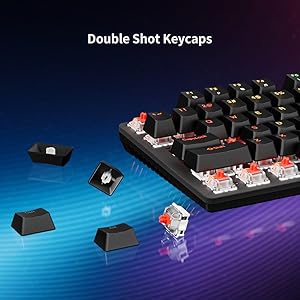
Image 2.3: Dual-Layer Feet + 4 Anti-Slip Pads. This image highlights the adjustable dual-angle feet and reinforced anti-slip pads on the keyboard's underside, designed for ergonomic typing and stability.
3. Instruccions de funcionament
3.1 Basic Typing and Gaming
The Newmen GM325Pro uses linear red mechanical switches, providing a smooth and responsive keystroke. The full-key rollover feature ensures that all simultaneous key presses are registered accurately, which is beneficial for fast-paced gaming and typing.

Image 3.1: Responsive Mechanical Red Switches. This image provides a close-up of the keyboard's linear red switches, illustrating their design for smooth actuation and durability.
3.2 Control de la il·luminació
The keyboard features rainbow LED backlighting with 13 preset effects and RGB side-edge illumination. Use the following FN key combinations to control the lighting:
- FN + PrtSc: Switch Backlight Effects
- FN + ScrLk: Toggle Side LED Effects
- FN + Pause: Augmenta la brillantor
- FN + Ins: Disminueix la brillantor
- FN + Inici: Slow Down Lighting Effects
- FN + Re Pàg: Speed Up Lighting Effects

Image 3.2: Immersive Rainbow Backlight. This image showcases the vibrant rainbow LED backlighting across the keyboard keys.

Image 3.3: Vibrant LED & Side Glow Lights. This image highlights the dynamic LED backlighting and the distinct side glow lights of the keyboard.
3.3 Multimedia and Shortcut Functions
Access various multimedia and system functions using the FN key in combination with the F1-F11 keys:
- FN + F1: Obert File Explorer (My Computer)
- FN + F2: Cerca ràpida
- FN + F3: Calculadora
- FN + F4: Reproductor multimèdia
- FN + F5: Pista anterior
- FN + F6: Pista següent
- FN + F7: Reproduir/Pausa
- FN + F8: Atura la reproducció
- FN + F9: Silenciar
- FN + F10: Baixa el volum
- FN + F11: Puja el volum
- FN + Win: Locks both Windows and App keys; press again to unlock.

Image 3.4: Support for Multiple Key Combinations. This diagram visually represents the FN key shortcuts for multimedia control and lighting adjustments.
3.4 Personalització del programari
For advanced customization, including key remapping, macro recording, and detailed lighting personalization, download the official Newmen software. This software allows you to tailor the keyboard's functions to your specific needs.
- Visit the official Newmen website to download the latest version of the customization software.
- Install the software on your computer and follow the on-screen instructions.
- Use the software interface to create profiles, assign macros, and adjust lighting effects beyond the default presets.

Image 3.5: Custom Software. This image displays the user interface of the Newmen customization software, showing options for macro editing and lighting adjustments.
4. Manteniment
4.1 Neteja del teclat
- Desconnecteu el teclat de l'ordinador abans de netejar-lo.
- Utilitzeu un drap suau i sense pelusa lleugerament dampened with water or a mild cleaning solution to wipe down the keycaps and metal panel.
- Per a la pols i les restes entre les tecles, feu servir aire comprimit.
- Eviteu ruixar líquids directament sobre el teclat.
4.2 Commutadors intercanviables en calent
The Newmen GM325Pro features hot-swappable sockets, allowing you to change mechanical switches without soldering. This keyboard supports 3-pin switches.
- Traieu suaument la tapa de les tecles amb un extractor de taps de tecles (no inclòs).
- Use a switch puller (not included) to carefully extract the mechanical switch from its socket.
- Align the pins of the new 3-pin switch with the holes in the PCB and press it firmly until it clicks into place. Ensure the pins are straight to avoid bending.
- Substitueix la tapa de les tecles.

Image 4.1: Hot Swappable Linear Switch. This image demonstrates the hot-swappable nature of the switches, showing a keycap and switch removed from the keyboard.
5. Solució De Problemes
5.1 El teclat no respon
- Assegureu-vos que el cable USB-C estigui connectat correctament tant al teclat com a l'ordinador.
- Prova de connectar el teclat a un port USB diferent de l'ordinador.
- Test the keyboard on another computer to determine if the issue is with the keyboard or the computer's USB port.
- Reinicieu l'ordinador.
5.2 Problemes d'il·luminació
- Verify that the lighting is not turned off or set to minimum brightness using the FN key combinations (FN + Pause/Ins).
- If using custom software, ensure the lighting profile is correctly applied and the software is running.
- Perform a factory reset: Press and hold FN + ESC for 3 seconds to restore default settings.
5.3 Key Input Errors (Ghosting/Missed Presses)
- The GM325Pro supports full-key rollover, so ghosting should not occur under normal operation.
- Ensure the keyboard is clean and free of debris that might obstruct key switches.
- If a specific key is consistently failing, consider replacing the hot-swappable switch for that key (refer to Section 4.2).
6. Especificacions
| Característica | Detall |
|---|---|
| Nom del model | GM325 Pro |
| Marca | Els nous |
| Disseny | 104 Keys (Full-size) |
| Tipus de canvi | Linear Red Mechanical Switches (Hot-swappable, 3-pin) |
| Força d'accionament | 45 g |
| Durabilitat | 50 milions de clics |
| Il·luminació de fons | Rainbow LED Backlit, RGB Side Lighting |
| Connectivitat | Wired (Detachable USB-C) |
| Material | Tauler de metall |
| Dispositius compatibles | Portàtil, PC |
| Sistema operatiu | Windows, macOS (basic functionality) |
| Pes de l'article | 2.18 lliures |
| Dimensions del paquet | 17.72 x 7.48 x 1.97 polzades |
7. Garantia i Suport
For information regarding warranty coverage, terms, and conditions, please refer to the documentation included with your product packaging or visit the official Newmen website. For technical support or further assistance, please contact Newmen customer service through their official channels.
Newmen Official Weblloc: Visit Newmen Store on Amazon