
1. Introducció
This manual provides detailed instructions for the installation, operation, and maintenance of your Orbitell Q50 1080p WiFi Outdoor Security Camera. Please read this manual thoroughly before using the product to ensure correct usage and optimal performance.

Image 1.1: Orbitell Q50 Outdoor Security Camera with integrated solar panel and a smartphone displaying live feed.
2. Contingut del paquet
Verifiqueu que tots els elements que s'enumeren a continuació siguin presents al vostre paquet:
- Orbitell Q50 Security Camera
- Manual d'instruccions (aquest document)
- Cargols de muntatge i tacs de paret
3. Característiques del producte
The Orbitell Q50 camera offers a range of advanced features for comprehensive outdoor surveillance:
- 1080p Full HD: Ofereix vídeo clar i detallat.
- Solar Panel & Battery Powered: Ensures continuous operation with solar charging and a built-in rechargeable battery.
- AI Motion & Human Detection: Intelligent alerts differentiate people from other movements, reducing false alarms.
- Àudio bidireccional: Permet la comunicació en temps real a través de la càmera.
- IP65 Weather Resistant: Dissenyat per suportar diferents condicions meteorològiques.
- 2.4GHz Wi-Fi Support: Per a una connectivitat sense fil estable.
- Control de panoràmica i inclinació: Remote adjustment of viewing angles for wide coverage.

Image 3.1: Visual representation of key features including AI Human Detection, Color Night Vision, 355° Panoramic Surveillance, 2.4GHz Wi-Fi, Two-way Talk, and Cloud Storage.
4. Configuració
4.1 Càrrega inicial
Before first use, ensure the camera's battery is fully charged. The integrated solar panel will charge the battery when exposed to direct sunlight. For initial setup or if the battery is depleted, connect the camera to a standard 5V/2A USB power adapter (not included) using the provided USB cable.

Image 4.1: The camera mounted outdoors, illustrating how the solar panel charges the device using sunlight.
4.2 Instal·lació de l'aplicació
Download the official Orbitell security camera application from your smartphone's app store (iOS App Store or Android Google Play Store). Cerca "Orbitell" or scan the QR code provided in the quick start guide (if applicable).
4.3 Emparellament de la càmera
- Open the Orbitell app and create an account or log in.
- Tap the "Add Device" or "+" icon.
- Follow the on-screen instructions to connect the camera to your 2.4GHz Wi-Fi network. Ensure your phone is connected to the same 2.4GHz Wi-Fi network during setup.
- Escaneja el codi QR que es mostra al telèfon amb l'objectiu de la càmera quan se't demani.
- Un cop connectada, posa un nom a la càmera i completa el procés de configuració.
4.4 Muntatge de la càmera
Choose a suitable outdoor location with good Wi-Fi signal and direct sunlight exposure for the solar panel. Use the provided mounting screws and wall plugs to securely attach the camera to a wall or other stable surface. Ensure the camera has a clear field of view.
5. Instruccions de funcionament
5.1 Viu View
Open the Orbitell app and select your camera from the device list to access the live video feed. You can view foo en temps realtage from your camera anytime, anywhere.
5.2 Control de panoràmica i inclinació
Del directe view interface in the app, use the directional controls to remotely adjust the camera's horizontal (pan) and vertical (tilt) angles. The camera offers 355° horizontal rotation and 90° vertical rotation for extensive coverage.

Image 5.1: Diagram illustrating the 355° horizontal and 90° vertical rotation capabilities of the camera.
5.3 Àudio bidireccional
Per utilitzar la funció d'àudio bidireccional, toqueu la icona del micròfon a la pantalla en directe view interface. You can then speak through your phone, and your voice will be projected through the camera's speaker. Similarly, you can hear audio from the camera's vicinity through your phone.
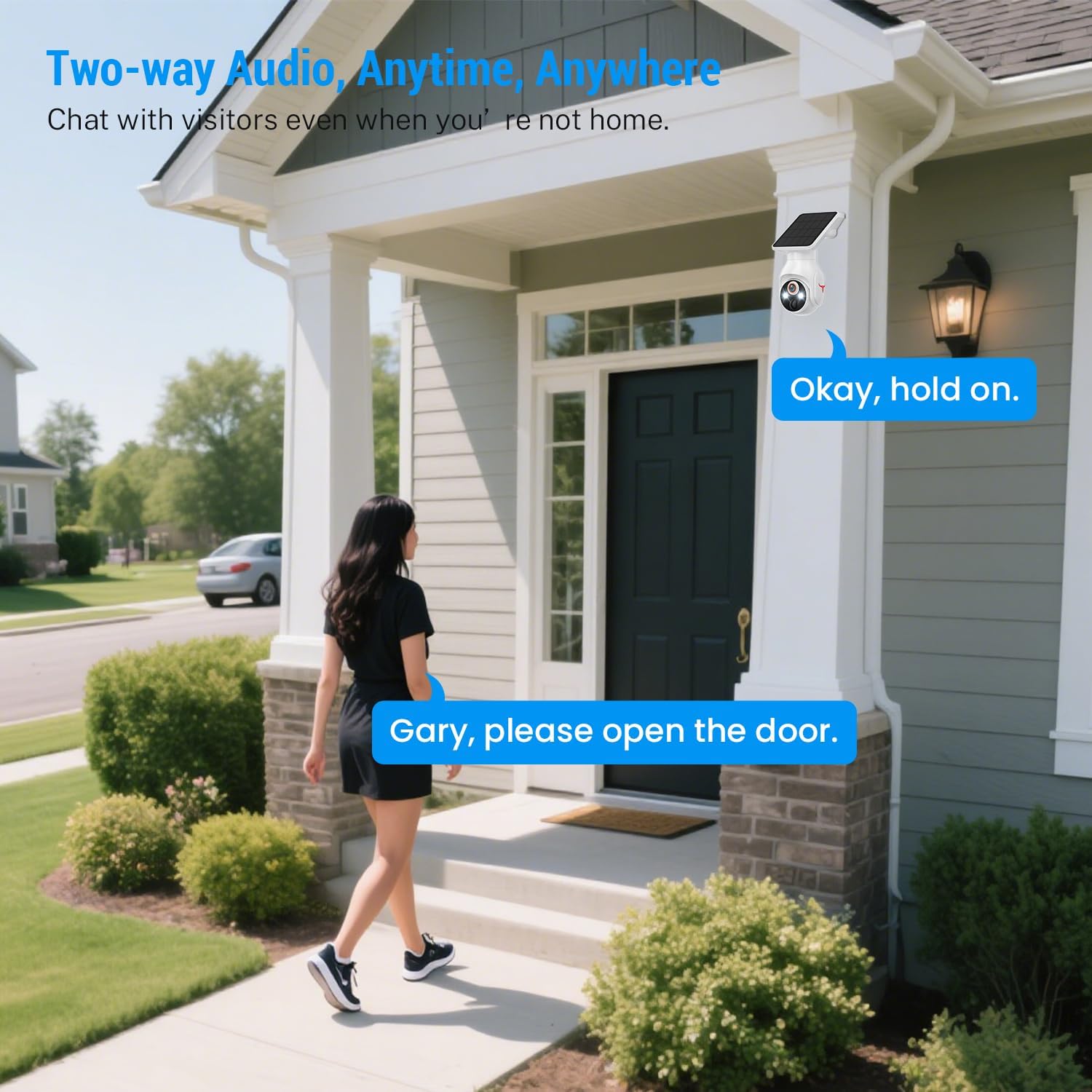
Image 5.2: A person interacting with a visitor at their door using the camera's two-way audio feature.
5.4 Detecció de moviment i alertes
The camera features AI-powered human detection. When a human is detected within the camera's field of view, you will receive a notification on your smartphone. This intelligent detection helps minimize false alarms from pets or vehicles.
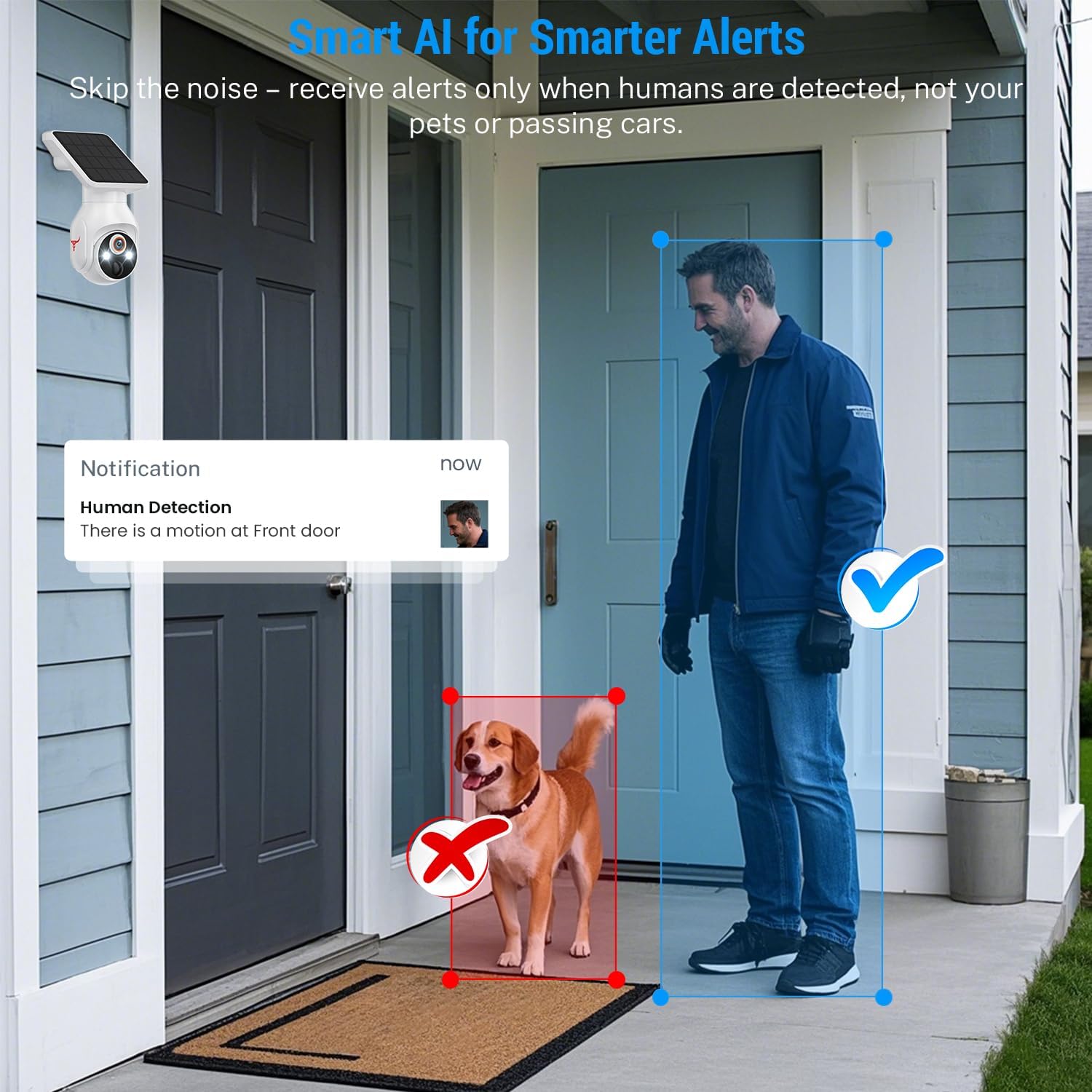
Image 5.3: An illustration showing the camera detecting a human while ignoring a dog, demonstrating the AI human detection feature.
5.5 Visió nocturna
The Orbitell Q50 camera provides both color night vision and infrared (IR) night vision for clear visibility in low-light conditions. The camera automatically switches to the appropriate mode based on ambient light.
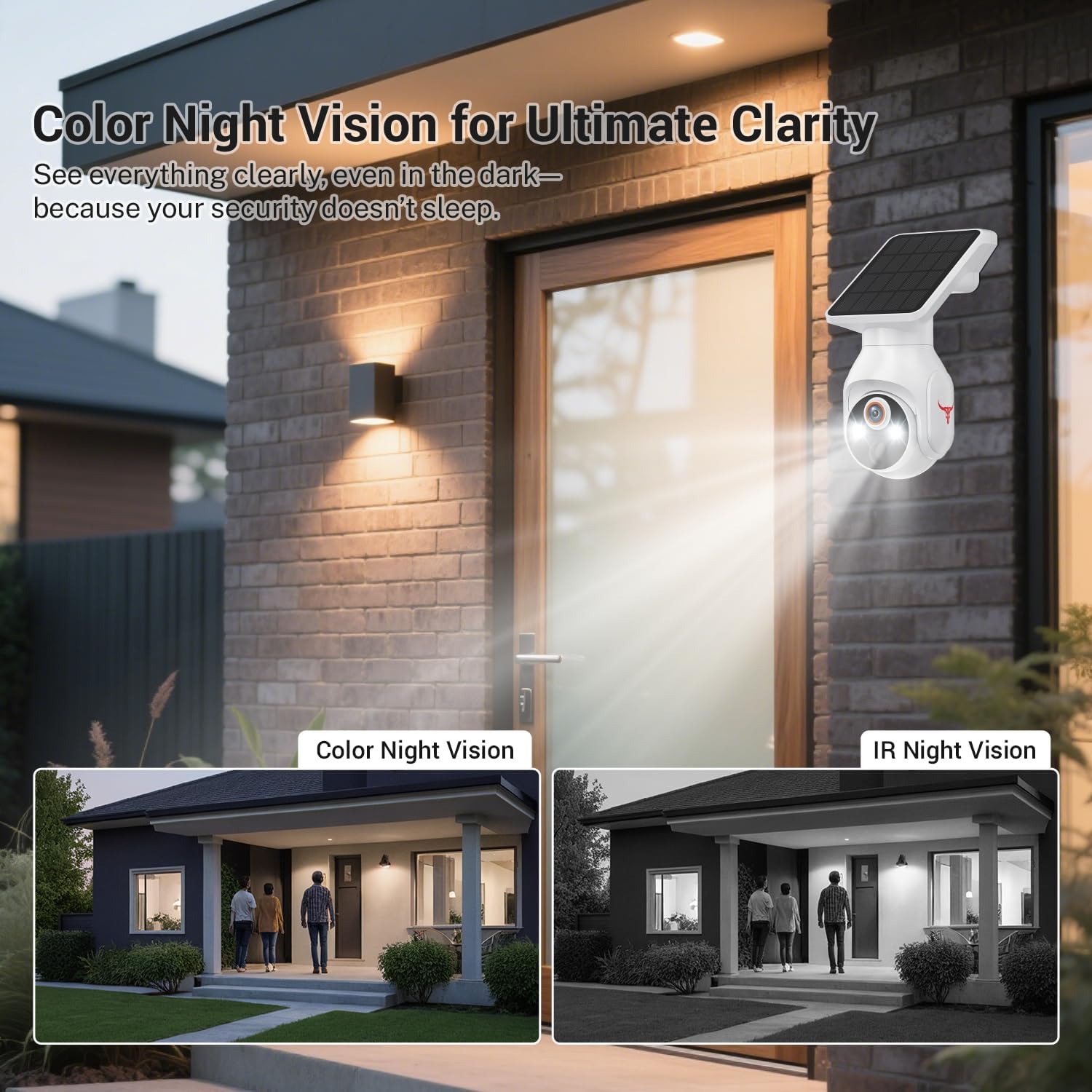
Image 5.4: Comparison of color night vision and IR night vision, showing enhanced clarity in dark environments.
5.6 Emmagatzematge al núvol
The camera supports optional cloud storage for recorded video footage. An active subscription plan (sold separately) is required to utilize this feature. Refer to the Orbitell app for details on available plans.

Image 5.5: Visual representation of cloud storage functionality, showing various recorded events.
6. Manteniment
6.1 Neteja
Netegeu regularment la lent de la càmera i el panell solar amb un drap suau i sec.amp cloth to ensure optimal performance. Avoid using abrasive cleaners or solvents that could damage the surfaces.
6.2 Gestió de la bateria
The camera's battery is designed for long-term use with solar charging. If the camera is installed in an area with limited sunlight, occasional manual charging via USB may be necessary to maintain battery health.
6.3 actualitzacions de microprogramari
Periodically check the Orbitell app for available firmware updates. Keeping your camera's firmware up-to-date ensures access to the latest features and security enhancements.
7. Solució De Problemes
- La càmera no es connecta a la Wi-Fi: Assegureu-vos que la vostra xarxa Wi-Fi sigui de 2.4 GHz. Comproveu la intensitat del senyal Wi-Fi a la ubicació de la càmera. Reinicieu el router i la càmera.
- No en directe view: Check your internet connection and the camera's power status. Ensure the camera is online in the app.
- Poca qualitat d'imatge: Clean the camera lens. Ensure there are no obstructions in the field of view. Check your network speed.
- La bateria no es carrega: Ensure the solar panel is receiving direct sunlight and is free from dirt or obstructions. If necessary, manually charge the camera via USB.
- Alertes de moviment fals: Adjust the motion detection sensitivity settings in the app. Ensure AI human detection is enabled.
8. Especificacions
| Característica | Especificació |
|---|---|
| Nom del model | P50 |
| Resolució de captura de vídeo | 1080p |
| Ús interior/exterior | A l'aire lliure |
| Font d'alimentació | Funciona amb bateria i amb energia solar |
| Tecnologia de connectivitat | Sense fil (Wi-Fi de 2.4 GHz) |
| Tipus de muntatge | Muntatge de paret |
| Característiques especials | 2-Way Audio, Built-In Light, Motion Sensor (AI Human Detection) |
| Classificació IP | IP65 resistent a la intempèrie |
| Capacitat de la bateria | 5200 milionsamp Hores |
| Dimensions del producte | 4.52 x 3.42 x 7.44 polzades |
| Pes de l'article | 1.39 lliures (0.63 quilograms) |
9. Garantia i Suport
Orbitell products come with a limited warranty. For detailed warranty information, technical support, or service inquiries, please visit the official Orbitell website or contact customer support through the Orbitell app. Please retain your proof of purchase for warranty claims.