
1. Producte acabatview
The DOOGEE Tab A9 is a 10.1-inch Android 15 tablet designed for versatile use, from productivity to entertainment. It features a quad-core processor, ample memory, and a high-capacity battery, complemented by a suite of accessories for enhanced functionality.
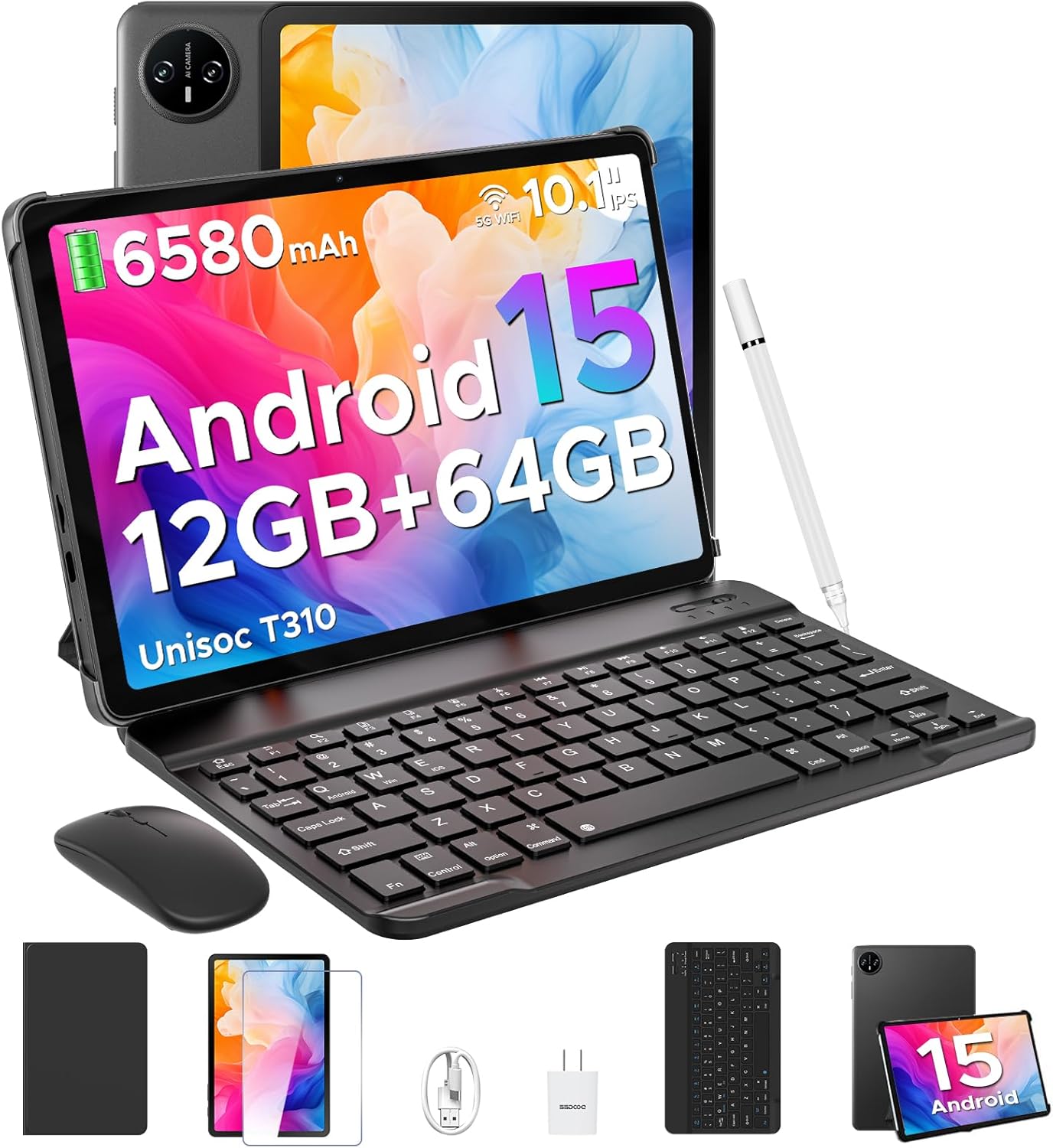
Image 1.1: DOOGEE Tab A9 tablet with its complete accessory kit.
Característiques principals:
- Sistema operatiu: Android 15 for enhanced performance and privacy.
- Processador: Unisoc T310 Quad-Core, 2.0GHz.
- Memòria i emmagatzematge: 12GB RAM (3GB physical + 9GB virtual) and 64GB internal storage, expandable up to 2TB via microSD.
- Visualització: 10.1-inch IPS HD (1280x800) touchscreen.
- Bateria: 6580 mAh per a un ús prolongat.
- Càmeres: Càmera posterior de 8MP i càmera frontal de 5MP.
- Connectivitat: 2.4G/5G Dual-band WiFi, Bluetooth 5.0.
- Seguretat: Desbloqueig facial.
- Àudio: Dual speakers and 3.5mm headphone jack.
2. Què s'inclou
Your DOOGEE Tab A9 package includes the following items:

Image 2.1: Contents of the DOOGEE Tab A9 package.
- DOOGEE Tab A9 Tablet
- Teclat Bluetooth
- Ratolí Bluetooth
- Bolígraf
- Protector de pantalla
- Funda protectora
- Carregador
- Cable USB-Type C
- Manual d'usuari
3. Configuració
3.1 Càrrega inicial
Before first use, fully charge your tablet using the provided charger and USB Type-C cable. Connect the cable to the tablet's charging port and the charger to a power outlet. The battery indicator on the screen will show charging status.
3.2 Encès/Apagat
- Per encendre: Press and hold the Power button (located on the side of the tablet) until the DOOGEE logo appears.
- Per apagar: Mantingueu premut el botó d'engegada i, a continuació, seleccioneu "Apagar" de les opcions que apareixen a la pantalla.
- Per reiniciar: Mantingueu premut el botó d'engegada i, a continuació, seleccioneu "Reiniciar" de les opcions.
3.3 Connecting Accessories (Keyboard & Mouse)
The included keyboard and mouse connect via Bluetooth:
- Ensure the keyboard/mouse is charged and powered on.
- A la tauleta, vés a Configuració > Dispositius connectats > Bluetooth.
- Activa el Bluetooth i busca els dispositius disponibles.
- Select the keyboard or mouse from the list and follow any on-screen pairing instructions.
3.4 Inserció d'una targeta MicroSD
To expand storage, insert a microSD card (up to 2TB, sold separately):
- Localitza la safata de la targeta SIM/microSD al lateral de la tauleta.
- Feu servir l'eina d'expulsió de la SIM proporcionada per obrir la safata.
- Place the microSD card into the designated slot on the tray.
- Torneu a inserir la safata a la tauleta amb cura.
4. Instruccions de funcionament
4.1 Android 15 System
Your DOOGEE Tab A9 runs on Android 15, offering improved app launch speeds, system smoothness, and enhanced privacy controls. Explore the intuitive interface and customize settings to your preference.
Vídeo 4.1: Acabatview of the DOOGEE Tab A9 tablet's features, including its display, speakers, and connectivity.

Image 4.1: The Android 15 system logo, highlighting its intelligent, seamless, and secure features.
4.2 Configuració de la pantalla
The 10.1-inch IPS HD display offers clear visuals. You can adjust display settings for comfort:
- Mode de cura dels ulls: Reduces blue light to minimize eye strain. Activate it in Settings > Display > Eye Care Mode.
- Mode fosc: Changes the system theme to a darker palette, ideal for low-light environments. Activate it in Settings > Display > Dark Mode.

Image 4.2: Visual representation of the tablet's 10.1-inch IPS HD display and its key specifications.
4.3 Ús de la càmera
Capture photos and videos with the tablet's cameras:
- Càmera posterior (8MP): Suitable for general photography.
- Càmera frontal (5MP): Ideal per a videotrucades i selfies.
Open the Camera app from the home screen or app drawer to start. Tap the shutter button to take a photo or switch to video mode to record.

Imatge 4.3: Ex.amples of photos taken with the 8MP main camera.

Image 4.4: The 5MP front camera is suitable for clear video calls.
4.4 Funcions d'àudio
The tablet is equipped with dual speakers for clear audio output and a 3.5mm audio jack for private listening with headphones.

Image 4.5: Illustration of the tablet's dual speaker system for enhanced audio.
4.5 Connectivitat
- Wi-Fi: Supports 2.4G and 5G dual-band Wi-Fi for stable and fast internet access. Connect via Configuració > Xarxa i Internet > Wi-Fi.
- Bluetooth 5.0: For connecting wireless peripherals like headphones, speakers, and the included keyboard and mouse. Manage connections in Configuració > Dispositius connectats > Bluetooth.

Image 4.6: Features of the tablet's WiFi 5 connectivity.
4.6 Desbloqueig facial
For convenient and secure access, set up Face Unlock:
- Vés a Settings > Security & privacy > Face unlock.
- Seguiu les instruccions a la pantalla per registrar la vostra cara.
- Ensure you are in a well-lit area during registration for optimal performance.

Image 4.7: The tablet's facial recognition unlock feature in action.
4.7 Multitasking with Split-Screen
Utilize the split-screen feature to run two apps simultaneously:
- Open the first application.
- Llisca cap amunt des de la part inferior de la pantalla i mantén premut per accedir a les aplicacions recents.
- Tap the app icon at the top of the first app's card and select "Split screen".
- Trieu la segona aplicació de les vostres aplicacions recents o del calaix d'aplicacions per omplir l'altra meitat de la pantalla.

Image 4.8: Demonstrating efficient split-screen multitasking on the tablet.
4.8 Rendiment i emmagatzematge
The Unisoc T310 Quad-Core processor and 12GB RAM (3GB physical + 9GB virtual) ensure smooth operation for daily tasks and multitasking. The 64GB internal storage provides space for essential apps and files, with expandable storage up to 2TB via microSD card.
Video 4.2: Highlights of the DOOGEE Tab A9's processor, RAM, and storage capabilities.

Image 4.9: Visual representation of the Unisoc T310 Quad-Core processor.

Image 4.10: Illustrates the tablet's memory and storage capacity, including expandable memory.
4.9 Durada de la bateria
The 6580mAh battery, combined with smart battery management, provides all-day usage. Actual battery life may vary based on usage patterns and settings.

Image 4.11: Details on the 6580mAh battery capacity and estimated usage times.
5. Manteniment
- Actualitzacions de programari: Comproveu i instal·leu regularment si hi ha actualitzacions del sistema per garantir un rendiment i una seguretat òptims. Aneu a Configuració > Sistema > Actualització del sistema.
- Neteja: Feu servir un drap suau i sense borrissol per netejar la pantalla i el cos de la tauleta. Eviteu materials abrasius o productes químics agressius.
- Cura de la bateria: To prolong battery life, avoid extreme temperatures and do not let the battery fully discharge frequently.
- Gestió d'emmagatzematge: Netegeu periòdicament els innecessaris files and apps to maintain system speed.
6. Solució De Problemes
Consulteu la taula següent per veure els problemes habituals i les seves solucions:
| Problema | Possible solució |
|---|---|
| La tauleta no s'encén | Assegureu-vos que la bateria estigui carregada. Connecteu el carregador i torneu-ho a provar. Si no respon, premeu i manteniu premut el botó d'engegada durant 10-15 segons per forçar un reinici. |
| Problemes de connexió Wi-Fi | Restart the tablet and your Wi-Fi router. Check Wi-Fi settings to ensure the correct network is selected and the password is entered correctly. |
| El dispositiu Bluetooth no està vinculat | Ensure the Bluetooth device is in pairing mode and within range. Restart both the tablet and the Bluetooth device. Check tablet's Bluetooth settings. |
| Rendiment lent | Tanca les aplicacions no utilitzades. Esborra la memòria cau i les aplicacions temporals files. Consider uninstalling rarely used apps. Perform a system update if available. |
| La pantalla no respon | Reinicia la tauleta. Si el problema persisteix, assegura't que la pantalla estigui neta i sense brutícia. |
7. Especificacions
| Característica | Detall |
|---|---|
| Nom del model | Pestanya A9 |
| Sistema operatiu | Android 15 |
| Processador | Unisoc T310 Quad-Core, 2 GHz |
| RAM | 12 GB (3 GB físic + 9 GB virtual) |
| Emmagatzematge intern | 64 GB |
| Emmagatzematge ampliable | Fins a 2 TB mitjançant targeta MicroSD |
| Mida de la pantalla | 10.1 polzades |
| Resolució de pantalla | 1280 x 800 pixels (IPS HD) |
| Càmera posterior | 8 MP |
| Càmera frontal | 5 MP |
| Capacitat de la bateria | 6580 mAh |
| Tipus sense fil | 802.11ac, 802.11b, 802.11g, 802.11n (2.4G/5G WiFi) |
| Bluetooth | Bluetooth 5.0 |
| Dimensions (LxWxH) | 9.54 x 6.33 x 0.38 polzades |
| Pes de l'article | 1.12 lliures |
8. Garantia i Suport
Your DOOGEE Tab A9 tablet comes with a 2 any de garantia i suport tècnic de per vida. For any questions, issues, or support needs, please contact DOOGEE customer service. Refer to the warranty card included in your package for specific terms and conditions.