
1. Introducció
This manual provides detailed instructions for the setup, operation, maintenance, and troubleshooting of your OMOTON Bluetooth Keyboard. Please read this manual thoroughly before using the product to ensure proper functionality and longevity.
2. Contingut del paquet
Verifiqueu que tots els elements siguin presents al paquet:
- 1 x OMOTON Bluetooth Keyboard
- 1 cable de càrrega tipus C
- 1 x Manual d'usuari (aquest document)
3. Característiques del producte
- Compatibilitat multisistema: Supports iOS, Windows, and Android operating systems.
- Compacte i portàtil: Ultra-thin design (6.6mm thickness) and lightweight (0.42 pounds) for easy transport. Dimensions: 9.7"L x 5.9"W x 0.2"H.
- Experiència de mecanografia millorada: Features large keycaps for comfortable and precise typing.
- Bateria recarregable: Built-in 500mAh lithium battery provides up to 200 hours of working time on a 2-3 hour charge.
- Retroiluminació de 7 colors: Adjustable backlight with 7 color options and 3 brightness levels for typing in various lighting conditions.
- Mode de repòs automàtic: Conserves battery by entering sleep mode after 30 minutes of inactivity.
4. Instruccions de configuració
4.1 Càrrega del teclat
Before initial use, fully charge the keyboard. Connect the provided Type-C charge cable to the keyboard's charging port and to a USB power source. The charge indicator light will illuminate during charging and turn off when fully charged.
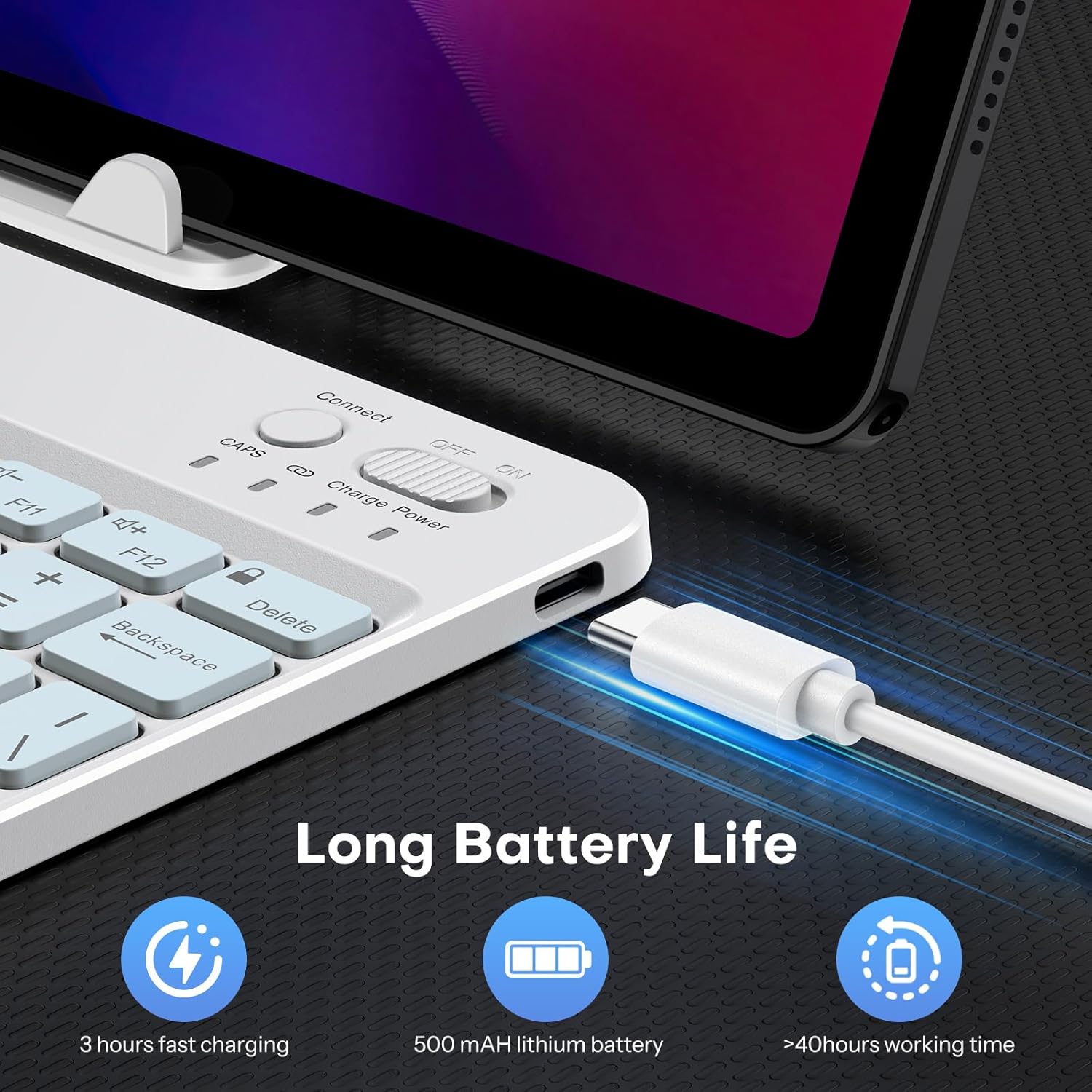
Image: Close-up of the keyboard showing the Type-C charging port and cable connected. The image highlights the charging process and the port location.
4.2 Vinculació Bluetooth
- Turn on the keyboard by sliding the power switch to the 'ON' position. The power indicator light will briefly illuminate.
- Press the 'Connect' button (usually located near the power switch) to enter pairing mode. The Bluetooth indicator light will flash, indicating it is ready to pair.
- On your device (tablet, phone, computer), enable Bluetooth and search for available devices.
- Select 'OMOTON Keyboard' (or similar name) from the list of found devices.
- If prompted, enter the pairing code displayed on your device using the OMOTON keyboard and press Enter.
- Once paired, the Bluetooth indicator light on the keyboard will stop flashing and remain solid for a few seconds, then turn off. The keyboard is now connected.

Imatge: Una imatge superior view of the OMOTON Bluetooth Keyboard, highlighting the power switch and the 'Connect' button, which are essential for initiating Bluetooth pairing.
4.3 Switching Operating Systems
The keyboard is compatible with multiple operating systems. It is crucial to switch to the correct system mode for optimal functionality. Press the following key combinations:
- FN + A: For iOS / iPadOS / macOS devices
- FN + S: Per a dispositius Windows
- FN + D: Per a dispositius Android

Image: A visual guide on the keyboard showing the FN key combined with A, S, or D keys to switch between iOS, Windows, and Android operating system modes.
5. Instruccions de funcionament
Control de retroiluminació 5.1
The keyboard features a 7-color adjustable backlight with 3 brightness levels.
- To turn the backlight on/off or adjust brightness, press the Fn tecla simultàniament amb la lightbulb icon key (usually located near the right Ctrl key). Repeated presses will cycle through brightness levels or turn off the backlight.
- To change backlight colors, press the Fn tecla simultàniament amb la color palette icon key (usually located next to the lightbulb icon key). Repeated presses will cycle through the 7 available colors.

Image: The OMOTON Bluetooth Keyboard displaying various backlight colors, illustrating the 7-color and 3-brightness level adjustment feature.
5.2 Mode de repòs automàtic
To conserve battery life, the keyboard will automatically enter sleep mode after 30 minutes of inactivity. To wake the keyboard, press any key. There may be a slight delay as the keyboard reconnects to your device.
5.3 Tecles de funció
The top row of keys (F1-F12) can be used as standard function keys or as multimedia/shortcut keys. To access the secondary function (e.g., volume control, media playback), press the Fn simultàniament amb la tecla de funció desitjada.
6. Manteniment
To ensure the longevity and optimal performance of your OMOTON Bluetooth Keyboard, follow these maintenance guidelines:
- Neteja: Feu servir un drap suau, sec i sense borrissol per netejar la superfície del teclat. Per a la brutícia persistent, netegeu lleugerament.ampNetegeu el drap amb aigua o una solució de neteja suau. Eviteu l'excés d'humitat.
- Emmagatzematge: Quan no l'utilitzeu, guardeu el teclat en un lloc fresc i sec, allunyat de la llum solar directa i de temperatures extremes.
- Eviteu líquids: Do not expose the keyboard to liquids. Spills can cause permanent damage.
- Manejar amb cura: Avoid dropping the keyboard or subjecting it to strong impacts, as this can damage internal components.
7. Solució De Problemes
7.1 Keyboard Keys Not Working or Responding
- Confirm Device's Operating System: Ensure you have selected the correct operating system mode on the keyboard. Press FN+A per a iOS, FN+S per a Windows, o FN+D per a Android.
- Comproveu la connexió Bluetooth: Verify that the keyboard is properly paired and connected to your device. If not, re-initiate the pairing process (Section 4.2).
- Nivell de bateria: Assegureu-vos que el teclat tingui prou bateria. Torneu-la a carregar si cal.
- Reinicieu els dispositius: Try turning off and on both the keyboard and your device, then attempt to reconnect.

Image: A troubleshooting graphic explaining how to fix issues with keyboard keys not working, emphasizing confirming the device's operating system and switching modes.
7.2 Problemes de connexió Bluetooth
- Distància: Ensure the keyboard is within the effective range of your device's Bluetooth signal (typically up to 10 meters).
- Interferència: Allunyeu-vos d'altres dispositius sense fil que puguin causar interferències.
- Oblida el dispositiu: On your device, 'forget' or 'remove' the keyboard from your Bluetooth device list, then attempt to pair again.
8. Especificacions
| Marca | OMOTON |
| Model | B0F65RJ45J |
| Tecnologia de connectivitat | Bluetooth |
| Dispositius compatibles | Tablet, Android, Windows, iOS |
| Disposició del teclat | QWERTY |
| Característiques especials | Backlit (7 colors, 3 brightness levels), Ergonomic, Lightweight |
| Capacitat de la bateria | Bateria de liti de 500 mAh |
| Temps de càrrega | 2-3 hores |
| Temps de treball | Fins a 200 hores |
| Dimensions del producte (L x A x A) | 9.7" x 5.9" x 0.2" (247 mm x 150 mm x 6.6 mm) |
| Pes | 0.42 lliures |
| Material | Plàstic |

Image: A visual comparison of the OMOTON Bluetooth Keyboard's dimensions against a smartphone and a tablet, illustrating its compact and portable size.
9. Informació de la garantia
The OMOTON Bluetooth Keyboard comes with a 12 mesos de garantia from the date of purchase. This warranty covers manufacturing defects and malfunctions under normal use. It does not cover damage caused by misuse, accidents, unauthorized modifications, or external factors.
Conserveu el vostre comprovant de compra per a reclamacions de garantia.
10. Atenció al client
If you encounter any issues or have questions regarding your OMOTON Bluetooth Keyboard that are not addressed in this manual, please contact OMOTON customer support through the retailer's platform or the official OMOTON website. Our support team is available to assist you.
Per a més informació, visiteu el OMOTON Store on Amazon.