
1. Introducció
This manual provides detailed instructions for the setup, operation, and maintenance of your FREEWOLF M75 Wireless Dual-Mode Keyboard. Please read this manual thoroughly before using the product to ensure proper functionality and longevity.

Image 1.1: The FREEWOLF M75 Wireless Dual-Mode Keyboard, showcasing its compact layout and gradient keycaps.
2. Contingut del paquet
Before proceeding with setup, please verify that all items are present in the package:
- FREEWOLF M75 Keyboard x 1
- Cable USB-C x 1
- 2.4GHz Wireless Receiver x 1
- Manual d'usuari x 1

Image 2.1: Contents of the FREEWOLF M75 keyboard package, including the keyboard, USB-C cable, 2.4GHz receiver, and user manual.
3. Instruccions de configuració
3.1 Càrrega del teclat
The M75 keyboard is equipped with a 2000mAh rechargeable battery. For optimal performance, fully charge the keyboard before first use.
- Connect the supplied USB-C cable to the keyboard's charging port.
- Connecteu l'altre extrem del cable USB-C a una font d'alimentació USB (per exemple, un port USB de l'ordinador o un adaptador de paret).
- The OLED display will indicate charging status. A full charge provides approximately 150 hours of use with the backlight off, or 24 hours with the backlight on.

Image 3.1: Visual representation of the M75 keyboard's 2000mAh battery, highlighting its estimated usage duration with and without backlighting.
3.2 Connexió del teclat
The M75 keyboard supports dual-mode connectivity: 2.4GHz wireless and Bluetooth 5.1/5.2.

Image 3.2: The M75 keyboard demonstrating its dual-mode connection capabilities, supporting 2.4GHz wireless and Bluetooth for various devices.
Connexió sense fil 3.2.1 de 2.4 GHz
- Locate the 2.4GHz wireless receiver in the package.
- Plug the 2.4GHz receiver into an available USB port on your computer or compatible device.
- Turn on the keyboard using the switch located on the right side.
- The keyboard will automatically connect to the receiver. The OLED display will show the 2.4G connection status.
3.2.2 Connexió Bluetooth
The M75 keyboard supports up to two Bluetooth devices (BT1 and BT2).
- Turn on the keyboard using the switch on the right side.
- Manteniu premut el botó Fn clau i la BT1 or BT2 key (usually located on the right side near the OLED display) for 3-5 seconds until the indicator light flashes, indicating pairing mode.
- On your device (Windows PC, MacBook, Linux system, tablet, or smartphone), navigate to Bluetooth settings and search for new devices.
- Select "FREEWOLF M75" from the list of available devices to pair.
- Once connected, the OLED display will show the corresponding Bluetooth connection status (BT1 or BT2).
- To switch between connected Bluetooth devices, short press Fn + BT1 or Fn + BT2.
4. Instruccions de funcionament
4.1 Multi-functional Knob and OLED Display
The M75 keyboard features a multi-functional knob and an OLED display for enhanced control and information.

Imatge 4.1: Primer pla view of the M75 keyboard's multi-functional knob and OLED display, detailing their functions and indicators.
- Funcionalitat del botó:
- Rotate left/right: Adjusts system volume.
- Press down: Play/Pause media.
- Press down for 5 seconds: Adjusts backlight brightness.
- Pantalla OLED: Shows real-time information including battery level, current connection mode (2.4G, BT1, BT2), charging status, and low battery warnings.
Control de retroiluminació 4.2
The M75 keyboard features rainbow backlighting.
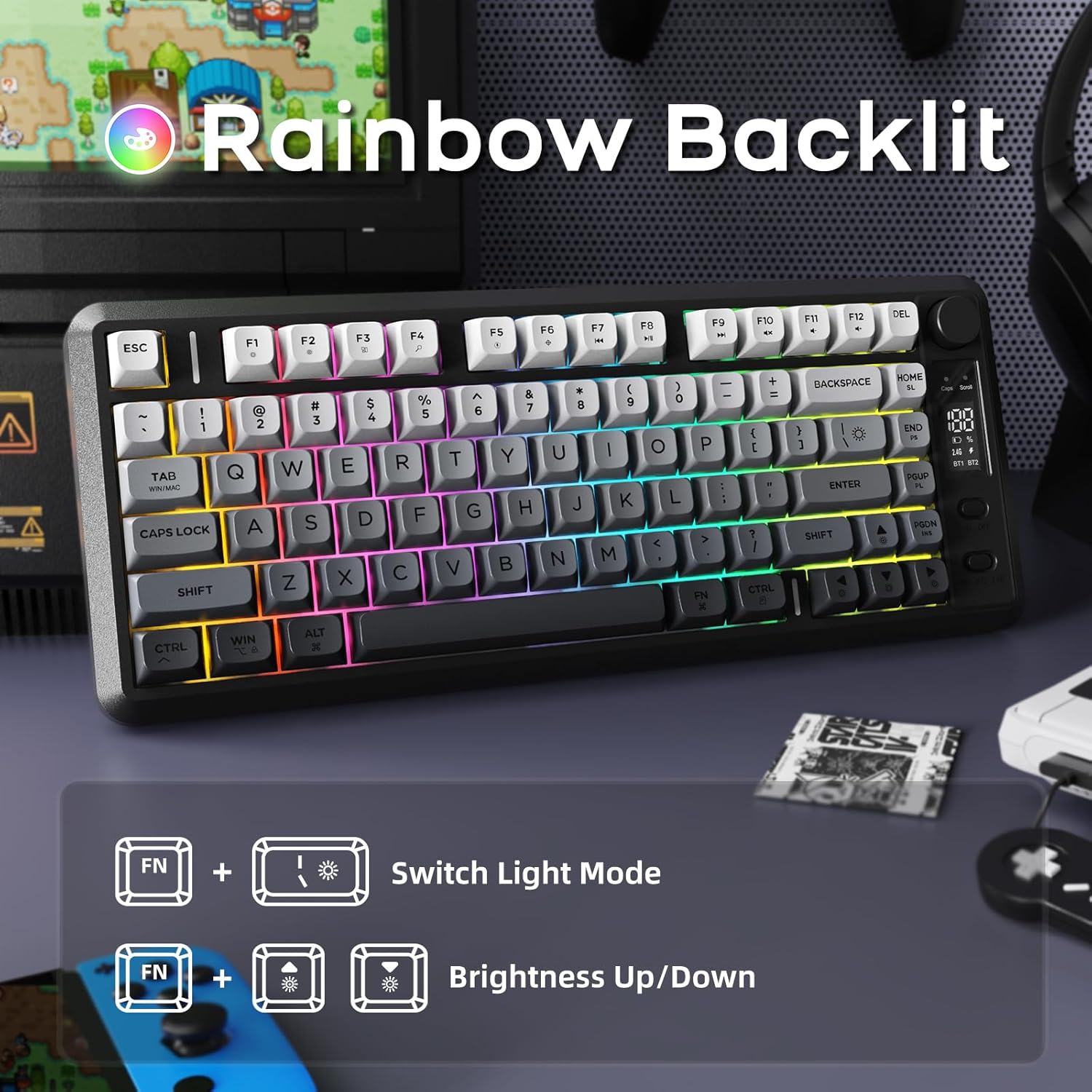
Image 4.2: Instructions for controlling the M75 keyboard's rainbow backlight, showing key combinations for mode switching and brightness adjustment.
- Premeu Fn + I: Switches between different backlight modes.
- Premeu Fn + ↑ (Up Arrow): Increases backlight brightness.
- Premeu Fn + ↓ (Down Arrow): Decreases backlight brightness.
Note: The keycaps are opaque, meaning the light illuminates around the keys, not through the legends.
4.3 Anti-ghosting
The M75 keyboard features 26-key rollover technology, ensuring that multiple simultaneous key presses are registered accurately without conflicts. This is particularly beneficial for gaming and fast typing.

Image 4.3: Illustration of the M75 keyboard's 26-key anti-ghosting feature, highlighting its compact 75% layout.
5. Manteniment
5.1 Neteja del teclat
Per mantenir l'aspecte i la funcionalitat del teclat:
- Desconnecteu el teclat de totes les fonts d'alimentació i dispositius abans de netejar-lo.
- Utilitzeu un drap suau i sense pelusa lleugerament dampEsbandiu amb aigua o una solució netejadora suau per netejar les tecles i la superfície.
- Eviteu l'ús de productes químics agressius, materials abrasius o humitat excessiva.
- Per a la pols i les restes entre les tecles, feu servir aire comprimit.
5.2 Cura de la bateria
Per allargar la durada de la bateria:
- Eviteu descarregar completament la bateria amb freqüència.
- Guardeu el teclat en un lloc fresc i sec quan no el feu servir durant períodes prolongats.
- If the keyboard will not be used for a long time, charge it to about 50% before storage.
6. Solució De Problemes
If you encounter issues with your FREEWOLF M75 keyboard, refer to the following common solutions:
| Problema | Causa possible | Solució |
|---|---|---|
| Keyboard not connecting via 2.4GHz | Receiver not plugged in, keyboard off, low battery, interference. | Ensure receiver is securely plugged in. Turn keyboard on. Charge keyboard. Try a different USB port. |
| El teclat no es connecta per Bluetooth | Keyboard not in pairing mode, device Bluetooth off, already connected to another device, low battery. | Ensure keyboard is in pairing mode (Fn+BT1/BT2 long press). Enable Bluetooth on your device. Disconnect from other devices. Charge keyboard. |
| La retroiluminació no funciona o és tènue | Backlight turned off, brightness set to minimum, low battery. | Press Fn+I to cycle modes. Press Fn+↑ to increase brightness. Charge keyboard. |
| Keys not responding or ghosting | Low battery, software issue, physical obstruction. | Charge keyboard. Restart your computer. Clean under keycaps. |
| OLED display not showing information | Keyboard off, low battery, display issue. | Ensure keyboard is on and charged. If issue persists, contact support. |
| Esgotament ràpid de la bateria | Backlight constantly on at high brightness, frequent use. | Reduce backlight brightness or turn it off when not needed. Ensure keyboard is fully charged. |
7. Especificacions
| Característica | Detall |
|---|---|
| Marca | LLOP LLIURE |
| Model | M75 |
| Tecnologia de connectivitat | Sense fil 2.4G, Bluetooth 5.1/5.2 |
| Descripció del teclat | Membrane, Wireless |
| Material de les tecles | Tereftalat de polibutilè (PBT) |
| Característiques especials | Backlit, Ergonomic, Rechargeable, Silent, Volume Roller, OLED Display, Anti-Ghosting |
| Capacitat de la bateria | 2000 mAh |
| Durada estimada de la bateria | 150 hours (backlight off), 24 hours (backlight on) |
| Dispositius compatibles | Laptop, PC, Tablet (Windows, MacBook, Linux) |
| Pes de l'article | 1.65 lliures |
| Dimensions del paquet | 15.75 x 6.02 x 1.89 polzades |
8. Garantia i Suport
For warranty information and technical support, please refer to the documentation included with your purchase or contact the manufacturer directly. Keep your proof of purchase for warranty claims.
Manufacturer: FREEWOLF