
1. Introducció
The FREEWOLF M75 is a versatile 75% layout wireless gaming keyboard designed for various operating systems and devices. It features dual-mode connectivity (Bluetooth and 2.4GHz wireless), a multi-functional knob, an OLED display, and gradient PBT keycaps. This manual provides detailed instructions for setting up, operating, and maintaining your M75 keyboard.
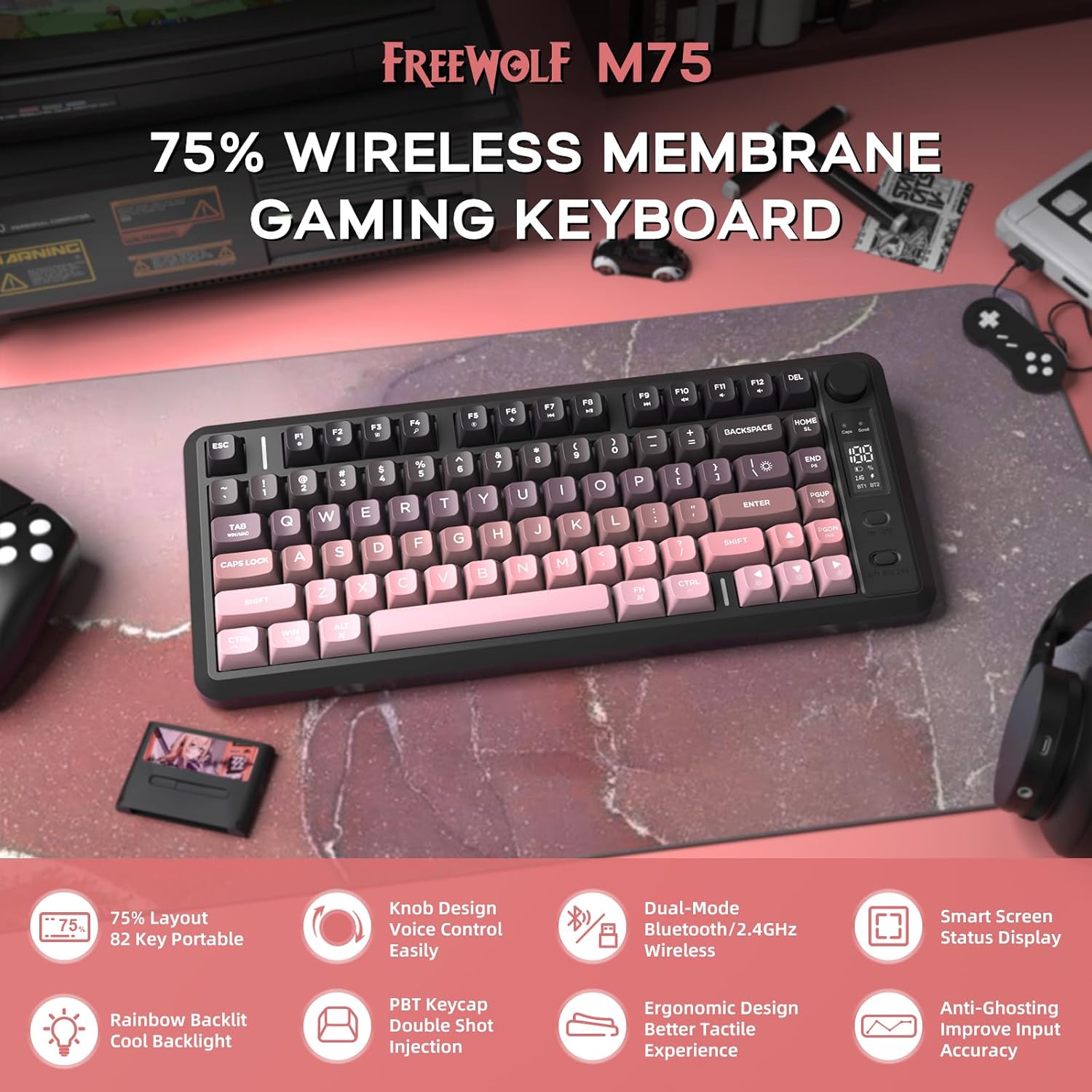
Imatge 1: acabatview of the FREEWOLF M75 Wireless Gaming Keyboard.
2. Contingut del paquet
Si us plau, comproveu el paquet per veure si hi ha els elements següents:
- M75 Keyboard x 1
- Cable USB-C x 1
- 2.4GHz Receiver x 1
- Manual d'usuari x 1
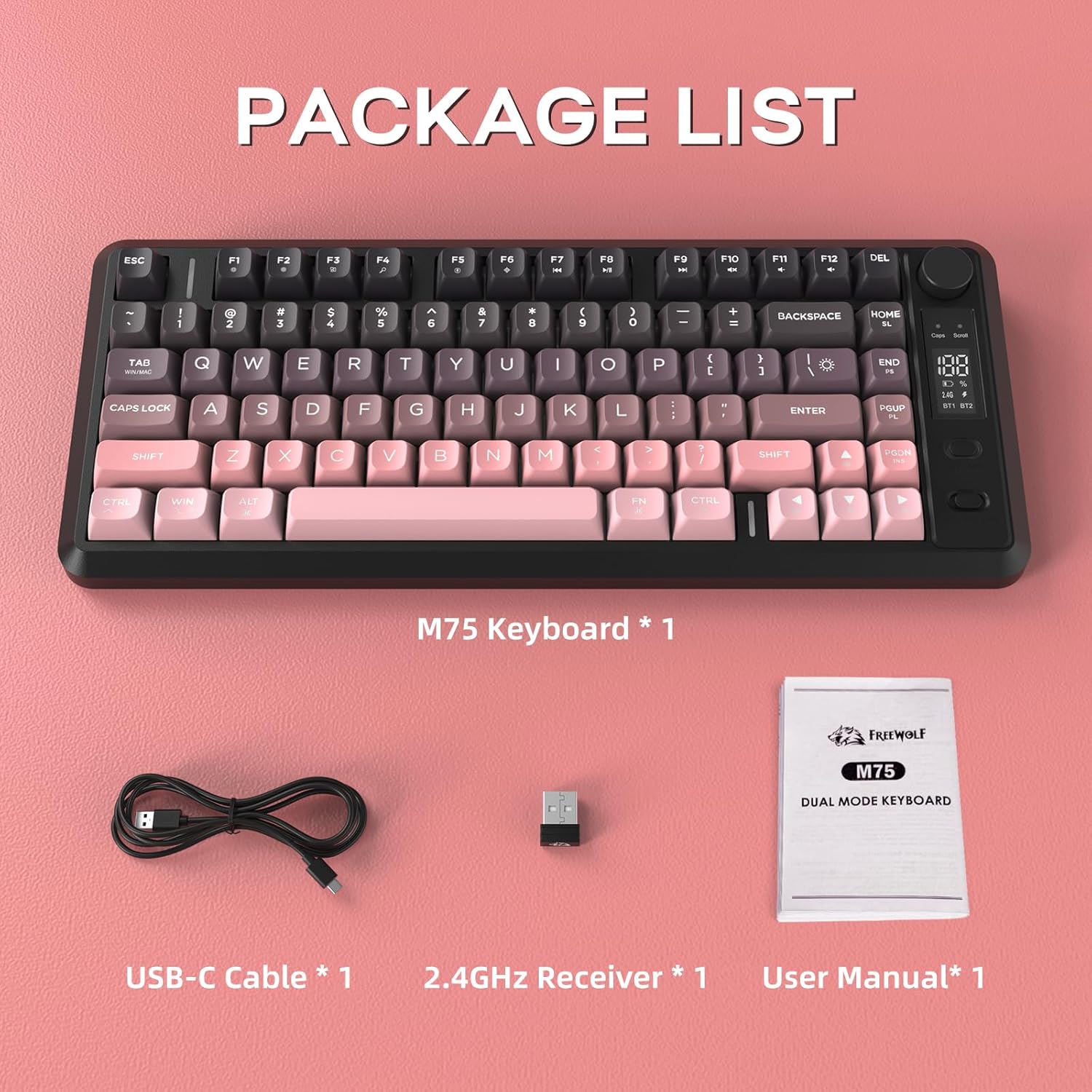
Image 2: Contents included in the FREEWOLF M75 keyboard package.
3. Especificacions
| Model | M75 |
| Disseny | 75% (82-Key Compact Layout) |
| Connectivitat | Bluetooth 5.1/5.2, sense fil de 2.4 GHz |
| Taps de claus | Gradient PBT Double-Shot |
| Llum de fons | Rainbow Backlit |
| Capacitat de la bateria | 2000 mAh |
| Anti-fantasma | Rollover de 26 tecles |
| Dispositius compatibles | Ordinador portàtil, PC, tauleta (Windows, macOS, Linux) |
| Característiques especials | OLED Display, Multi-functional Knob, Ergonomic Design |

Image 3: The 75% compact layout and 26-key anti-ghosting feature of the M75 keyboard.
4. Configuració
4.1 Càrrega del teclat
Before first use, or when the OLED display indicates low battery, connect the keyboard to a power source using the provided USB-C cable. The OLED display will show the charging status.

Image 4: The M75 keyboard features a 2000mAh rechargeable battery.
4.2 Connexió del teclat
The M75 keyboard supports two wireless connection modes:
- Mode sense fil de 2.4 GHz:
- Insert the 2.4GHz USB receiver into an available USB port on your computer or device.
- Turn on the keyboard. The keyboard should automatically connect. The OLED display will indicate the 2.4G connection status.
- Bluetooth Mode (BT1/BT2):
- Enceneu el teclat.
- Press the dedicated Bluetooth button (usually marked BT1 or BT2) to select a Bluetooth channel.
- On your device (PC, laptop, tablet), enable Bluetooth and search for new devices.
- Select "FREEWOLF M75" from the list of available devices to pair. The OLED display will show the Bluetooth connection status.
- To switch between paired Bluetooth devices, press the corresponding BT1 or BT2 button.
The keyboard is compatible with Windows PC, MacBook, and Linux systems. For gaming consoles like Switch, Xbox, or PlayStation, an adapter may be required for connectivity.

Image 5: The M75 keyboard supports both 2.4GHz wireless and Bluetooth modes for multi-device compatibility.
5. Instruccions de funcionament
5.1 Multi-functional Knob and OLED Display
The M75 keyboard features a multi-functional knob and an OLED display for enhanced control and information.
- Funcions del botó:
- Press the knob: Play/Pause media.
- Rotate right: Increase volume.
- Rotate left: Decrease volume.
- Press and hold the knob for 5 seconds: Adjust backlight settings.
- Pantalla OLED: Shows real-time information including battery level, current connection mode (2.4G, BT1, BT2), charging status, and low battery warnings.
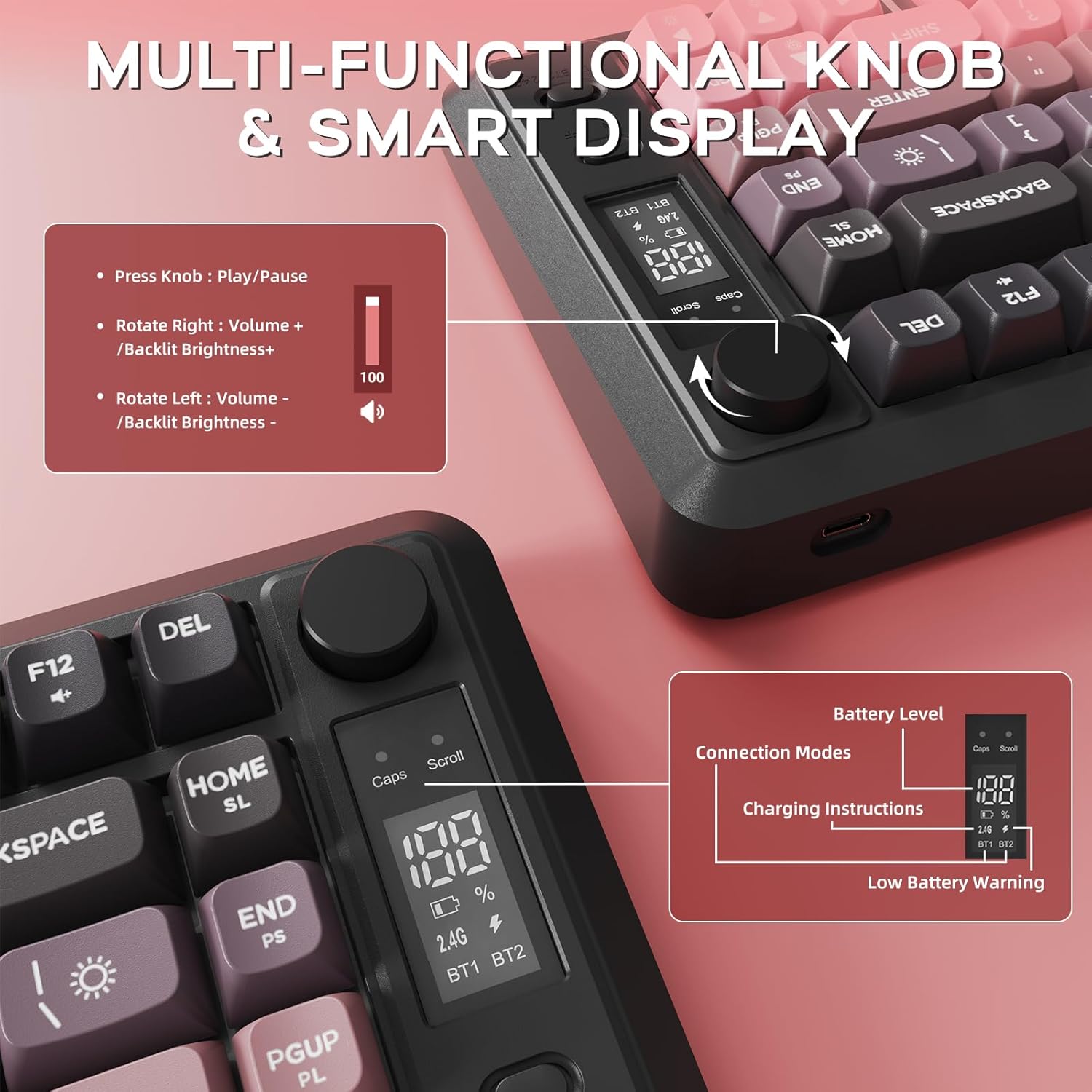
Imatge 6: Detallada view of the multi-functional knob and OLED display on the M75 keyboard.
Control de retroiluminació 5.2
The M75 keyboard features a rainbow backlight. Note that the keycaps themselves are opaque, meaning the light illuminates around and beneath the keys, not through the legends.
- Canvia els modes de llum: Premeu Fn + I to cycle through different backlight modes.
- Ajusta la brillantor: Premeu Fn + ↑ (Fletxa amunt) per augmentar la brillantor i Fn + ↓ (Fletxa avall) per disminuir la brillantor.
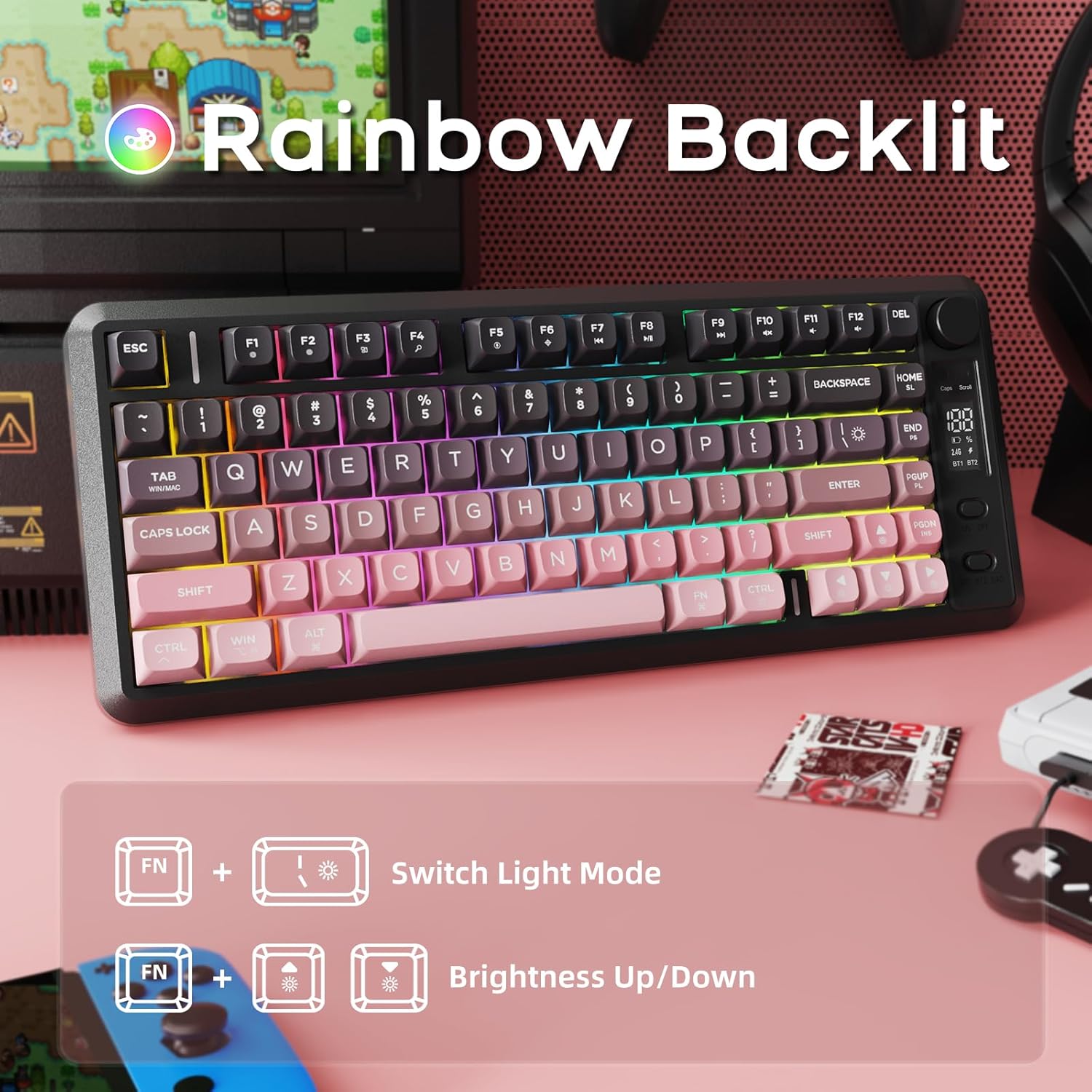
Image 7: The M75 keyboard features a vibrant rainbow backlight.
5.3 Anti-ghosting
The keyboard is equipped with 26-key rollover technology, ensuring that multiple key presses are registered accurately and simultaneously. This prevents 'ghosting' or missed inputs during fast typing or complex gaming commands.
6. Manteniment
6.1 Neteja del teclat
- Desconnecteu el teclat de tots els dispositius abans de netejar-lo.
- Feu servir un drap suau i sec per netejar la superfície del teclat.
- Per a la brutícia tossuda, lleugerament dampNetegeu el drap amb aigua o una solució de neteja suau. Eviteu l'excés d'humitat.
- Feu servir aire comprimit per eliminar la pols i les restes que hi ha entre les tecles.
6.2 PBT Keycaps Care
The M75 keyboard features durable double-shot PBT keycaps, which are resistant to oils, fading, and yellowing. Regular cleaning as described above will help maintain their appearance and longevity.

Image 8: The M75 keyboard is equipped with durable double-shot PBT keycaps.
6.3 Cura de la bateria
- Eviteu exposar el teclat a temperatures extremes.
- Charge the keyboard regularly to maintain battery health, especially if it will not be used for an extended period.
7. Solució De Problemes
- El teclat no es connecta:
- Assegureu-vos que el teclat estigui encès.
- Check the battery level on the OLED display and charge if necessary.
- For 2.4GHz mode, ensure the USB receiver is securely plugged in.
- For Bluetooth mode, ensure Bluetooth is enabled on your device and the correct channel (BT1/BT2) is selected on the keyboard. Try re-pairing the device.
- Try connecting the keyboard via USB-C cable to check if it functions in wired mode.
- Les tecles no responen:
- Check for debris under the keycaps.
- Assegureu-vos que el teclat estigui connectat correctament.
- Reinicieu l'ordinador/dispositiu.
- La retroiluminació no funciona o és tènue:
- Ajusta la brillantor amb Fn + ↑/↓.
- Assegureu-vos que la bateria tingui prou càrrega.
- OLED display not showing information:
- Assegureu-vos que el teclat estigui encès.
- Comproveu el nivell de la bateria.
8. Garantia i Suport
For warranty information and technical support, please refer to the documentation provided with your purchase or contact FREEWOLF customer service through their official weblloc web o el venedor on es va comprar el producte.