
1. Introducció
The Olympia TS10 is a modern, touchscreen Point-of-Sale (POS) system designed for efficient operation in catering and retail environments. This manual provides essential information for setting up, operating, maintaining, and troubleshooting your TS10 POS system to ensure optimal performance and a seamless checkout experience.
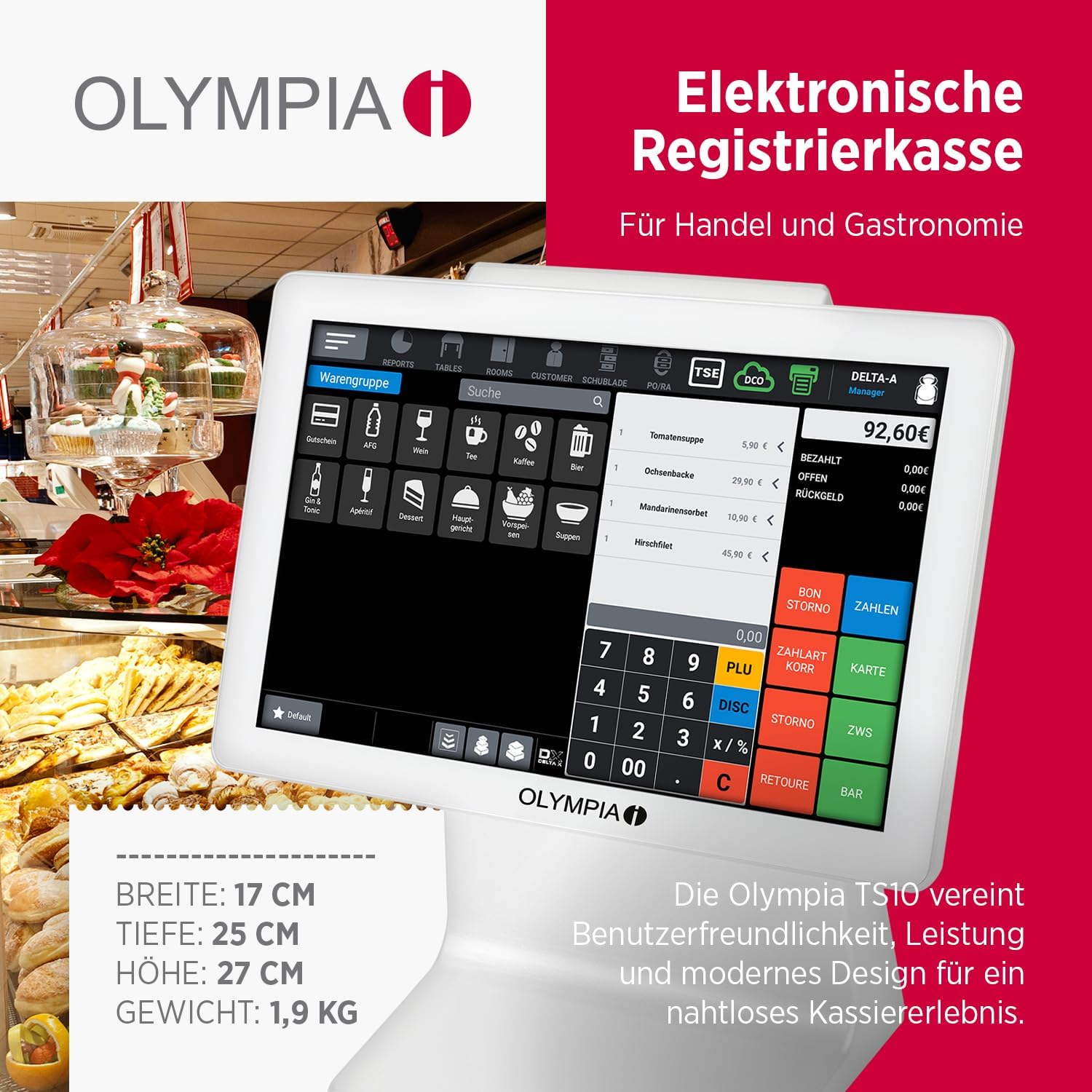
Figure 1: Olympia TS10 POS System with its 10.1-inch touchscreen display, showing a typical transaction interface. The system is designed for trade and gastronomy, combining user-friendliness, performance, and modern design.
2. Producte acabatview i Característiques
The Olympia TS10 POS system integrates advanced technology with user-friendly design to streamline your business operations. Key features include:
- Pantalla tàctil de 10.1 polzades: Intuitive and precise touch operation for efficient order processing.
- Sistema operatiu Android 11: Powerful and reliable for smooth performance.
- Escàner integrat: For quick and accurate item capture.
- Customer Display: Clear LED display on the rear for transparent customer information.
- TSE USB Compatibility: Ensures legally compliant data storage via USB connection.
- Extensive Management Capabilities: Supports up to 100 product groups, 100,000 PLUs, 5,000 tables, 5,000 customers, and 100 operators.
- Múltiples interfícies: Includes 1x LAN, 4x USB A, 1x serial port, and 1x cash drawer port.
- Graphical Receipt Logo: Customization options for professional printouts.
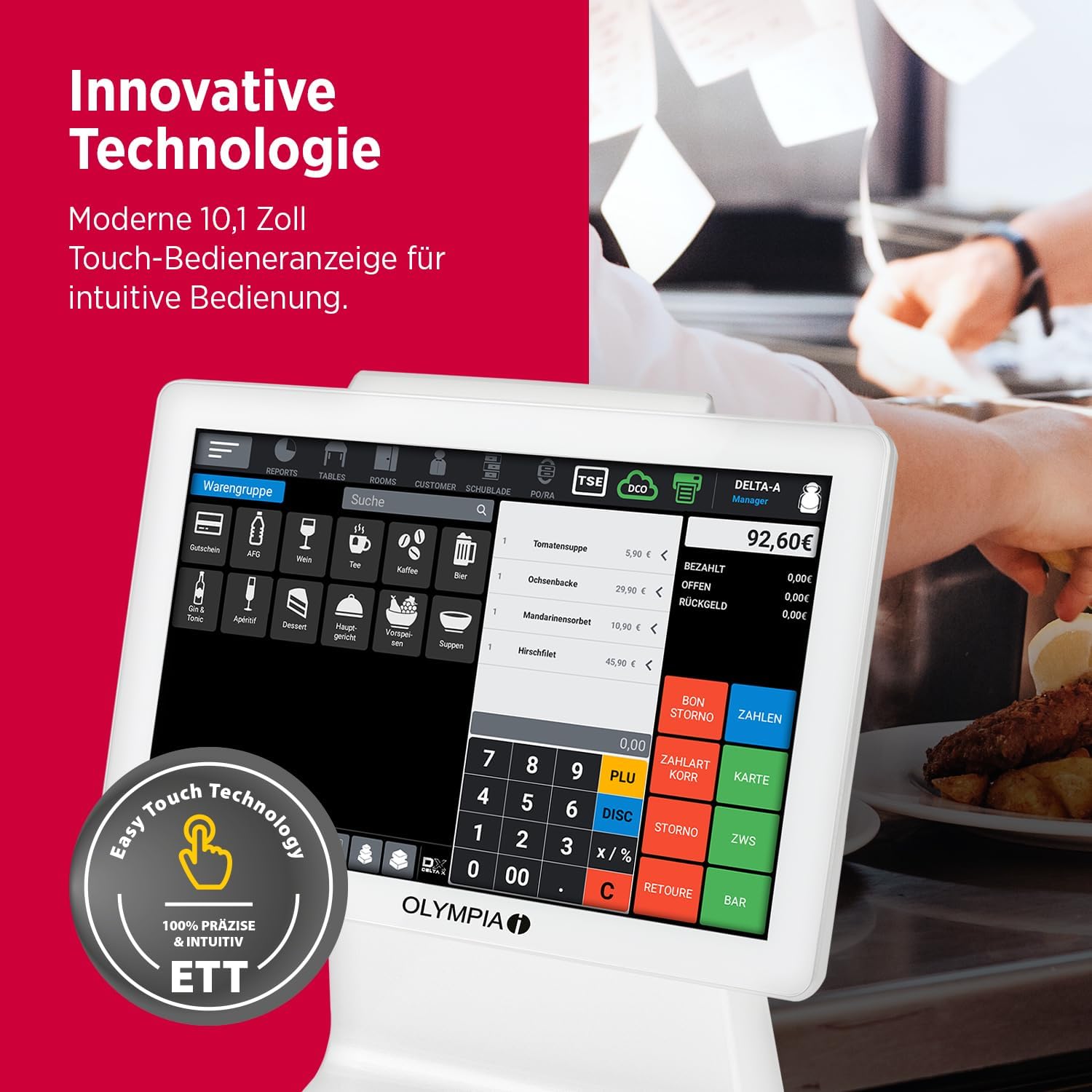
Figure 2: Close-up of the Olympia TS10's 10.1-inch touch operator display, highlighting its innovative technology and 'Easy Touch Technology' for precise and intuitive operation.

Figure 3: The Olympia TS10 showcasing its built-in scanner for direct item capture and the customer-facing LED display on the rear, providing clear transaction details.
3. Instruccions de configuració
Follow these steps to set up your Olympia TS10 POS system:
- Desembalatge: Traieu amb cura tots els components de l'embalatge. Verifiqueu que hi hagi tots els elements que figuren a la llista d'embalatge.
- Col·locació: Place the TS10 on a stable, flat surface in a location with adequate ventilation and away from direct sunlight or heat sources.
- Connectar l'alimentació: Connect the power adapter to the power input port on the TS10 and then plug the adapter into a suitable electrical outlet.
- Connecteu els perifèrics:
- Calaix de diners: Connect the cash drawer cable to the cash drawer port on the TS10.
- LAN: For network connectivity, connect an Ethernet cable to the LAN port.
- Dispositius USB: Connect any additional USB peripherals (e.g., external printer, barcode scanner if not using integrated) to the available USB A ports.
- TSE USB: Insert the TSE USB module into a dedicated USB port for legally compliant data storage.
- Engegada inicial: Press the power button to turn on the device. The system will boot up, displaying the Android operating system.
- Configuració bàsica: Follow the on-screen prompts to complete the initial setup, including language selection, date and time settings, and network configuration.
4. Instruccions de funcionament
This section outlines the basic operation of your Olympia TS10 POS system.
4.1 Encès/Apagat
- Per encendre: Premeu i manteniu premut el botó d'engegada fins que la pantalla s'il·lumini.
- Per apagar: Press and hold the power button, then select 'Power Off' from the options displayed on the screen.
4.2 Navegació per la pantalla tàctil
The 10.1-inch touchscreen is the primary interface. Use your finger to tap, swipe, and drag elements on the screen. The Android 11 operating system provides a familiar and intuitive user experience.
4.3 Basic Transaction Process
- Inicieu sessió: Enter your operator ID and password to log into the system.
- Item Entry:
- Escaneig: Use the integrated scanner to scan product barcodes.
- Entrada manual: Tap on product categories or use the search function to find items. Enter quantities as required.
- PLU Entry: Input Product Look-Up (PLU) codes for items without barcodes.
- Review Comanda: Verify the items and total amount on the screen.
- Pagament: Select the appropriate payment method (e.g., cash, card). Follow on-screen instructions for processing payment.
- Rebut: The system will automatically print a receipt upon successful transaction completion.

Figure 4: The Olympia TS10 interface displaying product groups (WarenGruppen) and options for user management (Benutzerverwaltung), highlighting its flexibility for various business needs.
4.4 Gestió d'usuaris
The system supports up to 100 operators. Each operator can have personalized settings and access controls. Refer to the software's user manual for detailed instructions on adding, editing, and managing operator accounts.
4.5 Table and Customer Management
For catering businesses, the TS10 allows management of up to 5,000 tables. For retail, it can store up to 5,000 customer profiles. These features help in tracking orders, managing loyalty programs, and providing personalized service.
5. Manteniment
Regular maintenance ensures the longevity and optimal performance of your Olympia TS10 POS system.
- Neteja:
- Pantalla tàctil: Utilitzeu un drap suau i sense pelusa lleugerament dampened with a screen cleaner or water. Avoid abrasive cleaners or excessive moisture.
- Exterior: Netegeu les superfícies exteriors amb un drap suau i sec.
- Actualitzacions de programari: Periodically check for and install software updates for the Android 11 operating system and the POS application to ensure security and access to new features.
- Còpia de seguretat de dades: Regularly back up your transaction data to the TSE USB module or other designated storage solutions as per local regulations and business practices.
- Peripheral Check: Ensure all connected peripherals (cash drawer, external printer, etc.) are clean and functioning correctly.
6. Solució De Problemes
Aquesta secció tracta problemes comuns i les seves possibles solucions.
- El sistema no s'encén:
- Check if the power adapter is securely connected to both the TS10 and the electrical outlet.
- Assegureu-vos que la presa de corrent funcioni.
- Pantalla tàctil que no respon:
- Reinicieu el sistema.
- Assegureu-vos que la pantalla estigui neta i lliure de residus.
- L'escàner no llegeix codis de barres:
- Ensure the barcode is clean and not damaged.
- Check the scanner's settings within the POS application.
- Receipt Printer Errors:
- Check for paper jams or if the paper roll needs replacement.
- Ensure the printer is properly connected and powered on.
- TSE Data Storage Issues:
- Verify the TSE USB module is correctly inserted.
- Consult the POS software documentation for specific TSE error codes.
Si els problemes persisteixen, poseu-vos en contacte amb l'assistència al client per obtenir més ajuda.
7. Especificacions
Detailed technical specifications for the Olympia TS10 POS system:
- Model: TS10
- Marca: OLÍMPIA
- Visualització: Pantalla tàctil de 10.1 polzades
- Sistema operatiu: Android 11
- Dimensions (L x P x A): 17 cm x 25 cm x 27 cm (aproximadament 6.7 polzades x 9.8 polzades x 10.6 polzades)
- Pes: 1.9 kg (aproximadament 4.2 lliures)
- Interfícies: 1x LAN, 4x USB A, 1x Serial, 1x Cash Drawer Port
- Emmagatzematge de dades: TSE USB compatible for legally compliant storage
- Capacitat: Up to 100 Product Groups, 100,000 PLUs, 5,000 Tables, 5,000 Customers, 100 Operators
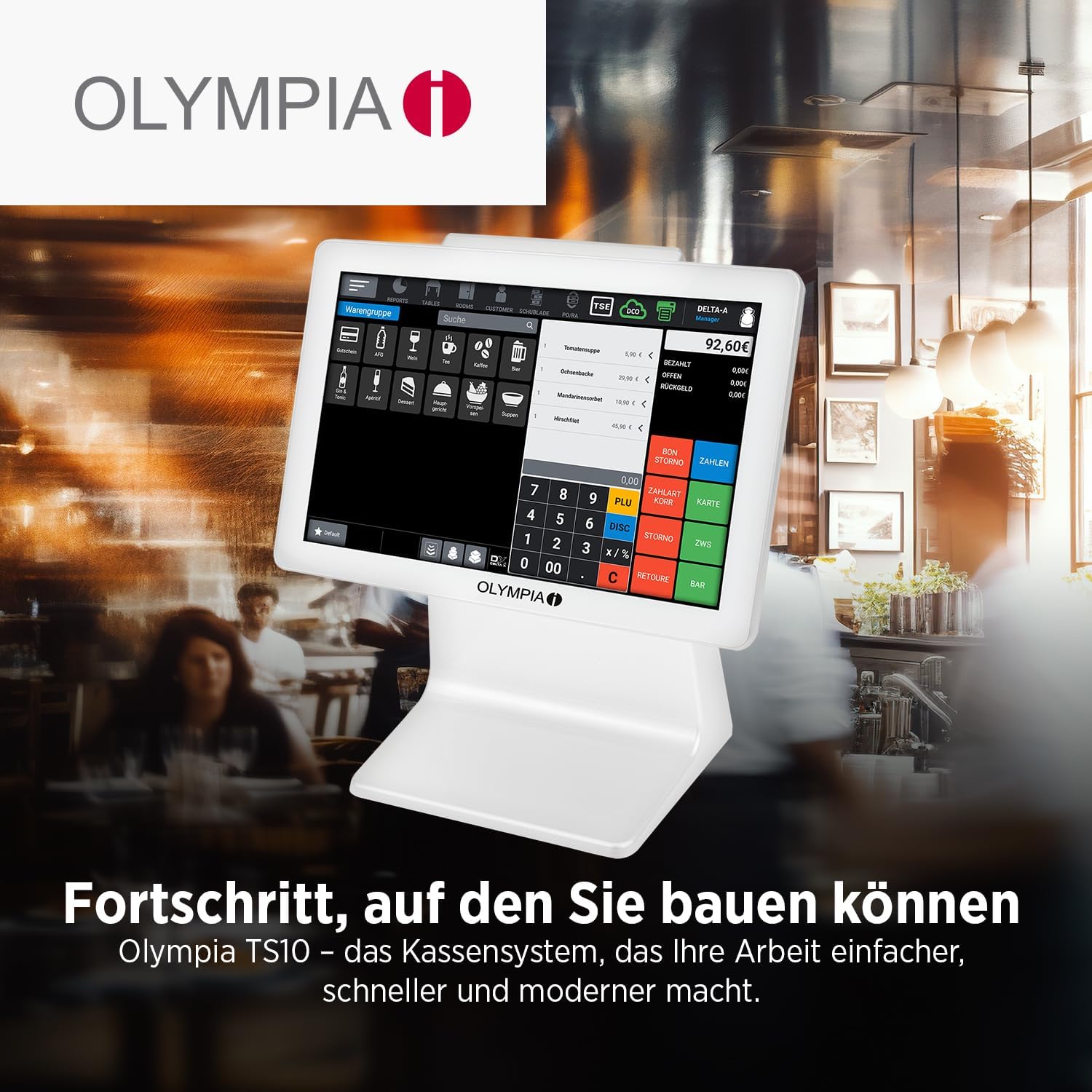
Figure 5: The Olympia TS10 system, illustrating its compact dimensions and highlighting key features such as large storage capacity, TSE compatibility, Android 11 OS, graphical receipt logo, and various interfaces.
8. Garantia i Suport
Your Olympia TS10 POS system comes with a standard manufacturer's warranty. Please refer to the warranty card included with your product for specific terms and conditions, including warranty period and coverage details.
8.1 Atenció al client
For technical assistance, troubleshooting, or warranty claims, please contact Olympia customer support. Contact information can typically be found on the manufacturer's official weblloc web o a la documentació que s'inclou amb el producte.
Recursos en línia: Visit the official Olympia weblloc web per a preguntes freqüents, descàrregues de programari i materials de suport addicionals.


