
NEWFAST U352 AX1800
NEWFAST U352 AX1800 USB WiFi 6 Adapter User Manual
Model: U352 AX1800
1. Introducció
This manual provides detailed instructions for the installation, operation, and maintenance of your NEWFAST U352 AX1800 USB WiFi 6 Adapter. Please read this manual thoroughly before using the product to ensure proper functionality and to maximize its performance. This adapter is designed to provide high-speed wireless connectivity for your desktop or laptop computer running Windows 10 or Windows 11.
2. Informació de seguretat
- Keep the device away from water, fire, high humidity, or hot environments.
- No intenteu desmuntar, reparar o modificar el dispositiu.
- Use only with compatible USB ports (USB 3.0 recommended for optimal performance).
- Assegureu-vos que hi hagi una ventilació adequada al voltant del dispositiu durant el funcionament.
- Mantenir fora de l'abast dels nens.
3. Contingut del paquet
Verifiqueu que tots els elements siguin presents al vostre paquet:
- 1x NEWFAST AX1800 USB WiFi 6 Adapter
- 1 x manual d'usuari
4. Producte acabatview
The NEWFAST U352 AX1800 USB WiFi 6 Adapter is designed to provide a fast and stable wireless connection for your computer. It features dual-band support, high-gain antennas, and advanced WiFi 6 technologies like MU-MIMO and OFDMA.

Figura 4.1: The NEWFAST U352 AX1800 USB WiFi 6 Adapter with its dual adjustable antennas.
Característiques principals:
- Tecnologia WiFi 6 (802.11ax): Offers faster speeds, lower latency, and increased capacity compared to previous Wi-Fi standards.
- AX1800 Dual Band: Provides speeds up to 1201 Mbps on the 5GHz band and 574 Mbps on the 2.4GHz band.
- Interfície USB 3.0: Ensures high-speed data transfer, up to 10 times faster than USB 2.0, to fully utilize the adapter's wireless capabilities.
- MU-MIMO i OFDMA: Enhances network efficiency and reduces latency, especially in environments with multiple devices.
- Xifratge WPA3: Supports the latest security protocol for enhanced network protection.
- Adjustable High-Gain Antennas: Improves signal reception and transmission for a wider and more stable connection.
- Instal·lació sense controladors: Automatic device recognition and configuration for Windows 10/11.

Figura 4.2: Illustration of WiFi 6 speeds (1201 Mbps on 5GHz, 600 Mbps on 2.4GHz) and USB 3.0 interface.
The adapter leverages WiFi 6 technology to deliver combined speeds of up to 1800 Mbps (1.8 Gbps). The USB 3.0 interface ensures that the data transfer between the adapter and your computer does not bottleneck the wireless speed.

Figura 4.3: Comparison of AX1800 WiFi 6 speed with AC1200 WiFi 5, highlighting OFDMA and MU-MIMO benefits.
With OFDMA and MU-MIMO technologies, the adapter efficiently handles multiple devices simultaneously, reducing network congestion and improving overall performance for activities like gaming, streaming, and video calls.
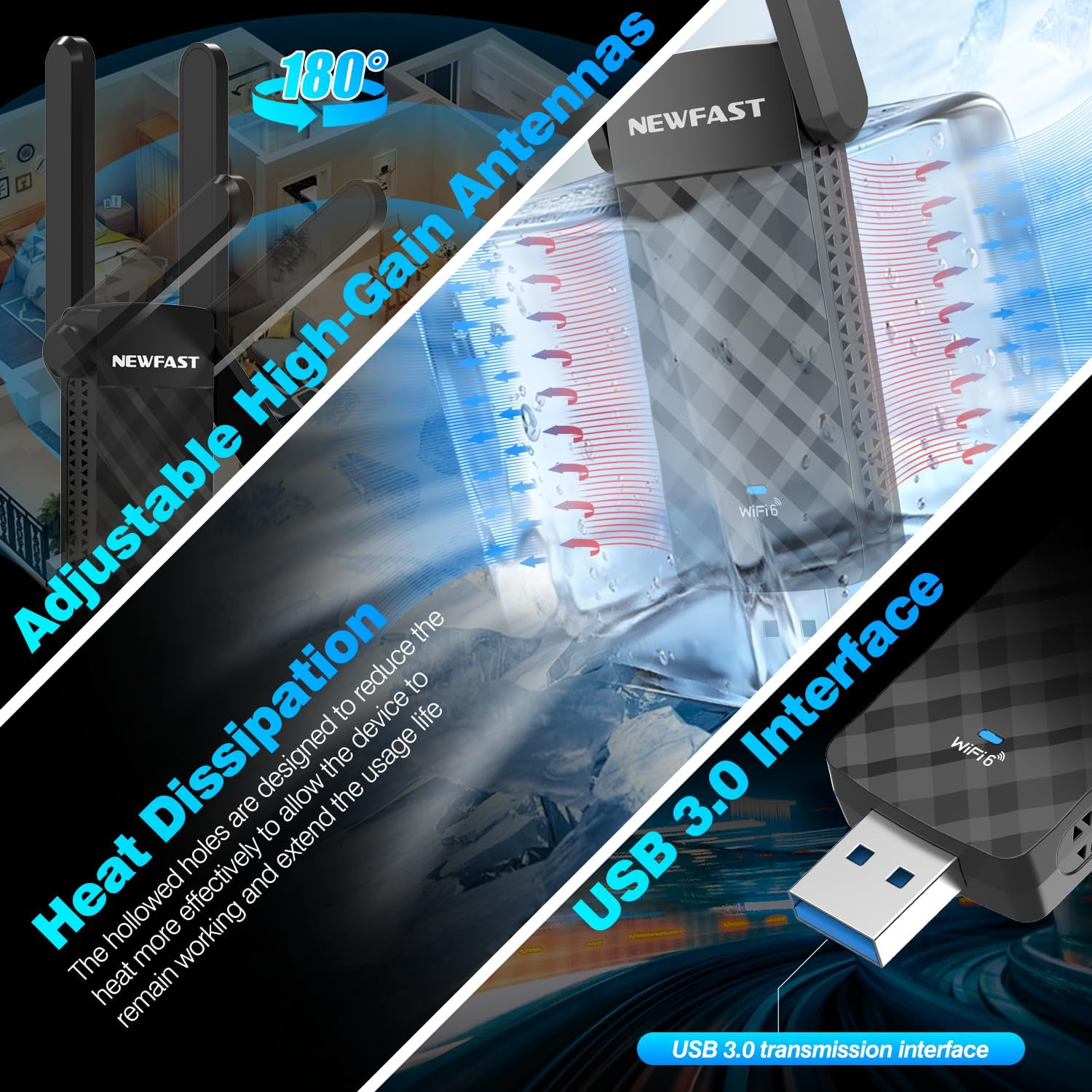
Figura 4.4: Details on the adjustable antennas for optimal signal, heat dissipation design, and the USB 3.0 interface.
The dual adjustable antennas allow for flexible positioning to optimize signal reception. The adapter's design also incorporates heat dissipation features to ensure stable and long-term operation.
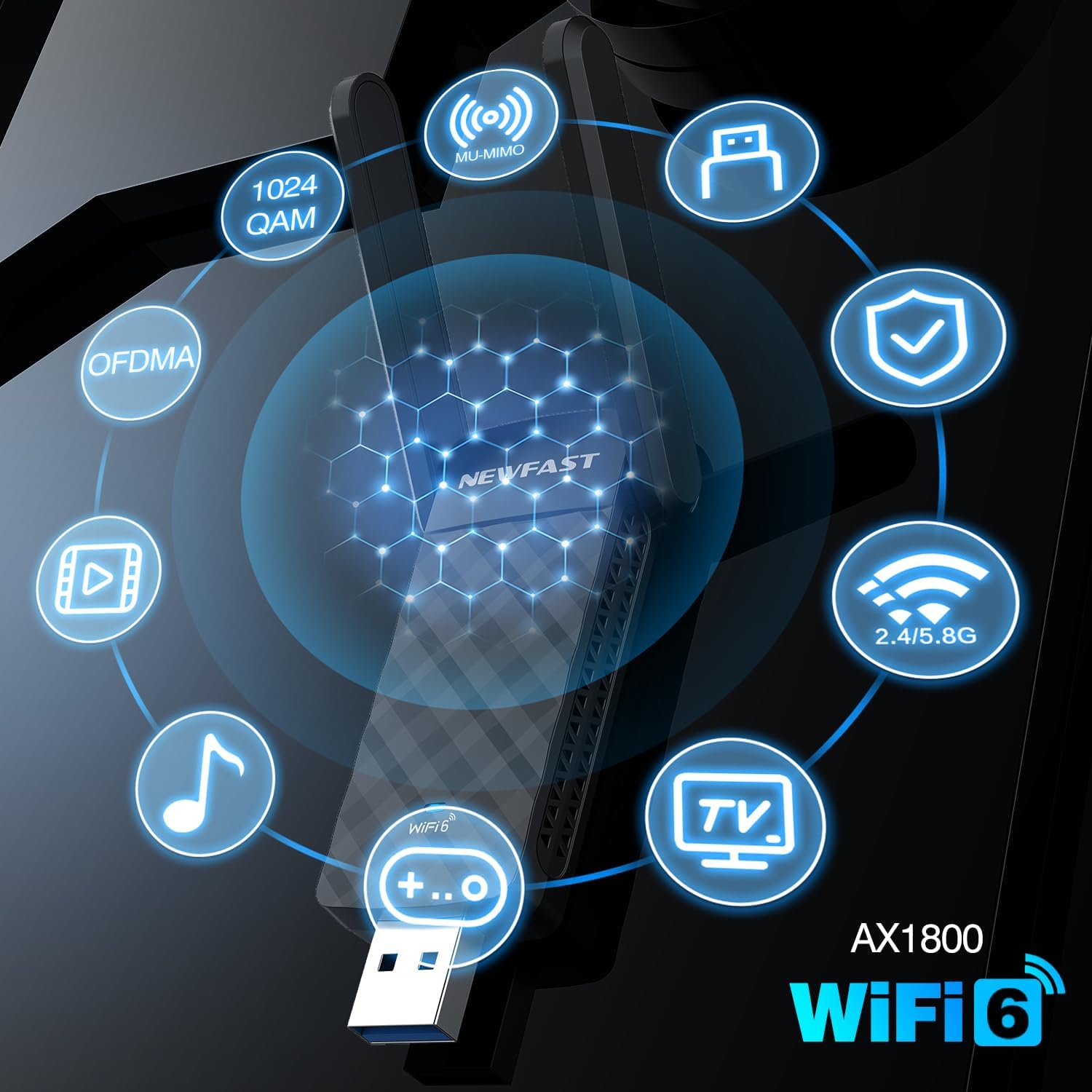
Figura 4.5: Visual representation of key AX1800 WiFi 6 features including 1024 QAM, OFDMA, MU-MIMO, WPA3, and dual-band support.
This image summarizes the advanced features of the AX1800 WiFi 6 adapter, including 1024-QAM for higher data rates, OFDMA and MU-MIMO for efficient multi-device communication, WPA3 for enhanced security, and support for both 2.4GHz and 5GHz bands.
5. Instruccions de configuració
The NEWFAST U352 AX1800 USB WiFi 6 Adapter offers a simple, driver-free installation process for Windows 10 and Windows 11.
Requisits del sistema:
- Operating System: Windows 10 (32/64-bit) or Windows 11 (64-bit)
- Available USB Port (USB 3.0 recommended)
Passos d'instal·lació:
- Connecteu l'adaptador USB: Insert the NEWFAST USB WiFi 6 Adapter into an available USB port on your desktop or laptop computer. For optimal performance, use a USB 3.0 port.
- Instal·lació automàtica del controlador: Windows 10/11 will automatically detect the device and begin installing the necessary drivers. A notification may appear indicating the installation progress.
- Connecteu-vos a WiFi: Once the driver installation is complete (this may take a few moments), you can connect to your desired WiFi network through the standard Windows network settings.
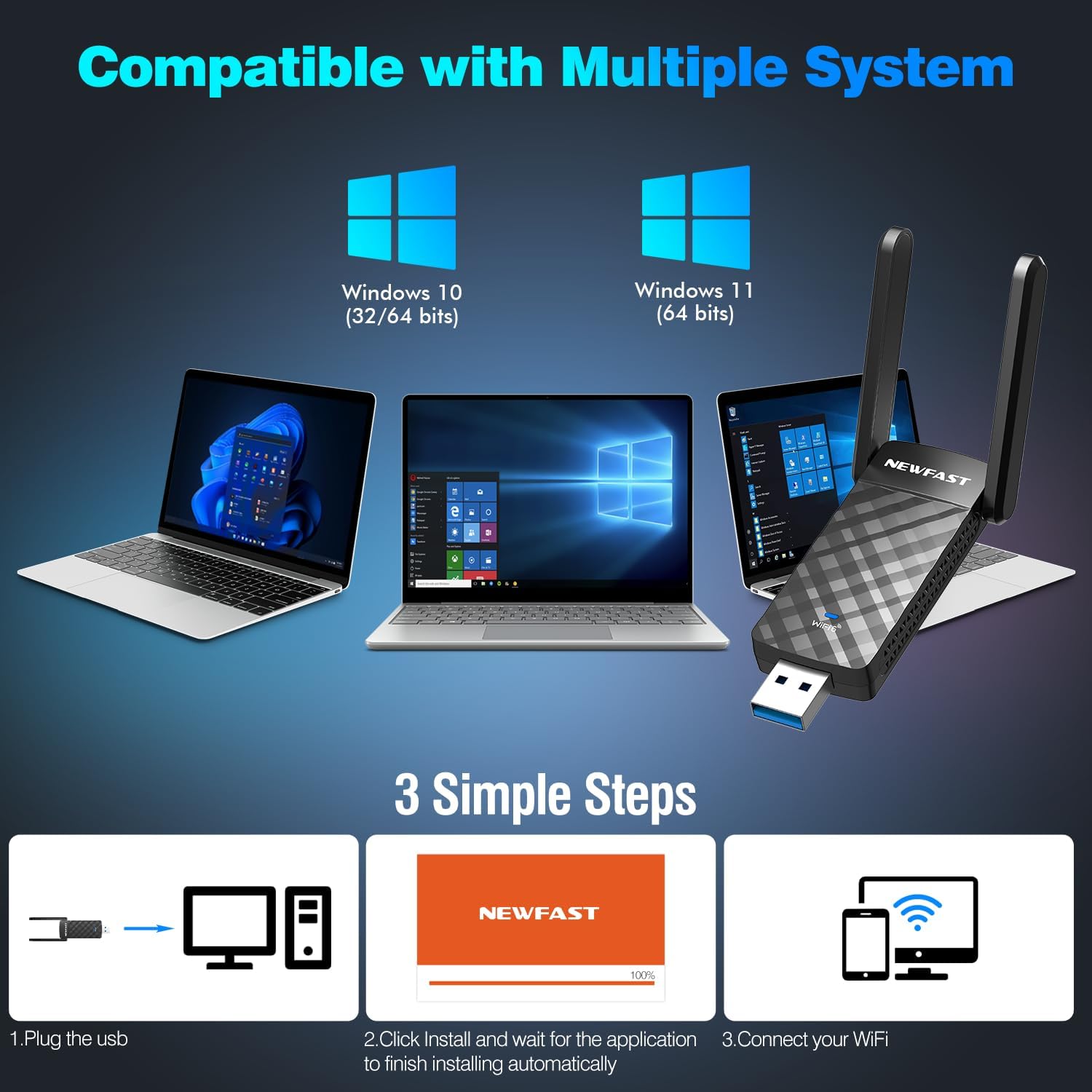
Figura 5.1: Visual guide to the three-step installation process: Plug in, install drivers automatically, and connect to WiFi.
This image illustrates the straightforward installation process: 1. Plug the USB adapter into your computer. 2. Allow the system to automatically install the drivers. 3. Connect to your WiFi network.
6. Instruccions de funcionament
Connexió a una xarxa sense fil:
- After successful driver installation, click on the WiFi icon in your Windows taskbar (usually in the bottom-right corner).
- A list of available wireless networks will appear. Select your desired network.
- Click "Connect". If the network is secured, you will be prompted to enter the network security key (password).
- Once connected, the WiFi icon will indicate a successful connection.
Soft AP Mode (WiFi Router Function):
The adapter supports Soft AP mode, allowing your computer to function as a wireless hotspot, sharing its internet connection with other devices like smartphones or tablets.
- Assegureu-vos que l'ordinador tingui una connexió a Internet activa (per exemple, via Ethernet).
- Open Windows Settings > Network & Internet > Mobile hotspot.
- Toggle "Mobile hotspot" to "On".
- You can customize the network name (SSID) and password under "Edit".
- Other devices can now connect to this hotspot using the provided credentials.

Figura 6.1: Illustration showing the adapter's dual functionality: receiving WiFi (WiFi Card Function) and sending WiFi (WiFi Router Function via Soft AP Mode).
This image demonstrates how the adapter can both receive a WiFi signal to connect your computer to the internet and create a WiFi hotspot (Soft AP mode) to share your computer's internet connection with other wireless devices.
7. Manteniment
- Neteja: Feu servir un drap suau i sec per netejar l'adaptador. No utilitzeu netejadors líquids ni aerosols.
- Emmagatzematge: Quan no l'utilitzeu durant períodes prolongats, guardeu l'adaptador en un lloc fresc i sec.
- Actualitzacions de firmware: Periodically check the NEWFAST official website for any available firmware or driver updates to ensure optimal performance and security.
- Protecció física: Eviteu deixar caure l'adaptador ni sotmetre'l a impactes forts.
8. Solució De Problemes
Problemes comuns i solucions:
- No WiFi Networks Detected:
- Assegureu-vos que l'adaptador estigui ben connectat a un port USB.
- Verify that WiFi is enabled in your computer's settings.
- Reinicieu l'ordinador.
- Check if the adapter's drivers are correctly installed in Device Manager.
- Velocitat de connexió lenta:
- Ensure you are connected to a WiFi 6 compatible router.
- Prova de connectar-te a la banda de 5 GHz si està disponible, ja que generalment ofereix velocitats més altes.
- Apropa't al teu encaminador sense fil per millorar la intensitat del senyal.
- Assegureu-vos que l'adaptador estigui connectat a un port USB 3.0.
- Comproveu si hi ha interferències d'altres dispositius electrònics.
- Desconnexions freqüents:
- Update your router's firmware and the adapter's drivers.
- Adjust the position of the adapter's antennas for better signal.
- Ensure there are no physical obstructions between the adapter and the router.
- Prova amb un port USB diferent.
- Driver Installation Failure:
- Ensure your operating system is Windows 10 or Windows 11.
- Temporarily disable antivirus software during installation if it interferes.
- Prova amb un port USB diferent.
- Manually download drivers from the NEWFAST support website if automatic installation fails.
9. Especificacions
| Característica | Detall |
|---|---|
| Model | U352 AX1800 |
| Estàndard sense fils | IEEE 802.11ax (WiFi 6) |
| Velocitat de transferència de dades | Up to 1800 Mbps (1201 Mbps at 5GHz, 574 Mbps at 2.4GHz) |
| Bandes de freqüència | 2.4 GHz, 5 GHz |
| Interfície | USB 3.0 (backward compatible with USB 2.0, USB 1.1) |
| Antenes | Dual High-Gain Adjustable Antennas |
| Seguretat sense fils | WPA3, WPA2, WPA |
| Tecnologies suportades | MU-MIMO, OFDMA, 1024-QAM |
| Sistemes operatius compatibles | Windows 11, Windows 10 |
| Dimensions del producte | 3.08 x 0.41 x 1.45 polzades |
| Pes de l'article | 1.6 unces |
10. Garantia i Suport
NEWFAST products are designed for reliability and performance. For warranty information and technical support, please refer to the warranty card included with your product or visit the official NEWFAST website. Our support team is available to assist you with any questions or issues you may encounter.
Oficial Weblloc: NEWFAST Store on Amazon (Please check the product packaging or official website for direct support contact information.)
Ask a question about this manual
Ask about setup, troubleshooting, compatibility, parts, safety, or missing instructions. Manuals+ will review the question and use this page’s manual context to help answer it.