
1. Introducció
This manual provides essential information for the safe and efficient operation of your Hisense M2 Pro 4K Mini Laser Projector. Please read it thoroughly before using the device and retain it for future reference.
2. Informació de seguretat
- Seguretat làser: Do not look directly into the projector lens when the device is operating. The laser light can cause eye damage.
- Ventilació: Assegureu-vos que hi hagi una ventilació adequada al voltant del projector. No bloquegeu les obertures de ventilació.
- Font d'alimentació: Feu servir només l'adaptador de corrent proporcionat. Assegureu-vos que el volumtage coincideix amb la vostra font d'alimentació local.
- Col·locació: Place the projector on a stable, level surface. Avoid placing it in direct sunlight, near heat sources, or in humid environments.
- Neteja: Desconnecteu l'alimentació abans de netejar. Feu servir un drap suau i sec. No utilitzeu netejadors líquids ni en aerosol.
- Nens: Mantingueu el projector fora de l'abast dels nens.
3. Contingut del paquet
Verifiqueu que tots els elements siguin presents al paquet:
- Projector Hisense M2 Pro
- Cable d'alimentació
- Control remot
- Manual d'usuari (aquest document)
4. Producte acabatview
The Hisense M2 Pro is a compact 4K mini laser projector designed for versatile use. It features a flexible stand for multi-angle projection and various connectivity options.
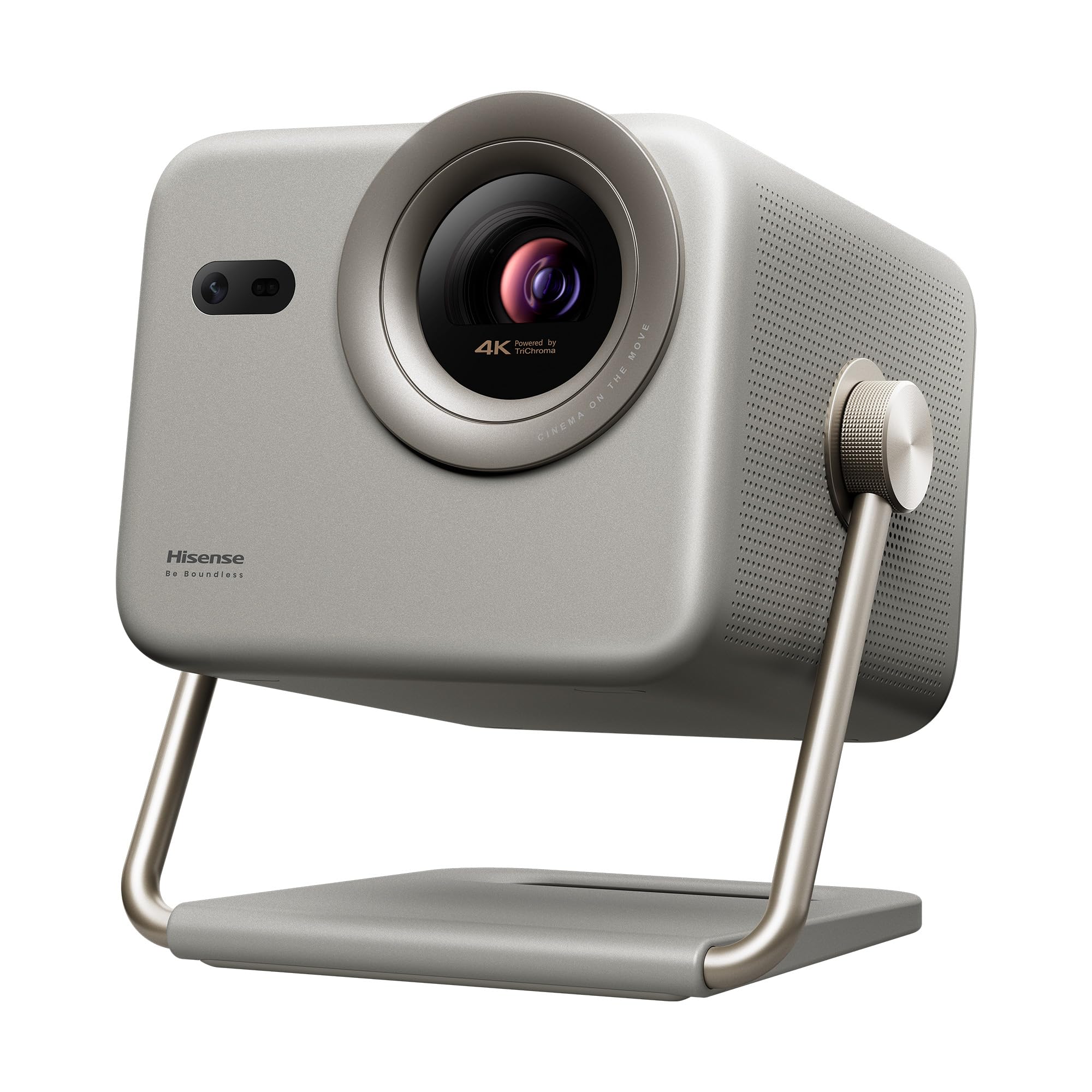
Figure 1: Hisense M2 Pro Projector with remote control and key dimensions (193mm width, 218mm depth, 230mm height).
4.1 Davant View
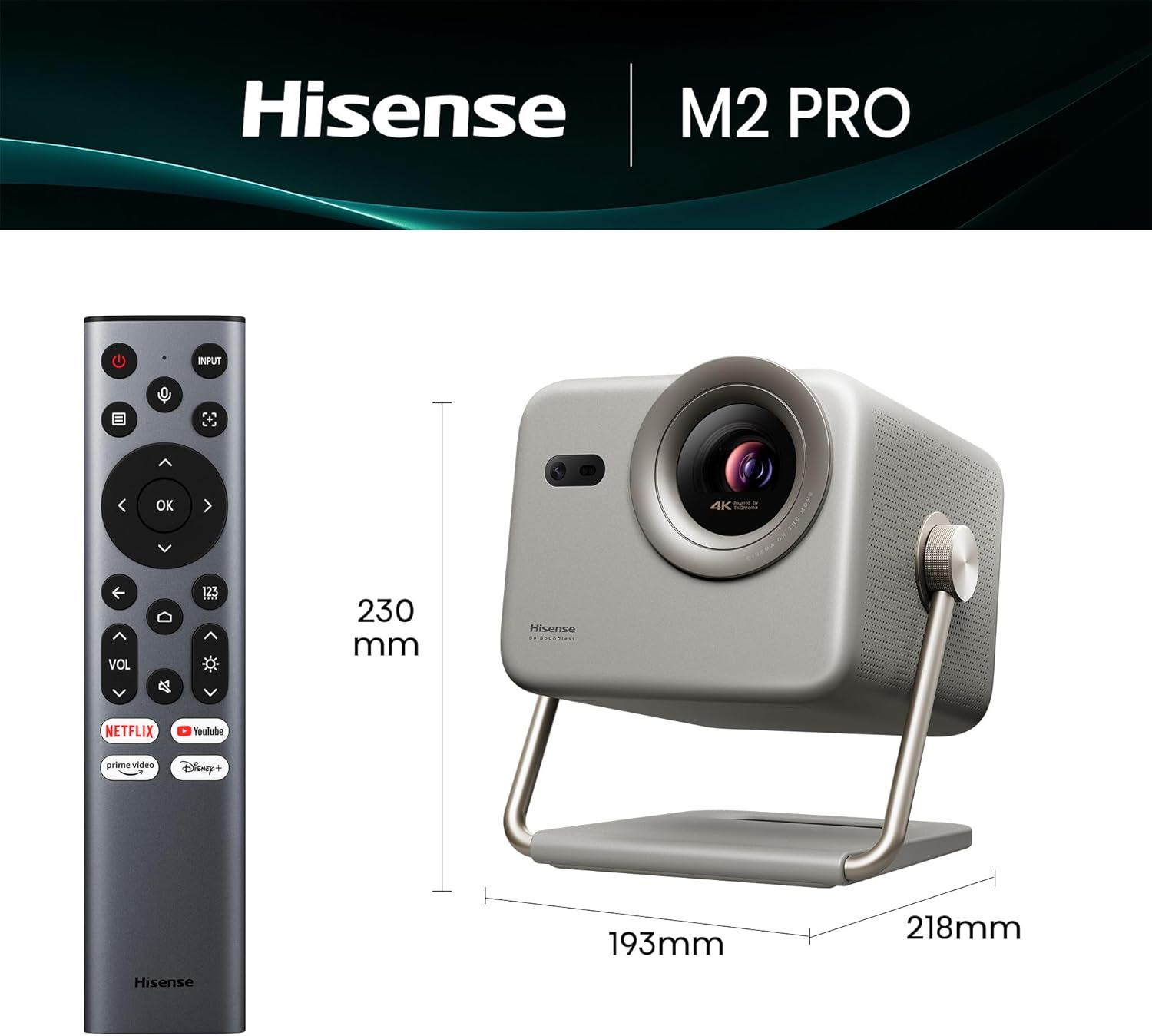
Figura 2: Frontal view of the projector, highlighting the main projection lens and integrated sensors for autofocus and keystone correction.
4.2 Darrera View i Ports
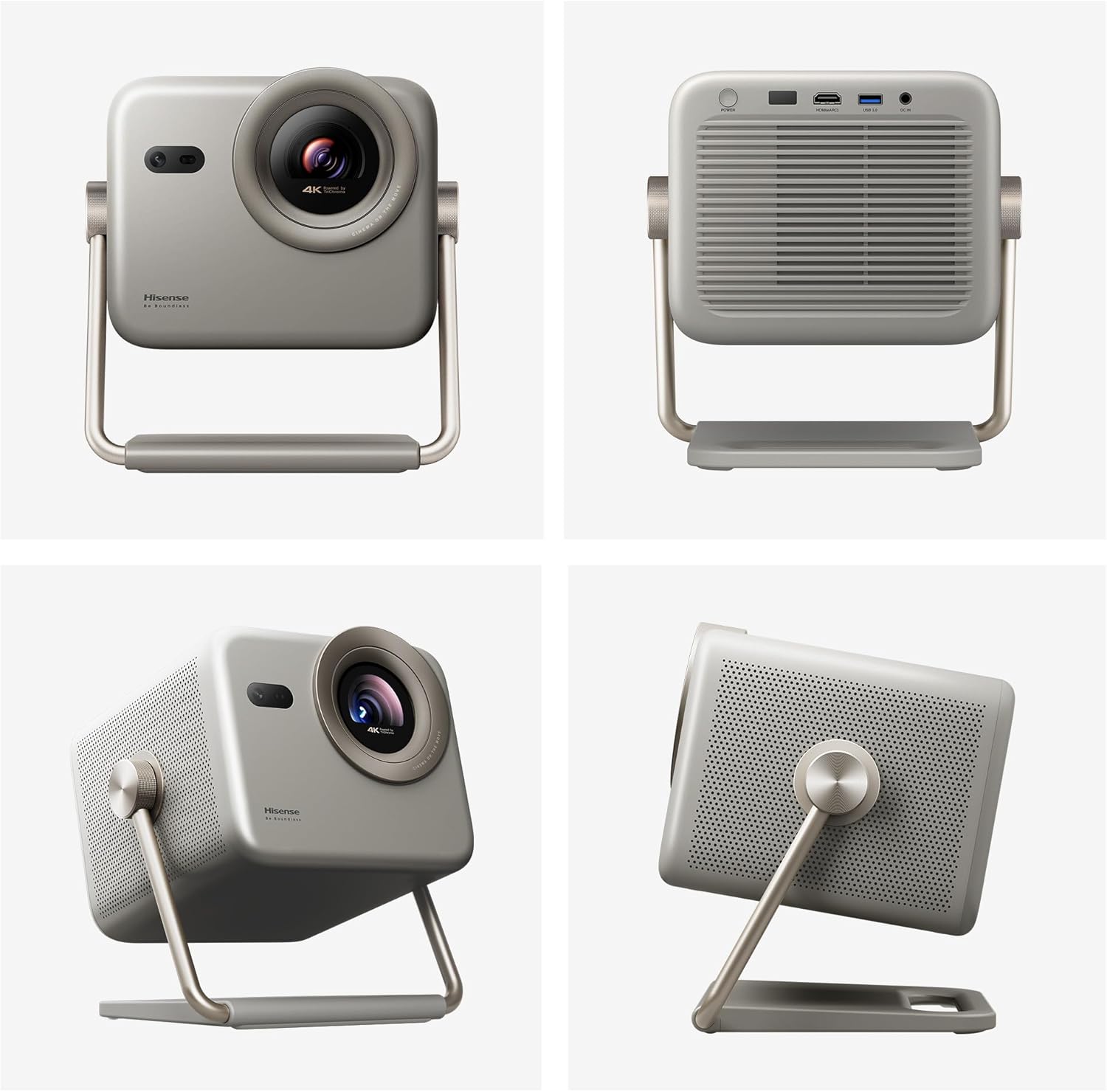
Figura 3: posterior view of the projector, displaying the power input, HDMI (eARC), USB 3.0, and DC IN ports.
5. Configuració
5.1 Col·locació
The Hisense M2 Pro offers flexible placement options due to its portable design and 360-degree projection capability. It can be placed on a table, mounted on the ceiling, or positioned on the floor.

Figure 4: Illustrates different ways to position the projector, including on a table, ceiling, or floor, adapting to various room layouts.
5.2 Connexió d'alimentació
- Connect the power cable to the projector's DC IN port.
- Connecteu l'altre extrem del cable d'alimentació a una presa de corrent adequada.
- Premeu el botó d'encesa del projector o del comandament a distància per encendre el dispositiu.
5.3 Configuració inicial i ajust de la imatge
The projector features automatic image correction functions for ease of use:
- Correcció trapezoidal automàtica: Automatically adjusts the image to be rectangular, even if the projector is not perfectly aligned with the screen.
- Enfocament automàtic: Ensures a sharp and clear image without manual adjustment.
- Evitació d'obstacles: Detects and adjusts the projection area to avoid objects in the path.
- Protecció ocular intel·ligent: Reduces laser output when an object is detected close to the lens.
- Adaptació del color de la paret: Adjusts colors based on the wall surface for optimal viewing.

Figure 5: Visual representation of the projector's automatic adjustment features, including keystone correction, autofocus, and obstacle avoidance.
6. Instruccions de funcionament
6.1 Control remot
Use the provided remote control to navigate the projector's interface and control playback. Key functions include power, input selection, volume, navigation, and quick access to streaming services.

Figure 6: The remote control for the Hisense M2 Pro, showing dedicated buttons for various functions and popular streaming applications.
6.2 Connexió de dispositius externs
The projector supports various external devices for content playback:
- HDMI: Connect gaming consoles, Blu-ray players, or other HDMI-enabled devices. The HDMI (eARC) port supports enhanced audio return channel.
- USB 3.0: Connecteu dispositius d'emmagatzematge USB per a la reproducció de contingut multimèdia.
- Bluetooth 5: Pair with smartphones, tablets, or Bluetooth speakers for audio streaming.
- LAN: Per a la connexió de xarxa amb cable.

Figure 7: Illustrates how to connect various devices like laptops, gaming consoles, soundbars, and mobile devices to the projector.
6.3 Funcions de Smart TV (VIDAA OS)
The projector runs on the VIDAA Smart TV operating system, providing access to popular streaming applications and smart features.

Figure 8: The projector's smart interface, displaying icons for popular streaming services and other entertainment applications.
6.4 Projection Modes and Features
- Trichroma Laser Technology: Experience vibrant and accurate colors with 110% BT.2020 super wide color space.
- Dolby Vision: Enjoy enhanced detail in shadows and brighter highlights for a more immersive viewexperiència.
- Optical Zoom (1.0 to 1.3): Adjust the image size without compromising 4K clarity.
- 240Hz Gaming: Provides smooth, blur-free gaming with high refresh rates.
- Suport 3D: Supports immersive 3D viewing. DLP-Link Active Shutter 3D glasses are required (sold separately).

Figure 9: Explains the advanced Trichroma laser technology, offering superior color accuracy and a wide color gamut.

Figure 10: Demonstrates the visual impact of Dolby Vision, providing enhanced detail and contrast in projected images.

Figure 11: Shows the effect of optical zoom, allowing adjustment of screen size from 65 to 200 inches while maintaining 4K resolution.

Figure 12: Depicts the projector's 240Hz gaming feature, ensuring ultra-clear and smooth action for an enhanced gaming experience.

Figure 13: Highlights the immersive audio capabilities with DTS and Dolby Audio, complementing the 3D visual experience.
7. Manteniment
7.1 Neteja del projector
- Assegureu-vos que el projector estigui apagat i desendollat abans de netejar-lo.
- Feu servir un drap suau i sense borrissol per netejar les superfícies exteriors.
- For the lens, use a specialized lens cleaning cloth and solution. Avoid touching the lens directly with your fingers.
- No utilitzeu netejadors abrasius, ceres ni dissolvents, ja que poden danyar l'acabat.
7.2 Emmagatzematge
When not in use for extended periods, store the projector in a cool, dry place, away from direct sunlight and extreme temperatures. It is recommended to use the original packaging for storage to protect it from dust and physical damage.
8. Solució De Problemes
If you encounter issues with your Hisense M2 Pro projector, refer to the following common problems and solutions:
| Problema | Causa possible | Solució |
|---|---|---|
| No es projecta cap imatge | Power cable disconnected, input source not selected, device not powered on. | Check power connections, ensure input source is correctly selected (HDMI, USB), power on connected devices. |
| La imatge és borrosa | Autofocus issue, projector too close/far from screen. | Allow autofocus to complete. If manual adjustment is needed, refer to the on-screen menu. Ensure projector is within optimal projection distance (1.44m to 5.75m for 65-200 inches). |
| Sense so | Volume too low, external audio device not connected, incorrect audio output selected. | Increase volume, check Bluetooth connection to external speakers, verify audio output settings in the projector menu. |
| El comandament a distància no funciona | Batteries depleted, obstruction between remote and projector. | Replace batteries, ensure clear line of sight to the projector's IR receiver. |
9. Especificacions
| Característica | Especificació |
|---|---|
| Número de model | M2 Pro |
| Dimensions (L x A x A) | 19.3 x 21.8 x 23 cm |
| Pes | 4.1 kg |
| Tecnologia de visualització | Laser (Trichroma) |
| Resolució nativa | 3840 x 2160 (4K UHD) |
| Brillantor | 1300 lúmens ANSI |
| Relació de contrast | 1000:1 |
| Mida màxima de la imatge | 200 polzades |
| Min Image Size | 65 polzades |
| Distància màxima de projecció | 5.75 metres |
| Min Projection Distance | 1.44 metres |
| Connectivitat | Bluetooth 5, HDMI, USB 3.0, Wi-Fi |
| Característiques especials | Integrated Speaker, Wi-Fi Compatible, Autofocus, Portable, Dolby Vision, 240Hz Gaming, 3D |
| Consum d'energia | 20 watts |
| Voltage | 220 Volts |
10. Garantia i Suport
10.1 Informació de la garantia
The Hisense M2 Pro projector comes with a Garantia del fabricant de 3 anysAquesta garantia cobreix els defectes de materials i de fabricació en condicions d'ús normal. Si us plau, conserveu el comprovant de compra per a reclamacions de garantia.
10.2 Atenció al client
For technical assistance, troubleshooting, or warranty inquiries, please contact Hisense customer support through their official weblloc web o la informació de contacte que es proporciona als materials de registre del producte.
You can also visit the official Hisense support page for FAQs and additional resources: Suport Hisense