1. Introducció
This manual provides detailed instructions for the installation, operation, maintenance, and troubleshooting of your new Generic Backlit Laptop Keyboard. This keyboard is designed as a replacement part for various CLEVO N870 series laptop models, featuring a Japanese (JP) layout and integrated backlighting. Please read this manual thoroughly before attempting installation or use to ensure proper function and to prevent damage.
2. Producte acabatview
The Generic Backlit Laptop Keyboard is a high-quality replacement component designed to restore or upgrade the typing experience on compatible CLEVO N870 series laptops. It features a Japanese key layout, which includes specific characters and key placements unique to the Japanese language input method. The integrated backlighting allows for improved visibility in low-light conditions.
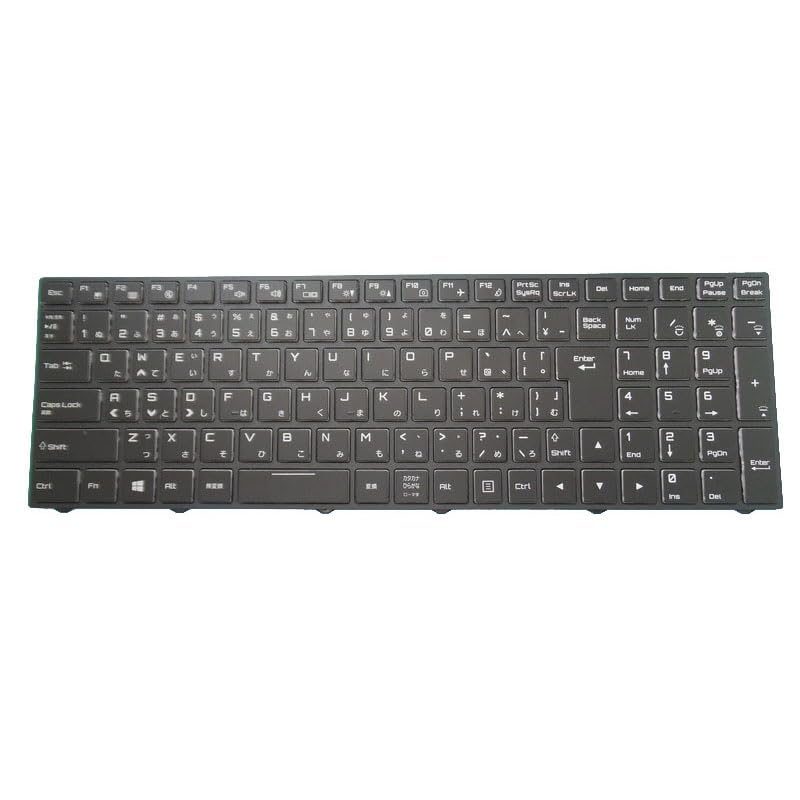
Figura 1: Generic Backlit Laptop Keyboard (Japanese Layout). This image displays the full keyboard unit, highlighting the key layout and overall design, including the black frame.
Característiques principals:
- Compatibilitat: Specifically designed for CLEVO N870, N870EJ, N870EJ1, N870EK1, N870EP6, N870EZ, N870HJ, N870HJ1, N870HK, N870HK1, N870HP6, N870HZ models.
- Disseny: Japanese (JP) layout with standard keycap design.
- Il·luminació de fons: Integrated backlight for enhanced visibility.
- Marc: Includes a black frame for seamless integration.
3. Configuració i instal·lació
Keyboard replacement in laptops typically requires technical expertise and careful handling of internal components. If you are not comfortable performing this procedure, it is recommended to seek assistance from a qualified technician.
Abans de la instal·lació:
- Verificar la compatibilitat: Ensure that your laptop model (e.g., N870EJ1, N870HK1) matches the compatible models listed in this manual. Refer to your laptop's original documentation or manufacturer's website for your exact model number.
- Apagar: Completely shut down your laptop and disconnect it from the power adapter. Remove the battery if it is externally accessible.
- Descàrrega estàtica: Discharge any static electricity from your body by touching a grounded metal object.
- Eines: Gather necessary tools, which may include small Phillips head screwdrivers, plastic spudgers, and tweezers.
General Installation Steps (Consult your laptop's service manual for specific instructions):
- Desmuntatge: Carefully disassemble the laptop components necessary to access the existing keyboard. This often involves removing the bottom cover, battery, optical drive, and sometimes the palm rest or top case.
- Desconnecta el teclat antic: Locate the ribbon cable connecting the old keyboard to the motherboard. Gently unlatch the connector and disconnect the cable.
- Elimina el teclat antic: Remove any screws or clips securing the old keyboard in place and carefully lift it out.
- Instal·la el teclat nou: Position the new Generic Backlit Laptop Keyboard into the keyboard tray. Ensure it sits flush.
- Connecta el nou teclat: Carefully insert the new keyboard's ribbon cable into the motherboard connector and secure the latch. Ensure the cable is properly seated and not creased.
- Remuntatge: Reassemble the laptop by reversing the disassembly steps. Ensure all screws are tightened appropriately and no cables are pinched.
- Prova inicial: Before fully closing the laptop, connect the power adapter (and battery if applicable) and power on the laptop to test the keyboard functionality and backlight.
Precaució: Improper installation can lead to damage to the keyboard, laptop, or personal injury. Proceed with care.
4. Instruccions de funcionament
Once the keyboard is successfully installed, its basic operation is similar to any standard laptop keyboard. The primary special feature is the integrated backlight.
Control de la llum de fons:
- The backlight is typically controlled using a combination of the Fn (Function) key and one of the F-keys (F1-F12).
- Look for a key with a keyboard icon or a sun icon. Common combinations include Fn + F3, Fn + F4, Fn + F5, o Fn + F10.
- Pressing this combination repeatedly may cycle through different backlight brightness levels (e.g., Off, Low, Medium, High).
- Refer to your specific CLEVO laptop's user manual for the exact key combination to control the keyboard backlight.
Japanese Layout Specifics:
- The Japanese layout includes additional keys for Japanese input methods (e.g., 半角/全角 (Half-width/Full-width), 変換 (Convert), 無変換 (No Convert), カタカナ/ひらがな (Katakana/Hiragana)).
- Ensure your operating system's language and keyboard input settings are configured for "Japanese" to utilize the full functionality of this layout.
5. Manteniment
Un manteniment adequat pot allargar la vida útil del teclat i garantir un rendiment òptim.
- Neteja: Utilitzeu un drap suau i sense pelusa lleugerament dampened with water or a mild cleaning solution (e.g., isopropyl alcohol) to wipe the keycaps and frame. Avoid excessive moisture.
- Eliminació de pols: Feu servir aire comprimit per eliminar la pols i les restes d'entre les tecles. Mantingueu la llauna en posició vertical per evitar que es descarregui el propel·lent.
- Eviteu els vessaments: Mantingueu els líquids allunyats del teclat per evitar danys als circuits interns.
- Ús suau: Avoid excessive force when typing to prevent premature wear on the key mechanisms.
6. Solució De Problemes
Si teniu problemes amb el vostre teclat nou, proveu els passos següents per resoldre'ls:
- El teclat no respon:
- Ensure the keyboard ribbon cable is securely connected to the motherboard.
- Reinicieu el vostre ordinador portàtil.
- Check Device Manager (Windows) or System Information (macOS/Linux) to see if the keyboard is detected. Reinstall or update keyboard drivers if necessary.
- La llum de fons no funciona:
- Verify that the backlight control key combination (Fn + F-key) is being pressed correctly.
- Ensure that the backlight ribbon cable (if separate) is properly connected.
- Check your laptop's BIOS/UEFI settings for any keyboard backlight options.
- Incorrect Characters or Layout:
- Confirm that your operating system's keyboard layout settings are set to "Japanese".
- If you have multiple input methods installed, ensure the correct one is selected.
- Tecles enganxoses:
- Clean the affected keys with compressed air or a slightly damp drap per eliminar les restes.
Si aquests passos no resolen el problema, poseu-vos en contacte amb l'atenció al client o amb un tècnic qualificat.
7. Especificacions
| Característica | Detall |
|---|---|
| Tipus de producte | Laptop Replacement Keyboard |
| Marca | Genèric |
| Compatibilitat | CLEVO N870, N870EJ, N870EJ1, N870EK1, N870EP6, N870EZ, N870HJ, N870HJ1, N870HK, N870HK1, N870HP6, N870HZ |
| Disseny | Japonès (JP) |
| Llum de fons | Sí |
| Color del marc | Negre |
| Dimensions del producte | 16.93 x 7.09 x 2.76 inches (approximate, packaging dimensions) |
| Pes de l'article | 10.6 unces (aproximadament) |
| Fabricant | Genèric |
8. Garantia i Suport
Garantia: Aquest producte ve amb un 90 dies de garantia from the date of purchase. This warranty covers manufacturing defects and material flaws under normal use. It does not cover damage caused by improper installation, misuse, accidents, unauthorized repairs, or normal wear and tear.
Suport: For technical assistance, warranty claims, or further inquiries, please contact your retailer or the seller from whom you purchased this product. When contacting support, please have your purchase details and laptop model information readily available.
Important: Abans de la compraasing, carefully check your laptop model or product part number. If you have disassembly pictures, please send them to the seller for verification of compatibility.


