
1. Configuració inicial
This section guides you through the initial steps to set up your TCL 65C69K Smart TV, from unpacking to the first power-on.
1.1 Unpacking the TV
Carefully remove the TV and all accessories from the packaging. Retain the packaging materials for future transport or service needs. Ensure all components listed in the packing list are present.
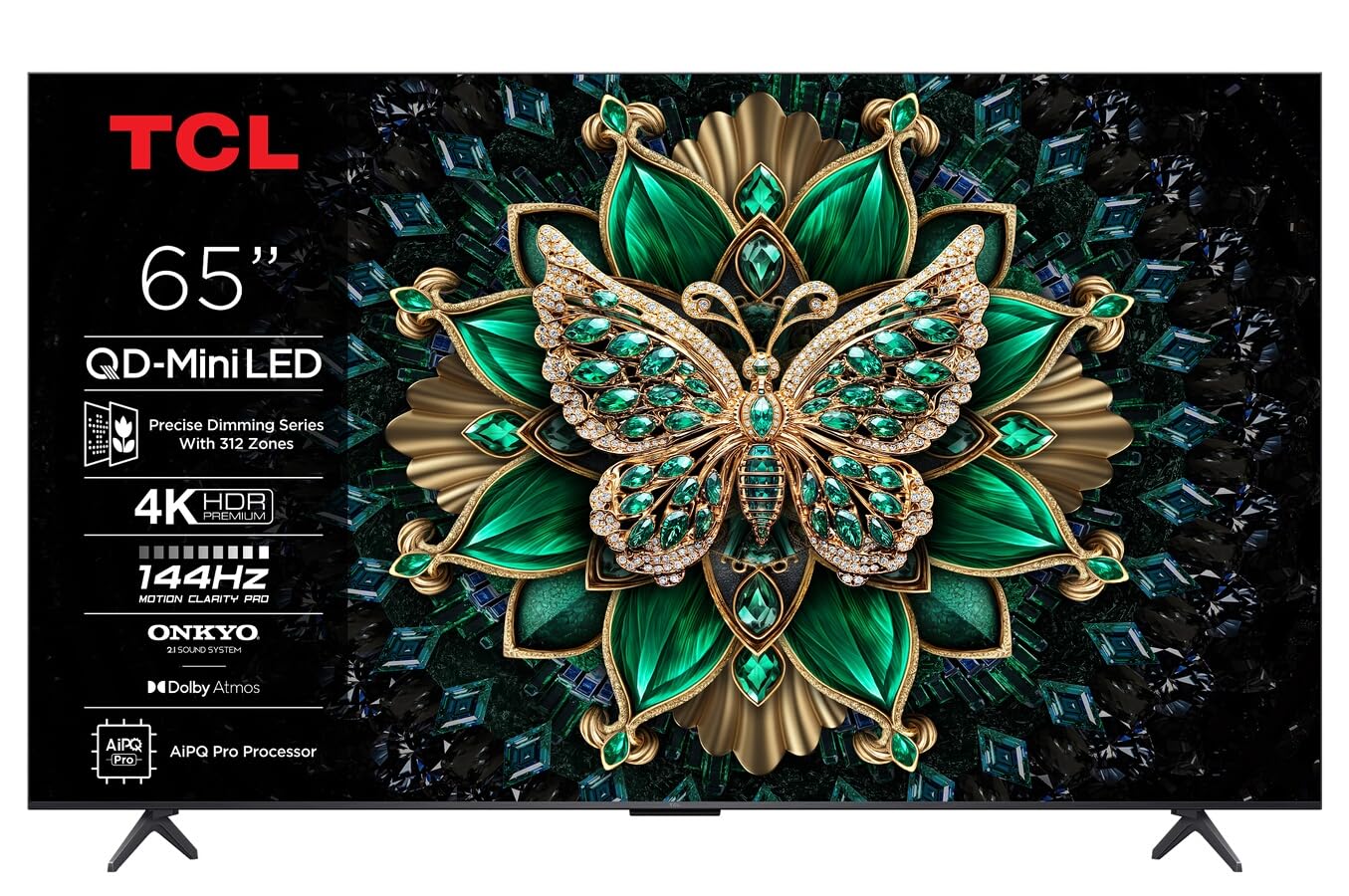
Imatge: Frontal view of the TCL 65C69K QD-MiniLED 4K Smart TV. The TV features a slim bezel and a central stand, showcasing its display and design.
1.2 Instal·lació del suport o muntatge a la paret
Per a la instal·lació del suport: Place the TV screen-down on a soft, flat surface. Align the stand with the designated slots on the bottom of the TV and secure it using the provided screws. Ensure the stand is firmly attached before placing the TV upright.
Per al muntatge a la paret: Refer to the wall mount kit instructions (sold separately) for proper installation. Ensure the wall mount is compatible with VESA standards for your TV model. Always seek professional assistance for wall mounting to prevent damage or injury.
1.3 Connexió de perifèrics
- Cable de corrent: Connecteu el cable d'alimentació a l'entrada d'alimentació del televisor i després a una presa de corrent.
- Dispositius HDMI: Connect external devices such as Blu-ray players, game consoles, or set-top boxes to the HDMI ports. This TV supports 4K resolution via HDMI.
- Antena/cable: Connect an antenna or cable TV coaxial cable to the "ANT/CABLE IN" port for broadcast television.
- Connexió de xarxa: For internet access, connect an Ethernet cable to the LAN port or use the built-in Wi-Fi connectivity.
- Dispositius d'àudio: For external audio systems, use the optical digital audio output or HDMI ARC/eARC port. The TV features Onkyo 2.1 audio.
1.4 First Power On and Initial Configuration
After connecting all necessary cables, press the power button on the TV or remote control. The TV will guide you through the initial setup process, which includes:
- Selecció d'idioma: Trieu el vostre idioma preferit.
- Configuració de la xarxa: Connect to your Wi-Fi network or confirm the Ethernet connection.
- Google TV Account: Sign in with your Google account to access smart features, apps, and personalized recommendations.
- Escaneig de canals: Scan for available broadcast channels if an antenna or cable is connected.
- Configuració de privadesa: Review and adjust privacy settings as desired.
2. Funcionament del televisor
This section details the basic operation of your TCL 65C69K Smart TV, including remote control functions and smart features.
2.1 Control remotview
The remote control allows you to navigate the TV's interface, adjust settings, and access smart features. Familiarize yourself with buttons for power, volume, channel, input selection, home, back, and dedicated app buttons (if present).
2.2 Funcions bàsiques
- Encès/apagat: Premeu el botó Poder button on the remote or TV.
- Ajust de volum: Utilitza el Pujar/Bajar el volum botons.
- Selecció de canals: Utilitza el Canal amunt/avall buttons or the number pad.
- Selecció d'entrada: Premeu el botó Entrada button to switch between connected devices (HDMI 1, HDMI 2, TV, etc.).
2.3 Funcions de Smart TV (Google TV)
Your TCL 65C69K runs on Google TV, providing access to a vast library of apps and streaming services. Press the Casa button to access the Google TV interface. From here, you can:
- Browse and launch pre-installed apps like Netflix, Amazon Prime Video, and Hulu.
- Download new apps from the Google Play Store.
- Access personalized content recommendations.
- Use Google Assistant for voice commands (if supported by your remote).
2.4 Configuració d'imatge i so
Accediu al menú de configuració del televisor per personalitzar el vostre viewing and listening experience. Navigate to Settings > Display & Sound.
- Modes d'imatge: Select from various picture modes (e.g., Standard, Movie, Game, Vivid) or customize settings like brightness, contrast, color, and sharpness. The QD-MiniLED panel and 4K resolution deliver exceptional clarity.
- Configuració avançada d'imatge: Adjust settings related to Dolby Vision IQ for optimized picture quality based on ambient light. The TV supports a 120Hz refresh rate for smooth motion.
- Modes de so: Choose sound modes (e.g., Standard, Music, Movie) or adjust equalizer settings. The integrated Onkyo 2.1 audio system with Dolby Atmos provides immersive sound.
3. Manteniment
Proper maintenance ensures the longevity and optimal performance of your TCL 65C69K Smart TV.
3.1 Cleaning the Screen and Frame
- Desendolla sempre el televisor abans de netejar-lo.
- Use a soft, lint-free cloth (e.g., microfiber) to gently wipe the screen. For stubborn marks, lightly dampNetegeu el drap amb aigua o amb un netejador de pantalles especialitzat. No ruixeu mai el netejador directament sobre la pantalla.
- Wipe the TV frame and stand with a dry, soft cloth. Avoid abrasive cleaners or solvents.
3.2 Actualitzacions de programari
Regular software updates provide new features, performance improvements, and security enhancements. To check for updates, navigate to Settings > System > About > System update. Follow the on-screen prompts to download and install any available updates. Ensure your TV is connected to the internet during this process.
4. Solució De Problemes
This section addresses common issues you might encounter with your TCL 65C69K Smart TV and provides solutions.
- Sense energia:
- Ensure the power cable is securely connected to both the TV and a working wall outlet.
- Comproveu si la presa de corrent funciona connectant-hi un altre dispositiu.
- Prova de prémer el botó d'engegada del televisor, no només el comandament a distància.
- No hi ha imatge, però hi ha so:
- Verifiqueu que s'ha seleccionat la font d'entrada correcta (per exemple, HDMI 1, TV).
- Check the HDMI cable connection to both the TV and the external device. Try a different HDMI port or cable.
- Restart the connected external device.
- No hi ha so, però hi ha imatge:
- Increase the volume on the TV and ensure it is not muted.
- Check audio output settings in the TV menu (e.g., internal speakers, external audio system).
- If using external speakers, ensure they are powered on and correctly connected.
- Problemes de connexió de xarxa:
- Reinicieu el vostre encaminador i mòdem Wi-Fi.
- Vés a Configuració> Xarxa i Internet and re-establish the connection.
- If using Wi-Fi, try moving the TV closer to the router or using an Ethernet cable for a more stable connection.
- El control remot no respon:
- Substituïu les piles del comandament a distància.
- Assegureu-vos que no hi hagi obstacles entre el comandament a distància i el sensor d'infrarojos del televisor.
- If it's a Bluetooth remote, try re-pairing it with the TV (refer to the TV's on-screen help for pairing instructions).
If problems persist after trying these solutions, please contact TCL customer support for further assistance.
5. Especificacions tècniques
Below are the key technical specifications for the TCL 65C69K Smart TV.
| Nom del model | 65C69K |
| Marca | TCL |
| Mida de la pantalla | 65 polzades |
| Tecnologia de visualització | Mini LED |
| Resolució | 4K UHD (3840 x 2160) |
| Freqüència d'actualització | 120 Hz (Natiu) |
| Característiques especials | Mini LED, 4K UHD, Premium Design, Smart Functions, Dolby Vision IQ |
| Tecnologia de connectivitat | Wi-Fi, HDMI, USB, Ethernet |
| Relació d'aspecte | 16:9 |
| Serveis d'Internet compatibles | Netflix, Amazon Prime Video, Hulu, Google TV ecosystem |
| Sistema d'àudio | Onkyo 2.1, Dolby Atmos |