
1. Introducció
Thank you for choosing the FightBox B-PRO All Button Leverless Arcade Game Controller. This manual provides essential information for setting up, operating, maintaining, and troubleshooting your device. Please read it thoroughly to ensure optimal performance and longevity of your controller.
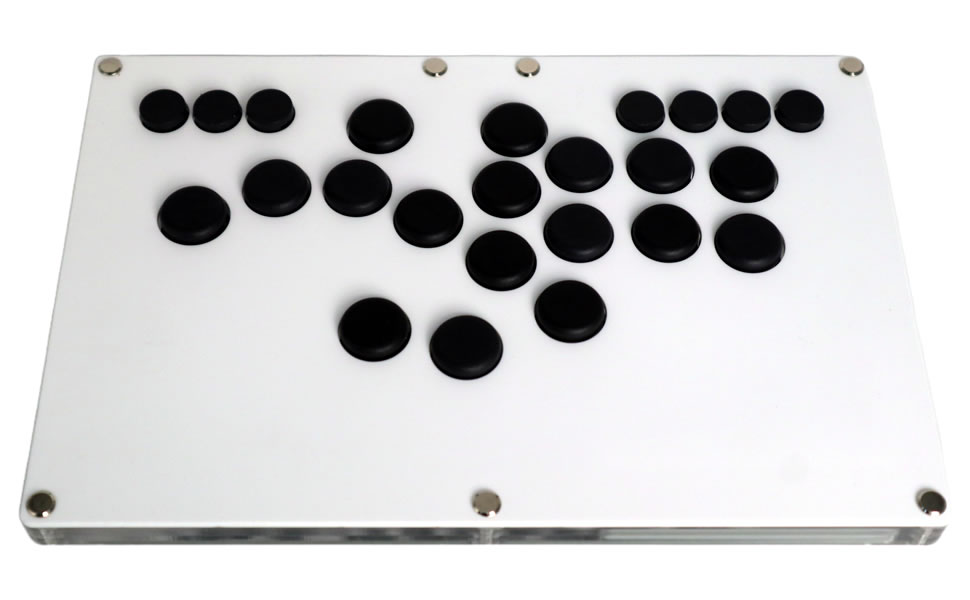
Image 1.1: The FightBox B-PRO All Button Leverless Arcade Game Controller, a compact and high-performance gaming device.
2. Característiques del producte
The FightBox B-PRO is engineered for precision and responsiveness, offering a superior gaming experience with its advanced design and components.
- Fully Customizable Buttons: Includes 5 additional buttons for personalized control schemes.
- Disseny portàtil: Features an ultra-thin and compact form factor for easy transport.
- Cherry MX Silver Key Switches: Equipped with high-performance, hot-swappable Cherry MX Silver switches for rapid input.
- FightBox RP2040 Advanced Breakout Board: Utilizes a robust internal board for reliable and low-latency performance.
- SOCD Support: Complies with tournament standards for Simultaneous Opposing Cardinal Directions (SOCD) cleaning.
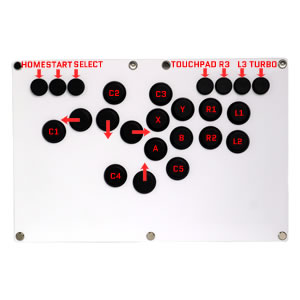

Image 2.1: The FightBox RP2040 Advanced Breakout Board (left) and a Cherry MX Silver Key Switch (right), key internal components of the controller.
3. Contingut del paquet
Verifiqueu que tots els elements estiguin presents al paquet en desempaquetar-lo:
- FightBox B-PRO All Button Leverless Arcade Game Controller
- Cable USB (tipus A a tipus B)
- Manual d'usuari (aquest document)

Image 3.1: The retail packaging for the FightBox B-PRO controller.
4. Disseny del controlador
The FightBox B-PRO features a standard all-button layout designed for fighting games, with additional customizable buttons for enhanced functionality.

Image 4.1: Diagram illustrating the button layout and labeling of the FightBox B-PRO controller, including directional inputs and action buttons.
The controller includes standard arcade action buttons (X, Y, A, B, R1, R2, L1, L2), directional buttons (Up, Down, Left, Right), and additional system buttons (HOME, START, SELECT, TOUCHPAD, R3, L3, TURBO) along with five customizable buttons (C1-C5).
5. Instruccions de configuració
Follow these steps to connect your FightBox B-PRO controller to your desired platform.
5.1 Connecting to PC/PS3/PS4/Nintendo Switch
- Locate the USB Type-B port on the back of the FightBox B-PRO controller.
- Connect one end of the provided USB cable (Type-A to Type-B) to the controller's USB Type-B port.
- Connect the other end of the USB cable (Type-A) to an available USB port on your PC, PlayStation 3, PlayStation 4, or Nintendo Switch dock.
- The controller should be automatically recognized by your system. For PC, drivers may install automatically. For consoles, ensure the console is powered on.

Imatge 5.1: Primer pla view of the USB Type-B port on the FightBox B-PRO controller, used for connecting to gaming platforms.
5.2 Compatibilitat de la plataforma
- PC: Compatible amb sistemes operatius Windows.
- PlayStation 3 (PS3): Connectar i jugar.
- PlayStation 4 (PS4): Connectar i jugar.
- Nintendo Switch: Connect via the Switch dock.
6. Instruccions de funcionament
Once connected, the FightBox B-PRO functions as a standard game controller. Refer to your game's control settings to customize button assignments as needed.
6.1 Customizing Additional Buttons
The 5 additional buttons (C1-C5) can be programmed for various functions depending on the game or system. Consult your game's options menu for button remapping capabilities.
6.2 Funció Turbo
The TURBO button allows for rapid, repeated input of another button. To activate, hold the TURBO button and press the desired action button. To deactivate, repeat the process.
7. SOCD Modes
The FightBox B-PRO supports three Simultaneous Opposing Cardinal Directions (SOCD) cleaning modes, which determine how conflicting directional inputs are processed. This feature is crucial for competitive play and tournament compliance.

Image 7.1: Table detailing the three supported SOCD modes and their input processing logic.
- Up Priority SOCD Mode (Default): When Up and Down are pressed simultaneously, Up input is prioritized. When Left and Right are pressed simultaneously, Neutral is output.
- Neutral (CAPCOM) SOCD Mode: When opposing directions (Up+Down or Left+Right) are pressed simultaneously, a Neutral input is output. This is a common tournament standard.
- Last Win SOCD Mode: The last directional input pressed takes precedence over the opposing direction. For example, if Left is held and Right is pressed, Right will be the active input.
Refer to the controller's specific button combinations or software utility (if available) to switch between these SOCD modes.
8. Manteniment
Proper care will extend the life of your FightBox B-PRO controller.
- Neteja: Feu servir un drap suau i sec per netejar la superfície del controlador. Per a la brutícia persistent, netegeu lleugerament.amp Es pot utilitzar un drap amb sabó suau, seguit d'un drap sec. Eviteu productes de neteja o dissolvents abrasius.
- Emmagatzematge: Guardeu el controlador en un lloc fresc i sec, allunyat de la llum solar directa i de temperatures extremes.
- Manipulació: Avoid dropping the controller or exposing it to excessive force, which can damage internal components or the acrylic casing.
9. Solució De Problemes
If you encounter issues with your FightBox B-PRO, try the following solutions:
| Problema | Possible solució |
|---|---|
| Controller not recognized by system |
|
| Els botons no responen o són enganxosos |
|
| Incorrect directional inputs (SOCD issues) |
|
10. Especificacions
Detailed technical specifications for the FightBox B-PRO controller.
| Característica | Detall |
|---|---|
| Nom del model | B-PRO |
| Marca | FightBox |
| Dispositius compatibles | Nintendo Switch, PC, PlayStation 3, PlayStation 4, Windows |
| Tipus de controlador | USB |
| Tecnologia de connectivitat | USB |
| Quantitat de botons | 17 |
| Plataforma de maquinari | Android, Nintendo Switch, PC, PlayStation 3/4 |
| Dimensions de l'article (L x A x A) | 11.81 x 7.40 x 0.75 polzades (30 cm x 18.8 cm x 1.9 cm) |
| Pes | Aproximadament 1.2 kg |
| UPC | 769700309744 |
| ASIN | B0FB8XZ84R |

Image 10.1: Diagram showing the dimensions of the FightBox B-PRO controller.
11. Garantia i Suport
The FightBox B-PRO controller comes with a standard manufacturer's warranty against defects in materials and workmanship. For specific warranty terms, duration, and to initiate a support request, please refer to the warranty card included with your product or visit the official FightBox weblloc.
For technical assistance, troubleshooting beyond this manual, or general inquiries, please contact FightBox customer support through their official channels.