
1. Introducció
The KCEVE KC-302HX KVM Switch is designed to streamline your workspace by allowing you to control up to three computers (two laptops and one desktop) using a single set of keyboard, mouse, and two HDMI monitors. This device supports high-resolution video output up to 4K@60Hz, offers USB 3.0 data transfer speeds, and includes 85W Power Delivery (PD) for compatible USB-C laptops. It is an ideal solution for users who need to switch between multiple systems efficiently.

Image: The KVM switch supports various resolutions, including 4K@60Hz and 2K Quad HD, for a high-quality visual experience.
2. Contingut del paquet
Si us plau, verifiqueu que tots els elements que s'enumeren a continuació estiguin inclosos al vostre paquet:
- 1 x KCEVE KC-302HX KVM Switch
- 2 x cables USB-C
- 2 x cables HDMI
- 1 x cable USB 3.0
- 1 x 1.5m Wired Remote Control
- 1 x font d'alimentació DC 12V
- 1 x Manual d'usuari

Image: A visual representation of the KVM switch and all accompanying cables and accessories included in the box.
3. Producte acabatview
The KCEVE KC-302HX KVM Switch features a robust design with clearly labeled ports and controls for intuitive operation.
Panell frontal
- Interruptor ON / OFF: Control de potència per al dispositiu.
- Ports USB 3.0 (x3): For connecting USB peripherals such as keyboard, mouse, printer, scanner, or U-disk.
- PC Selection Buttons (PC1, PC2, PC3): Manual switching between connected computers.
- Wired Remote Port: For connecting the included wired remote control.
- Indicadors LED: Show which computer input is currently active.
Panell posterior
- HDMI Output Ports (OUT A, OUT B): Connect to your two HDMI monitors.
- PC Input Ports (PC1, PC2, PC3):
- PC1 & PC2 (Laptops): Each requires 1x USB-C (with PD) and 1x HDMI input.
- PC3 (Desktop): Requires 1x USB 3.0 and 2x HDMI inputs.
- Entrada d'alimentació DC 12V: Connecteu l'adaptador d'alimentació inclòs.
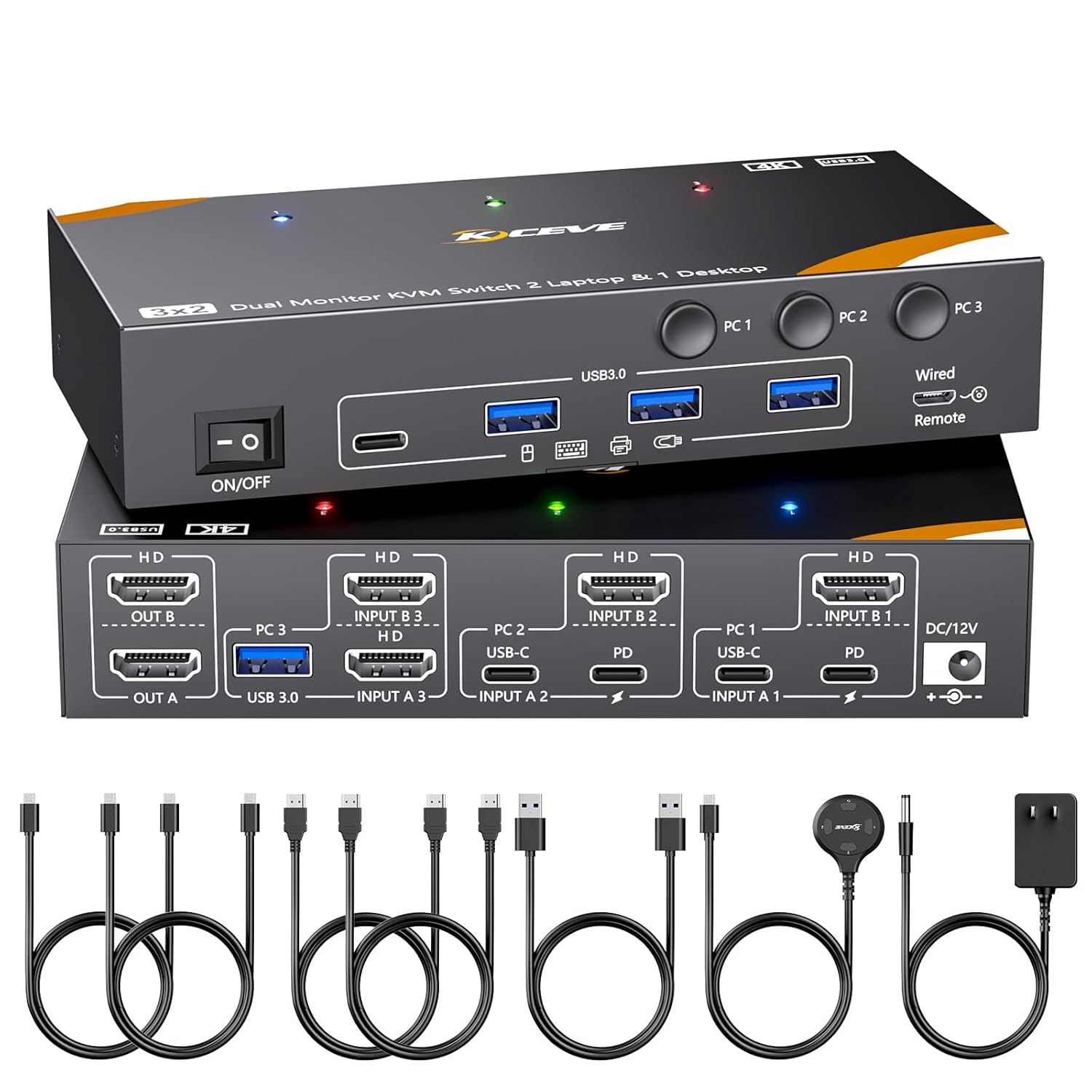
Imatge: Una completa view of the KVM switch, highlighting its front panel controls and rear panel connection ports.

Image: A detailed connection diagram showing how to connect two laptops and one desktop to the KVM switch, along with peripherals and monitors.
4. Instruccions de configuració
Follow these steps to connect your computers and peripherals to the KVM switch.
- Connectar monitors: Connect your two HDMI monitors to the KVM switch's SORTIDA A i SORTIDA B Ports HDMI.
- Connecteu els perifèrics: Connect your keyboard, mouse, and other USB 3.0 devices (e.g., printer, webcam) to the USB 3.0 ports on the front panel of the KVM switch.
- Connectar ordinadors:
- For PC1 (Laptop) & PC2 (Laptop): For each laptop, connect one HDMI cable from the laptop's HDMI output to the corresponding ENTRADA B port on the KVM switch (e.g., INPUT B 1 for PC1, INPUT B 2 for PC2). Then, connect one USB-C cable from the laptop's USB-C port to the corresponding ENTRADA A USB-C port on the KVM switch (e.g., INPUT A 1 for PC1, INPUT A 2 for PC2). Important: Ensure your laptop's USB-C port and HDMI port can output video simultaneously.
- For PC3 (Desktop): Connect two HDMI cables from your desktop's graphics card outputs to the ENTRADA B 3 i INPUT A 3 HDMI ports on the KVM switch. Then, connect one USB 3.0 cable from your desktop's USB port to the USB 3.0 INPUT A 3 port del commutador KVM.
- Connectar l'alimentació: Connect the included DC 12V power adapter to the KVM switch's DC 12V power input and plug it into a power outlet.
- Encès: Turn on the KVM switch using the ON/OFF switch on the front panel.
- Optional Wired Remote: Connect the 1.5m wired remote to the dedicated port on the front panel for convenient switching.
Note on Apple M1/M2/M3 Devices: Apple M1/M2 chips only support single-screen output. MacBook Pro (M3) cannot output images through both USB-C and HDMI ports simultaneously; it can only output one image at a time.

Imatge: Un example setup showing a user efficiently managing two laptops and one desktop with two monitors and shared peripherals via the KVM switch.
5. Instruccions de funcionament
5.1 Mètodes de commutació
You can switch between the connected computers using two methods:
- Botons del panell: Premeu el botó PC1, PC2, o PC3 buttons on the front panel of the KVM switch to select the desired computer. The corresponding LED indicator will illuminate.
- Comandament per cable: Use the included 1.5m wired remote control to switch between computers. This is convenient if the KVM switch is not easily accessible.

Image: Illustration of the two available switching methods: directly pressing buttons on the KVM unit or using the external wired remote control.
5.2 Video Output Modes
The KVM switch supports both Extended Mode and Mirror Mode for dual monitor setups. After switching, you may need to press "Windows + P" on your keyboard to select your preferred display mode.
- Mode estès: Displays different content on each monitor, extending your desktop workspace.
- Mode mirall: Duplicates the same content on both monitors.

Imatge: Visual examples demonstrating how Extended Mode and Mirror Mode appear on a dual monitor setup.
Transferència de dades USB 3.0 5.3
The KVM switch features USB 3.0 ports, supporting ultra-fast data transfer speeds up to 5Gbps. This allows for quick and efficient use of shared USB devices. It is backward compatible with USB 2.0/1.1 devices.

Image: A graphic illustrating the significant speed difference between USB 3.0 (5Gbps) and USB 2.0 (480Mbps) data transfer.
5.4 Power Delivery (PD) Functionality
For laptops connected via USB-C, the KVM switch provides 85W Power Delivery, allowing it to charge your laptop while in use. To ensure optimal charging, it is recommended to use a 100W PD charger to power the KVM switch.

Image: An illustration demonstrating how a 100W PD charger powers the KVM switch, which then delivers 85W charging to a connected laptop.
6. Compatibilitat
The KCEVE KC-302HX KVM Switch offers broad compatibility with various operating systems and devices:
- Sistemes operatius: Compatible with Windows 7/8/10/11/XP/Vista, Mac OS, Linux, and Chrome systems.
- Dispositius d'entrada: Supports HDMI and USB-C input devices such as desktops, laptops, Apple TV, PS5, HDTVs, monitors, and projectors.
7. Especificacions
| Característica | Especificació |
|---|---|
| Número de model | KC-302HX |
| Dimensions del producte | 6 x 3 x 1.2 polzades |
| Pes de l'article | 12.8 unces |
| Resolució de vídeo | Up to 4K@60Hz, 4K@30Hz, 2K@144Hz, 1080P@144Hz (backward compatible) |
| Estàndard HDMI | Compatible amb HDMI 2.0, HDCP 2.2 |
| Transferència de dades USB | USB 3.0 (up to 5Gbps), backward compatible with USB 2.0/1.1 |
| Subministrament d'energia (PD) | 85W for USB-C laptops (requires 100W PD charger for KVM) |
| Entrada de potència | DC 12V |
| Mètodes de canvi | Botó del panell, comandament a distància amb cable |
| Material de l'habitatge | Carcassa de metall |
8. Solució De Problemes
If you encounter issues with your KVM switch, please refer to the following common solutions:
- Sense pantalla al monitor:
- Assegureu-vos que tots els cables HDMI estiguin connectats correctament tant al commutador KVM com als monitors/ordinadors.
- Verify that the KVM switch is powered on and the correct input (PC1, PC2, or PC3) is selected.
- Check if your computer's display settings are configured for dual monitors (Extended or Mirror mode).
- For laptops connected via USB-C, confirm that the USB-C port supports video output.
- Try using different HDMI cables, as cable quality can affect signal transmission, especially at higher resolutions.
- Els dispositius USB no funcionen:
- Ensure the USB cables from your computers are correctly connected to the KVM switch.
- Verify that the KVM switch has sufficient power.
- Prova de connectar el dispositiu USB directament a l'ordinador per confirmar que funciona.
- Reconnect the USB device to the KVM switch.
- Intermittent Connection/Flickering:
- Assegureu-vos que tots els cables estiguin connectats fermament.
- Reduïu la resolució de la pantalla o la freqüència d'actualització per veure si el problema persisteix.
- Use high-quality HDMI 2.0 cables for optimal performance.
If these steps do not resolve your issue, please contact KCEVE customer support for further assistance.
9. Manteniment
To ensure the longevity and optimal performance of your KCEVE KC-302HX KVM Switch, follow these maintenance guidelines:
- Keep the device in a cool, dry place away from direct sunlight and extreme temperatures.
- Eviteu exposar el dispositiu a aigua o altres líquids.
- Netegeu l'exterior del dispositiu amb un drap suau i sec. No utilitzeu productes químics agressius ni netejadors abrasius.
- Ensure proper ventilation around the KVM switch to prevent overheating.
- Manipuleu els cables amb cura per evitar danys als connectors i ports.
10. Garantia i Suport
KCEVE provides comprehensive support for its products:
- Garantia: The KVM switch comes with a 12-month after-sales service period.
- Suport tècnic: Lifetime technical support is provided for the KCEVE KC-302HX KVM Switch.
For any questions, technical assistance, or warranty claims, please feel free to contact KCEVE customer support. Refer to the product packaging or the official KCEVE weblloc per obtenir informació de contacte.


