
1. Introducció
Thank you for choosing the Zeuslap Z13KT 13.3-inch Portable Touchscreen Monitor. This device is designed to enhance your productivity and entertainment experience with its high-resolution 2K IPS display, 100% sRGB color gamut, and responsive touch functionality. This manual provides essential information for the safe and efficient use of your monitor, including setup, operation, maintenance, and troubleshooting.
2. Informació de seguretat
- Read all instructions carefully before using the monitor.
- No exposeu el monitor a la pluja, la humitat ni a temperatures extremes.
- Eviteu col·locar el monitor a prop de fonts de calor o sota la llum solar directa.
- Use only the power adapter and cables provided or recommended by the manufacturer.
- No intenteu desmuntar ni reparar el monitor vosaltres mateixos. Encarregueu tot el manteniment a personal qualificat.
- Clean the monitor with a soft, dry cloth. Avoid using liquid cleaners or aerosols.
- Mantingueu el monitor allunyat de camps magnètics forts.
3. Contingut del paquet
Si us plau, comproveu el contingut del paquet en desembalar-lo. Si falta algun article o hi ha algun dany, poseu-vos en contacte amb el vostre distribuïdor.
- Zeuslap Z13KT Portable Monitor
- Cable USB-C a USB-C (per a alimentació i vídeo/tàctil)
- Cable mini HDMI a HDMI (per a vídeo)
- Cable USB-A a USB-C (per a l'alimentació)
- Adaptador d'alimentació (si inclòs)
- Protective Cover/Stand
- Manual d'usuari (aquest document)
4. Producte acabatview
Familiarize yourself with the monitor's components and ports.
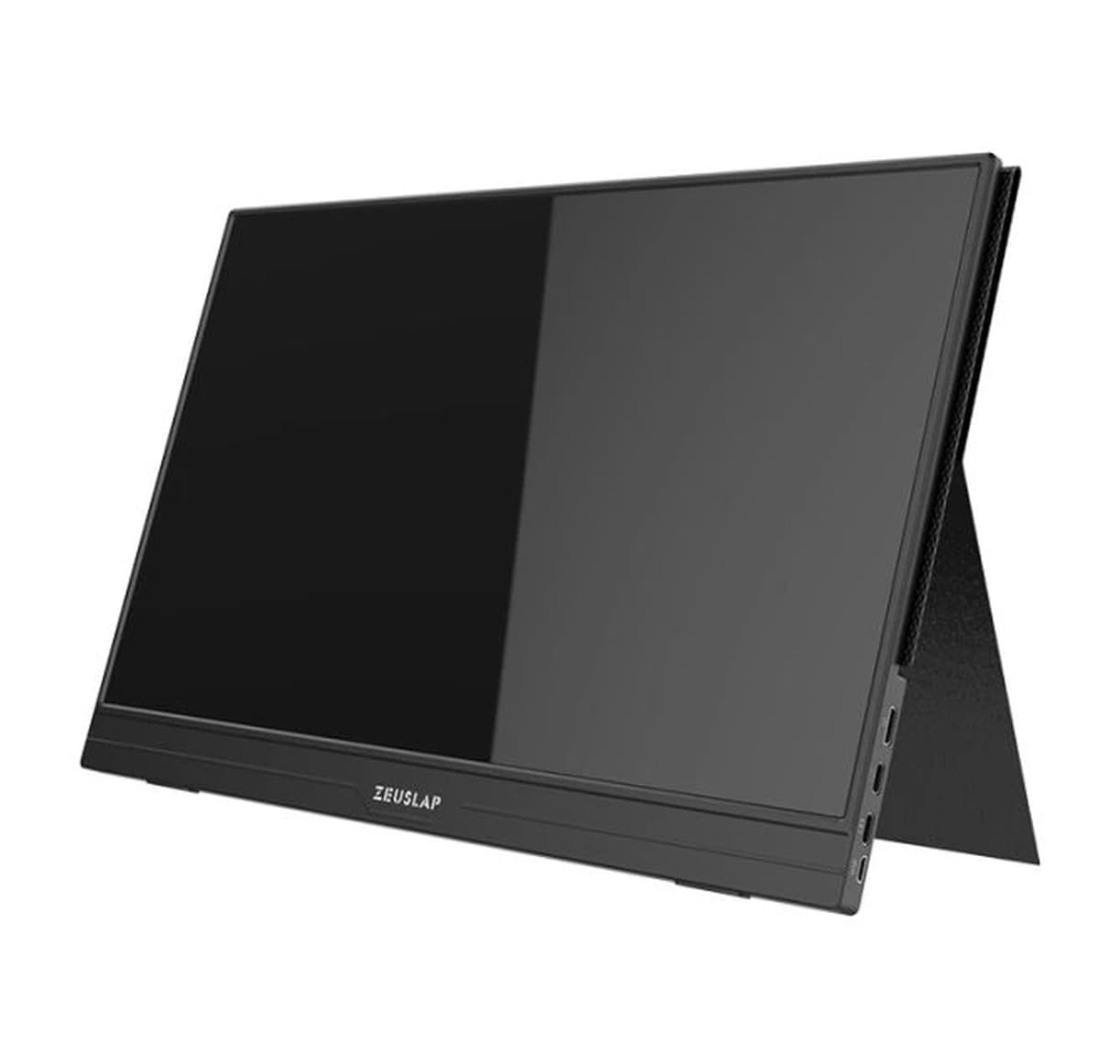
Figura 4.1: Davant view of the Zeuslap Z13KT portable monitor, showcasing its slim design and screen.
4.1. Monitor Components
- 13.3-inch 2K IPS Touchscreen: Main display area with touch input capability.
- Botó d'encesa: Turns the monitor on/off and can be used to access the OSD menu.
- Menu/Navigation Buttons: For navigating the On-Screen Display (OSD) menu.
- Ponents: Sortida d'àudio integrada.
4.2. Ports disponibles
- USB-C Port (Full-featured): For power, video signal, and touch data transmission from compatible devices (e.g., laptops, smartphones).
- USB-C Port (Power Only): For connecting to an external power adapter to supply power to the monitor.
- Port mini HDMI: For video signal input from devices like gaming consoles, cameras, or older laptops.
- Conector d'àudio de 3.5 mm: Per connectar auriculars o altaveus externs.
5. Configuració
Follow these steps to connect your Zeuslap Z13KT monitor to your device.
5.1. Connecting to a Laptop/PC (USB-C with DisplayPort Alt Mode)
- Ensure your laptop's USB-C port supports DisplayPort Alternate Mode (DP Alt Mode) and power delivery.
- Connect one end of the provided USB-C to USB-C cable to the full-featured USB-C port on the monitor.
- Connect the other end of the USB-C to USB-C cable to your laptop's compatible USB-C port.
- The monitor should automatically detect the signal and power on. If not, press the monitor's power button.
- For touch functionality, ensure the USB-C connection is established correctly.
5.2. Connecting to a Laptop/PC (HDMI + USB for Power/Touch)
- Connecteu un extrem del cable Mini HDMI a HDMI al port Mini HDMI del monitor.
- Connect the other end of the HDMI cable to your laptop's HDMI port.
- For power, connect the USB-A to USB-C cable from your laptop's USB-A port (or a power adapter) to the power-only USB-C port on the monitor.
- For touch functionality, if your laptop has a USB-A port, connect the USB-A end of the USB-A to USB-C cable to your laptop and the USB-C end to the full-featured USB-C port on the monitor. This will provide touch data.
- The monitor should power on and display the image.
5.3. Connecting to a Smartphone (USB-C with DisplayPort Alt Mode)
Note: Not all smartphones support video output via USB-C. Check your phone's specifications.
- Connect one end of the USB-C to USB-C cable to the full-featured USB-C port on the monitor.
- Connect the other end of the USB-C to USB-C cable to your compatible smartphone's USB-C port.
- The monitor will draw power from the phone. For extended use or if the phone cannot supply enough power, connect an external power adapter to the monitor's power-only USB-C port.
- The monitor should display your phone's screen, and touch functionality should be active.
6. Instruccions de funcionament
6.1. Encendre/apagar
- Per encendre: Premeu el botó d'engegada.
- Per apagar: Manteniu premut el botó d'engegada durant 3 segons.
6.2. Menú de visualització en pantalla (OSD).
El menú OSD us permet ajustar diversos paràmetres del monitor.
- Accessing the OSD: Press the Menu button (or short press the Power button, depending on model variation).
- Navegació: Use the navigation buttons (or touch gestures if enabled) to move through menu options.
- Selecció: Press the Menu button (or tap) to select an option.
- Sortida: Navigate to the "Exit" option or wait for the OSD to time out.
6.3. Common OSD Settings
- Brillantor/Contrast: Adjust display luminance and contrast levels.
- Configuració de color: Modifica la temperatura de color, el to i la saturació.
- Font d'entrada: Seleccioneu manualment entre les entrades USB-C i Mini HDMI.
- Relació d'aspecte: Change the display aspect ratio (e.g., 16:9, 4:3).
- Volum: Adjust the built-in speaker volume.
- Idioma: Seleccioneu l'idioma del menú OSD.
6.4. Funcionalitat de la pantalla tàctil
The monitor supports multi-touch gestures. Ensure your device (laptop/smartphone) is compatible and connected via a full-featured USB-C cable for touch input to function.
- Toca: Equivalent a un clic del ratolí.
- Llisca: For scrolling or navigating.
- Pessiga per fer zoom: For zooming in or out on content.
7. Manteniment
7.1. Neteja del monitor
- Apagueu i desendolleu sempre el monitor abans de netejar-lo.
- Feu servir un drap suau i sense borrissol per netejar suaument la pantalla iasing.
- Per a taques difícils, fregueu lleugeramentampNetegeu el drap amb aigua o una solució de neteja específica per a pantalles. No ruixeu líquid directament sobre la pantalla.
- Avoid using abrasive cleaners, alcohol, or ammonia-based solutions, as they can damage the screen surface.
7.2. Emmagatzematge
- When not in use, store the monitor in a cool, dry place.
- Use the provided protective cover to prevent scratches and dust accumulation.
- Eviteu col·locar objectes pesats a la part superior del monitor.
8. Solució De Problemes
Si teniu problemes amb el monitor, consulteu els problemes i solucions més comuns següents.
| Problema | Causa possible | Solució |
|---|---|---|
| Sense pantalla/Sense senyal |
|
|
| La pantalla tàctil no funciona |
|
|
| Pantalla parpellejant o inestable |
|
|
| No audio from monitor speakers |
|
|
9. Especificacions
| Característica | Detall |
|---|---|
| Model | ZL-Z13KT |
| Mida de la pantalla | 13.3 polzades |
| Resolució | 2560 x 1600 (2K) |
| Freqüència d'actualització | 60 Hz |
| Tipus de panell | IPS |
| Gamma de colors | 100% sRGB |
| Brillantor | 300 cd/m² |
| Pantalla tàctil | Sí |
| Connectivitat | 2x USB-C (1x Full-featured, 1x Power), 1x Mini HDMI, 1x 3.5mm Audio Jack |
| Entrada de potència | USB-C (5V-20V) |
10. Garantia i Suport
Specific warranty information for the Zeuslap Z13KT monitor is not available in the provided product data. Please refer to the warranty card included with your product or visit the official ZEUSLAP weblloc web per obtenir informació detallada sobre els termes i condicions de la garantia.
For technical support, product inquiries, or service requests, please contact your retailer or the manufacturer directly through their official support channels.