
1. Introducció
Thank you for choosing the ZEUSLAP Z18W Dual Screen Portable Monitor. This device is designed to enhance your productivity and multimedia experience by providing two additional 18.5-inch displays for your compatible devices. This manual provides essential information for setting up, operating, and maintaining your monitor.
2. Producte acabatview
2.1 Característiques clau
- Dual 18.5-inch Full HD IPS Displays: Enjoy vibrant colors and wide viewing angles with 1920x1080 resolution on each screen.
- Freqüència de refresc de 120 Hz: Experience smooth visuals, ideal for gaming and fast-paced multimedia.
- Connectivitat tipus C: Single cable solution for power and video transmission with compatible devices.
- Gamma de colors sRGB del 100%: Ensures accurate and rich color reproduction.
- 300 cd/m² Brightness: Proporciona una visibilitat clara en diverses condicions d'il·luminació.
- Funcionalitat de pantalla tàctil: Interact directly with the display for intuitive control.
- Àmplia compatibilitat: Connects to Laptops, Desktops, Gaming Consoles, and Smartphones.
2.2 Contingut del paquet
Si us plau, comproveu el paquet per veure si hi ha els elements següents:
- ZEUSLAP Z18W Dual Screen Portable Monitor
- USB-C to USB-C Cable (for video and power)
- USB-A to USB-C Power Cable (for additional power if needed)
- Manual d'usuari

This image shows the ZEUSLAP Z18W dual portable monitor set up next to a laptop, demonstrating its extended display capabilities for enhanced productivity.
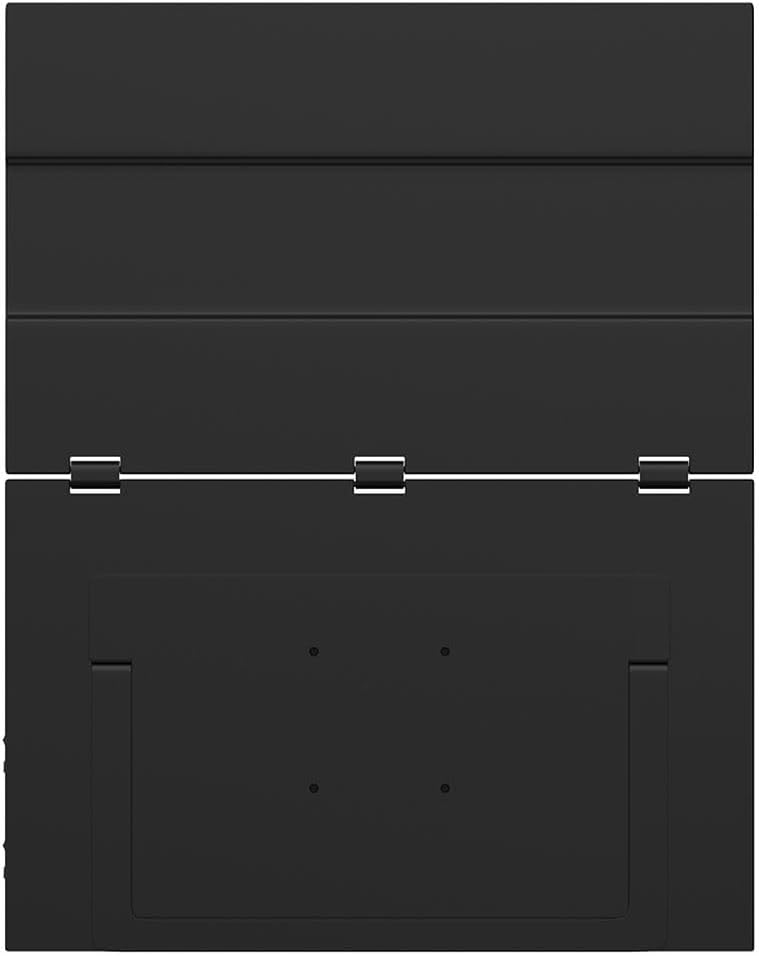
L'esquena view of the ZEUSLAP Z18W monitor highlights its robust hinge design and integrated stand, allowing for flexible positioning and stability.
3. Configuració
3.1 Connexió a un dispositiu
The ZEUSLAP Z18W monitor supports various connection methods. Ensure your device has the necessary ports.
- USB-C (Full-Featured): If your laptop, smartphone, or gaming console has a full-featured USB-C port (supporting DisplayPort Alternate Mode and power delivery), connect the monitor using the provided USB-C to USB-C cable. This single cable can transmit video, audio, and power to the monitor.
- USB-C (Power Only) + HDMI (Video): If your device's USB-C port does not support video output, or if you are connecting to a device with an HDMI port, you will need two cables:
- Connect an HDMI cable (not included) from your device to the monitor's HDMI input.
- Connect the provided USB-A to USB-C power cable from a USB power source (e.g., laptop USB port, wall adapter) to the monitor's USB-C power input.
3.2 Engegada/apagada
- Encès: Once connected to a compatible device and receiving power, the monitor should automatically power on. If not, press the Power button located on the side of the monitor.
- Apagar: Press and hold the Power button for a few seconds until the display turns off. Disconnect the cables when not in use.
4. Instruccions de funcionament
4.1 Menú de visualització en pantalla (OSD)
The OSD menu allows you to adjust various display settings. The monitor typically features a joystick or a set of buttons for navigation.
- Accessing the OSD: Press the OSD button (or push the joystick) to open the menu.
- Navegació: Use the joystick or directional buttons to move through menu options.
- Selecció: Press the OSD button (or push the joystick in) to select an option.
- Sortida: Navigate to the 'Exit' option or press the 'Back' button to close the OSD menu.
Common OSD settings include Brightness, Contrast, Color Temperature, Input Source, Aspect Ratio, and Volume.
4.2 Modes de visualització
When connected to a computer, you can configure the display mode through your operating system's display settings:
- Mode d'ampliació: Each monitor displays a separate desktop, allowing for more screen space and multitasking.
- Mode duplicat: All monitors display the same content, useful for presentations or sharing your screen.
4.3 Touch Screen Functionality
The ZEUSLAP Z18W features a touch screen. For touch functionality to work, ensure your device supports touch input over the connected interface (typically USB-C) and that the necessary drivers are installed (usually automatically by the operating system).
- Un sol toc: Tap to select or open items.
- Gestos multitàctils: Use gestures like pinch-to-zoom, two-finger scroll, etc., as supported by your operating system.
5. Manteniment
5.1 Neteja del monitor
- Always power off the monitor and disconnect all cables before cleaning.
- Utilitzeu un drap suau i sense pelusa dampRenteu-ho amb aigua o un netejador de pantalles no abrasiu.
- No ruixeu el netejador directament sobre la pantalla.
- Eviteu utilitzar alcohol, amoníac o productes de neteja abrasius, ja que poden danyar la superfície de la pantalla.
5.2 Emmagatzematge
- Guardeu el monitor en un lloc fresc i sec, allunyat de la llum solar directa i de temperatures extremes.
- Use the original packaging or a protective case to prevent damage during transport or storage.
6. Solució De Problemes
| Problema | Causa possible | Solució |
|---|---|---|
| Sense pantalla / Missatge "Sense senyal" |
|
|
| Monitor powers on but no image |
|
|
| La pantalla tàctil no respon |
|
|
| Imatge parpellejant o distorsionada |
|
|
7. Especificacions
| Característica | Detall |
|---|---|
| Nom del model | Z18W |
| Mida de la pantalla | 2 x 18.5 polzades |
| Resolució | 1920 x 1080 (Full HD) |
| Freqüència d'actualització | 120 Hz |
| Tipus de panell | IPS |
| Gamma de colors | 100% sRGB |
| Brillantor | 300 cd/m² |
| Connectivitat | USB-C, USB |
| Característiques especials | Dual Screen, High Refresh Rate, Type-C Connection, Touch Screen |
| Dispositius compatibles | Laptop, Desktop, Gaming Console, Smartphone |
8. Garantia i Suport
The ZEUSLAP Z18W Dual Screen Portable Monitor comes with a standard manufacturer's warranty. Please refer to the warranty card included in your package for specific terms and conditions, including the warranty period and coverage details.
For technical support, troubleshooting assistance, or warranty claims, please contact the retailer where you purchased the product or visit the official ZEUSLAP weblloc web per obtenir informació de contacte del servei d'atenció al client.