
1. Producte acabatview
The SVITOO P108 is a 12-inch Android tablet designed for versatile use, from entertainment to productivity. It features a 2K Full HD display, an Octa-Core processor, ample RAM and storage, and a long-lasting battery.

Image 1.1: The SVITOO P108 tablet showcasing its 2K display, dual-band Wi-Fi, Bluetooth 5.0, GPS, 30GB RAM (6+24), 128GB ROM, 8800mAh battery, T7250 processor, Android 16, and 13MP rear / 8MP front cameras.
Contingut del paquet:
- SVITOO P108 Tablet x 1
Disseny del dispositiu:

Image 1.2: A detailed diagram illustrating the location of the volume buttons, power button, front camera, flashlight, rear camera, 3.5mm headphone jack, TF card slot, Type-C port, and microphone on the SVITOO P108 tablet.
- Botons de volum: Ajusta el nivell de sortida d'àudio.
- Botó d'encesa: Turn the device on/off, or put it to sleep/wake it up.
- Càmera frontal: Per a videotrucades i selfies.
- Càmera posterior: Per capturar fotos i vídeos.
- Llanterna: Provides illumination for the rear camera.
- Presa d'auriculars de 3.5 mm: Connecteu els auriculars amb cable.
- Ranura per a targetes TF: Insert a microSD card for expandable storage.
- Port de tipus C: Per a càrrega i transferència de dades.
- Micròfon: Per a l'entrada d'àudio durant trucades o gravacions.
- Altaveu: Per a la sortida d'àudio.
2. Configuració inicial
2.1 Càrrega de la tauleta
Before first use, fully charge your tablet. Connect the provided USB Type-C cable to the tablet's Type-C port and the other end to a compatible power adapter. The battery indicator on the screen will show charging status.
2.2 Engegada/apagada
- Per encendre: Press and hold the Power button until the SVITOO logo appears.
- Per apagar: Press and hold the Power button until the power options appear on the screen, then select "Power Off".
- Per reiniciar: Mantingueu premut el botó d'engegada fins que apareguin les opcions d'engegada i, a continuació, seleccioneu "Reiniciar".
2.3 Configuració inicial
Upon first power-on, follow the on-screen prompts to set up your tablet. This includes selecting your language, connecting to a Wi-Fi network, setting up your Google account, and configuring basic security settings.
2.4 Inserció d'una targeta MicroSD
To expand storage, insert a microSD card into the TF Card Slot. Ensure the tablet is powered off before inserting or removing the card. Gently push the card until it clicks into place.
3. Funcionament de la tauleta
3.1 Navegació per la interfície d'Android
The tablet runs on Android 15, offering a user-friendly interface. Swipe up from the bottom to access the app drawer, swipe down from the top for notifications and quick settings, and use the navigation buttons (back, home, recent apps) at the bottom of the screen.
3.2 Característiques de visualització
The 12-inch 2K Full HD display (2000x1200 resolution) provides a clear and vibrant viewing experience. The screen has a 5:3 aspect ratio and 380 nits brightness.
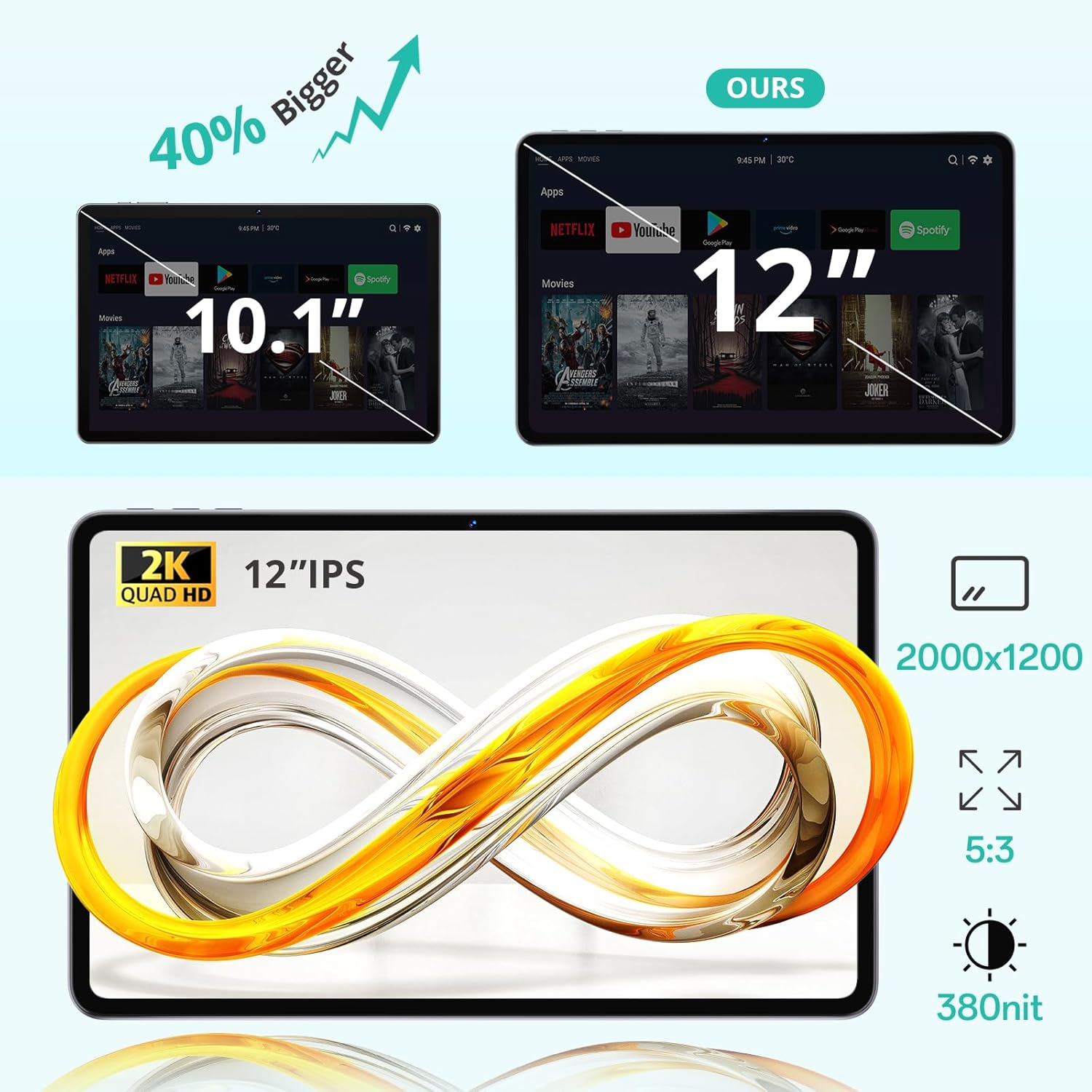
Image 3.1: The 12-inch display of the SVITOO P108 tablet, highlighting its 2K Quad HD resolution of 2000x1200, 5:3 aspect ratio, and 380 nit brightness, shown alongside a size comparison to a 10.1-inch tablet.
3.3 Suport Widevine L1
The tablet supports Widevine L1, enabling high-definition streaming from popular services like Netflix, YouTube, and Prime Video. This ensures a premium viewing experience with crisp visuals.

Image 3.2: The SVITOO P108 tablet displaying a high-definition image, indicating Widevine L1 support for streaming content from platforms such as Disney+, Netflix, YouTube, and Prime Video.
3.4 Multitasking with Split-Screen
Utilize the split-screen feature to run two applications simultaneously. This enhances productivity, allowing you to watch videos while chatting or browse the web while taking notes.

Image 3.3: Step-by-step guide on how to activate split-screen mode on the tablet, showing how to tap the recent apps button, select an app, and choose 'Split screen' to open a second app alongside it.
3.5 Mode de lectura
The tablet offers a dedicated reading mode that reduces blue light and optimizes brightness for a more comfortable and eye-friendly reading experience.

Image 3.4: The tablet displaying text in reading mode, emphasizing features like reduced blue light, optimized brightness, and overall eye-friendliness.
3.6 Parental Controls and Child-Friendly Interface
The tablet includes features for parental controls, allowing parents to manage content, screen time, and ensure a safe browsing environment for children. A child-friendly interface is also available for educational content.

Image 3.5: The tablet displaying a child-friendly interface with educational content and parental control options, indicating features like child-safe browsing and screen time management.
4. Manteniment i cura
4.1 Neteja de la tauleta
Feu servir un drap suau i sense borrissol per netejar la pantalla i el cos de la tauleta. Per a taques difícils, fregueu lleugerament.ampNetegeu el drap amb aigua o una solució netejadora de pantalles. Eviteu utilitzar productes químics agressius o materials abrasius.
4.2 Cura de la bateria
The tablet is equipped with an 8000 mAh lithium-ion battery. To prolong battery life:
- Eviteu temperatures extremes.
- No deixeu que la bateria es descarregui completament amb freqüència.
- Feu servir el carregador original o un carregador compatible certificat.

Image 4.1: The tablet highlighting its 8800mAh battery, with icons indicating usage times for video, music, web browsing, and standby.
4.3 Actualitzacions de programari
Regularly check for and install software updates to ensure optimal performance, security, and access to the latest features. Go to Configuració > Sistema > Actualització del sistema per comprovar si hi ha actualitzacions.
5. Solució De Problemes
La tauleta 5.1 no s'encén
- Assegureu-vos que la bateria estigui carregada. Connecteu el carregador i espereu uns minuts abans d'intentar tornar-lo a engegar.
- Mantingueu premut el botó d'engegada durant 10-15 segons per realitzar un reinici forçat.
5.2 Rendiment lent
- Tanca les aplicacions de fons innecessàries.
- Clear cache for frequently used apps (Settings > Apps > [App Name] > Storage > Clear Cache).
- Assegureu-vos que hi hagi prou espai d'emmagatzematge disponible.
- Reinicieu la tauleta.
5.3 Problemes de connectivitat Wi-Fi
- Activa i desactiva el Wi-Fi a la Configuració ràpida.
- Reinicieu el vostre encaminador Wi-Fi.
- Forget the network and reconnect (Settings > Network & internet > Wi-Fi > [Network Name] > Forget).
5.4 La pantalla no respon
- Perform a forced restart by holding the Power button for 10-15 seconds.
- Assegureu-vos que la pantalla estigui neta i sense humitat.
6. Especificacions
| Característica | Detall |
|---|---|
| Nom del model | P108 |
| Mida de la pantalla | 12 polzades |
| Resolució de pantalla màxima | 2000 x 1200 píxels |
| Sistema operatiu | Android 15 |
| Processador | Unisoc T606 Octa-Core (1.8 GHz) |
| RAM | 6 GB (ampliable a 24 GB) |
| Emmagatzematge | 128 GB (expandable via microSD up to 1TB) |
| Capacitat de la bateria | 8000 mAh |
| Durada de la bateria | Up to 8 hours (general use) |
| Càmera posterior | 13 MP |
| Càmera frontal | 5 MP |
| Connectivitat | Wi-Fi (2.4G/5G, 802.11ac/b/g/n), Bluetooth 5.0, GPS |
| Ports | 1x USB Type-C, 1x 3.5mm Audio Jack, 1x TF Card Slot |
| Dimensions | 28.23 x 17.84 x 0.98 cm |
| Pes | 940 g |
| Característiques especials | Widevine L1, GPS |
7. Garantia i Suport
7.1 Informació de la garantia
The SVITOO P108 tablet comes with a garantia del fabricant d'un anyAquesta garantia cobreix els defectes de materials i de fabricació en condicions d'ús normal. Si us plau, conserveu el comprovant de compra per a reclamacions de garantia.
7.2 Atenció al client
For technical assistance, troubleshooting, or warranty inquiries, please contact SVITOO customer service. Support is available 24 hours a day, 7 days a week. Please refer to the contact information provided with your purchase or on the official SVITOO weblloc.