
1. Introducció
This manual provides essential information for the safe and efficient use of your Brother INKvestment MFC-J1365DW Wireless Color Inkjet All-in-One Printer. It covers setup, operation, maintenance, and troubleshooting to ensure optimal performance of your device. Please read this manual thoroughly before using the printer and keep it for future reference.
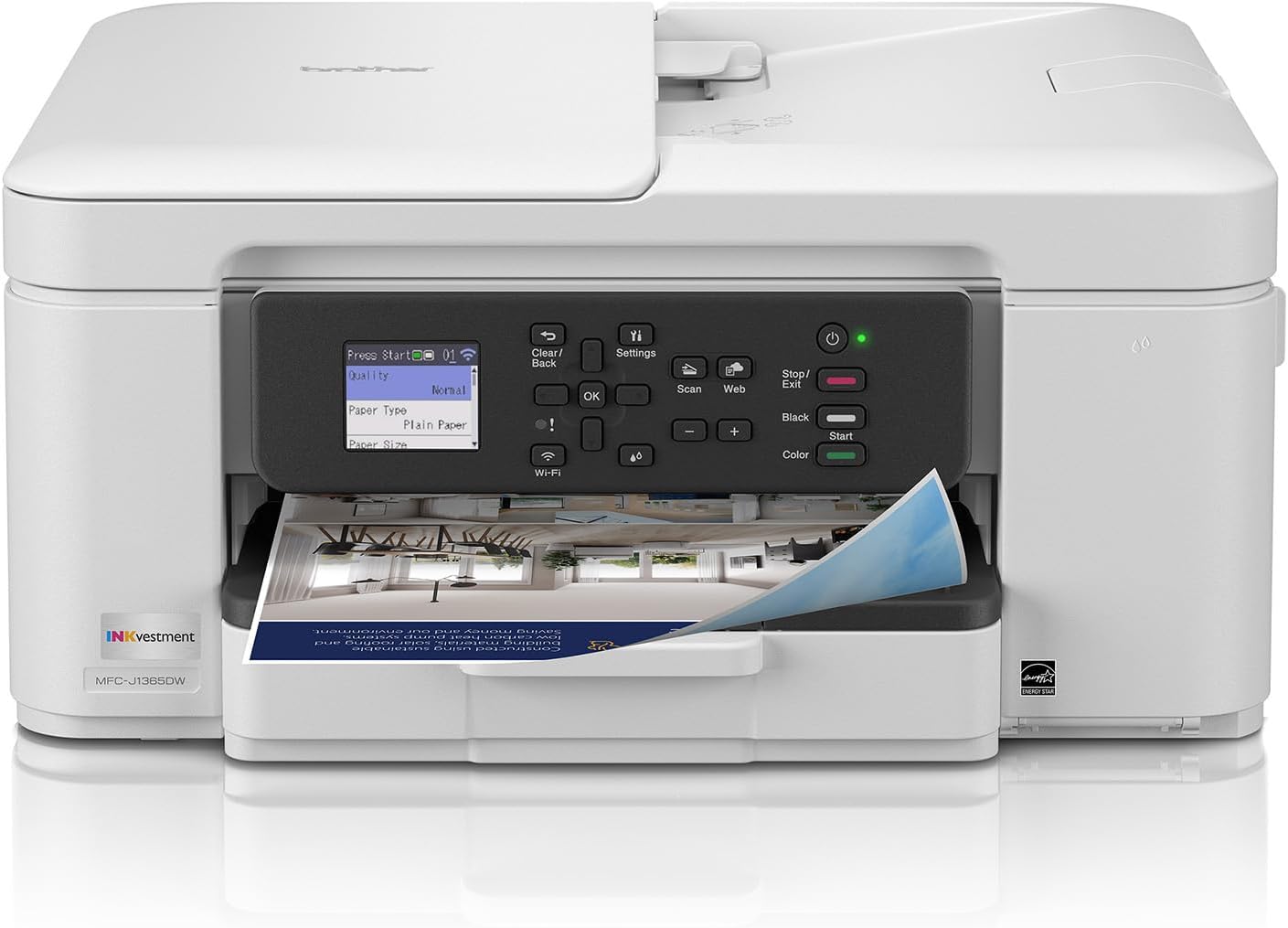
Davant view of the Brother MFC-J1365DW printer with paper loaded in the output tray and the control panel visible.
Característiques principals:
- Funcionalitat tot en un: Capacitats d'impressió, còpia i escaneig.
- Connectivitat sense fils: Dual-band wireless (2.4GHz / 5GHz) and Wi-Fi Direct.
- Impressió dúplex automàtica: Saves paper by printing on both sides automatically.
- Alimentador automàtic de documents (ADF): 20-page capacity for efficient scanning and copying of multiple documents.
- Pantalla a color de 1.8 polzades: Intuitive navigation and control.
- Aplicació Brother Mobile Connect: Easy setup, printing, scanning, and device management from mobile devices.
- INKvestment Ink System: Designed for high page yields and efficient ink usage.
2. Configuració
2.1 Desembalatge i preparació inicial
Carefully remove the printer from its packaging. Ensure all protective tapes and packing materials are removed from the exterior and interior of the printer. Verify that all components listed in the 'In the Box' section are present.
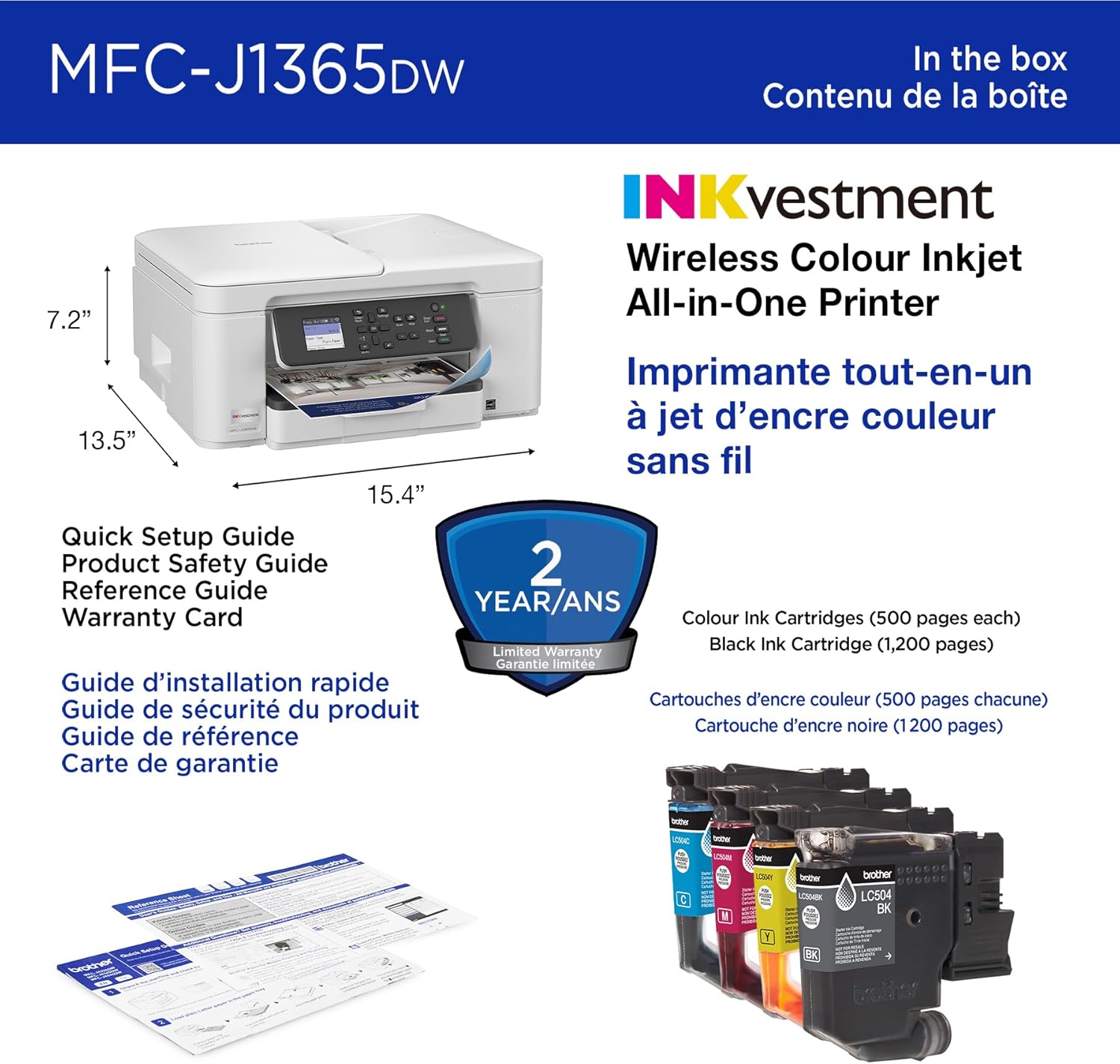
Contents of the Brother MFC-J1365DW printer box, including the printer itself, quick setup guide, product safety guide, reference guide, warranty card, and a set of color (500 pages each) and black (1200 pages) ink cartridges.
2.2 Instal·lació del cartutx de tinta
- Obriu la tapa del cartutx de tinta.
- Unpack each LC504 ink cartridge (black, cyan, magenta, yellow).
- Insert each cartridge firmly into its corresponding slot until it clicks into place.
- Tanqueu la tapa del cartutx de tinta. La impressora iniciarà un procés de càrrega de tinta.

The Brother MFC-J1365DW printer shown with Brother Genuine LC504XLBK black ink cartridge and LC5043PK color ink cartridges, emphasizing the use of genuine Brother ink for optimal performance.
2.3 Càrrega de paper
- Pull out the paper tray completely from the printer.
- Ajusteu les guies del paper a la mida del paper que carregueu.
- Load up to 150 sheets of plain paper (20lb.) into the tray.
- Empenyeu suaument la safata de paper cap a dins de la impressora.
2.4 Connecting to Power and Network
- Connecteu el cable d'alimentació a la impressora i després a una presa de corrent.
- Enceneu la impressora amb el botó d'encesa.
- Follow the on-screen instructions on the 1.8-inch color display to select your language and set up the date and time.
- For network connection, navigate to the network settings on the printer's display. Select your Wi-Fi network and enter the password. Alternatively, connect via USB cable to your computer.

The Brother MFC-J1365DW printer's connectivity options are highlighted, including dual-band wireless (2.4GHz/5GHz), Wi-Fi Direct, USB 2.0, AirPrint, Mopria, and compatibility with the Brother Mobile Connect app.
2.5 Instal·lació del programari
Baixeu els controladors i el programari més recents del servei d'assistència oficial de Brother website for your operating system. For mobile devices, download the Brother Mobile Connect aplicació des de la botiga d'aplicacions del dispositiu.

A smartphone displaying the Brother Mobile Connect app interface next to the MFC-J1365DW printer, illustrating how the app facilitates easy printer setup, remote printing, and ink level monitoring.
3. Instruccions de funcionament
3.1 Impressió
- Assegureu-vos que la impressora estigui engegada i connectada al dispositiu o a la xarxa.
- Obriu el document o la imatge que voleu imprimir a l'ordinador o al dispositiu mòbil.
- Seleccioneu l'opció d'impressió des de l'aplicació.
- Trieu la Brother MFC-J1365DW de la llista d'impressores disponibles.
- Adjust print settings such as paper size, print quality, and duplex printing (for two-sided prints) as needed.
- Feu clic Imprimeix.
3.2 Còpia
- Col·loqueu el document cara avall al vidre de l'escàner o cara amunt a l'alimentador automàtic de documents (ADF).
- Al tauler de control de la impressora, premeu la tecla Còpia botó.
- Use the display to select copy options such as number of copies, color/mono, and quality.
- Premeu Comença (Black or Color) to begin copying.
3.3 Escaneig
- Col·loqueu el document cara avall al vidre de l'escàner o cara amunt a l'ADF.
- Al tauler de control de la impressora, premeu la tecla Escaneja botó.
- Select your desired scan destination (e.g., PC, Cloud, Email).
- Ajusteu els paràmetres d'escaneig com ara la resolució i file tipus.
- Premeu Comença per començar a escanejar.
3.4 Cloud App Connections
The MFC-J1365DW supports direct printing from and scanning to popular cloud services like Google Drive, Dropbox, Box, and OneDrive. Access these features through the printer's 1.8-inch color display and follow the on-screen prompts to link your accounts.
4. Manteniment
4.1 Substitució dels cartutxos de tinta
When an ink cartridge is low or empty, a message will appear on the printer's display. Replace cartridges as follows:
- Obriu la tapa del cartutx de tinta.
- Premeu la palanca d'alliberament del cartutx buit i retireu-lo.
- Unpack a new Brother Genuine LC504 ink cartridge.
- Introduïu el cartutx nou a la ranura correcta fins que sentiu un clic.
- Tanqueu la coberta del cartutx de tinta.
Nota: Use only Brother Genuine LC504 ink cartridges for optimal performance and to prevent damage to your printer.
4.2 Neteja de la impressora
Una neteja regular ajuda a mantenir la qualitat d'impressió i allarga la vida útil de la impressora.
- Exterior: Wipe the exterior surfaces with a soft, lint-free cloth. Do not use abrasive cleaners or solvents.
- Vidre de l'escàner: Clean the scanner glass with a soft, lint-free cloth dampacabat amb netejador de vidres.
- Capçal d'impressió: If print quality issues occur (e.g., streaks, missing colors), perform a print head cleaning cycle through the printer's maintenance menu.
5. Solució De Problemes
This section addresses common issues you might encounter with your MFC-J1365DW printer.
5.1 La impressora no respon
- Comproveu la potència: Assegureu-vos que la impressora estigui connectada i engegada.
- Comproveu les connexions: Verifiqueu que el cable USB estigui connectat correctament o que la connexió Wi-Fi estigui activa.
- Reinicieu els dispositius: Turn off the printer, computer/mobile device, and router. Wait a few minutes, then power them back on.
5.2 Problemes de qualitat d'impressió
- Comprovar els nivells de tinta: Substituïu els cartutxos de tinta buits o amb poc tinta.
- Realitzeu la neteja del capçal d'impressió: Access this function through the printer's maintenance menu.
- Comprova el tipus de paper: Assegureu-vos que feu servir el tipus de paper correcte per a la configuració d'impressió.
5.3 Embussos de paper
- Localitza l'embús: Open all covers and trays to find the jammed paper.
- Traieu amb cura: Gently pull the paper in the direction of the paper path. Avoid tearing the paper.
- Close Covers: Ensure all covers and trays are securely closed after removing the jam.
6. Especificacions

Diagram illustrating the main features of the Brother MFC-J1365DW printer.
| Característica | Especificació |
|---|---|
| Número de model | MFC-J1365DW |
| Dimensions del producte (PxWxH) | 13.5" x 15.4" x 7.2" |
| Pes de l'article | 16.8 lliures |
| Tecnologia d'impressió | Injecció de tinta |
| Sortida de la impressora | Color |
| Velocitat màxima d'impressió (monocrom) | 16 ppm |
| Velocitat màxima d'impressió (color) | 9 ppm |
| Velocitat màxima de còpia (blanc i negre) | 11 ppm |
| Resolució d'impressió màxima | Up to 1,200 x 6,000 dpi (Windows), 1,200 x 3,600 dpi (Mac) |
| Impressió dúplex | Automàtic |
| Capacitat màxima del full d'entrada | 150 fulls |
| Alimentador automàtic de documents (ADF) | 20-page single-sided |
| Tipus d'escàner | Plana, alimentació de fulls |
| Tecnologia de connectivitat | USB 2.0, Wi-Fi (Dual-band 2.4GHz/5GHz) |
| Mètode de control | Push Button, 1.8" Color Display |
| Components inclosos | Inkjet Cartridges (LC504 series) |
| Capacitat d'emmagatzematge de memòria | 256 MB |
7. Garantia i Suport
7.1 Garantia limitada
Your Brother MFC-J1365DW printer comes with a limited warranty. Please refer to the warranty card included in your product box for specific terms, conditions, and duration of coverage. Keep your proof of purchase for warranty claims.
7.2 Atenció al client
Per obtenir assistència tècnica, descàrregues de controladors, preguntes freqüents i recursos de suport addicionals, visiteu el lloc web oficial de suport de Brother. website. You can also contact Brother customer service directly for personalized assistance.