
Introducció
This manual provides detailed instructions for the setup, operation, and maintenance of your TELE System UP Stick Google TV 4K UHD HDMI streaming device. Please read this manual thoroughly before using the device to ensure proper functionality and to maximize your viewexperiència.

Image: The TELE System UP Stick, an Ultra HD 4K Streaming Player, featuring Google TV branding and logos for Dolby, HDMI, HEVC, and Bluetooth technologies.
Què hi ha a la caixa
Verifiqueu que tots els elements següents estiguin inclosos al vostre paquet:
- TELE System UP Stick Google TV 4K UHD HDMI device
- Comandament a distància Bluetooth
- Bateries per al comandament a distància
- HDMI Cable/Extender
- Quick Start Guide and Warranty Sheet

Imatge: Frontal view of the TELE System UP Stick Google TV 4K UHD HDMI device, showing its compact design and the 'UP Stick' logo with a green indicator light.
Instruccions de configuració
1. Connexió del dispositiu
- Insert the UP Stick: Plug the TELE System UP Stick directly into an available HDMI port on your television. If space is limited, use the provided HDMI extender cable.
- Connectar l'alimentació: Connect the power adapter (not explicitly listed in box, but implied by "Power=5V=1A" on back image) to the UP Stick and then to a power outlet. The device can also be powered via a TV's USB port (0.5A is sufficient).
- Seleccioneu l'entrada HDMI: Turn on your television and select the corresponding HDMI input source to which the UP Stick is connected.
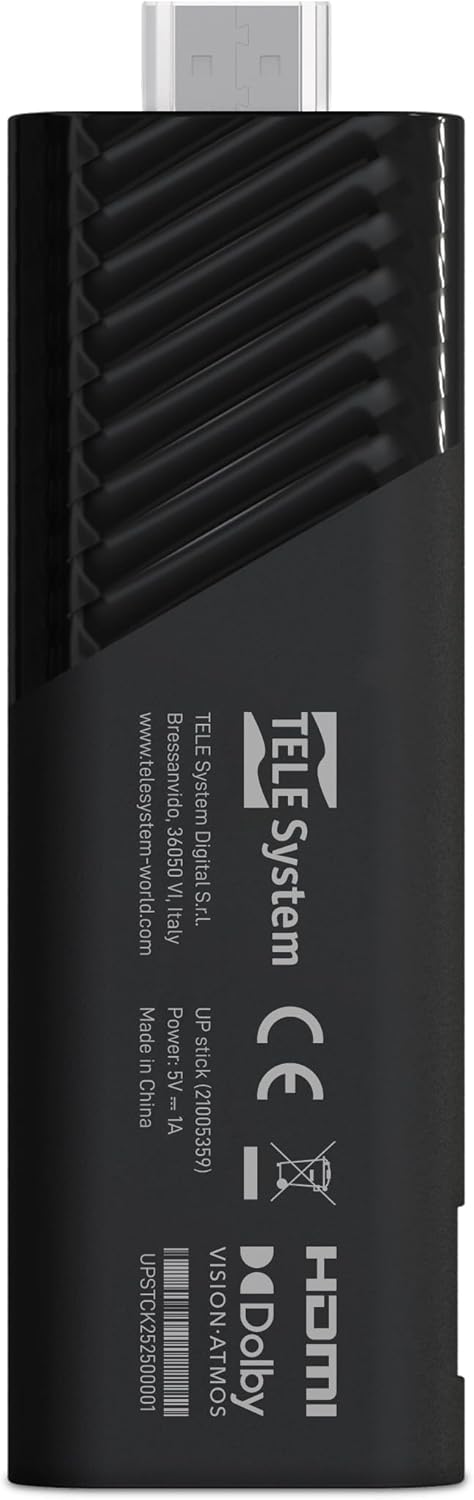
Imatge: Enrere view of the TELE System UP Stick, displaying regulatory marks, HDMI connector, and power input specifications (5V=1A).
2. Emparellament del control remot
Upon first use, the remote control may need to be paired with the UP Stick:
- Insert the provided batteries into the Bluetooth remote control.
- Follow the on-screen instructions to pair the remote. Typically, this involves pressing and holding specific buttons (e.g., Home and Back) simultaneously until a pairing confirmation appears on the screen.

Image: The TELE System UP Stick remote control, featuring a prominent voice control button and dedicated buttons for popular streaming services like YouTube, Netflix, Prime Video, and Disney+.
3. Initial Software Setup
Once connected and powered on, the device will guide you through the initial setup process:
- Selecció d'idioma: Trieu el vostre idioma preferit.
- Connexió Wi-Fi: Select your Wi-Fi network from the list and enter the password. The device supports dual-band Wi-Fi for stable 4K streaming.
- Inici de sessió al compte de Google: Sign in with your Google account. This is necessary to access Google TV features, download apps from the Google Play Store, and use Google Assistant.
- Google TV Configuration: Follow the prompts to configure Google TV, including accepting terms of service and setting up personalized recommendations.

Image: A screenshot of the Google TV interface, displaying icons for popular streaming services such as Netflix, Prime Video, Apple TV, Disney+, and YouTube, indicating broad app compatibility.
Instruccions de funcionament
Navegant per Google TV
The Google TV interface organizes your content from various streaming services into a single, personalized home screen. Use the remote control's directional pad to navigate through menus, select content, and launch applications.
- Pantalla d'inici: Displays recommended content, installed apps, and quick access to different categories (Movies, Shows, Apps, Library).
- Aplicacions: Accedeix a totes les aplicacions instal·lades. Pots descarregar-ne més des de Google Play Store.
- Cerca: Use the search function to find specific titles, actors, or genres across all your streaming services.
Using Google Assistant (Voice Control)
The remote control features a dedicated button for Google Assistant. Press this button and speak your commands or questions into the remote's microphone.
- Cerca de contingut: Say "Find action movies" or "Open Netflix."
- Control del dispositiu: Say "Turn up the volume" or "Pause."
- Informació: Ask "What's the weather?" or "Who directed this movie?"

Image: A television screen displaying the Google Assistant interface, prompted by a voice command, alongside the remote control, illustrating the voice control feature.
Contingut en streaming
The UP Stick supports 4K UHD streaming with Dolby Vision, Dolby Atmos, and HDR10+ for an enhanced audio-visual experience. Access your favorite streaming services directly from the Google TV home screen or through their dedicated apps.
- Serveis suportats: Netflix, Disney+, Prime Video, YouTube, DAZN, Apple TV+, NOW, RaiPlay, and more.
- Instal·lació de l'aplicació: Download additional apps from the Google Play Store. The device has 32 GB of internal storage for apps and data.
Utilitzant Google Cast
The built-in Google Cast functionality allows you to stream content directly from your compatible smartphone, tablet, or computer to your television via the UP Stick.
- Ensure your mobile device and the UP Stick are connected to the same Wi-Fi network.
- Open a compatible app (e.g., YouTube, Netflix) on your mobile device.
- Toca la icona de Cast
 within the app and select your UP Stick from the list of available devices.

Image: The TELE System UP Stick shown alongside a smartphone displaying content being cast to a television, highlighting the Google Cast feature.
Manteniment
- Neteja: Feu servir un drap suau i sec per netejar el dispositiu. No utilitzeu netejadors líquids ni aerosols.
- Actualitzacions de programari: The UP Stick will periodically receive software updates to improve performance and add new features. Ensure your device is connected to the internet to receive these updates automatically. You can also manually check for updates in the device settings.
- Gestió d'emmagatzematge: Regularly check the available storage space (32 GB total) and uninstall unused applications to maintain optimal performance.
Resolució de problemes
No Picture/No Signal
- Ensure the UP Stick is securely plugged into the HDMI port on your TV.
- Verifiqueu que el televisor estigui configurat a la font d'entrada HDMI correcta.
- Check that the UP Stick is receiving power and its indicator light is on.
- Try plugging the UP Stick into a different HDMI port on your TV.
El control remot no respon
- Reviseu i substituïu les piles del comandament a distància.
- Ensure there are no obstructions between the remote and the UP Stick.
- Attempt to re-pair the remote control by following the pairing instructions in the Setup section.
Problemes de connexió Wi-Fi
- Verify that your Wi-Fi router is powered on and functioning correctly.
- Check if other devices can connect to your Wi-Fi network.
- Restart your Wi-Fi router and the UP Stick.
- Assegureu-vos que heu introduït la contrasenya de Wi-Fi correcta.
L'aplicació es bloqueja o es congela
- Tanca l'aplicació problemàtica i torna-la a obrir.
- Clear the app's cache and data through the device settings (Settings > Apps > [App Name] > Clear cache/Clear data).
- Assegureu-vos que l'aplicació estigui actualitzada a la seva darrera versió.
- Restart the UP Stick.
Especificacions
| Nom del model | UP Stick |
| Marca | Tele System |
| Tecnologia de connectivitat | WiFi, HDMI, Google Cast |
| Tipus de connector | HDMI |
| Característiques especials | Dolby Vision, Dolby Atmos, HDR10+, HLG, HEVC, AV1, Google Cast |
| Resolució | 4K (3840 píxels) |
| Serveis d'Internet compatibles | Netflix, Disney+, Prime Video, YouTube, DAZN, Apple TV+, NOW, RaiPlay |
| Factor de forma | TV Stick |
| Color | Negre |
| Dimensions del producte (LxWxH) | 30 x 20 x 110 mil·límetres |
| RAM instal·lada | 2 GB |
| Capacitat d'emmagatzematge | 32 GB |
| Dispositius compatibles | TV, smartphone, tablet, personal computer |
| Còdec de vídeo | H.264, H.265/HEVC, AV1 |
| Compatibilitat amb la llar intel·ligent | Compatible with digital home systems |
| País d'origen | Xina |
Informació de la garantia
The TELE System UP Stick Google TV 4K UHD HDMI device is covered by a 2-year manufacturer's warranty from the date of purchase. This warranty covers defects in materials and workmanship under normal use. Please retain your proof of purchase for warranty claims.
For specific details regarding warranty terms and conditions, refer to the warranty sheet included in your product package or contact Tele System customer support.
Atenció al client
For technical assistance, troubleshooting, or further inquiries regarding your TELE System UP Stick, please contact Tele System customer support. Refer to the contact information provided in the warranty sheet or visit the official Tele System weblloc.
Fabricant: Tele System
Weblloc: www.telesystem-world.com