
Introducció
This manual provides essential information and instructions for the Blackview Tab 20 WiFi tablet. Please read this manual carefully before using your device to ensure proper operation and to maximize its features. Keep this manual for future reference.
Què hi ha a la caixa
Verifiqueu que tots els elements siguin presents al paquet:
- Negreview Tauleta WiFi Tab 20
- TPU Protective Case
- Manual d'usuari
- Adaptador d'alimentació
- Cable USB
Note: The user manual included in the box may not be in English. This digital manual provides English instructions.
Producte acabatview
Familiarize yourself with the key components and features of your Blackview Tab 20 WiFi tablet.
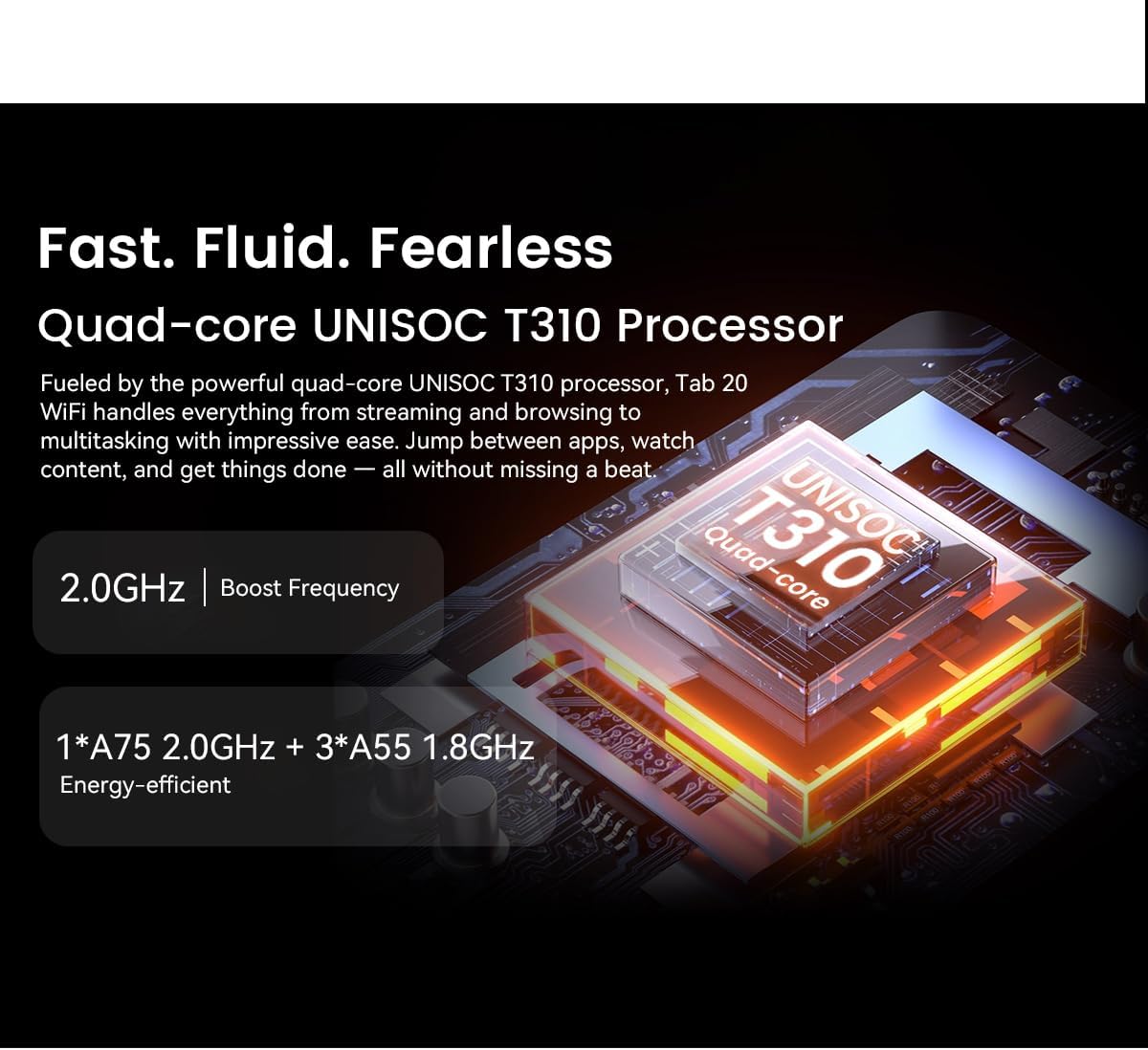
Figura 1: Davant view del Negreview Tab 20 WiFi tablet, showing the display and front camera.

Figura 2: Enrere view del Negreview Tab 20 WiFi tablet, highlighting the rear camera module.

Figura 3: lateral view del Negreview Tab 20 WiFi tablet, illustrating the USB Type-C charging port.

Figura 4: lateral view del Negreview Tab 20 WiFi tablet, showing the dual speaker grilles.
Característiques principals:
- Gemini AI 2.0: Integrated AI assistant for intelligent control and real-time interaction.
- 10.1-inch HD+ Display: Expansive screen with 800 x 1200 pixel resolution for clear visuals.
- Dual Box Speakers: Enhanced audio experience with Smart-K powered dual speakers.
- Càmeres: 8MP rear camera and 5MP front camera for photos and video calls.
- Memòria i emmagatzematge: Up to 12GB RAM (4GB physical + 8GB expansion) and 64GB internal storage, expandable up to 2TB via microSD.
- Bateria de 6000 mAh: High-capacity battery designed for extended usage.
- Eye Protection Modes: Three dedicated modes (Reading, Night Light, Dark) to reduce eye strain.
- UNISOC T310 Processor: Quad-core processor for smooth multitasking and performance.
Configuració
- Carregueu la tauleta:
Before first use, fully charge the tablet using the provided power adapter and USB cable. Connect the USB cable to the tablet's Type-C port and the adapter to a power outlet. The charging indicator will show the charging status.
- Encès/apagat:
To power on, press and hold the power button until the Blackview logo appears. To power off, press and hold the power button, then select "Power off" from the options.
- Configuració inicial:
Follow the on-screen prompts to complete the initial setup. This includes selecting your language, connecting to a Wi-Fi network, setting up your Google account, and configuring facial unlock.
- Inseriu la targeta MicroSD (opcional):
If you wish to expand storage, locate the SIM/microSD card tray on the side of the tablet. Use the provided ejector tool to open the tray. Insert a microSD card (up to 2TB) into the designated slot, ensuring correct orientation, then close the tray securely.
Instruccions de funcionament
Navegació bàsica:
- Gestos tàctils: Toca per seleccionar, llisca per desplaçar-te, pessiga per ampliar.
- Pantalla d'inici: Accedeix a aplicacions, widgets i notificacions.
- Panell de notificacions: Feu lliscar el dit cap avall des de la part superior de la pantalla fins a view notificacions i configuracions ràpides.
Connexió a Wi-Fi:
- Vés a Configuració > Xarxa i Internet > Wi-Fi.
- Activa la Wi-Fi.
- Seleccioneu la xarxa desitjada de la llista i introduïu la contrasenya si cal.
Using Gemini AI:
El Negreview Tab 20 WiFi integrates Gemini AI 2.0 for intelligent assistance. You can activate it via voice commands or specific gestures (refer to on-screen tutorials during initial setup or in the AI settings). Gemini AI can assist with tasks, provide information, and control smart features.

Figura 5: Visual representation of Gemini AI 2.0's integration with various applications and smart controls.
Funcionament de la càmera:
Obre l'aplicació Càmera per capturar fotos i vídeos.
- Càmera posterior (8MP): Suitable for general photography and document scanning.
- Càmera frontal (5MP): Ideal per a videotrucades i selfies.
Tap the shutter button to take a photo. Switch between photo and video modes as needed.

Figura 6: Primer pla view of the tablet's rear and front cameras.
Eye Protection Modes:
To reduce eye strain, activate one of the three eye protection modes:
- Mode de lectura: Adjusts screen color temperature for a paper-like reading experience.
- Mode de llum nocturna: Filters blue light to reduce eye fatigue during evening use.
- Mode fosc: Inverts colors to a dark theme, reducing brightness in low-light environments.
These modes can typically be found in Configuració > Mostra or via the quick settings panel.

Figura 7: Visual guide to the tablet's eye protection modes.
Manteniment
- Neteja: Feu servir un drap suau i sense borrissol per netejar la pantalla i el cos de la tauleta. Eviteu utilitzar productes químics agressius o materials abrasius.
- Actualitzacions de programari: Comproveu i instal·leu regularment si hi ha actualitzacions del sistema per garantir un rendiment i una seguretat òptims. Aneu a Configuració > Sistema > Actualització del sistema.
- Cura de la bateria: To prolong battery life, avoid extreme temperatures. Do not let the battery completely drain frequently.
- Gestió d'emmagatzematge: Netegeu periòdicament els innecessaris files i desinstal·leu les aplicacions no utilitzades per alliberar espai d'emmagatzematge i mantenir el rendiment.
Resolució de problemes
| Problema | Causa possible | Solució |
|---|---|---|
| La tauleta no s'encén. | Bateria baixa; bloqueig del programari. | Charge the tablet for at least 30 minutes. Press and hold the power button for 10-15 seconds to force restart. |
| No es pot connectar a la Wi-Fi. | Contrasenya incorrecta; problema amb l'encaminador; Wi-Fi desactivat. | Ensure correct password. Restart your Wi-Fi router. Check if Wi-Fi is enabled in settings. |
| Apps are slow or freezing. | Massa aplicacions en execució; poc espai d'emmagatzematge; programari obsolet. | Close background apps. Clear cache/data for problematic apps. Free up storage. Update system software. |
| La bateria s'esgota ràpidament. | Brillantor de pantalla elevada; aplicacions en segon pla; ús excessiu. | Reduce screen brightness. Close unused apps. Limit background data usage. Check battery usage in settings. |
| Facial unlock not working. | Poor lighting; face not recognized; sensor obstruction. | Ensure adequate lighting. Clean the front camera. Re-register your face in settings. |
Especificacions
| Característica | Detall |
|---|---|
| Marca | Negreview |
| Nom del model | TAB 20 WIFI |
| Sistema operatiu | Android 15 |
| Processador | UNISOC T310 (Quad-core) |
| RAM | Up to 12GB (4GB physical + 8GB expansion) |
| Emmagatzematge intern | 64 GB |
| Emmagatzematge ampliable | microSD slot, up to 2TB |
| Mida de la pantalla | 10.1 polzades |
| Resolució de pantalla | 800 x 1200 píxels |
| Càmera posterior | 8 megapíxels |
| Càmera frontal | 5 megapíxels |
| Capacitat de la bateria | 6000 mAh |
| Connectivitat | Wi-Fi, Bluetooth, USB tipus C |
| Característiques especials | Gemini AI Assistant, Facial Unlock, Google Lens |
| Dimensions (L x W x Thickness) | 24.2L x 16W x 0.9Thickness cm |
| GTIN/UPC | 810154306572 |
Garantia i Suport
Informació de la garantia:
El Negreview Tab 20 WiFi tablet comes with a Garantia limitada. Please refer to the warranty card included in your product packaging for specific terms and conditions, including coverage duration and claim procedures. Keep your proof of purchase for warranty claims.
Atenció al client:
For technical assistance, troubleshooting beyond this manual, or warranty inquiries, please contact Blackview customer support. You can typically find contact information on the official Blackview website or through the retailer where you purchased the tablet.
Always provide your product model (TAB 20 WIFI) and serial number when contacting support for faster service.


