
CHROX H728 4GB+64GB
CHROX Android 14.0 TV Box User Manual
Model: H728 4GB+64GB
Brand: CHROX
1. Introducció
This user manual provides comprehensive instructions for the setup, operation, and maintenance of your CHROX Android 14.0 TV Box. Please read this manual carefully before using the device to ensure optimal performance and safety.

Image: The CHROX Android TV Box and its accompanying remote control. The box is compact and black with a textured top surface, while the remote is sleek and black with clearly labeled buttons for navigation and media control.
2. Contingut del paquet
Marqueu la casella per als elements següents:
- 1 x CHROX Android 14.0 TV Box
- 1 x comandament a distància (piles no incloses)
- 1 x cable HDMI
- 1 x Power Adapter (DC 5V/2A)
- 1 x Manual d'usuari
3. Característiques i especificacions del producte
The CHROX Android 14.0 TV Box is designed to provide a superior media experience with its advanced hardware and software capabilities.
Característiques principals:
- Latest Android 14.0 OS: Offers enhanced compatibility with software, games, and applications, along with an optimized user interface.
- H728 Chipset: Powered by a Quad-core ARM Cortex A53 CPU (RK3528A), providing improved execution speed and professional image processing capabilities.
- 4GB RAM & 64GB ROM: Ensures better performance and larger storage capacity.
- Connectivitat USB 3.0: 10 times faster than USB 2.0, allowing for quick transfer of large files i vídeos.
- Dual WiFi 2.4G/5G & Bluetooth 5.0: Equipped with integrated WiFi 6 and Bluetooth 5.0 for stable and convenient wireless connections.
- Ethernet Support: Compatible with 100/1000M Ethernet for reliable wired network access.
- 4K/8K Decoding Support: Capable of decoding high-resolution video content up to 8K.

Imatge: Més deview of the Tanix TX7 Android 14.0 TV Box highlighting its key features including the H728 chipset, HDR10+, Bluetooth 5.4, 8K Ultra HD support, Android 14 OS, and dual-band 2.4G & 5G WiFi.
Especificacions tècniques:
| Component | Especificació |
|---|---|
| Sistema operatiu | Android 14.0 |
| CPU | H728 Cortex ARM A55 64-bit CPU |
| GPU | G31 MP2 GPU Processor |
| SDRAM | 4 GB |
| Emmagatzematge Flash | 64 GB |
| Wi-Fi | 2.4G & 5G Dual-band WiFi 6 |
| Bluetooth | BT 5.0 |
| Ethernet | RJ-45 estàndard de 10/100M |
| Sortida HDMI | HDMI 2.0, 8K x 4K @ 60fps Max Resolution Output |
| SPDIF | Interfície d'àudio digital |
| Host USB | 1x USB 2.0, 1x USB 3.0 |
| Video Decoder | H.265 HEVC/MVC, H.264 AVC/MVC, VP9, VP8 |
| Video Coder | H.264/AVC, H.265/HEVC |
| JPEG Decoder | Supports YUV400/411/420/422/440/444, 1920x1080@120fps, MJPEG |
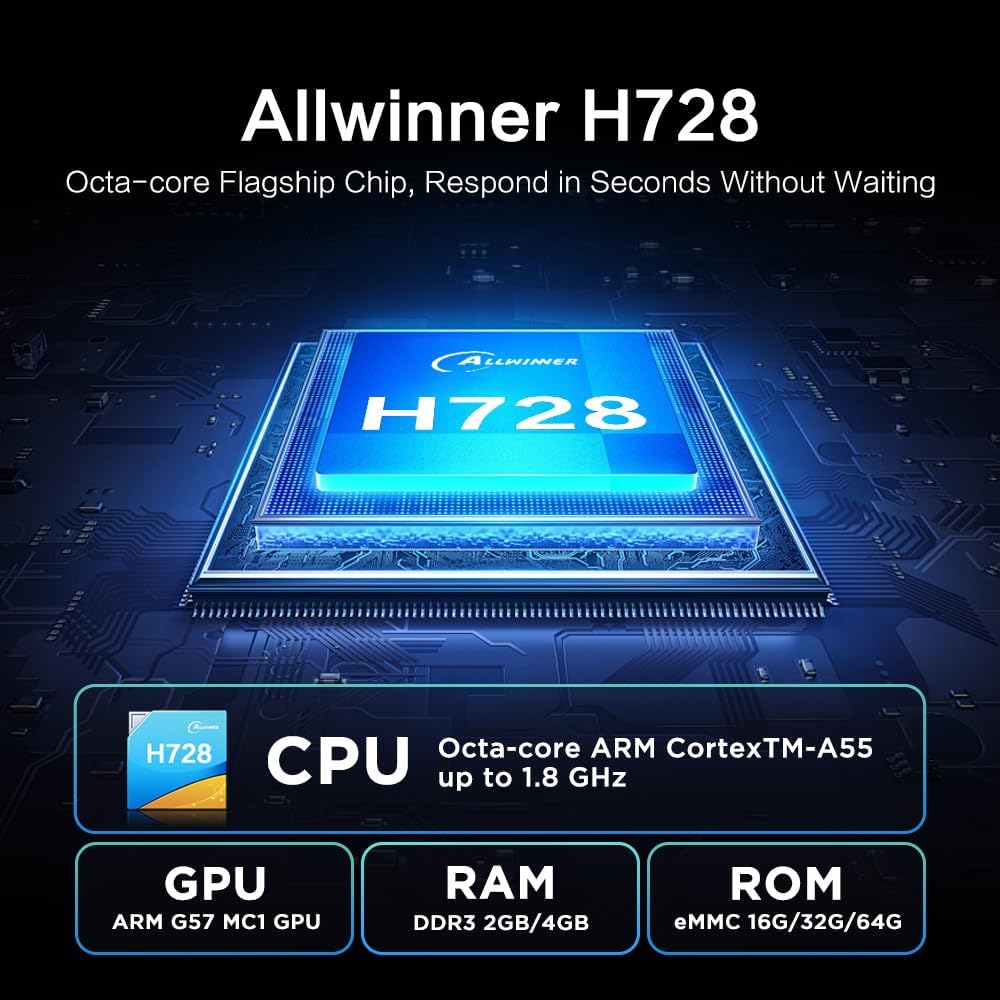
Imatge: Detallada view of the Allwinner H728 Octa-core Flagship Chip, showing its CPU (ARM Cortex-A55 up to 1.8 GHz), GPU (ARM G57 MC1), RAM (DDR3 2GB/4GB), and ROM (eMMC 16G/32G/64G) specifications.

Image: Illustration demonstrating the TV Box's support for 8K decoding, comparing resolutions of 1080p, 4K, and 8K on a television screen.
4. Guia de configuració
Follow these steps to set up your CHROX Android TV Box:
- Connectar-se al televisor: Connect one end of the provided HDMI cable to the HDMI port (4) on the TV Box and the other end to an HDMI input on your television.
- Connectar l'alimentació: Plug the power adapter into the DC 5V/2A port (5) on the TV Box, then plug the adapter into a wall outlet.
- Encès: The TV Box should automatically power on. If not, press the power button on the remote control.
- Seleccioneu l'entrada: On your TV, select the correct HDMI input source using your TV's remote control.
- Configuració inicial: Seguiu les instruccions que apareixen a la pantalla per completar la configuració inicial, inclosa la selecció d'idioma, la connexió de xarxa (Wi-Fi o Ethernet) i l'inici de sessió al compte de Google.

Image: Diagram illustrating the various connectivity ports on the CHROX Android TV Box, including AV, SPDIF, Ethernet Port, HDMI Output, Power Input, TF Card Slot, and USB ports (USB 2.0 and USB 3.0).
5. Instruccions de funcionament
5.1. Ús del control remot
The included remote control allows you to navigate the Android TV Box interface. Insert two AAA batteries (not included) into the remote before use.
- Botó d'encesa: Encén/apaga el dispositiu o el posa en espera.
- Botons de navegació (amunt/avall/esquerra/dreta): Moure el cursor o la selecció.
- Botó D'acord: Confirma la selecció.
- Botó enrere: Torna a la pantalla anterior.
- Botó d'inici: Torna a la pantalla d'inici principal.
- Botons de volum (+/-): Ajusta el volum de l'àudio.
- App Shortcut Buttons (e.g., Netflix, YouTube): Direct access to specified applications.
5.2. Connexió a la xarxa
Per accedir a contingut en línia, connecteu el vostre TV Box a Internet:
- Wi-Fi: Go to Settings > Network & Internet > Wi-Fi. Select your network from the list, enter the password, and connect.
- Ethernet: Connect an Ethernet cable from your router to the Ethernet port (3) on the TV Box. The connection will be established automatically.
5.3. Installing Applications
You can download and install applications from the Google Play Store:
- Ensure the TV Box is connected to the internet.
- From the home screen, open the "Play Store" application.
- Cerca your desired application and select "Install".

Image: Screenshot of the Android 14.0 user interface on a TV screen, showing various app icons including Google Play Store, Netflix, and YouTube, with the TV Box positioned below the screen.
5.4. Multi-Screen Interaction
The TV Box supports casting content from your mobile phone or tablet to the TV screen, allowing you to share videos and photos easily.

Image: Depiction of the multi-screen interaction feature, showing a smartphone mirroring its content (a video game) onto a large TV screen, with the TV Box placed nearby.
6. Solució De Problemes
If you encounter any issues, please refer to the following common problems and solutions:
- Sense energia:
- Assegureu-vos que l'adaptador de corrent estigui connectat correctament al televisor i a una presa de corrent que funcioni.
- Comproveu si l'indicador lluminós d'engegada del televisor està encès.
- No es mostra al televisor:
- Verify the HDMI cable is correctly connected to both the TV Box and the TV.
- Assegureu-vos que el televisor estigui configurat a la font d'entrada HDMI correcta.
- Prova un altre cable HDMI o port HDMI al televisor.
- Sense connexió Wi-Fi:
- Comproveu si el vostre encaminador funciona correctament.
- Assegureu-vos que heu introduït la contrasenya de Wi-Fi correcta.
- Try restarting the TV Box and your router.
- Move the TV Box closer to your Wi-Fi router.
- El control remot no respon:
- Reviseu i substituïu les piles del comandament a distància.
- Assegureu-vos que no hi hagi obstacles entre el comandament a distància i el televisor.
- Point the remote directly at the TV Box's IR receiver.
7. Manteniment
To ensure the longevity and optimal performance of your TV Box, follow these maintenance guidelines:
- Mantingueu el dispositiu en un lloc sec i ben ventilat, allunyat de la llum solar directa, de fonts de calor i de la humitat.
- Do not block the ventilation openings on the device.
- Netegeu el dispositiu amb un drap suau i sec. No utilitzeu netejadors líquids ni aerosols.
- Eviteu deixar caure o sotmetre el dispositiu a forts impactes.
- Unplug the power adapter during lightning storms or when unused for long periods.
8. Informació important de seguretat
Please handle the device with care and avoid drops and impacts. Ensure the product is assembled securely before use.

Image: A warning label with text in multiple languages, advising users to handle the product with care, avoid drops and impacts, and assemble it securely before use.
9. Suport
If you have any questions or require further assistance, please contact our customer support. We aim to respond to all inquiries within 24 hours.
For support, please refer to the contact information provided with your purchase or on the official CHROX weblloc.
Ask a question about this manual
Ask about setup, troubleshooting, compatibility, parts, safety, or missing instructions. Manuals+ will review the question and use this page’s manual context to help answer it.