
1. Introducció
This manual provides detailed instructions for setting up, operating, and maintaining your VOOPEAK TC31A 4G Trail Camera. Please read this manual thoroughly before using the product to ensure optimal performance and longevity.
2. Què hi ha a la caixa
The VOOPEAK TC31A 4G Trail Camera package includes the following items:
- VOOPEAK TC31A 4G Trail Camera
- Cable de càrrega USB
- Manual d'instruccions
- Suport de muntatge
- Targeta SIM (preinstal·lada o inclosa)
- Pinces (per a la manipulació de targetes SIM/SD)
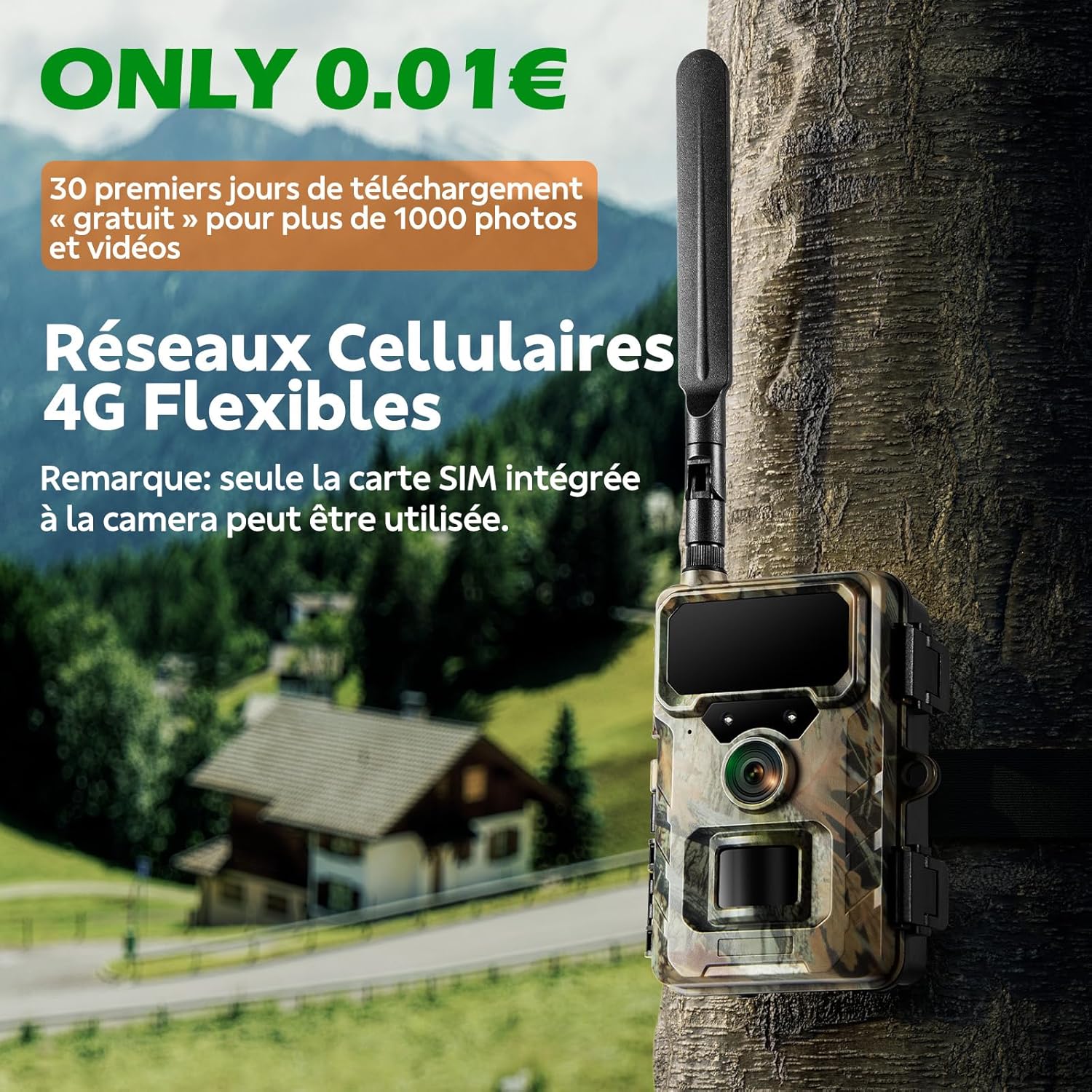
Image: VOOPEAK TC31A 4G Trail Camera with its accessories, including the camera unit, antenna, USB cable, mounting strap, and user manual.
3. Característiques clau
- Powerful External Antenna: Equipped with an antenna for stronger and more stable 4G signal reception, ensuring continuous wildlife observation.
- Connectivitat sense fil 4G: Reliable 4G LTE cellular network with a high-gain antenna for extended coverage. Allows remote photo/video reception, camera settings management, and status monitoring via mobile phone. Compatible with Micro SIM card.
- Aplicació fàcil d'utilitzar: Free "TrailCam Go" app (iOS/Android compatible) for quick camera setup, status checks, and live image management.
- 32MP Image & 1080P Video: High-quality optical lens with a 120° wide-angle view and advanced image sensor captures crystal-clear 32MP images and HD 1080P videos. MP4 video encoding allows previewing without prior download.
- Superior Night Vision & IP66 Waterproof: Features 850nm low-glow infrared technology for discreet night vision up to 20m. Adaptive lighting prevents overexposure. IP66 waterproof rating ensures reliability in outdoor conditions from -25°C to 60°C.
- Detecció de moviment PIR: Receives real-time alerts on your phone when human or animal movement is detected.
- Enregistrament en bucle: Automatically deletes older files to make space for new ones when the micro SD card is full.
4. Guia de configuració
4.1 Preparació inicial
- Treure les pel·lícules protectores: Carefully remove all protective films from the camera lens, PIR sensors, and LCD screen.
- Instal·leu les bateries: Open the battery compartment. Insert 4 or 8 new 1.5V AA alkaline batteries or 1.5V rechargeable batteries (not included), ensuring correct polarity.
- Insereix la targeta SIM: Use the provided tweezers to insert the Micro SIM card into the designated slot. The camera includes a SIM card. For optimal performance, use the provided SIM card. Other compatible SIM cards may require a cloud subscription for remote viewing.
- Inseriu la targeta Micro SD: Use the provided tweezers to insert a Class 10 or higher micro SD card (up to 64GB, not included) into the slot.
- Connecteu l'antena: Screw the antenna tightly onto the camera's antenna port.
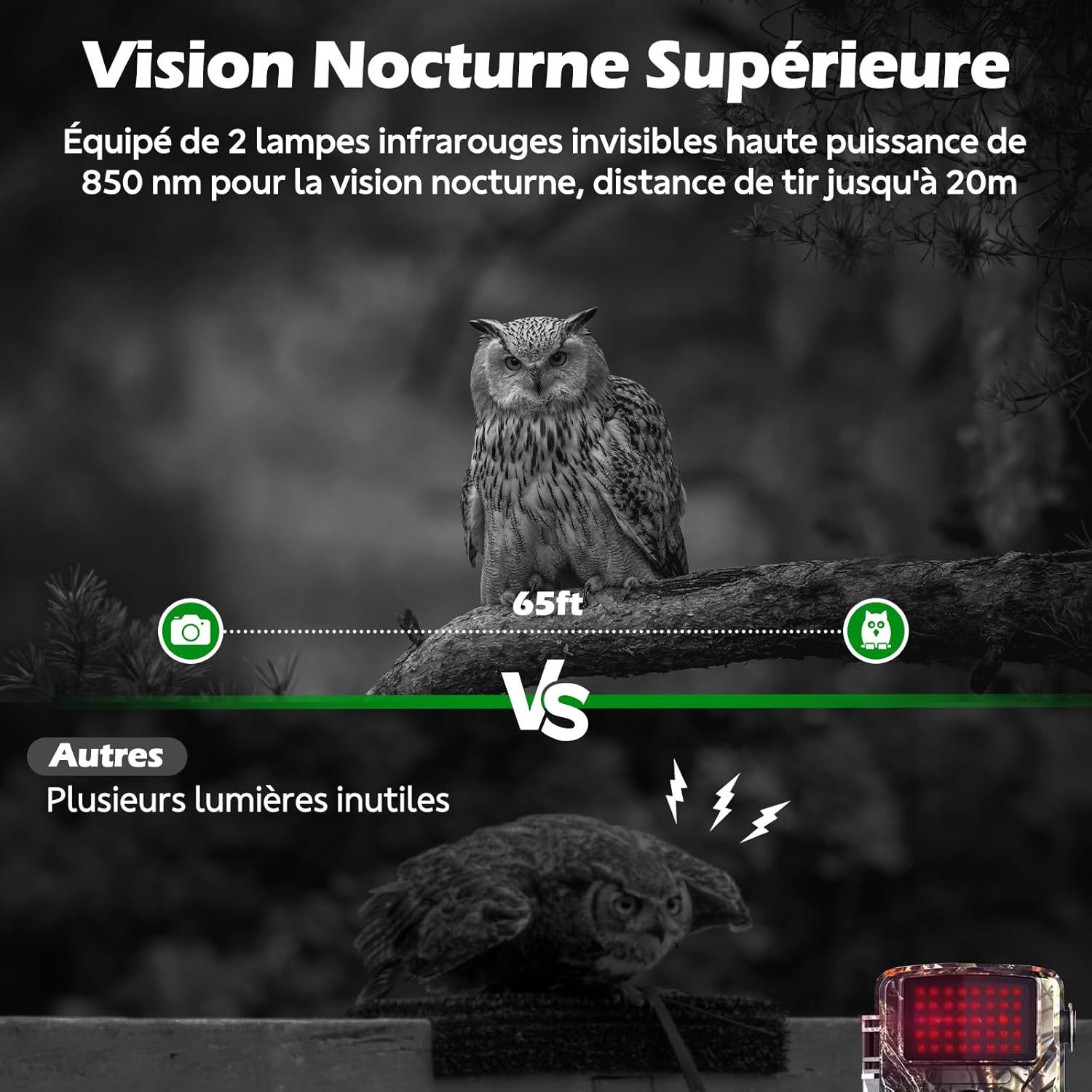
Image: The VOOPEAK TC31A camera with its casing open, revealing the control panel and empty battery compartment. This view is essential for battery and card installation.

Image: A close-up showing the integrated SIM card slot on the VOOPEAK TC31A camera, with a SIM card partially inserted. This highlights the ease of SIM card installation.
4.2 Basic Camera Configuration
- Enter SETUP Mode: With the camera open, slide the power switch from OFF to SETUP. The screen will turn on.
- Escolliu l'idioma: Navigate through the menu to select your preferred language.
- Establir data i hora: Adjust the date and time settings as needed.
- Format Micro SD Card: It is crucial to format the micro SD card through the camera's menu settings before first use. This ensures compatibility and proper function.
- Disable Cellular Parameters (Optional): If you do not intend to use 4G connectivity, navigate to the "Cellular" settings in the menu and turn it OFF. By default, cellular parameters are active.
- Configure System and Shooting Options: Access the "Settings" menu to adjust photo resolution (e.g., 32MP), video resolution (e.g., 1080P), detection interval, PIR sensitivity, and other preferences.
- Exit SETUP Mode: Press the Menu button again to exit the settings.
- Canvia al mode ON: Slide the power switch from SETUP to ON. The camera will enter automatic shooting mode after a 10-second countdown. The screen will turn off, which is normal.
4.3 App Connection (for 4G Cloud Features)
- Download "TrailCam Go" App: Scan the QR code displayed on the camera screen in SETUP mode or search for "TrailCam Go" in your mobile app store (iOS or Android).
- Registre del compte: Open the app, authorize all requested permissions, and register your account.
- Connect Camera via Bluetooth (Direct Add):
- Ensure the camera is in SETUP mode.
- In the app, tap the "+" icon to add a device.
- Select "4G camera (with screen)" and then "Direct Add (Common)".
- The app should find your camera via Bluetooth. Tap "Connect to the camera" and wait for the connection to establish.
- Define a device name for your camera.
- Add Camera Manually (QR Code Scan):
- Ensure the camera is in SETUP mode.
- In the app, tap the "+" icon to add a device.
- Select "4G camera (with screen)" and then "Set APN" (if direct add fails or for specific carrier settings).
- Follow the on-screen setup guide in the app.
- On the camera, navigate to "Settings" > "Connect App" to display a QR code.
- Use the app's QR scanner to scan the code displayed on the camera screen. Align the camera lens with the QR code, keeping a distance of 15-20cm.
- Wait for the app to confirm successful binding.
- 4G Network and Cloud Service Connection: After connecting the camera to the app, please wait approximately one minute for the 4G network and cloud service to connect correctly. The signal and cloud icons on the camera screen should turn green.
5. Instruccions de funcionament
5.1 Standard Operation (without App)
Once the camera is in ON mode, it will automatically detect motion and capture photos or videos according to your configured settings. The screen will turn off after 10 seconds to conserve battery.
5.2 Using the "TrailCam Go" App
The "TrailCam Go" app provides remote control and monitoring capabilities for your VOOPEAK TC31A camera.
- Check Camera Status: In the app, tap on "Status" to view battery level, memory card status, signal strength, temperature, and other device information.
- View/ Download Files: Tap on "Gallery" to access photos and videos stored in the cloud. You can preview i descarregar files directly to your phone. Wireless file transfer is available only after purchasing a data plan.
- Adjust Camera Settings: Tap on "Settings" to remotely modify camera parameters such as photo/video resolution, PIR sensitivity, operating time, and more.
- Share Camera Access: Use the "Share camera" option in the settings to allow other accounts to view your cloud files. You can set sharing periods (e.g., 3 days, 7 days, 30 days, 90 days, 180 days, permanent).
- Vídeo en directe: Access "Live video" to view a real-time feed from your camera.
- Map Function: The camera is not equipped with GPS and cannot track its position in real-time. However, you can use the "Map" function in the app to manually mark the camera's location.
- FAQ and Support: In the "My Account" section, select "FAQ" for quick answers to common questions.

Image: A smartphone displaying a real-time alert from the "TrailCam Go" app, indicating motion detection by the VOOPEAK TC31A camera. This illustrates the PIR motion detection feature.

Image: The "TrailCam Go" app interface on a smartphone, showcasing high-quality 1080P videos and 32MP photos captured by the VOOPEAK TC31A camera, accessible via the app.
5.3 Viewing i eliminació Files a la càmera
A view o esborrar files directly on the camera:
- Canvia la càmera al mode SETUP.
- Press the "Replay" button (usually indicated by a play icon) to enter playback mode.
- Use the navigation buttons to browse through photos and videos.
- Per eliminar a file, select it and press the "Menu" button. Choose "Delete Current File" or "Delete All Files" and confirm.
- You can also connect the camera to a computer using the provided USB cable or use a card reader (not included) to access files a la targeta micro SD.
6. Manteniment
- Neteja: Use a soft, dry cloth to clean the camera lens and PIR sensors. Avoid using abrasive cleaners or solvents.
- Cura de la bateria: Replace batteries when the battery level reaches 10% (red battery indicator). Use 1.5V AA alkaline or rechargeable batteries.
- Condicions ambientals: The camera is IP66 waterproof and designed to operate between -25°C and 60°C. Ensure the camera is securely mounted to withstand various weather conditions.
- Emmagatzematge: When not in use for extended periods, remove batteries and the micro SD card, and store the camera in a cool, dry place.

Image: A comparison demonstrating the superior night vision capabilities of the VOOPEAK TC31A camera, capturing clear images in low light using 850nm infrared technology.
7. Solució De Problemes
| Problema | Causa possible | Solució |
|---|---|---|
| La càmera no s'encén. | Piles baixes o gastades; instal·lació incorrecta de la bateria. | Substituïu-les per piles noves; assegureu-vos de tenir la polaritat correcta. |
| No s'han fet fotos/vídeos. | SD card not inserted or full; incorrect settings; PIR sensor blocked. | Insert/replace SD card; format SD card; check camera settings; clear any obstructions from PIR sensors. |
| App not connecting to camera. | Bluetooth/4G signal issues; incorrect app settings; camera not in SETUP mode. | Ensure camera is in SETUP mode; check phone's Bluetooth/4G connection; verify app permissions; re-bind camera if necessary. |
| Mala qualitat d'imatge/vídeo. | Lent bruta; condicions de poca llum; configuració de resolució incorrecta. | Clean the lens; adjust resolution settings in the app or camera menu. |
| Sense senyal 4G. | Poor network coverage; SIM card not properly inserted or activated; cellular settings off. | Relocate camera to an area with better signal; reinsert SIM card; check cellular settings in camera menu. |
8. Especificacions
| Característica | Detall |
|---|---|
| Marca | VOOPEAK |
| Nom del model | TC31A |
| Tecnologia de connectivitat | Wireless (4G Cellular) |
| Característiques especials | Motion Detector, Time Lapse, HD Resolution, Night Vision |
| Ús interior/exterior | A l'aire lliure |
| Dispositius compatibles | Smartphone |
| Font d'alimentació | Funciona amb bateria |
| Nivell de resistència a l'aigua | Impermeable (IP66) |
| Resolució de fixes efectius | 32 megapíxels |
| Format de captura de vídeo | MP4 |
| Gamma de visió nocturna | 20 metres |
| Nombre de LED IR | 2 |
| Velocitat de fotogrames | 30 fotogrames per segon |
| View Angle | 120 graus |
| Tecnologia de sensors òptics | CMOS |
| Dimensions de l'article | 19.5 x 8.5 x 12.5 centímetres |
9. Garantia i assistència
VOOPEAK is committed to providing high-quality products and customer satisfaction. For any questions, technical support, or warranty claims, please refer to the following:
- Atenció al client: For assistance, please contact VOOPEAK customer support through the platform where you purchased the product.
- Informació de la garantia: Specific warranty details may vary by region and retailer. Please retain your proof of purchase for warranty claims.
- Recursos en línia: Visit the VOOPEAK brand store or product page for additional resources, FAQs, and software updates.

Image: VOOPEAK customer support details, highlighting 24-hour response, 30-day returns and exchanges, and lifetime after-sales service for trail cameras.