
Introducció
Gràcies per la compraasing the KOORUI 15.6-inch FHD Portable Monitor E1511A. This monitor is designed to enhance your productivity and entertainment experience with its high-quality display and versatile connectivity. This manual provides essential information for safe and efficient use, including setup instructions, operational guidelines, maintenance tips, and troubleshooting solutions. Please read this manual thoroughly before using the product and retain it for future reference.
Informació de seguretat
Per garantir un funcionament segur i evitar danys, observeu les precaucions següents:
- No exposeu el monitor a la pluja, la humitat ni a temperatures extremes.
- Eviteu col·locar el monitor a prop de fonts de calor o sota la llum solar directa.
- Use only the power adapter and cables provided or approved by KOORUI.
- No intenteu desmuntar ni reparar el monitor vosaltres mateixos. Encarregueu tot el manteniment a personal qualificat.
- Mantingueu el monitor allunyat de camps magnètics forts.
- Netegeu la pantalla amb un drap suau i sense borrissol. Eviteu utilitzar productes de neteja o dissolvents abrasius.
Contingut del paquet
Verifiqueu que tots els elements siguin presents al paquet:
- KOORUI 15.6-inch Portable Monitor (E1511A)
- Protective Cover / Stand
- Cable HDMI
- USB-C to USB-C Cable (for video and power)
- USB-A to USB-C Power Cable (for additional power if needed)
- Manual d'usuari

Image: Contents of the KOORUI Portable Monitor E1511A package, including the monitor, protective cover, HDMI cable, USB-C cable, and user manual.
Producte acabatview
Familiarize yourself with the monitor's ports and controls.

Imatge: Primer pla view of the KOORUI Portable Monitor E1511A's left and right sides, detailing the location of ports and control buttons.
Ports:
- USB-C (x2): For video signal transmission and power supply. One cable can often handle both functions if your device supports full-featured USB-C (DisplayPort Alternate Mode and Power Delivery).
- HDMI: For video signal input from devices that do not support USB-C video output.
- Sortida d'àudio de 3.5 mm: Per connectar auriculars o altaveus externs.
Botons de control:
- Power Button / Home Button: Press and hold to power on/off. Short press to return to the home screen or confirm selection in the OSD menu.
- Menu / Confirm Button: Press to open the On-Screen Display (OSD) menu. Use to confirm selections within the menu.
- Botó amunt: Navigate up in the OSD menu or increase values.
- Botó avall: Navigate down in the OSD menu or decrease values.
Nota: This monitor does not support touch operation, tablet mode, built-in battery, Wi-Fi, Bluetooth, or camera functions.
Configuració
Follow these steps to connect your portable monitor to a device.
1. Connecting via USB-C (Single Cable Solution)
For devices with a full-featured USB-C port (supporting DisplayPort Alternate Mode and Power Delivery), a single USB-C to USB-C cable can transmit both video and power.
- Connect one end of the provided USB-C to USB-C cable to a full-featured USB-C port on your laptop or smartphone.
- Connect the other end of the USB-C to USB-C cable to either USB-C port on the KOORUI monitor.
- El monitor hauria de detectar el senyal i encendre's automàticament.

Image: A laptop connected to the KOORUI Portable Monitor E1511A using a single USB-C cable, illustrating the dual-screen setup for enhanced productivity.
2. Connecting via HDMI and USB-C (for Power)
If your device does not have a full-featured USB-C port or if you are connecting to a gaming console or desktop PC, use an HDMI cable for video and a USB-C cable for power.
- Connect one end of the provided HDMI cable to the HDMI port on your device (e.g., laptop, game console).
- Connect the other end of the HDMI cable to the HDMI port on the KOORUI monitor.
- Connect the provided USB-A to USB-C power cable to a USB power adapter (not included) or a powered USB-A port on your device.
- Connect the USB-C end of the power cable to one of the USB-C ports on the KOORUI monitor to supply power.
- El monitor s'hauria d'encendre i mostrar el senyal de vídeo.

Image: The KOORUI Portable Monitor E1511A connected to various devices including a Nintendo Switch, Xbox, PlayStation, smartphone, and laptop, demonstrating its wide compatibility.
3. USB-C Port Compatibility
When using a single USB-C cable for connection, ensure your device's USB-C port supports video output (DisplayPort Alternate Mode) and power delivery. Not all USB-C ports are full-featured.

Image: A diagram illustrating different types of USB-C ports on a laptop, distinguishing between compatible ports (Thunderbolt 3/4, Data + Video Transfer, DisplayPort Alt Mode) and incompatible ports (Data Transfer Only, Charging Only) for single-cable video output.
En funcionament
Encès/Apagat
- To power on the monitor, press and hold the Power Button for a few seconds until the screen illuminates.
- To power off, press and hold the Power Button again until the screen turns off.
Navegació del menú OSD
El menú de visualització en pantalla (OSD) permet ajustar diversos paràmetres del monitor.
- Press the Menu Button to open the OSD menu.
- Use the Up and Down Buttons to navigate through the menu options.
- Press the Power Button (or Menu/Confirm button, depending on firmware) to select an option or enter a sub-menu.
- Use the Up and Down Buttons to adjust values or select sub-options.
- Press the Menu Button again to exit the current menu or the Power Button to return to the previous level.
Configuració de la pantalla
Adjust settings like brightness, contrast, and color temperature for optimal viewing.
- Brillantor/Contrast: Adjust these to suit your environment and preference.
- Temperatura de color: Choose from presets (e.g., Warm, Cool, User) or adjust RGB values manually.
- Filtre de llum blava: Activate this feature to reduce blue light emission, which can help alleviate eye strain during prolonged use.
Configuració d'àudio
The monitor features built-in dual speakers (1W x 2) for audio output. You can also connect external audio devices.
- Control de volum: Adjust the audio volume through the OSD menu.
- Àudio extern: Connect headphones or external speakers to the 3.5mm Audio Out port for private listening or enhanced sound.
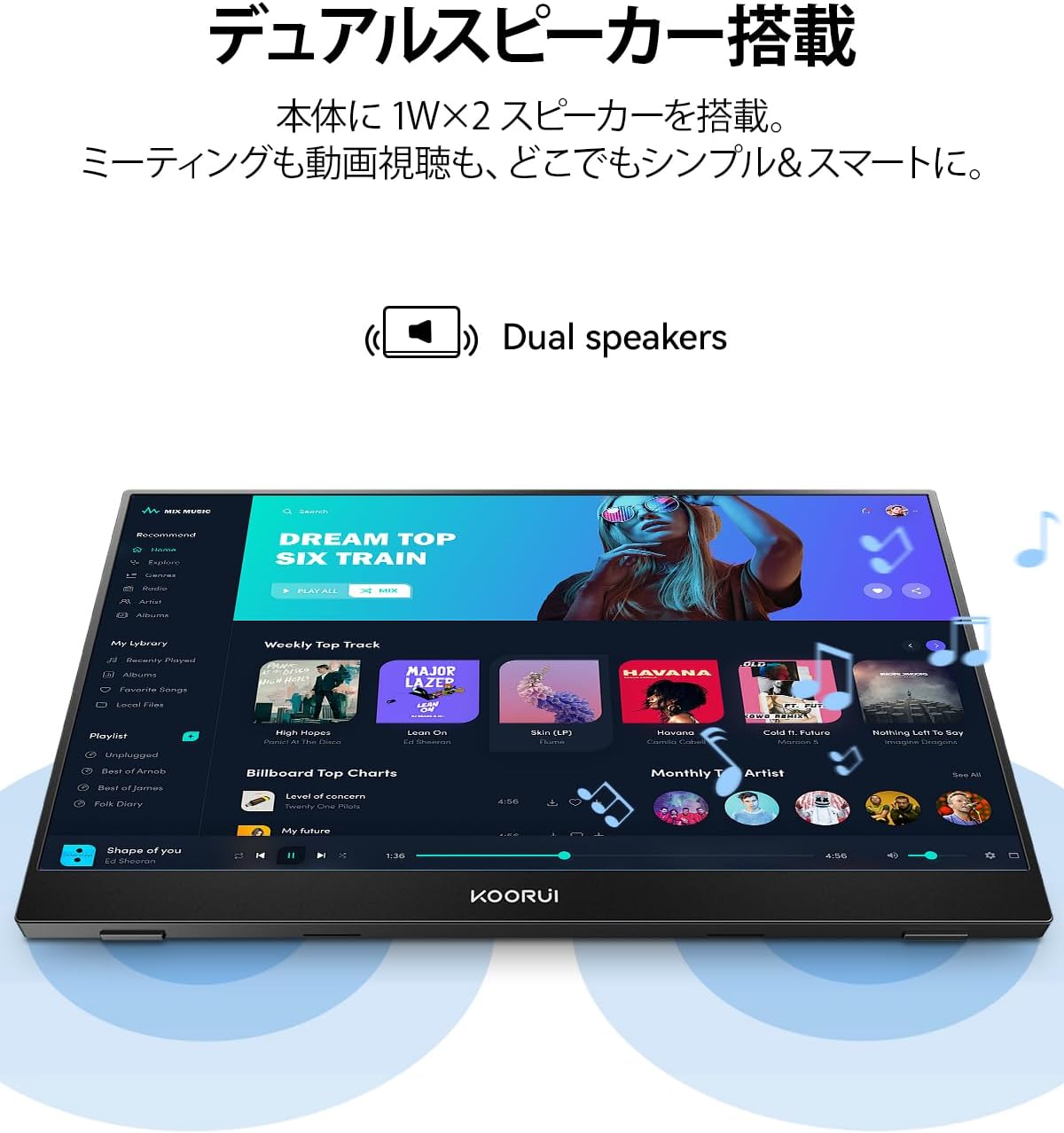
Image: The KOORUI Portable Monitor E1511A displaying a music application, highlighting its integrated dual speakers for an immersive audio experience.
Manteniment
Neteja del monitor
- Always power off the monitor and disconnect all cables before cleaning.
- For the screen, gently wipe with a soft, lint-free cloth. If necessary, slightly dampNetegeu el drap amb aigua o una solució de neteja específica per a pantalles. No ruixeu líquid directament sobre la pantalla.
- Per al casing, use a soft, dry cloth. Avoid using harsh chemicals or abrasive materials.
Emmagatzematge
- Quan no l'utilitzeu, guardeu el monitor a la seva funda protectora per evitar ratllades i acumulació de pols.
- Emmagatzemar en un lloc fresc i sec, lluny de la llum solar directa i de temperatures extremes.
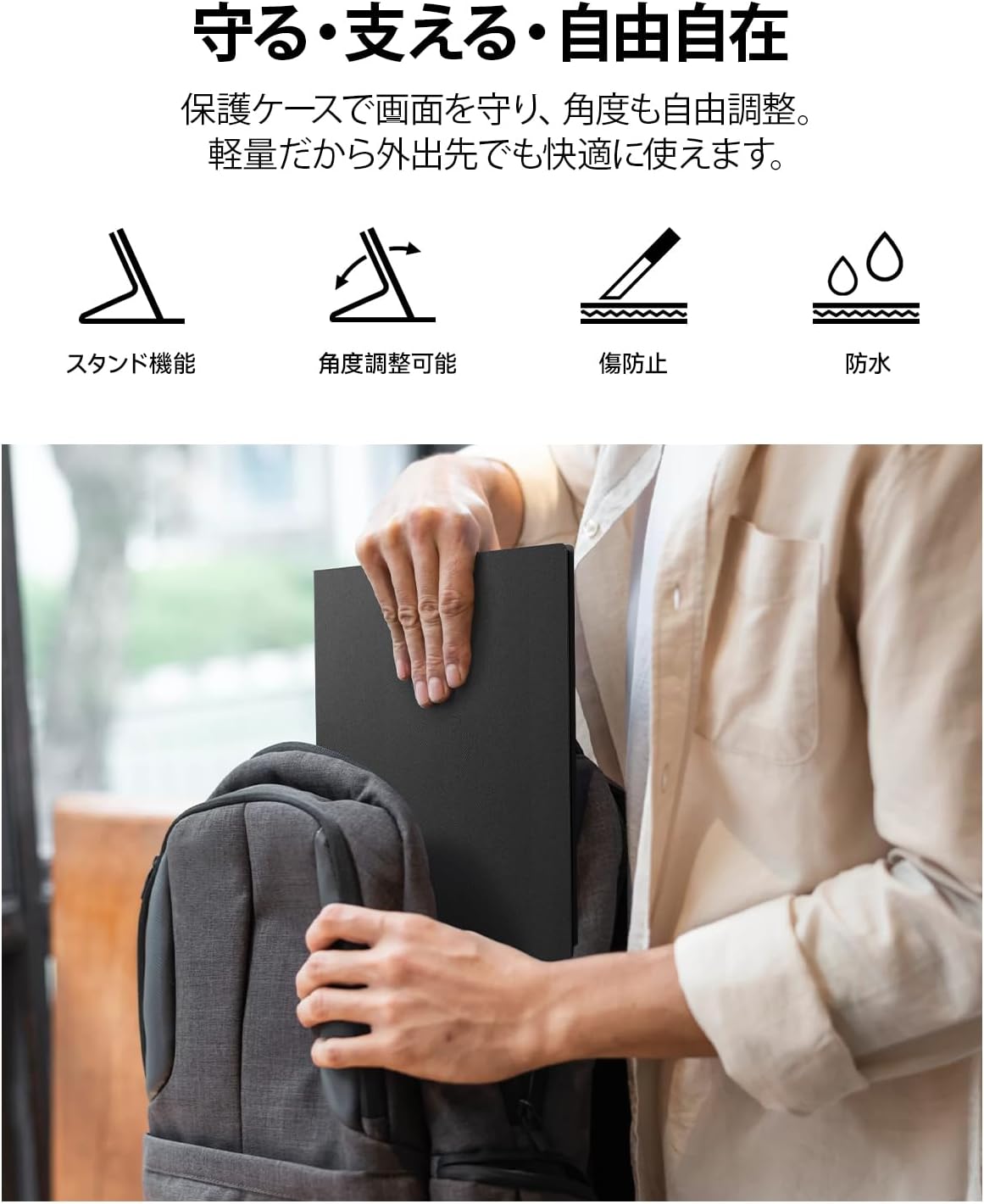
Image: A person placing the KOORUI Portable Monitor E1511A, protected by its cover, into a backpack, demonstrating its portability and the protective function of the cover.
Resolució de problemes
Si teniu problemes amb el monitor, consulteu els problemes i solucions més comuns següents:
| Problema | Causa possible | Solució |
|---|---|---|
| Sense pantalla / Missatge "Sense senyal" | Incorrect cable connection, insufficient power, incompatible USB-C port. |
|
| El monitor no s'encén | No power supply, faulty cable, power button not pressed correctly. |
|
| No hi ha so dels altaveus ni dels auriculars | Volume too low, incorrect audio output setting on source device. |
|
| Pantalla parpellejant o imatge inestable | Faulty cable, interference, resolution mismatch. |
|
Especificacions
Detailed technical specifications for the KOORUI E1511A Portable Monitor.
| Característica | Especificació |
|---|---|
| Marca | KOORUI |
| Número de model | E1511A (KR-E1511A) |
| Mida de la pantalla | 15.6 polzades |
| Resolució | FHD (1920 x 1080 pixels) |
| Tipus de panell | IPS ràpid |
| Relació d'aspecte | 16:9 |
| Freqüència d'actualització | 60 Hz |
| Temps de resposta | 20 ms |
| Viewangle ing | 178 graus |
| Brillantor | 280 cd/m² |
| Superfície de la pantalla | Sense enlluernament |
| Tipus de visualització | LED |
| Color Screen Function | Sí |
| Interfície del maquinari | 2x USB-C, 1x HDMI, 1x 3.5mm Audio Out |
| Altaveus incorporats | Yes (Dual 1W speakers) |
| Dimensions del producte (P x A x A) | 42.9 x 5.4 x 29.4 cm (aproximadament) |
| Color | Negre |
| País d'origen | Xina |
Garantia i Suport
Informació de la garantia
The KOORUI monitor screen is covered by a 1 any de garantia from the date of purchase. Other included accessories are covered by a 3 any de garantiaSi us plau, conserveu el comprovant de compra per a reclamacions de garantia.
Atenció al client
If you have any questions, concerns, or require assistance with your KOORUI portable monitor, please do not hesitate to contact our customer support team. Our professional after-sales service staff is available to provide flexible and prompt assistance.
For support inquiries, please visit the KOORUI store on Amazon or contact us through the platform where you purchased the product. We are committed to providing excellent service and support for our products.
KOORUI also offers free collection and recycling services for its monitors. Please inquire for details.