
Introducció
Welcome to the user manual for your Plimpton Kids20 10-inch Android 15 Kids Tablet. This guide provides essential information for setting up, operating, maintaining, and troubleshooting your device. Designed for children aged 3 and above, this tablet combines educational content with robust parental controls and a durable design to ensure a safe and engaging experience.

Image: Plimpton Kids20 Tablet with Pink Protective Case
Què hi ha a la caixa
Upon unboxing your Plimpton Kids20 tablet, please ensure all the following items are present:
- Plimpton Kids20 Android 15 Tablet (with pre-installed EVA protective case)
- Adaptador d'alimentació
- 1.8M Charging Cable
- Tempered Film (Screen Protector)
- Manual d'usuari
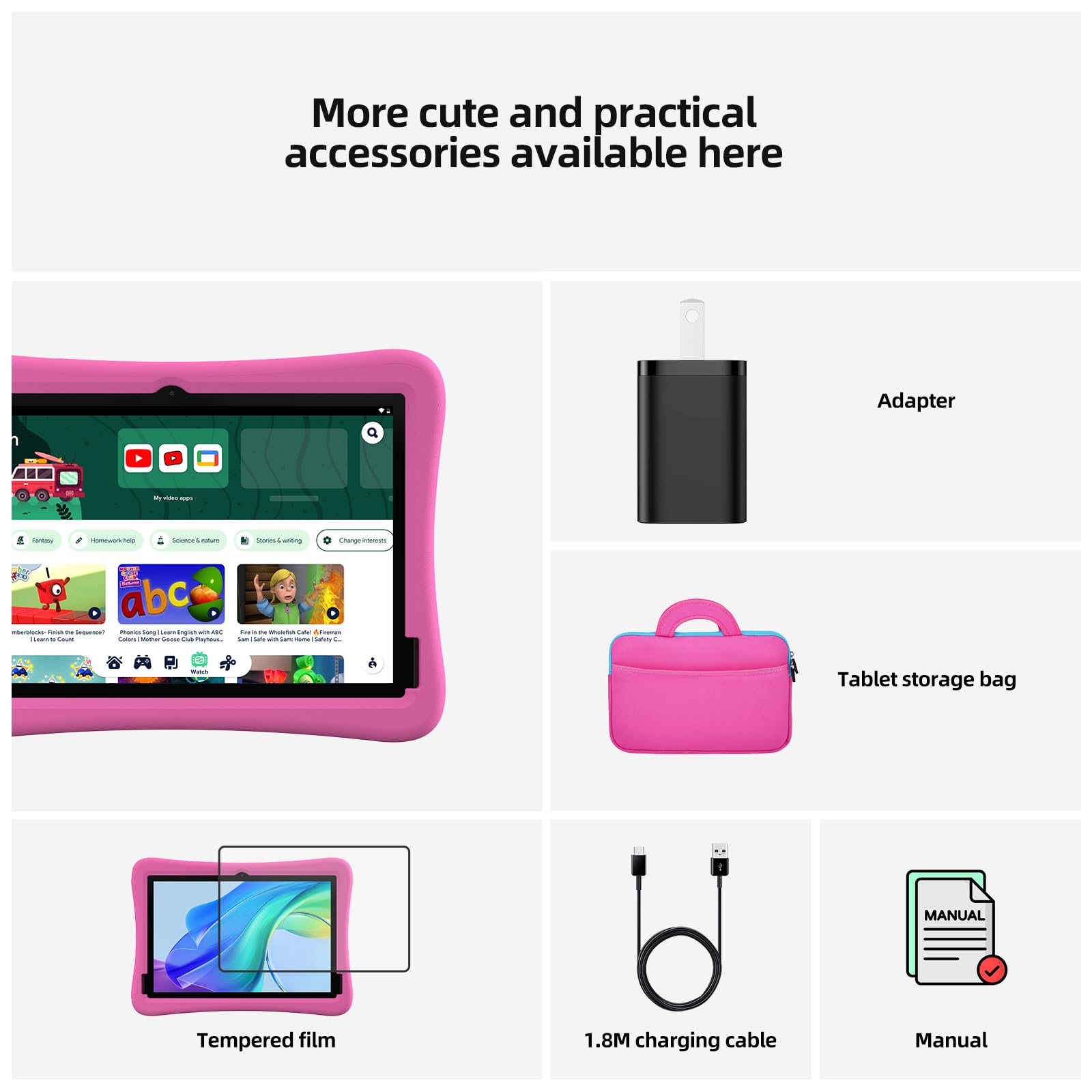
Image: Contents of the Plimpton Kids20 Tablet Box, including the tablet, charger, cable, screen protector, and manual.
Producte acabatview
The Plimpton Kids20 tablet features a durable design with a 10.1-inch display and an integrated protective case. Key components include:
- 10.1" HD IPS Glass Screen: For clear and vivid visuals.
- Càmera frontal: Located above the screen for video calls and photos.
- Càmera posterior: On the back of the tablet for capturing images and videos.
- Botó d'encesa: Typically on the side or top edge.
- Botons de volum: Per ajustar els nivells d'àudio.
- Port USB-C: Per a càrrega i transferència de dades.
- Presa d'auriculars de 3.5 mm: Per a la sortida d'àudio.
- Ranura per a targeta MicroSD: Per a emmagatzematge ampliable fins a 1 TB.
- EVA Protective Case: Odorless, resistant to deformation, and provides superior durability and impact resistance.
- 360° Rotatable Bracket: Integrated into the case for versatile viewangles d'ajust.

Image: Plimpton Kids20 Tablet in its EVA protective case, showcasing the 360-degree rotating stand.
Configuració
- Carregueu la tauleta: Before first use, fully charge the tablet using the provided USB-C cable and power adapter. The battery indicator will show charging status.
- Encès: Press and hold the Power button until the Plimpton logo appears on the screen.
- Assistent de configuració inicial: Segueix les instruccions que apareixen a la pantalla per seleccionar l'idioma, connectar-te a una xarxa Wi-Fi i configurar el teu compte de Google.
- Google Kids Space Setup: The tablet comes pre-installed with Google Kids Space. During initial setup or later, you can configure profiles for your children, selecting age-appropriate content and apps.
- Parental Controls (Google Family Link): Download the Google Family Link app on your own device to manage your child's tablet usage. This allows you to filter content, set screen time limits, approve app downloads, and monitor activity.
Vídeo: Un overview of the Plimpton Kids20 tablet's features, including educational applications, YouTube Kids, Google Kids Space, and the protective case with a rotating stand.
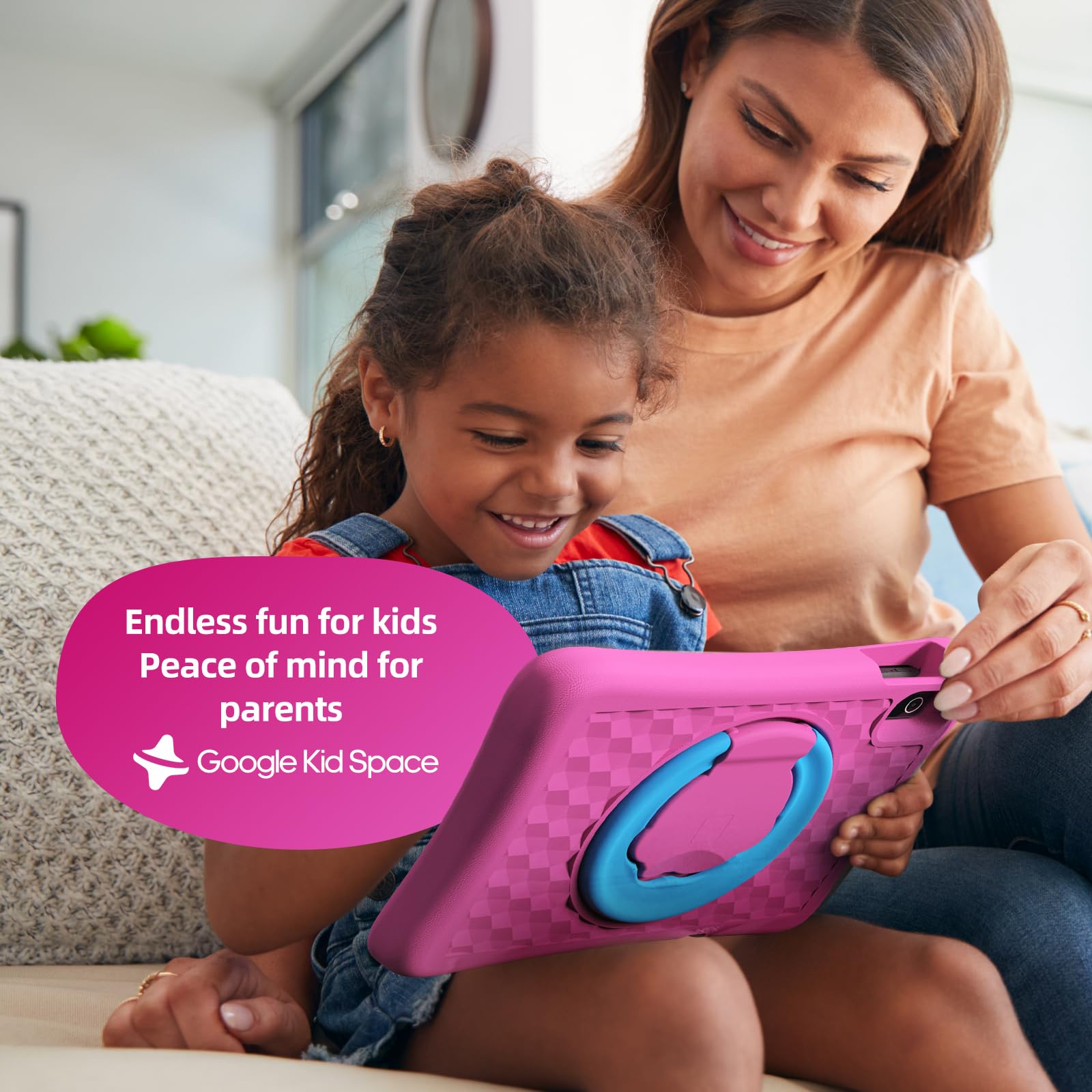
Image: A child engaging with educational content within Google Kids Space on the Plimpton Kids20 Tablet.
Instruccions de funcionament
Encès/Apagat
- Per encendre: Manteniu premut el botó d'engegada fins que la pantalla s'encengui.
- Per apagar: Press and hold the Power button until the power options appear, then select 'Power off'.
- Per reiniciar: Mantingueu premut el botó d'engegada fins que apareguin les opcions d'engegada i, a continuació, seleccioneu "Reiniciar".
Google Kids Space
Google Kids Space offers a curated library of apps, books, and videos tailored for children. It provides a safe environment for learning and entertainment. Content is categorized for easy navigation.
Controls parentals
Utilize the Google Family Link app on your smartphone to manage your child's tablet experience. This includes:
- Límits de temps de pantalla: Set daily limits for tablet usage.
- App Approvals: Approve or block apps your child wants to download.
- Filtret de contingut: Restringir l'accés a contingut inadequat websites and content.
- Downtime Scheduling: Schedule times when the tablet cannot be used, such as bedtime.
Video: A demonstration of the parental control features available on the Plimpton Kids20 tablet, highlighting how parents can manage content and screen time.
Mode de protecció ocular
The tablet features low blue light technology and an eye protection mode to reduce eye fatigue. This mode can be activated through the tablet's display settings and automatically adjusts brightness for optimal viewcomoditat.
Connectivitat
- Wi-Fi: Connect to a wireless network via Settings > Network & internet > Wi-Fi.
- Bluetooth: Pair with Bluetooth headphones or other devices via Settings > Connected devices > Bluetooth.
Manteniment
- Neteja: Use a soft, lint-free cloth to clean the screen. For the protective case, a damp cloth with mild soap can be used. Avoid harsh chemicals.
- Cura de la bateria: To prolong battery life, avoid fully discharging the tablet frequently. Charge it regularly and avoid exposing it to extreme temperatures.
- Actualitzacions de programari: Regularly check for and install system updates to ensure optimal performance and security. Go to Settings > System > System update.
- Gestió d'emmagatzematge: Netegeu periòdicament els innecessaris filei aplicacions per alliberar espai d'emmagatzematge i mantenir el rendiment.
Resolució de problemes
| Problema | Possible solució |
|---|---|
| La tauleta no s'encén | Ensure the tablet is fully charged. Press and hold the Power button for 10-15 seconds to force a restart. |
| Problemes de connexió Wi-Fi | Check your router and internet connection. Forget the network in tablet settings and reconnect. Restart the tablet. |
| Les aplicacions es bloquegen o es bloquegen | Close and reopen the app. Clear the app's cache (Settings > Apps > [App Name] > Storage > Clear cache). Ensure the app is updated. Restart the tablet. |
| Rendiment lent | Tanca les aplicacions que no fas servir. Esborra la memòria cau i les aplicacions temporals files. Check for system updates. Consider a factory reset if issues persist (backup data first). |
| Problemes de càrrega | Ensure the charging cable and adapter are securely connected and undamaged. Try a different outlet or charger. Clean the charging port gently. |
If you encounter persistent issues not covered here, please contact Plimpton customer support.
Especificacions
| Característica | Detall |
|---|---|
| Model | Nens 20 |
| Sistema operatiu | Android 15 |
| Processador | Octa-Nucli d'2.0 GHz |
| RAM | 4 GB |
| Emmagatzematge intern | 64 GB (ampliable fins a 1 TB mitjançant MicroSD) |
| Mida de la pantalla | 10.1 polzades |
| Resolució de pantalla | 1280 x 800 pixels HD IPS |
| Connectivitat sense fil | Wi-Fi (802.11ac, 802.11b, 802.11g, 802.11n), Bluetooth 5.3 |
| Durada de la bateria | Approximately 9 hours (typical use) |
| Dimensions (LxWxH) | 10.86 x 7.83 x 1.22 polzades |
| Pes de l'article | 1.76 lliures |
Garantia i Suport
Your Plimpton Kids20 tablet is covered by a 1 any de garantia des de la data de compra. A més, un 30-day worry-free return and replacement policy is in effect. For any questions, technical assistance, or warranty claims, please contact Plimpton customer support through the retailer where the product was purchased or visit the official Plimpton weblloc per obtenir informació de contacte.
Plimpton is committed to providing professional kids' tablets and services. Do not hesitate to reach out to our team for assistance.