
Introducció
The Bose QuietComfort Ultra Headphones (2nd Generation) combine advanced noise cancellation with immersive spatial audio for a superior listening experience. This manual provides essential information for setup, operation, and maintenance of your headphones.

Image: Bose QuietComfort Ultra Headphones in Driftwood Sand color, showcasing el seu disseny.
Contingut del paquet
Assegureu-vos que tots els elements estiguin presents al vostre paquet:
- Bose QuietComfort Ultra Headphones (2nd Generation) unit
- Cable USB-C a USB-C
- Cable d'àudio de 2.5 mm a 3.5 mm
- Full de seguretat
- Estoig protector
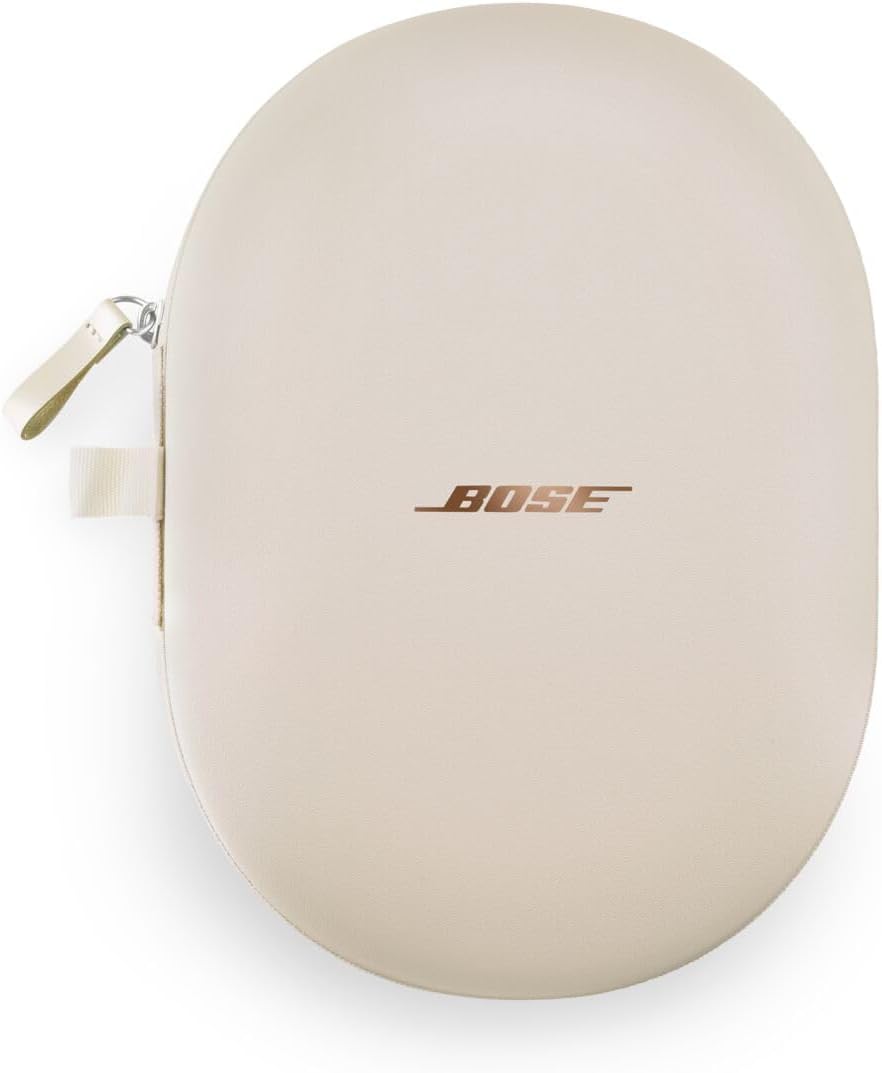
Image: The protective case for the Bose QuietComfort Ultra Headphones.
Configuració
Carregant els auriculars
Before initial use, fully charge your headphones. Connect the provided USB-C to USB-C cable to the charging port on the headphones and to a compatible USB power source. A full charge takes approximately 3 hours. For quick power, a 15-minute charge provides up to 2.5 hours of playback (2 hours with Immersive Audio enabled).
Encès/Apagat
To power on or off your headphones, locate the power button on the right earcup. Press and hold the button until you hear an audible prompt or see the indicator light change.
Emparellament Bluetooth
The headphones utilize Bluetooth Core 5.4 for a stable wireless connection up to 9 meters (30 feet). To pair with a device:
- Ensure the headphones are powered on and in pairing mode. (Refer to the safety sheet for specific pairing mode instructions, usually indicated by a blinking light).
- Al dispositiu (telèfon intel·ligent, tauleta, ordinador), navega fins a la configuració de Bluetooth.
- Select "Bose QuietComfort Ultra Headphones" from the list of available devices.
- Once connected, you will hear a confirmation tone or voice prompt.
The headphones support multi-point connection, allowing them to be paired with multiple devices simultaneously, such as a smartphone and a laptop. This enables seamless switching between audio sources.

Imatge: Lateral view of the headphones, highlighting the control buttons and ports.
Funcionament
Controls
The headphones feature intuitive push-button controls and swipe gestures for various functions:
- Play/Pause & Calls: Use the main buttons on the earcup to play or pause music, and to answer or end calls.
- Ajust de volum: Swipe gestures on the earcup allow for volume control.
- Pausa/Represa automàtica: Removing the headphones will automatically pause your content. Placing them back on will resume playback from where you left off.
- S'apagui: To disconnect Bluetooth and power down the headphones when finished, flatten the earcups.
Modes de cancel·lació de soroll
The headphones offer Bose's highest level of active noise cancellation, allowing you to manage your listening environment. There are four distinct modes:
- Mode silenciós: Provides full noise cancellation, ideal for minimizing distractions from airplane roar, office chatter, or other ambient sounds.
- Mode conscient: Allows you to hear your surroundings while still enjoying your audio, useful for situational awareness.
- Mode d'immersió: Enhances the audio experience with spatial sound.
- Mode cinema: Optimized for video content, creating a theater-like audio experience.

Image: Bose QuietComfort Ultra Headphones, illustrating their noise-cancelling capability.
Àudio immersiu
Immersive Audio technology creates a listening experience where sound appears to unfold in front of you, providing a heightened sense of presence. This feature aims to replicate the feeling of being in a live concert or performance space.

Image: A person experiencing immersive audio with the headphones.
Mode Cinema
The newly integrated Cinema Mode is designed to enhance your video content. It balances background sound and sound effects across a spatial soundstage, delivering a theater-like audio-visual experience regardless of your location.

Image: A person enjoying video content with the headphones in Cinema Mode.
CustomTune Personalization
CustomTune technology automatically analyzes the unique shape of your ears. Based on this analysis, it adapts and optimizes the sound performance of the QuietComfort Ultra Headphones, providing a personalized audio experience tailored specifically for you.

Image: A person wearing the headphones, representing the CustomTune personalization feature.
Manteniment
To ensure the longevity and optimal performance of your Bose QuietComfort Ultra Headphones, follow these general maintenance guidelines:
- Neteja: Gently wipe the earcups and headband with a soft, dry cloth. Avoid using abrasive materials or harsh chemicals.
- Emmagatzematge: When not in use, store your headphones in the provided protective case to prevent scratches and damage.
- Temperatura: Eviteu exposar els auriculars a temperatures extremes, llum solar directa o humitat elevada.
- Humitat: Keep the headphones dry. If they come into contact with liquids, wipe them immediately.
Resolució de problemes
Aquesta secció tracta els problemes habituals que podeu trobar:
- Persistent Voice Prompts: A firmware update in February 2026 introduced unskippable voice prompts upon device connection (e.g., "Connected to XYZ"). Currently, there is no option to disable these announcements.
- Problemes de connexió Bluetooth: If experiencing unstable Bluetooth connections, ensure your devices are within the 9-meter (30-foot) range. Try turning Bluetooth off and on on both devices, or re-pairing the headphones.
- App Settings with USB Audio: When using a USB audio connection, certain app settings, such as the equalizer, may not be adjustable. Fine-tuning is typically limited to the on-headphone controls (mode switching, volume, shortcut functions).
- Sound Interruption in Noisy Environments: In environments with sudden loud noises or vibrations (e.g., bus bumps, train tracks), the sound may briefly cut out. This behavior can be more noticeable compared to some other noise-cancelling headphones.
Especificacions
| Característica | Detall |
|---|---|
| Marca | Bose |
| Número de model | 890101-0500 |
| Color | Driftwood Sand |
| Col·locació de l'orella | Sobre l'orella |
| Estil d'auriculars | Sobre l'orella |
| Control de soroll | Cancel·lació activa del soroll |
| Elements inclosos | Bose QuietComfort Ultra Headphones (2nd Generation) unit, USB-C to USB-C cable, 2.5mm to 3.5mm audio cable, safety sheet, protective case |
| País d'origen | Xina |
| Mètode de control | Pulsador |
| Charging Time (Full) | 3 hores |
| Durada de la bateria (mitjana) | 30 Hours (23 hours with Immersive Audio) |
| Tipus sense fil | Bluetooth |
| Interfície de comunicació | Sense fil |
| Conector d'auriculars | Jack de 2.5 mm |
| Dispositius compatibles | Smartphones, Tablets, Desktops, Laptops |
| Pes del producte | 0.48 kg |
| Material exterior | Metal, Fabric/Leather (Headband) |
| Ús del producte | Gaming, Travel, Music |
| Tipus de controlador d'àudio | Controlador personalitzat |

Image: A comparison table highlighting features of Bose QuietComfort Headphones and QuietComfort Ultra Headphones.
Garantia i Suport
The Bose QuietComfort Ultra Headphones (2nd Generation) come with a Garantia del fabricant de 2 anys. Aquesta garantia cobreix els defectes de materials i de mà d'obra en ús normal.
For detailed warranty terms, troubleshooting assistance, or to contact customer support, please refer to the safety sheet included in your package or visit the official Bose support weblloc web. Conserveu el comprovant de compra per a reclamacions de garantia.