
1. Introducció
This manual provides detailed instructions for the installation, operation, and maintenance of your MekedeTech Android Car Radio Stereo GPS Navigation system. This unit is designed for KIA Sportage 4 models from 2018 to 2022, featuring an Android 13 OS, 8-Core A53 2.0GHz CPU, 8GB RAM, and 256GB ROM. It includes a 9-inch IPS touch screen with 1280x720 resolution, built-in WiFi, GPS navigation, and supports steering wheel controls.
Les característiques clau inclouen:
- Seamless integration with KIA Sportage 4 (2018-2022) without requiring wiring modifications.
- Wireless CarPlay and Android Auto for smartphone connectivity.
- High-performance Octa-core CPU with 8GB RAM and 256GB ROM for smooth operation.
- Multifunctional entertainment and navigation with built-in GPS, offline/online maps, WiFi, FM RDS radio, and Bluetooth hands-free calling.
- Practical driving assistance features like reverse image input and split-screen display.
2. Contingut del paquet
Abans de començar la instal·lació, comproveu que tots els components que s'enumeren a continuació siguin presents al paquet.
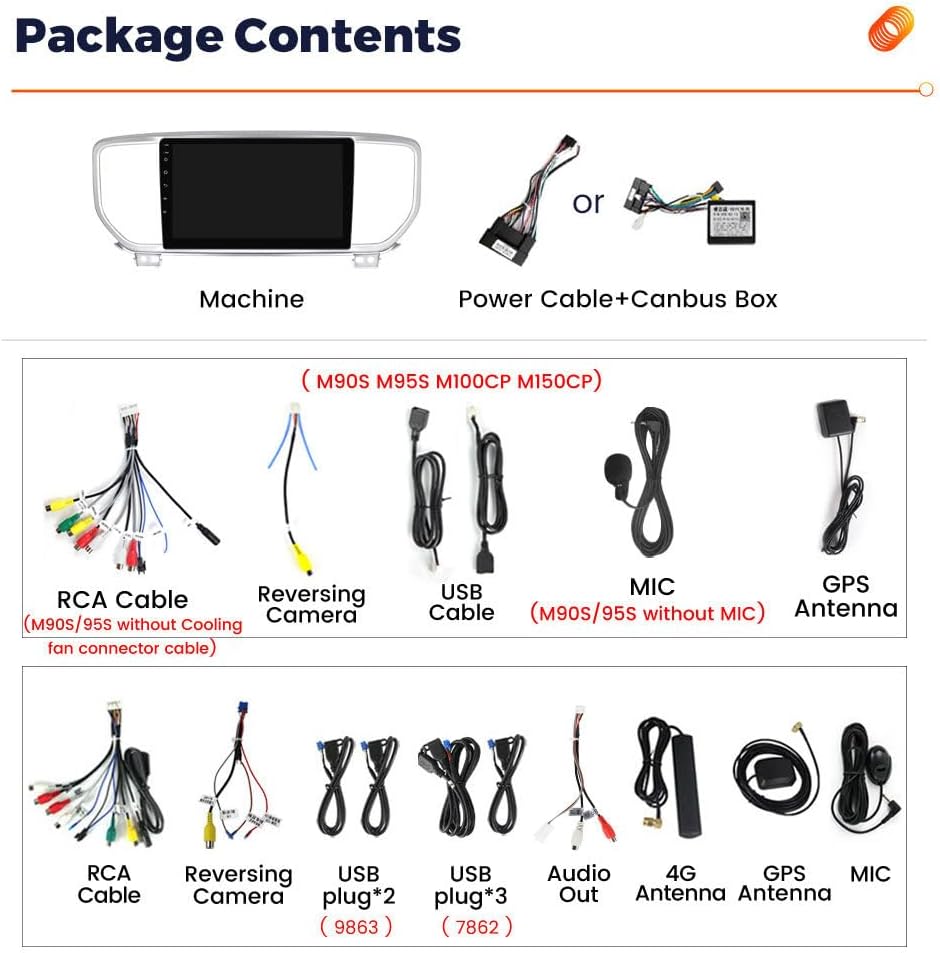
Imatge: Més deview of the package contents, including the main unit, power cables, RCA cables, reversing camera cable, USB cables, microphone, and GPS antenna.
El paquet normalment inclou:
- 9.0 inch Touch screen (Main Unit)
- Plug & Play Power Harness (with or without Canbus Box, depending on vehicle)
- RCA Harness
- Reverse Harness
- Antena GPS
- USB Cables (multiple)
- Microphone (external, for some models)
- 4G Antenna (for models with 4G LTE)
3. Configuració i instal·lació
This unit is designed for direct replacement in KIA Sportage 4 models (2018-2022). Professional installation is recommended. Ensure the vehicle's ignition is off and the battery is disconnected before starting installation.
3.1. Instal·lació física
- Carefully remove the original car radio and trim panels. Refer to your vehicle's service manual for specific instructions.
- Connect the provided Plug & Play Power Harness to the vehicle's wiring harness. Ensure all connections are secure.
- Connect the RCA Harness, Reverse Harness, USB cables, and external microphone (if applicable) to the corresponding ports on the new head unit.
- Mount the GPS Antenna in a location with a clear view del cel, normalment al tauler de control o sota el parabrisa.
- If your unit supports 4G LTE, insert the SIM card into the designated slot. There are typically two SIM card slots: one on the back of the main unit and one on the RCA cable.
- Carefully slide the new head unit into the dashboard opening and secure it.
- Torneu a instal·lar tots els panells de guarnició.

Image: Comparison of the car dashboard before and after installation of the MekedeTech Android Car Radio, showing the integrated display.

Image: Detail showing the 4G SIM card slot on the main unit and an external SIM card slot on the RCA cable, for network connectivity.
3.2. Initial Power-On and Cooling Fan Setup
- Torneu a connectar la bateria del vehicle.
- Turn on the vehicle ignition. The unit should power on automatically.
- If your unit includes a cooling fan, follow these steps to ensure it is active:
- Navega a Configuració > Dispositiu > So.
- Ensure the cooling fan option is enabled.
- Verify the fan is operating by checking for airflow or a slight hum.
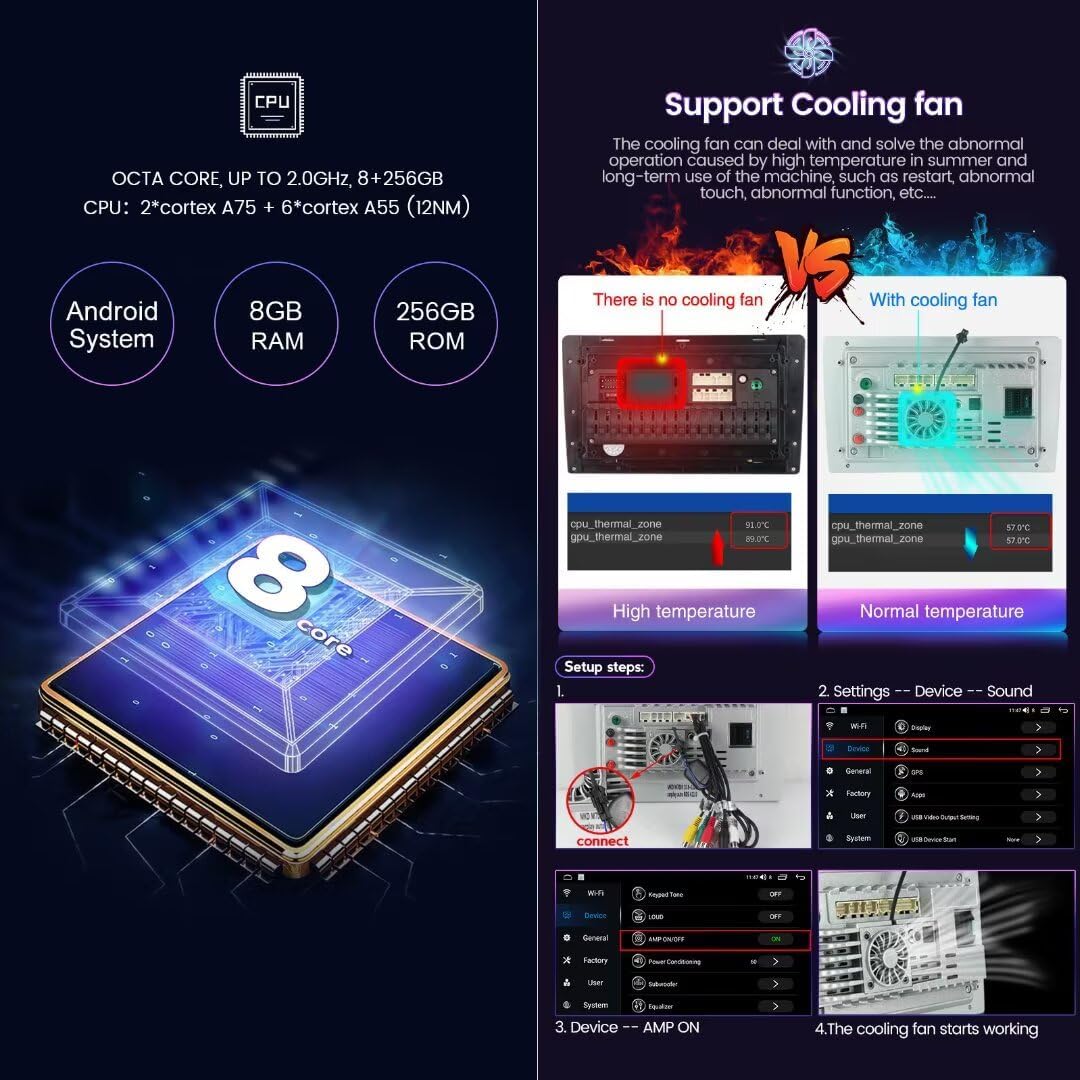
Image: Diagram illustrating the cooling fan setup steps within the system settings, showing how to connect and activate the fan to prevent overheating.
4. Instruccions de funcionament
4.1. Navegació i interfície bàsiques
The unit operates on Android 13. Navigate through applications and settings using the 9-inch touch screen. Swipe left or right to access different home screens, and tap icons to launch applications.
4.2. CarPlay sense fil i Android Auto
Connect your iPhone or Android smartphone wirelessly for seamless integration of navigation, music, calls, and messages.
- Enable Bluetooth on your smartphone and on the head unit.
- On the head unit, navigate to the CarLink or ZLink aplicació.
- Pair your phone via Bluetooth.
- Once paired, select your phone from the list in the CarLink/ZLink app.
- CarPlay or Android Auto should launch automatically. (Note: Can also be connected via USB cable for initial setup or if wireless connection is unstable.)
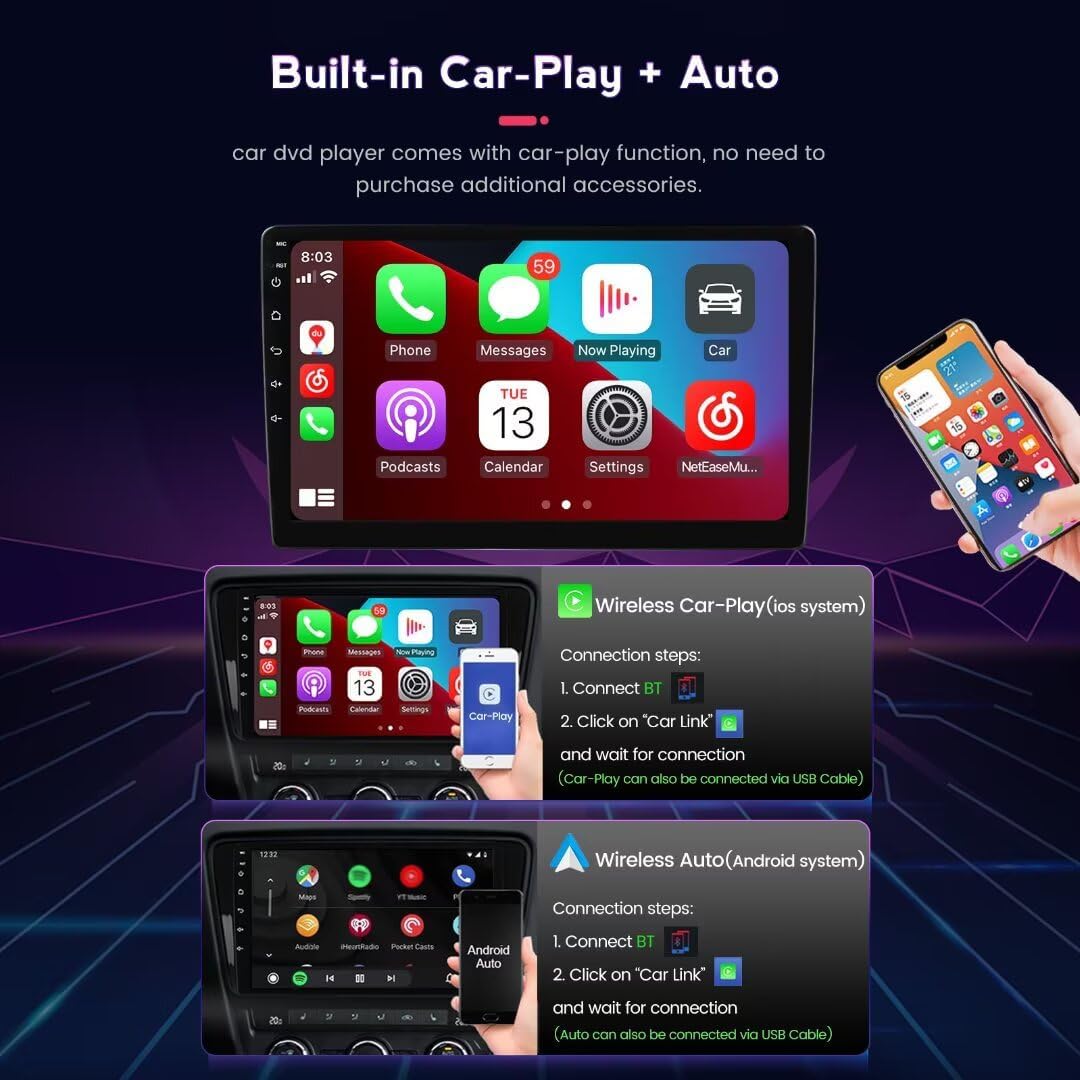
Image: Screenshots demonstrating the connection process for Wireless CarPlay (iOS system) and Wireless Android Auto (Android system) via Bluetooth and the CarLink application.
4.3. Navegació GPS
The unit comes with built-in GPS. You can use pre-installed offline maps or download online maps via WiFi/4G connection. Ensure the GPS antenna is properly installed for optimal signal reception.
- To use online maps, connect the unit to a WiFi hotspot or insert a 4G SIM card.
- Launch your preferred navigation application (e.g., Google Maps, Waze).
- Enter your destination and follow the on-screen directions.
4.4. Multimedia and Radio
Access various multimedia options including FM RDS radio, Bluetooth audio streaming, and local media playback via USB.
- Ràdio: Select the "Radio" app to tune into FM stations. RDS (Radio Data System) provides station information.
- Àudio Bluetooth: Pair your phone via Bluetooth to stream music.
- Reproducció USB: Connect a USB drive to one of the USB ports to play audio or video files.
4.5. Control del volant
The unit supports original steering wheel controls. After installation, you may need to configure the buttons in the system settings to match your vehicle's controls. This allows for safe operation of essential functions without taking your hands off the wheel.
4.6. Processador DSP
The integrated DSP (Digital Signal Processor) enhances audio quality, providing multi-dimensional surround sound effects. Adjust DSP settings in the audio menu to customize your listening experience.
Image: Illustration of the DSP (Digital Signal Processor) module, highlighting its role in enhancing audio quality and providing surround sound effects.
5. Manteniment
Proper maintenance ensures the longevity and optimal performance of your car radio stereo.
- Neteja de pantalla: Utilitzeu un drap suau i sense pelusa lleugerament dampened with water or a screen cleaner specifically designed for electronics. Do not use abrasive cleaners or solvents.
- Actualitzacions de programari: Periodically check for system software updates through the unit's settings menu or the manufacturer's website to ensure you have the latest features and security patches.
- Ventilació: Ensure the cooling fan (if present) and ventilation openings are not obstructed to prevent overheating.
- Condicions ambientals: Eviteu exposar la unitat a temperatures extremes, a la llum solar directa durant períodes prolongats o a una humitat excessiva.
6. Solució De Problemes
Consulteu la taula següent per veure els problemes habituals i les seves solucions.
| Problema | Causa possible | Solució |
|---|---|---|
| La unitat no s'encén. | Connexió d'alimentació fluixa, fusible fundit, problema amb la bateria del vehicle. | Check power harness connections. Inspect vehicle fuses. Ensure vehicle battery is charged. |
| Sense so. | Volum massa baix, silenci activat, font d'àudio incorrecta, cables d'altaveu solts. | Increase volume. Check if mute is active. Select correct audio source. Verify speaker wire connections. |
| Senyal GPS perdut o inexacte. | GPS antenna obstructed or improperly installed, unit in an area with poor satellite reception. | Assegureu-vos que l'antena GPS tingui una visió clara view of the sky. Check antenna connection. Move to an open area. |
| El CarPlay/Android Auto no es connecta. | Bluetooth not enabled, phone not paired, CarLink app not launched, phone software issue. | Ensure Bluetooth is on for both devices. Re-pair phone. Launch CarLink/ZLink app. Try connecting via USB. Restart phone and head unit. |
| La pantalla tàctil no respon. | Bloqueig del sistema, error temporal del programari. | Perform a soft reset (refer to manufacturer's instructions for reset button location, usually a small pinhole). If issue persists, disconnect and reconnect battery. |
If the problem persists after attempting these solutions, please contact MekedeTech customer support.
7. Especificacions
| Característica | Detall |
|---|---|
| Número de model | 8-Core 8+256G |
| Sistema operatiu | Android 13 |
| CPU | 8-Core A53 2.0GHz |
| Memòria (RAM) | 8 GB |
| Emmagatzematge (ROM) | 256 GB |
| Mida de la pantalla | 9 polzades |
| Resolució de visualització | 1280*720 (IPS Touch Screen) |
| Connectivitat | Bluetooth, USB, Wi-Fi, 4G LTE (SIM card support) |
| Característiques especials | Wireless CarPlay, Android Auto, GPS Navigation, DSP Processor, Steering Wheel Control, Reverse Image Input, Split Screen |
| Mode de sortida d'àudio | Digital |
| Tipus de muntatge | Muntatge al quadre de comandament |
| Tipus de servei del vehicle | Car, RV, SUV, Truck (Specifically KIA Sportage 4 2018-2022) |
8. Informació de la garantia
This MekedeTech product comes with a 1 anys de garantia del fabricant des de la data de compra. Aquesta garantia cobreix els defectes de materials i de mà d'obra en ús normal.
La garantia no cobreix:
- Damage caused by improper installation, accident, misuse, abuse, neglect, or unauthorized modification.
- Damage caused by power surges or incorrect voltage.
- Desgast normal.
- Damage from external causes such as drops, liquid exposure, or extreme temperatures.
Conserveu el vostre comprovant de compra per a reclamacions de garantia.
9. Atenció al client
For technical assistance, troubleshooting, or warranty inquiries, please contact MekedeTech customer support.
- Marca: MekedeTech
- Assistència en línia: Visita l'oficial MekedeTech Store on Amazon per obtenir informació sobre el producte i recursos d'assistència.
- Refer to the contact information provided with your product packaging for direct support channels.
