
1. Informació important de seguretat
Read all instructions carefully before using the monitor. Keep this manual for future reference.
- No exposeu el monitor a la pluja ni a la humitat.
- No obriu el monitor casing. No hi ha peces que l'usuari pugui reparar a l'interior.
- Use only the power adapter and cables provided by Lenovo.
- Assegureu-vos que hi hagi una ventilació adequada al voltant del monitor. No bloquegeu les obertures de ventilació.
- Eviteu col·locar el monitor sobre una superfície inestable.
- Disconnect the power cable from the outlet during lightning storms or when unused for long periods.
2. Contingut del paquet
Verifiqueu que tots els elements siguin presents al vostre paquet:
- Lenovo Legion 27Q-10 Monitor
- Suport de monitor (base i coll)
- Cable d'alimentació
- Cable DisplayPort (DP)
- Guia de configuració ràpida
- Informe de calibració de fàbrica
- 4 cargols (per al muntatge del suport)

Image: Contents of the Lenovo Legion 27Q-10 monitor box. This includes the monitor panel, the stand components (base and neck), a power cable, and a DisplayPort cable.
3. Monitor Overview
Familiarize yourself with the monitor's components and ports.
Davant View
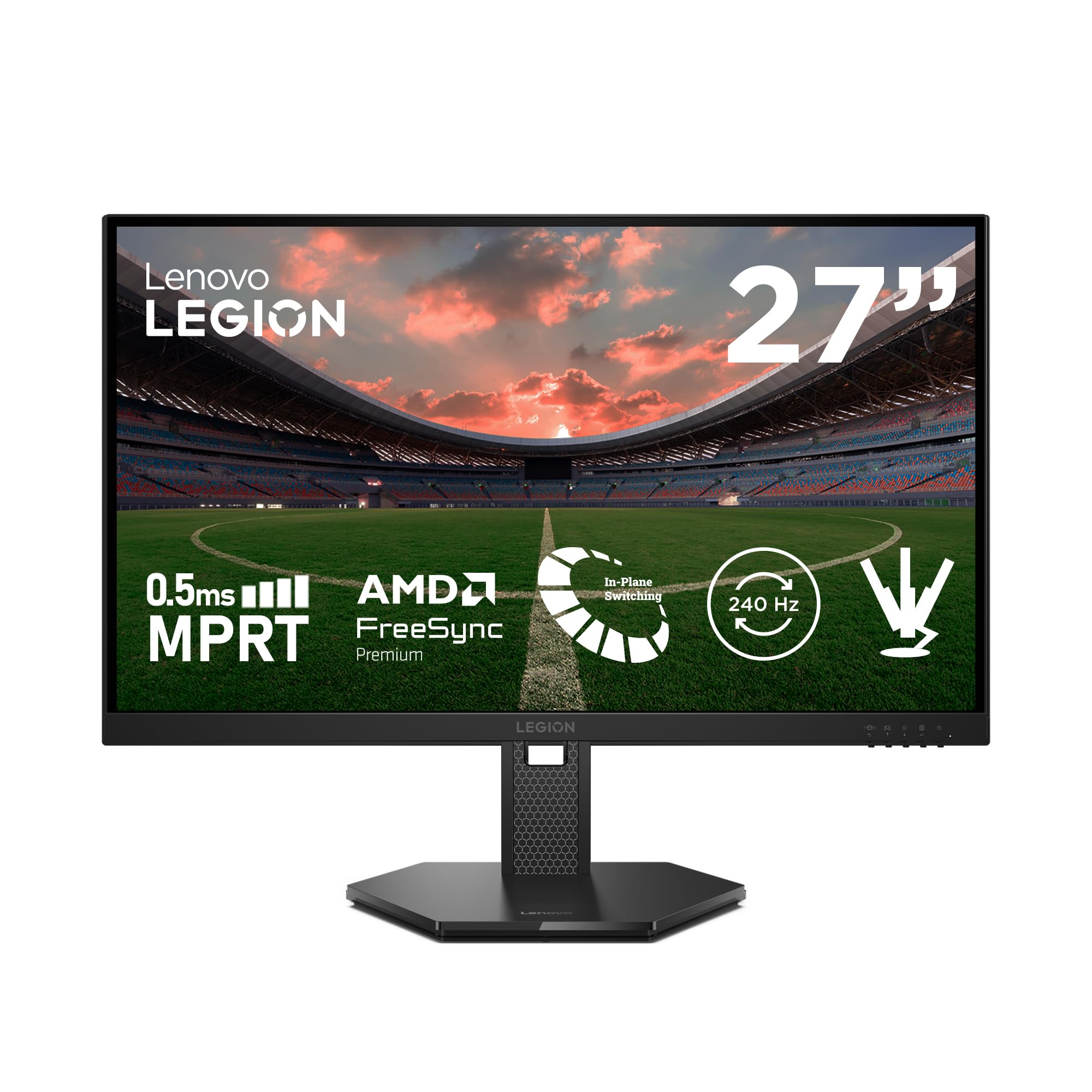
Imatge: Frontal view of the Lenovo Legion 27Q-10 monitor. The display features a 27-inch screen with narrow bezels on three sides, and the Legion logo is visible on the bottom bezel.
posterior View i Ports

Image: Diagram illustrating the rear ports of the monitor. From left to right, these include the power connector, two HDMI 2.1 TMDS ports, a DisplayPort 1.4, and a 3.5mm audio output jack.

Imatge: Part posterior view of the Lenovo Legion 27Q-10 monitor. The image highlights the hexagonal pattern on the stand neck and the area for VESA mount attachment, along with the rear panel design.
4. Configuració
4.1 Muntatge del suport
- Col·loqueu el panell del monitor cap per avall sobre un drap suau i net per evitar ratllades.
- Fixeu el coll del suport al panell del monitor amb els cargols proporcionats.
- Fixeu la base del suport al coll del suport, fixant-la amb el cargol captiu de la part inferior de la base.
- Aixequeu amb cura el monitor muntat i col·loqueu-lo sobre una superfície plana i estable.
4.2 Muntatge VESA (opcional)
The monitor supports a 100mm x 100mm VESA mount. To use a VESA mount:
- Traieu el suport del monitor si ja hi està connectat.
- Attach your VESA-compatible mounting bracket to the four screw holes on the back of the monitor.
- Follow the instructions provided with your VESA mount for installation.
4.3 Connecting to a Computer or Console
Connect your device using either a DisplayPort or HDMI cable.
- DisplayPort: Connect one end of the DisplayPort cable to the DisplayPort output on your computer/console and the other end to the DisplayPort input on the monitor.
- HDMI: Connect one end of an HDMI 2.1 cable to the HDMI output on your computer/console and the other end to one of the HDMI 2.1 inputs on the monitor.
4.4 Connexió d'alimentació
Connecteu el cable d'alimentació a l'entrada d'alimentació del monitor i, a continuació, endolleu l'altre extrem a una presa de corrent amb connexió a terra.
5. Funcionament del monitor
5.1 Encès/Apagat
Premeu el botó d'engegada situat a la part inferior dreta del monitor per encendre'l o apagar-lo.
5.2 Navegació en pantalla (OSD)
The OSD menu allows you to adjust various monitor settings. Use the control buttons (usually located on the bottom right or rear of the monitor) to navigate the menu.
- Press a button to activate the OSD menu.
- Use the directional buttons to move through options.
- Press the select button to confirm a selection.
- Premeu el botó de sortida per tancar el menú OSD.
5.3 Ajustar la configuració
Key settings you can adjust include:
- Brillantor/Contrast: Ajusta la luminància general i la diferència entre les zones clares i fosques.
- Configuració de color: Modifiqueu la temperatura de color, el gamma i els nivells RGB individuals.
- Modes d'imatge: Select predefined modes optimized for different content (e.g., Standard, Gaming, Movie, sRGB).
- Selecció d'entrada: Canvia manualment entre les entrades DisplayPort i HDMI.
5.4 Adaptive Sync (AMD FreeSync Premium Pro / VESA Adaptive Sync)
This monitor supports AMD FreeSync Premium Pro and VESA Adaptive Sync technologies to eliminate screen tearing and stuttering. Ensure your graphics card supports these technologies and that they are enabled in your graphics driver settings and the monitor's OSD menu.
5.5 Ajust del suport
El suport del monitor ofereix ajustaments ergonòmics:
- Ajust d'alçada: Raise or lower the monitor up to 135 mm.
- Inclinació: Adjust the screen angle from -5° to +22°.
- Girar: Rotate the monitor horizontally up to 30° left or right.
- Pivot: Rotate the screen vertically from -90° to +90° for portrait mode.
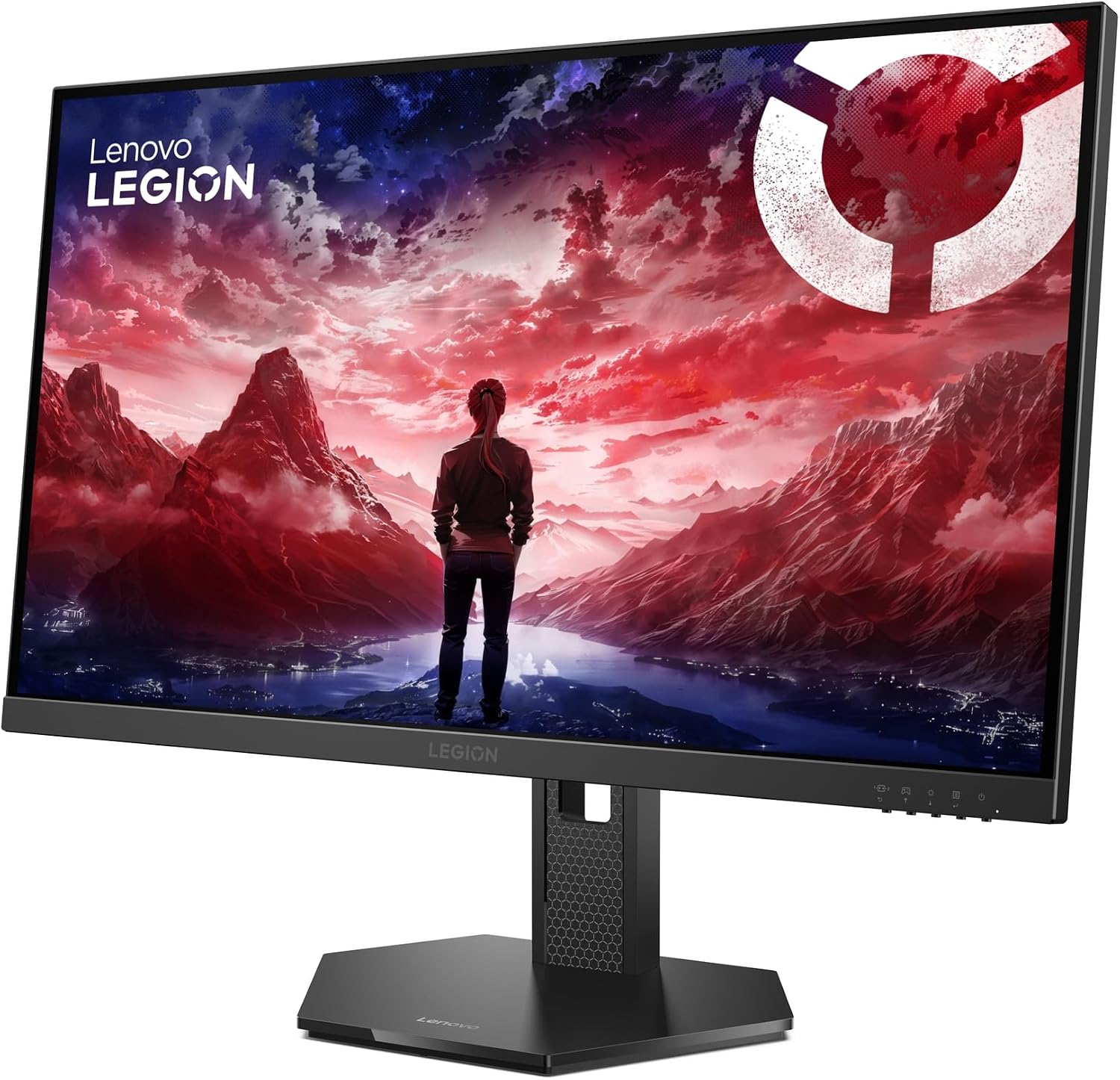
Imatge: Lateral view of the Lenovo Legion 27Q-10 monitor, illustrating the range of motion for the stand, including tilt and height adjustment.
5.6 Característiques de la cura dels ulls
The monitor is certified with Eyesafe® Display 2.0 and TÜV Low Blue Light, designed to reduce eye strain during extended use by minimizing harmful blue light emissions without compromising color accuracy.

Image: The monitor displaying a game, with the TÜV Rheinland and Eyesafe Certified 2.0 logos prominently displayed, indicating its eye comfort features.
6. Manteniment
6.1 Neteja de la pantalla
To clean the screen, first disconnect the power cable. Use a soft, lint-free cloth lightly dampesbandiu amb aigua o una solució netejadora de pantalles. No ruixeu líquid directament sobre la pantalla.
6.2 Atenció general
- Mantingueu el monitor allunyat de la llum solar directa i de fonts de calor.
- Eviteu col·locar objectes pesats sobre el monitor o els seus cables.
- Do not use abrasive cleaners or solvents on any part of the monitor.
7. Solució De Problemes
Si teniu problemes amb el monitor, consulteu els problemes i solucions més comuns següents:
| Problema | Possible solució |
|---|---|
| No hi ha imatge a la pantalla | Ensure the power cable is securely connected. Check if the video cable (DP/HDMI) is properly connected to both the monitor and the computer/console. Select the correct input source via the OSD menu. |
| Imatge parpellejant o inestable | Check the video cable connection. Ensure your graphics card drivers are up to date. Adjust the refresh rate in your operating system display settings. |
| Els colors apareixen incorrectes | Reset color settings to factory defaults in the OSD menu. Adjust color temperature or individual RGB values. Ensure the video cable is not damaged. |
| El monitor no s'encén | Verify the power cable is connected to a working outlet and the monitor. Try a different power outlet. |
| Adaptive Sync (FreeSync) not working | Ensure Adaptive Sync is enabled in the monitor's OSD menu. Verify your graphics card supports FreeSync Premium Pro and that it is enabled in your graphics driver control panel. Use a DisplayPort cable for optimal performance. |
8. Especificacions
| Característica | Especificació |
|---|---|
| Nom del model | Legió 27Q-10 |
| Número de model | 68C6GAC4EU |
| Mida de la pantalla | 27 polzades |
| Tipus de panell | IPS |
| Resolució | QHD (2560 x 1440) |
| Relació d'aspecte | 16:9 |
| Freqüència d'actualització | 240 Hz |
| Temps de resposta | 0.5 ms (MPRT) |
| Brillantor | 300 nits |
| Relació de contrast | 1000:1 |
| Gamma de colors | 99% sRGB, 90% DCI-P3 |
| Viewangle ing | 178° (H/V) |
| Connectivitat | 2x HDMI 2.1, 1x DisplayPort 1.4, 1x Audio Out (3.5mm) |
| Sincronització adaptativa | AMD FreeSync Premium Pro, VESA Adaptive Sync |
| Ajustaments de peu | Height (135mm), Tilt (-5°/+22°), Swivel (±30°), Pivot (±90°) |
| Muntatge VESA | 100 mm x 100 mm |
| Consum d'energia | 50 watts (màx.) |
| Dimensions (amb suport) | 61.31 x 21.4 x 53.65 cm |
| Pes (amb suport) | 6 kg |
| Color | Negre |
9. Garantia i Suport
This Lenovo Legion 27Q-10 monitor comes with a 3 any de garantia des de la data de compra.
For technical support, warranty claims, or additional information, please visit the official Lenovo support website or contact your local Lenovo service center. Refer to the warranty card included in your package for specific terms and conditions.
Suport de Lenovo Weblloc: https://support.lenovo.com