
1. Introducció
This manual provides detailed instructions for the installation, operation, and maintenance of your MekedeTech Android Car Radio. Designed specifically for Mitsubishi ASX models from 2016 to 2022, this 9-inch touch screen head unit enhances your driving experience with features like Wireless CarPlay, Android Auto, GPS navigation, and more. Please read this manual thoroughly before installation and use to ensure proper functionality and safety.
2. Contingut del paquet
Verifiqueu que tots els elements que s'enumeren a continuació s'inclouen al vostre paquet. Si falta algun element o hi ha algun malmès, poseu-vos en contacte amb l'atenció al client.

Figura 2.1: Contingut del paquet. This image displays the main head unit, power cable, RCA cables, reversing camera, USB cables, microphone, 4G antenna, and GPS antenna.
- Main Head Unit (9-inch Android Car Radio)
- Power Cable (specific to Mitsubishi ASX 2016-2022)
- Cables RCA
- Reversing Camera (optional, depending on package)
- USB Cables (multiple)
- Micròfon
- Antena GPS
- 4G Antenna (if applicable to your model)
3. Configuració i instal·lació
The MekedeTech Android Car Radio is designed for direct compatibility with Mitsubishi ASX 2016-2022 models, requiring no cutting or modification of original car wiring. Professional installation is recommended.
3.1 Comprovació prèvia a la instal·lació
- Assegureu-vos que el vehicle estigui apagat i que la bateria estigui desconnectada abans de començar la instal·lació.
- Confirmeu que tot el contingut del paquet sigui present i no estigui danyat.
3.2 Instal·lació física
- Carefully remove the original car radio and trim panels according to your vehicle's service manual.
- Connect the provided power cable and other necessary wiring harnesses (RCA, USB, GPS antenna, microphone) to the corresponding ports on the new head unit and your vehicle's wiring.
- Mount the new head unit securely into the dashboard opening.
- Reinstall the trim panels.

Figure 3.1: Before and After Installation. This image illustrates the visual transformation of the car's dashboard after the Android car radio is installed, showing the integrated CarPlay interface.
3.3 Cooling Fan Setup (If Applicable)
Some models support an external cooling fan to manage internal temperatures, especially during prolonged use or in hot climates. Follow these steps to enable the cooling fan:
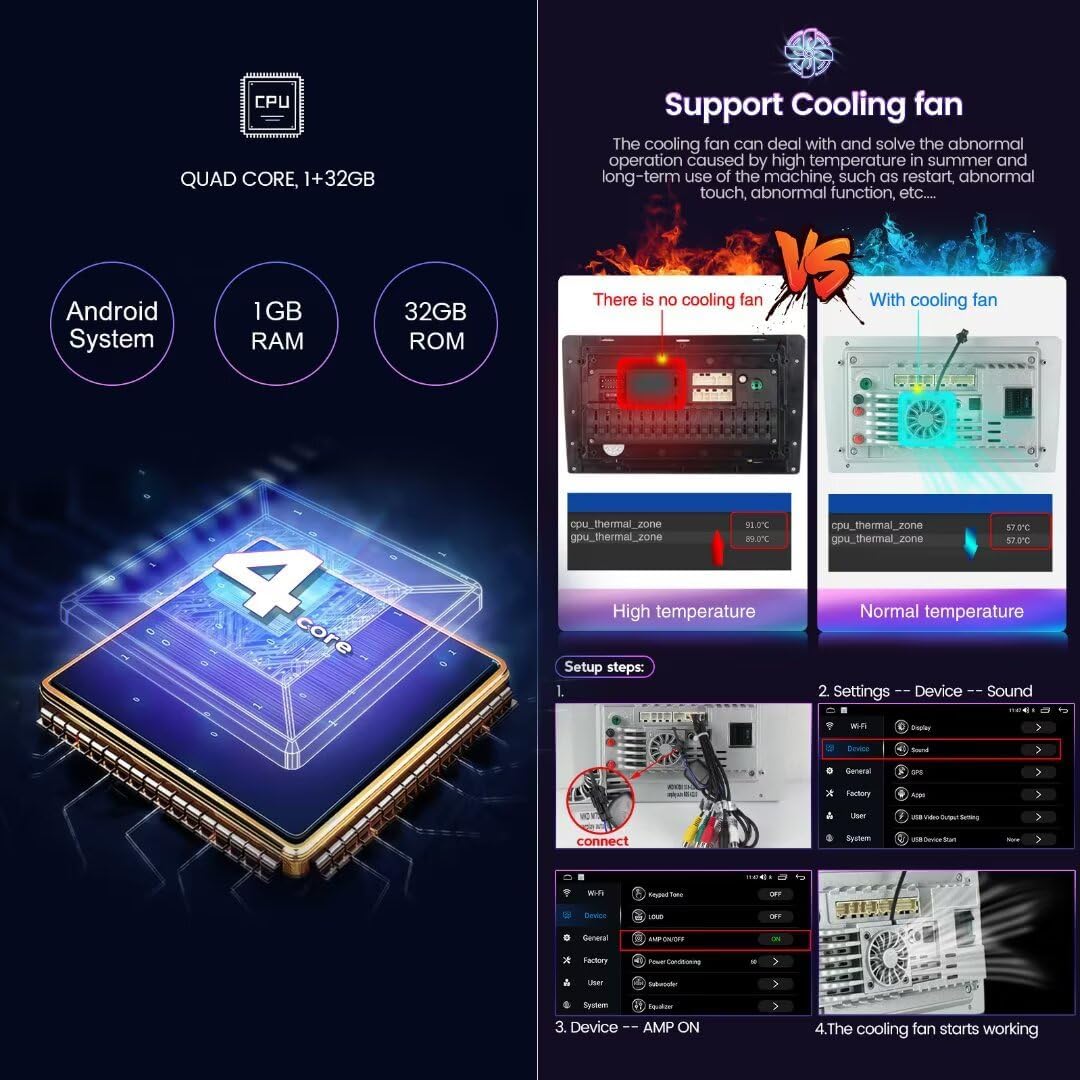
Figure 3.2: Cooling Fan Setup. This image details the physical connection of the cooling fan and the software steps to activate it within the device settings, showing temperature comparisons with and without the fan.
- Connectar: Ensure the cooling fan is physically connected to the designated port on the back of the head unit.
- Configuració: Navega a Settings > Device > Sound on the head unit.
- Dispositiu: Seleccioneu AMP ON or a similar option related to fan control.
- The cooling fan will now operate to maintain optimal device temperature.
4. Instruccions de funcionament
4.1 Funcionament bàsic
- Encès/apagat: Premeu i manteniu premut el botó d'engegada de la unitat o feu servir el contacte del vehicle.
- Pantalla tàctil: The 9-inch IPS touch screen (1280x720 resolution) operates like a tablet. Tap to select, swipe to navigate, and pinch to zoom.
- Control de volum: Adjust volume using the physical buttons on the unit, steering wheel controls, or the on-screen interface.
4.2 CarPlay sense fil i Android Auto
Connect your iPhone or Android smartphone wirelessly for seamless integration of navigation, music, calls, and messages.
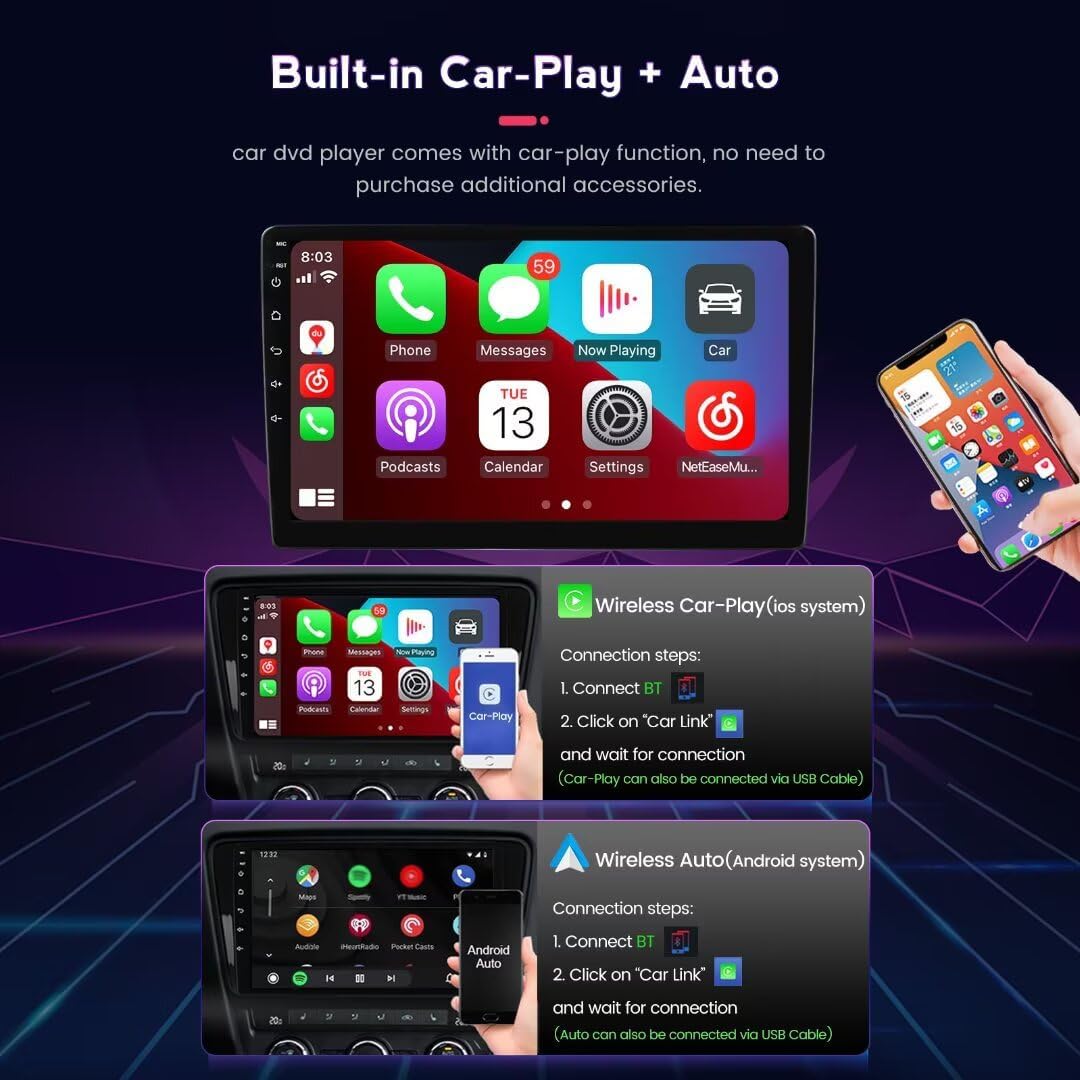
Figure 4.1: Wireless CarPlay & Android Auto Connection. This image provides step-by-step instructions for connecting both iOS and Android devices wirelessly to the head unit.
Passos de connexió:
- Connectar Bluetooth: On your smartphone, search for and connect to the head unit's Bluetooth signal.
- Open 'Car Link': On the head unit, open the 'Car Link' application.
- Espera la connexió: Your phone should automatically connect to CarPlay or Android Auto. (A wired USB connection can also be used if wireless connection fails or is preferred).
4.3 Navegació GPS
The unit features a built-in global positioning system (GPS) with support for offline and online maps. It supports GPS, BDS, and GLONASS satellite systems for accurate positioning.

Figure 4.2: GPS Navigation and Split Screen. This image shows the GPS navigation interface, lists supported map applications, and demonstrates the split-screen feature with navigation and music or video.
- Map Applications: The unit supports various navigation apps such as iGO, Navitel, Yandex, and Google Maps.
- Online/Offline Maps: Download offline maps for use without an internet connection, or use online maps for real-time traffic updates via WiFi.
Pantalla dividida 4.4
Utilize the split-screen function to run two applications simultaneously, such as navigation and music, for enhanced convenience.
- To activate, open one application, then long-press the recent apps button or follow the on-screen prompts to select a second application for split-screen view.
4.5 Control del volant
The unit supports your vehicle's original steering wheel controls, allowing you to manage essential functions like volume, track changes, and calls without taking your hands off the wheel. Configuration may be required in the unit's settings menu under 'Steering Wheel Control' or 'SWC'.
4.6 FM RDS Radio & Bluetooth
- Ràdio FM amb RDS: Enjoy high-fidelity FM radio with RDS (Radio Data System) for station information.
- Bluetooth: Connect your phone via Bluetooth for hands-free calling and audio streaming. The built-in microphone ensures clear communication.
5. Manteniment
Un manteniment adequat garanteix la longevitat i el rendiment òptim de la ràdio del vostre cotxe.
- Neteja: Feu servir un drap suau i sec per netejar la pantalla i l'exterior. Eviteu productes de neteja o dissolvents abrasius.
- Actualitzacions de programari: Periodically check for software updates through the unit's settings to ensure you have the latest features and bug fixes.
- Temperatura: Avoid exposing the unit to extreme temperatures. The cooling fan (if installed) helps regulate internal temperature.
6. Solució De Problemes
Si teniu problemes, consulteu els passos habituals següents per a la resolució de problemes:
- Sense energia: Check all power connections and vehicle fuses. Ensure the car battery is properly connected.
- Sense so: Verify speaker connections. Check volume levels on the unit and ensure mute is not activated.
- La pantalla tàctil no respon: Prova de reiniciar la unitat. Si el problema persisteix, pot ser necessari restablir les dades de fàbrica (nota: això esborrarà totes les dades de l'usuari).
- Pèrdua de senyal GPS: Assegureu-vos que l'antena GPS estigui instal·lada correctament i que tingui una vista clara view del cel. Comproveu la configuració del GPS a la unitat.
- Problemes de connexió amb CarPlay/Android Auto: Ensure Bluetooth is enabled on both devices. Restart both the phone and the head unit. Try a wired connection to diagnose.
- Sistema lent/endarrerit: Close unnecessary background applications. Clear cache or perform a factory reset if performance does not improve.
7. Especificacions
| Característica | Descripció |
|---|---|
| Marca | MekedeTech |
| Model | 4-Core 1+32G |
| Sistema operatiu | OS Android 13 |
| CPU | 4-Core A53 |
| Memòria | 1 GB de RAM + 32 GB de ROM |
| Mida de la pantalla | 9 polzades |
| Resolució de pantalla | 1280x720 IPS Touch Screen |
| Connectivitat | CarPlay sense fil, Android Auto sense fil, Bluetooth, Wi-Fi |
| Navegació | Built-in GPS (supports GPS, BDS, GLONASS), Offline/Online Maps |
| Ràdio | FM RDS Radio |
| Característiques addicionals | Steering Wheel Control, Split Screen Display, Reverse Image Input, Built-in Microphones |
8. Informació de la garantia
This MekedeTech Android Car Radio comes with a 1 anys de garantia from the date of purchase. This warranty covers manufacturing defects and malfunctions under normal use. It does not cover damage caused by improper installation, misuse, accidents, or unauthorized modifications. Please retain your proof of purchase for warranty claims.
9. Suport
For technical assistance, troubleshooting, or warranty inquiries, please contact MekedeTech customer support through the retailer where the product was purchased or visit the official MekedeTech weblloc per obtenir informació de contacte.
Fabricant: Shenzhen Mekede Technology Co.,Ltd
