
1. Introducció
Thank you for choosing the GOHHDL Android 15 Car Stereo. This manual provides detailed instructions for the installation, operation, and maintenance of your new car multimedia system. Please read this manual thoroughly before use to ensure proper functionality and to maximize your user experience. This device is designed to enhance your driving with advanced navigation, entertainment, and connectivity features.
2. Producte acabatview
The GOHHDL Android 15 Car Stereo features a 7-inch touch screen, powered by Android 15 with 4GB RAM and 64GB ROM for smooth performance and ample storage for applications. It offers seamless integration with your smartphone via wireless Carplay and Android Auto, along with GPS navigation, WiFi connectivity, Bluetooth 5.0, and FM/RDS radio.
2.1 Compatibilitat del vehicle
This car stereo is specifically designed for the following vehicle models:
- Dacia Logan (2012-2017)
- Dacia Duster (2011-2017)
- Dacia Sandero (2012-2017)
- Dacia Lodgy (2012-2017)
- Renault Captur (2013-2017)
- Renault Symbol (2013-2017)
- Radiografia de Lada

Image 2.1: Vehicle compatibility and a visual comparison of the dashboard before and after installation.
3. Contingut del paquet
Si us plau, verifiqueu que tots els elements que s'enumeren a continuació estiguin inclosos al vostre paquet:
- GOHHDL Android 15 Car Stereo Unit
- Cable d'alimentació
- Cable RCA
- 3.8PIN Canbus Plug
- Cable USB de 4.6 pins
- Cable d'entrada de la càmera posterior
- Antena de ràdio
- GPS Antenna (1.7M)
- Descodificador Canbus
- Manual d'usuari
- Micròfon
- posterior View Camera (Optional, if included in your package)

Imatge 3.1: Detallada view of the car stereo dimensions and included accessories.
4. Instal·lació i configuració
Professional installation is recommended for this product. Incorrect wiring can damage the device or your vehicle's electrical system. Ensure the vehicle's ignition is off and the battery is disconnected before starting installation.
4.1 Connexions de cablejat
Refer to the wiring diagram provided in Image 3.1 and the included user manual for specific connection points. Key connections include:
- Cable de corrent: Connect to the vehicle's power supply (constant 12V, accessory 12V, and ground).
- Cables RCA: Per a la sortida d'àudio a un dispositiu extern ampamplificadors o subwoofers.
- Cables USB: For connecting USB devices, charging, or data transfer.
- Antena GPS: Muntar en un lloc amb claredat view del cel per a una recepció òptima del senyal.
- Descodificador Canbus: Connect to the vehicle's CAN-BUS system for steering wheel controls and other vehicle data integration.
- Entrada de càmera posterior: Connecteu la part posterior view cable de la càmera.
- Antena de ràdio: Connecteu l'antena de ràdio del vehicle.
- Micròfon: Connect the external microphone for hands-free calling and voice commands.
4.2 Encès inicial
After all connections are securely made, reconnect the vehicle's battery and turn on the ignition. The device should power on automatically. Follow any on-screen prompts for initial setup, such as language selection and time zone.
5. Instruccions de funcionament
5.1 Carplay sense fil i Android Auto
The unit supports wireless Carplay and Android Auto for seamless smartphone integration. This allows you to access navigation, music, calls, and messages directly from your phone via the car stereo's display, using voice control or touch.
- Assegureu-vos que el Bluetooth i la Wi-Fi estiguin activats al vostre telèfon intel·ligent.
- A l'equip de música del cotxe, obriu l'aplicació Carplay o Android Auto.
- Follow the on-screen instructions to pair your phone. For Carplay, search for the car stereo's Bluetooth name on your iPhone and connect. For Android Auto, ensure the Android Auto app is installed on your Android phone and follow the pairing process.
- Once connected, your phone's interface will appear on the car stereo screen.
5.2 Enllaç de mirall
Mirror Link allows you to mirror your smartphone's screen onto the car stereo display. This feature supports both iOS and Android devices.
- Open the 'Mirror Link' application on the car stereo.
- Follow the specific instructions for iOS or Android devices displayed on the screen to establish the connection, typically involving a USB cable or Wi-Fi connection.
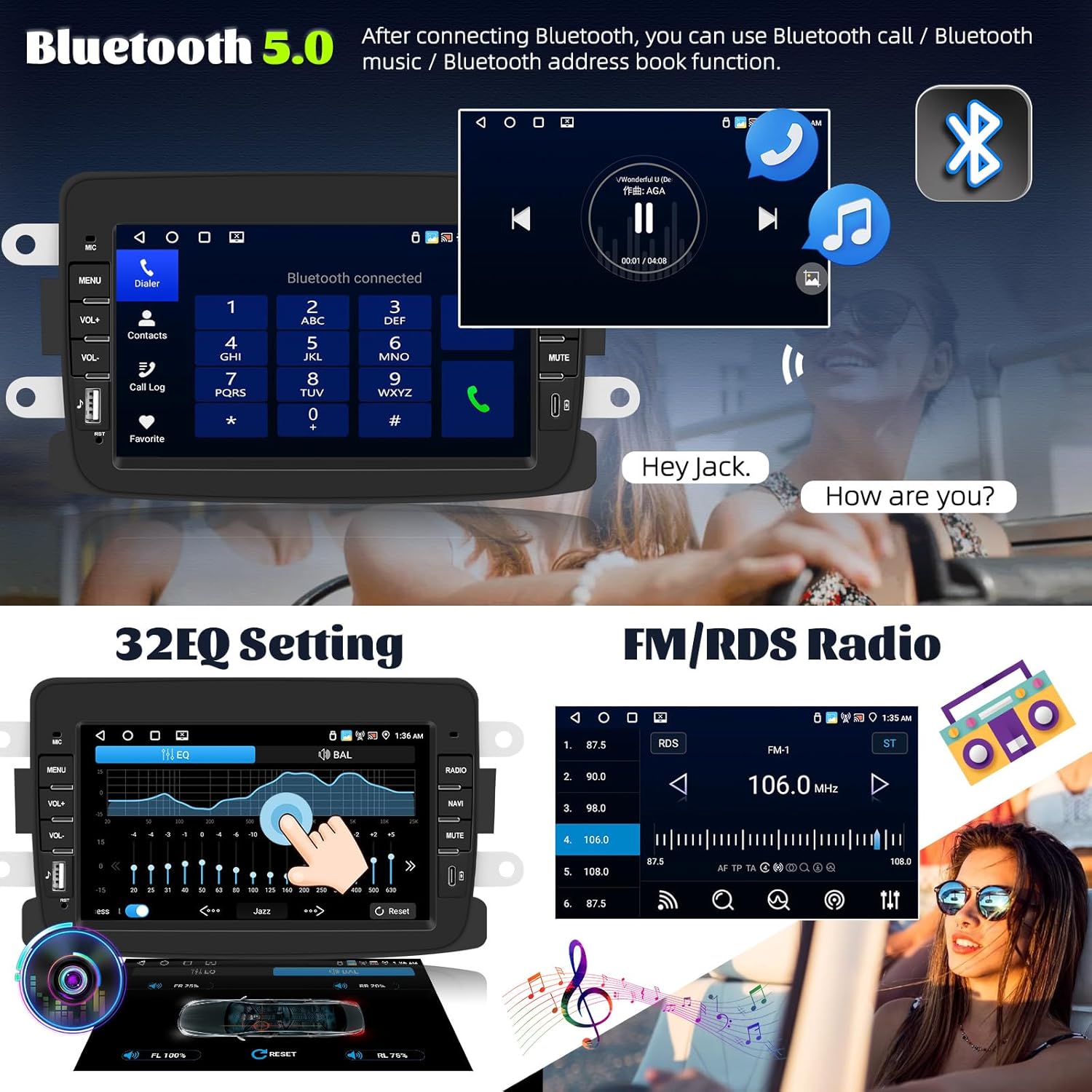
Image 5.1: Wireless Carplay, Android Auto, and Mirror Link features.
5.3 Bluetooth 5.0
The integrated Bluetooth 5.0 module enables hands-free calling, audio streaming, and phonebook synchronization.
- Aneu a la configuració de Bluetooth a l'estèreo del cotxe.
- Enable Bluetooth on your smartphone and search for the car stereo's device name.
- Pair and connect the devices. You may be prompted to enter a PIN (usually '0000').
- Once connected, you can make/receive calls, play music, and access your phone's contacts.
5.4 FM/RDS Radio with 32-Band EQ
Enjoy high-quality radio reception with FM/RDS functionality. The 32-band equalizer allows for precise audio customization.
- Select the 'Radio' application from the main menu.
- Feu servir la funció d'escaneig per trobar emissores disponibles o sintonitzar manualment una freqüència.
- Save your favorite stations to the presets.
- Access the 'EQ' settings to adjust the 32-band equalizer for optimal sound.

Image 5.2: Bluetooth, 32-band EQ, and FM/RDS Radio functions.
5.5 Navegació GPS i WiFi
The built-in GPS module supports both online and offline navigation. Connect to WiFi to download maps, applications, and stream media.
- GPS: Open the 'Navigation' application. You can use pre-installed maps or download others via WiFi. Ensure the GPS antenna is properly installed.
- WiFi: Go to 'Settings' > 'Network & Internet' > 'Wi-Fi'. Connect to an available Wi-Fi network (e.g., mobile hotspot). Once connected, you can browse the internet, download apps from the Play Store, or stream content.

Image 5.3: GPS Navigation, WiFi Connectivity, Android 15, and System Specifications.
5.6 Darrera View Càmera (opcional)
If equipped with a rear view camera, the system automatically displays the camera feed when the vehicle is in reverse gear. The camera features AHD resolution, a wide viewing angle, waterproof design, and HD night vision.
5.7 Control del volant (SWC)
The unit supports learning functions for your vehicle's steering wheel controls, allowing you to operate the stereo without taking your hands off the wheel.
- Go to 'Settings' > 'Steering Wheel Control'.
- Follow the on-screen instructions to program each button on your steering wheel to the corresponding function on the car stereo.

Imatge 5.4: posterior View Configuració de la càmera i del control del volant.
5.8 Split Screen and Shortcut Function
The split-screen feature allows you to run two applications simultaneously, such as navigation and music. The shortcut function provides quick access to frequently used apps.

Image 5.5: Split Screen and Shortcut Functionality.
5.9 AI DSP and Voice Control (Optional)
Some models may include an optional AI DSP (Digital Signal Processor) for advanced audio optimization and optional voice control for hands-free operation.
6. Especificacions
| Característica | Descripció |
|---|---|
| Marca | GOHHDL |
| Sistema operatiu | Android 15 |
| RAM + ROM | 4 GB de RAM + 64 GB de ROM |
| Mostra | Pantalla tàctil de 7 polzades |
| Tecnologia de connectivitat | Bluetooth, Wi-Fi, USB |
| Versió Bluetooth | 5.0 |
| Característiques especials | Wireless Carplay, Android Auto, Mirror Link, GPS Navigation, FM/RDS Radio, 32-band EQ, Steering Wheel Control, Rear View Suport de càmera |
| Dispositius compatibles | Smartphone |
| Mode de sortida d'àudio | estèreo |
| Configuració del canal de so envoltant | 2.1 |
| Codificació de vídeo | H.264, H.265/HEVC |
7. Solució De Problemes
If you encounter issues with your car stereo, please refer to the following common troubleshooting steps:
- Sense energia: Check all power cable connections. Ensure the vehicle's ignition is on. Verify fuses are intact.
- Sense so: Check speaker connections. Ensure volume is not muted or set to zero. Verify audio output settings.
- Pèrdua de senyal GPS: Assegureu-vos que l'antena GPS estigui connectada correctament i muntada en un lloc amb visibilitat clara. view del cel.
- Problemes de connexió Bluetooth: Ensure Bluetooth is enabled on both devices. Try unpairing and re-pairing the devices. Clear Bluetooth cache on your phone if necessary.
- Carplay/Android Auto no es connecta: Ensure Wi-Fi and Bluetooth are enabled on your phone. Try restarting both the phone and the car stereo. Check for app updates on your phone.
- La pantalla tàctil no respon: Prova de reiniciar el dispositiu. Si el problema persisteix, pot ser necessari restablir les dades de fàbrica (nota: això esborrarà totes les dades de l'usuari).
- Sistema lent/endarrerit: Close unnecessary background applications. Clear cache from apps. Consider a factory reset if performance does not improve.
For persistent issues, please contact GOHHDL customer support.
8. Manteniment
To ensure the longevity and optimal performance of your GOHHDL car stereo, follow these maintenance guidelines:
- Neteja: Feu servir un drap suau i sec per netejar la pantalla i l'exterior. Per a taques difícils, fregueu lleugerament.ampNetegeu el drap amb aigua o un netejador de pantalles. Eviteu materials abrasius o productes químics agressius.
- Actualitzacions de programari: Periodically check for system software updates via the 'Settings' menu and a Wi-Fi connection. Updates can improve performance, add features, and fix bugs.
- Eviteu temperatures extremes: Do not expose the device to extreme heat or cold for extended periods, as this can affect its electronic components.
- Protegir de la humitat: Keep the device dry. Moisture can cause internal damage.
9. Garantia i Suport
GOHHDL products are designed for reliability and performance. For information regarding warranty coverage, please refer to the warranty card included with your product or contact your point of purchase. For technical support, troubleshooting assistance beyond this manual, or service inquiries, please contact GOHHDL customer support through the official website or the seller from whom you purchased the product.