
1. Introducció
This manual provides essential information for setting up, operating, and maintaining your VITURE Luma Pro XR Glasses and Pro Neckband. Please read it thoroughly before use to ensure proper functionality and safety.

Image: The VITURE Luma Pro XR Glasses and Pro Neckband, showcasing the complete product bundle.
2. Què hi ha a la caixa
Verifiqueu que tots els components siguin presents al vostre paquet:
- Ulleres VITURE Luma Pro XR
- Pro Neckband
- Cable de càrrega (USB-C)
- Nose Pad Set
- Manual d'usuari (aquest document)
3. Configuració
3.1. Charging the Pro Neckband
Before first use, fully charge the Pro Neckband. Connect the provided USB-C cable to the Neckband's charging port and a compatible power adapter (not included). The charging indicator will show progress.
3.2. Connecting the XR Glasses to the Pro Neckband
Connect the VITURE Luma Pro XR Glasses to the Pro Neckband using the integrated USB-C cable from the glasses. Ensure the connection is secure.

Image: The Pro Neckband with its USB-C cable, ready for connection to the XR Glasses or other compatible devices.
3.3. Adjusting the XR Glasses
- Ajust de la miopia: The glasses feature built-in myopia adjustments. Rotate the adjustment dials on the glasses to achieve clear vision. Luma Pro supports adjustments up to -4.0D.
- Coixinets nasals: Select the most comfortable nose pad from the included set and attach it to the glasses.
- Tilt-Adjustable Arms: Adjust the arms of the glasses to find a comfortable and stable fit on your head.
- Braços flexibles: The flexible arm design allows for a gentle and secure fit.
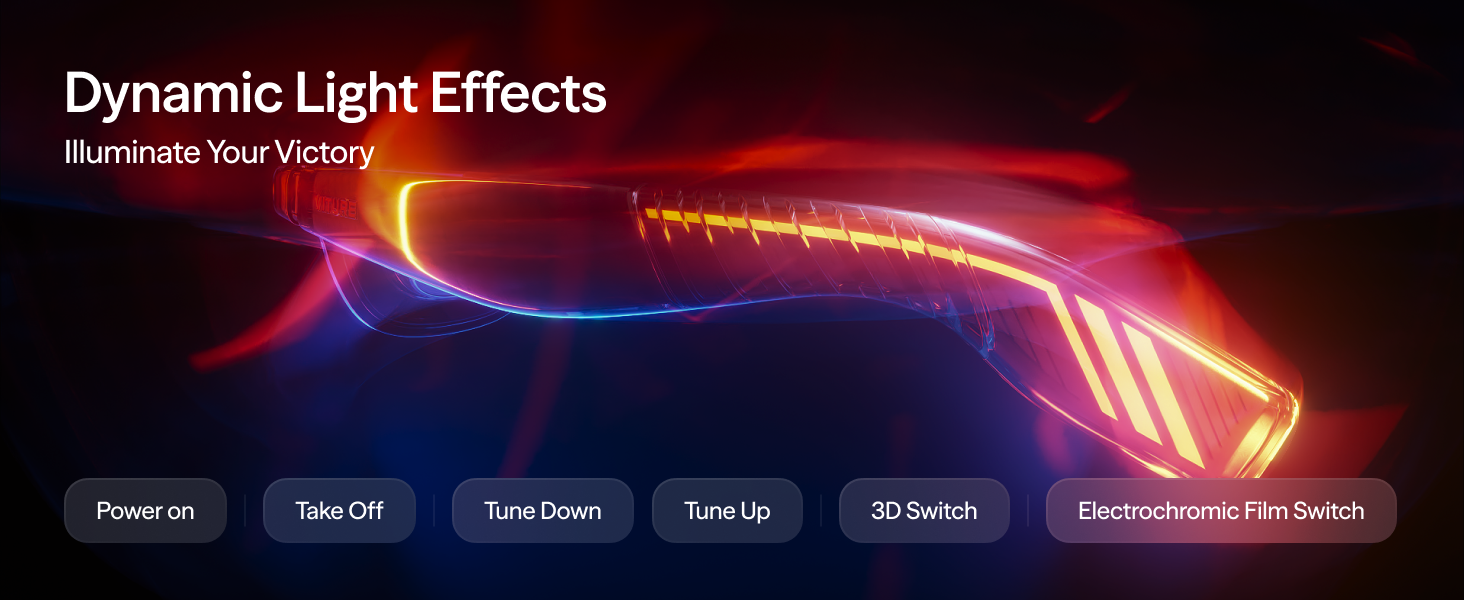
Image: Illustration of the myopia adjustment dials and flexible arms on the VITURE Luma Pro XR Glasses.
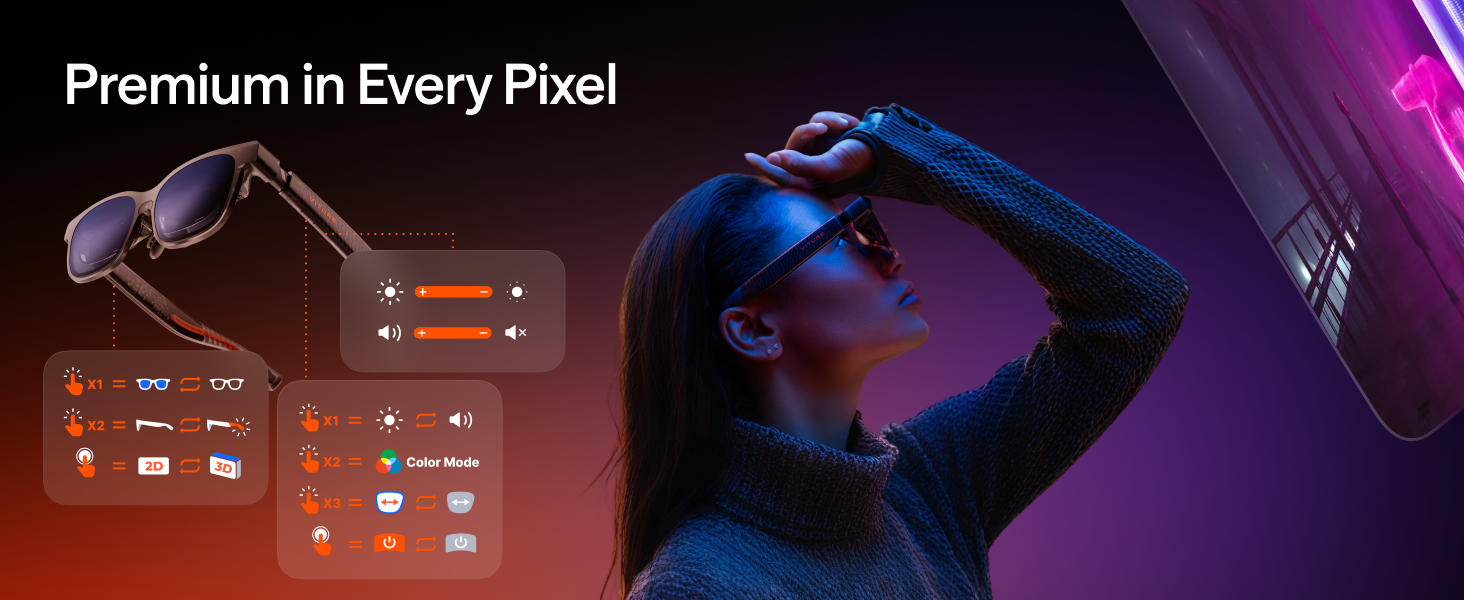
Image: Details of the tilt-adjustable arms and magnetic ergonomic nose pads for enhanced comfort.
4. Instruccions de funcionament
4.1. Encès / apagat
To power on the Pro Neckband, press and hold the power button until the indicator lights illuminate. To power off, press and hold the power button until the lights turn off.
4.2. Basic Controls on XR Glasses
The XR Glasses feature integrated controls for various functions:
- Ajust de brillantor: Use the designated buttons to increase or decrease display brightness.
- Control de volum: Adjust audio volume using the volume buttons.
- Commutador 2D/3D: Toggle between 2D and 3D display modes.
- Electrochromic Film Switch: Activate or deactivate the electrochromic film for light blocking and privacy.
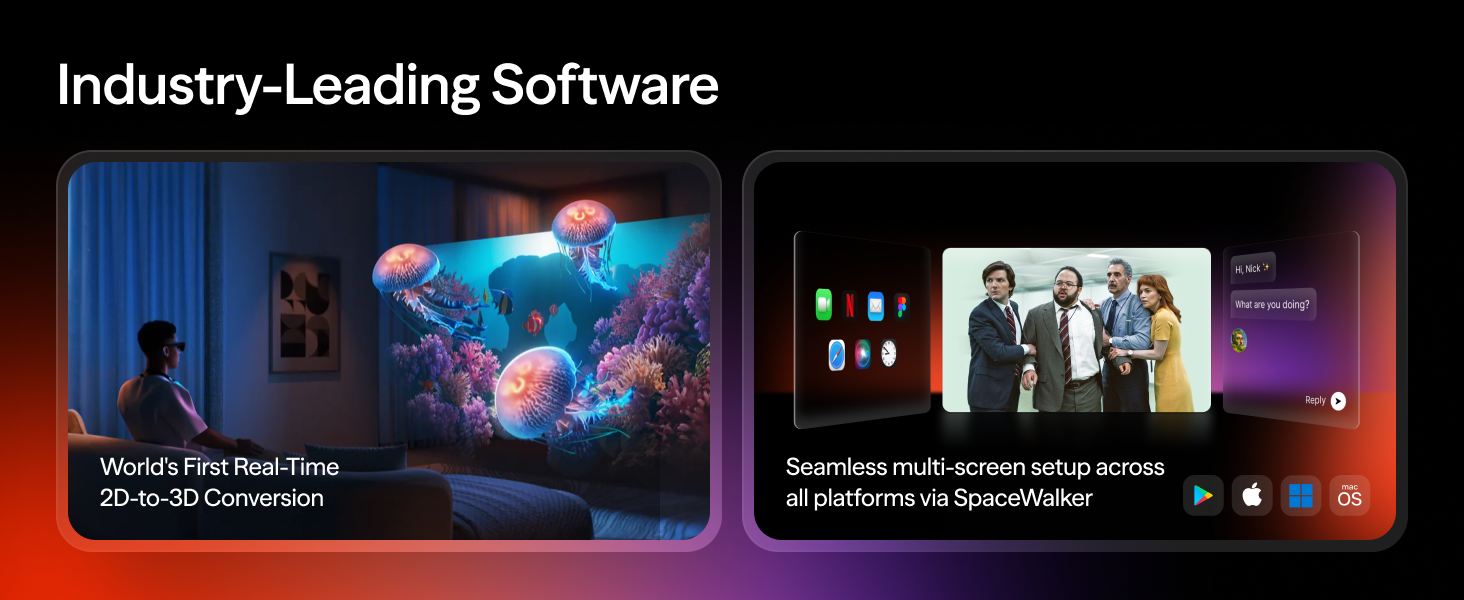
Image: Diagram illustrating the control functions on the VITURE Luma Pro XR Glasses, including brightness, volume, 2D/3D mode, and electrochromic film activation.
4.3. Neckband Interface and App Navigation
The Pro Neckband runs a proprietary VR OS, providing access to various applications. Navigate the interface using connected input devices or hand gestures.

Image: The Neckband's display interface showing a selection of applications, including streaming services and gaming platforms.
4.4. Multi-Screen Functionality (SpaceWalker App)
Utilize the SpaceWalker app to create a multi-screen workspace with up to three virtual screens. This feature supports horizontal, vertical, and code modes for enhanced productivity.

Imatge: Un usuari viewing multiple virtual screens simultaneously, demonstrating the multi-screen capability.
Imatge: Examples of multi-display layouts, including vertical and ultrawide modes, for productivity tasks.
4.5. Hand Gesture Controls
The Pro Neckband is equipped with bottom-mounted cameras for hand gesture recognition. Supported gestures include:
- Move cursor with hands
- Toqueu
- Drag items
- Resize screens with two-hand pinch
- Wrist twist for 'back' action
- Flip hand and pinch to return 'home'

Image: An illustration demonstrating hand gestures for interacting with the AR interface.
4.6. Navigation Methods
In addition to hand gestures, navigation can be performed using:
- Punter làser: Use your phone as a laser pointer for navigation.
- Trackpad: Navigate by swiping on your phone screen.
Image: Visual representation of using a phone as a laser pointer and a trackpad for navigation within the XR environment.
4.7. Remote Play and Cloud Gaming
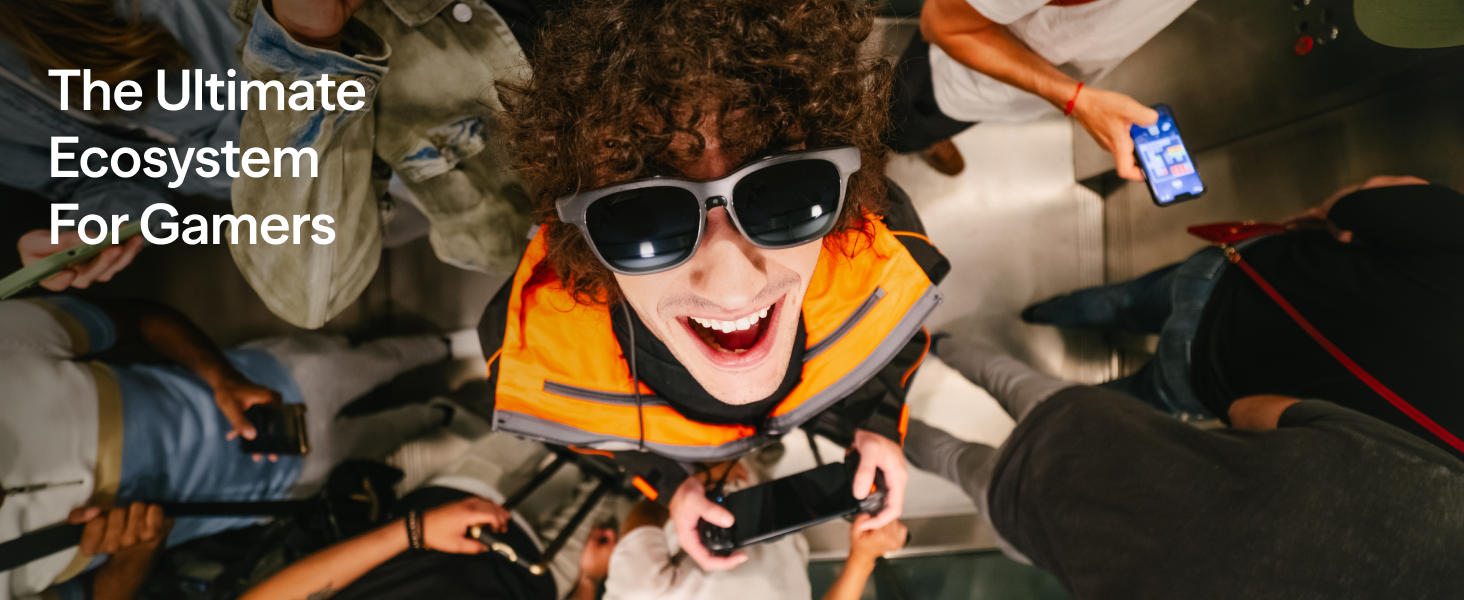
The Neckband supports remote play and cloud gaming. It is bundled with PSPlay and XBXPlay for console streaming. Other streaming applications like Moonlight are also compatible.

Image: A display showing various gaming and streaming applications compatible with the Pro Neckband, including PSPlay, XBXPlay, and Moonlight.
4.8. Emmagatzematge intern
The Pro Neckband includes 256GB of internal storage, allowing you to download and store media for offline use.

Image: An illustration highlighting the 256GB storage capacity of the Pro Neckband, suitable for downloading movies for travel.
4.9. Compatibilitat del dispositiu
The VITURE Luma Pro XR Glasses and Pro Neckband are compatible with a range of devices:
- Connexió directa: Laptops and Android phones with DisplayPort (DP) output via USB-C.
- Consoles de jocs: PlayStation, Xbox, PC, Handheld Gaming Consoles (e.g., Steam Deck), Nintendo Switch (requires VITURE Pro Mobile Dock or HDMI XR Adapter).
- iPhones: iPhone 15/15 Pro/15 Pro Max (direct USB-C DP output). Older iPhones (iPhone 14 and earlier) require an HDMI XR Adapter and an Apple Official Adapter.
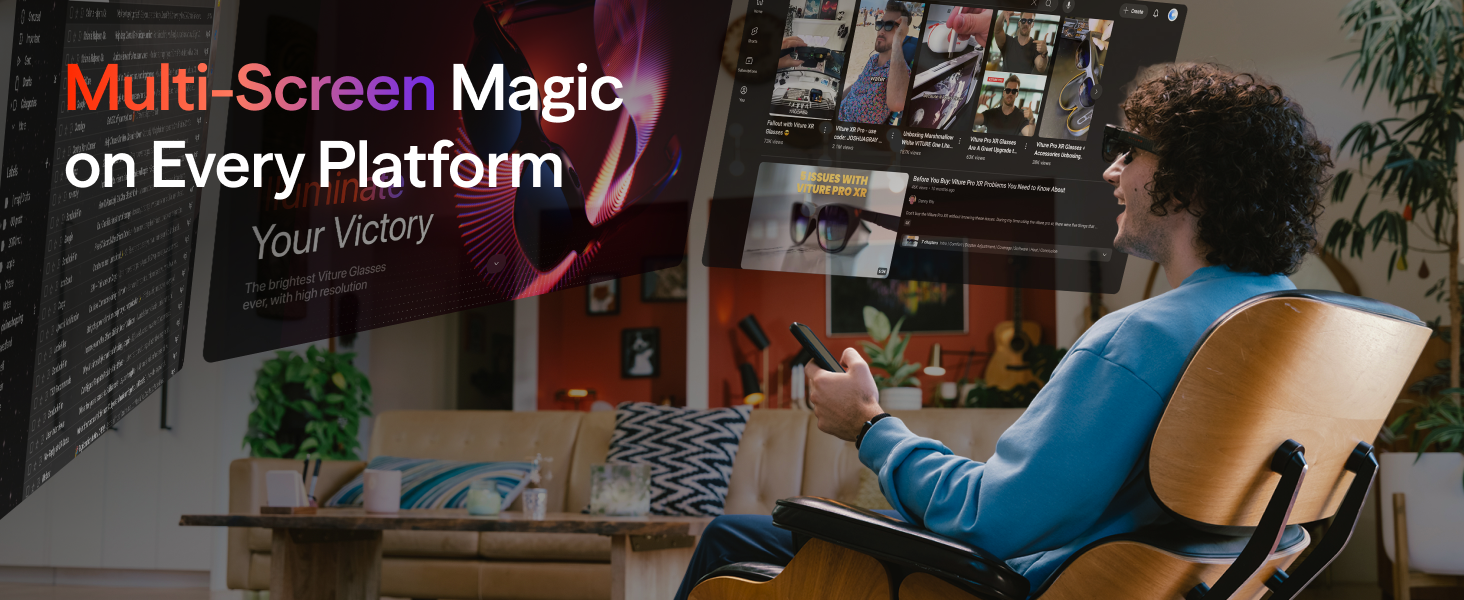
Image: A comprehensive compatibility chart showing how the VITURE Luma Pro XR Glasses connect to various devices including laptops, phones, and gaming consoles.
5. Manteniment
5.1. Neteja
- Lents: Use a microfiber cloth specifically designed for optics to gently wipe the lenses. Do not use abrasive materials or chemical cleaners.
- Cos: Wipe the body of the glasses and Neckband with a soft, damp cloth. Avoid getting moisture into ports or openings.
5.2. Emmagatzematge
Store the device in a cool, dry place away from direct sunlight and extreme temperatures. Use the provided carrying case (if applicable) to protect the glasses from scratches and dust.
5.3. Cura de la bateria
To prolong battery life, avoid fully discharging the Neckband frequently. Charge it regularly and store it with a partial charge if not used for extended periods.
6. Solució De Problemes
Si teniu problemes, consulteu els següents problemes i solucions habituals:
| Problema | Possible solució |
|---|---|
| No display in glasses | Ensure the Neckband is powered on and charged. Verify the USB-C connection between the glasses and Neckband is secure. Check device compatibility and necessary adapters. |
| Neckband not charging | Confirm the charging cable and power adapter are functioning correctly. Try a different USB-C cable or power source. |
| Hand gestures not recognized | Ensure sufficient lighting in your environment. Keep your hands within the camera's field of view. Recalibrate gesture recognition if available in settings. |
| Audio issues (no sound/low volume) | Check the volume settings on both the glasses and the connected device. Ensure no other audio output device is selected on your source. |
| Connectivity problems (Wi-Fi/Remote Play) | Verify your Wi-Fi connection is stable. Restart the Neckband and your router. Ensure remote play applications are correctly configured on both devices. |
Si el problema persisteix, poseu-vos en contacte amb l'atenció al client.
7. Especificacions
| Característica | Detall |
|---|---|
| Marca | VITURA |
| Número de model | VITURE Pro Cloud Pack 12GB+256GB |
| Color | Negre |
| Tipus de visualització | LCD |
| Mida de la pantalla virtual | 152 inches (at 3 meters) |
| Resolució de visualització | 1920x1080 per eye (1200p), 3840x1080 (overall) |
| Mostra la taxa d'actualització | 90 Hz |
| Brillantor | Up to 1000 Nits (peak perceived) |
| Memòria (RAM) | 12 GB |
| Emmagatzematge (ROM) | 256 GB |
| Tecnologia de connectivitat | Wi-Fi, USB-C, HDMI (via adapter) |
| Sistema operatiu | Proprietary VR OS |
| Sensors | Accelerometer, Gyroscope, Proximity, Magnetometer |
| Battery Life (Neckband) | Fins a 4 hores |
| Dispositius compatibles | PS5, Xbox, PC, Android Phones, iPhones (with adapter), Nintendo Switch |
| Característiques especials | Remote Play, Cloud Gaming, Multi-Screen, AR Interaction, Hand Gesture Recognition, 2D-to-3D Conversion, Electrochromic Film |
8. Garantia i Suport
8.1. Informació de la garantia
The VITURE Luma Pro XR Glasses and Pro Neckband come with a 12 mesos de garantia des de la data de compra. Aquesta garantia cobreix els defectes de fabricació en condicions d'ús normal. Si us plau, conserveu el comprovant de compra per a reclamacions de garantia.
8.2. Política de devolució
A Política de devolució de 30 dies is available for this product. Please refer to the retailer's return policy for specific terms and conditions.
8.3. Atenció al client
For technical assistance, troubleshooting, or warranty inquiries, please contact our responsive support team:
- Correu electrònic: support@viture.us
Our team is available to assist you with any questions or issues you may encounter.