
Introducció
Welcome to the user manual for your new DOOGEE Tab A9 Wi-Fi Tablet. This guide provides essential information to help you set up, operate, maintain, and troubleshoot your device. Please read this manual thoroughly to ensure optimal performance and longevity of your tablet.
Contingut del paquet
Verifiqueu que tots els elements siguin presents al vostre paquet:
- DOOGEE Tab A9 Tablet
- Cable USB-Type C
- Carregador
- Manual d'usuari
- (Optional accessories, depending on package edition: Stylus Pen, Reinforced Case, Bluetooth Mouse, Leather Protective Cover, Bluetooth Keyboard)
Configuració
1. Càrrega inicial
Before first use, fully charge your tablet. Connect the USB Type-C cable to the tablet's charging port and the other end to the provided charger. Plug the charger into a power outlet. The charging indicator will show the charging status.
2. Encès / apagat
- Per encendre: Press and hold the Power button until the DOOGEE logo appears on the screen.
- Per apagar: Press and hold the Power button until a power-off menu appears. Select "Power off" to shut down the device.
- Per reiniciar: From the power-off menu, select "Restart" to reboot the device.
3. Assistent de configuració inicial
En engegar-la per primera vegada, la tauleta us guiarà a través d'un procés de configuració inicial. Seguiu les instruccions que apareixen a la pantalla per a:
- Seleccioneu el vostre idioma.
- Connecteu-vos a una xarxa Wi-Fi.
- Accepteu els termes i condicions.
- Inicia la sessió amb el teu compte de Google o crea'n un de nou.
- Configura el bloqueig de pantalla (PIN, patró, contrasenya).

Imatge: Anvers i revers view of the DOOGEE Tab A9 tablet, illustrating its design and camera placement.
Instruccions de funcionament
1. Navegació bàsica
- Toca: Toqueu una icona o opció per seleccionar-la.
- Llisca: Arrossegueu el dit per la pantalla per desplaçar-vos per les pàgines o el contingut.
- Pessiga per fer zoom: Col·loca dos dits a la pantalla i separa'ls per ampliar la imatge o ajunta'ls per allunyar-la.
- Pantalla d'inici: Tap the Home button (usually a circle or house icon) to return to the main screen.
- Enrere: Tap the Back button (usually a left arrow) to return to the previous screen.
- Aplicacions recents: Tap the Recent Apps button (usually a square or three vertical lines) to view i canviar entre les aplicacions utilitzades recentment.
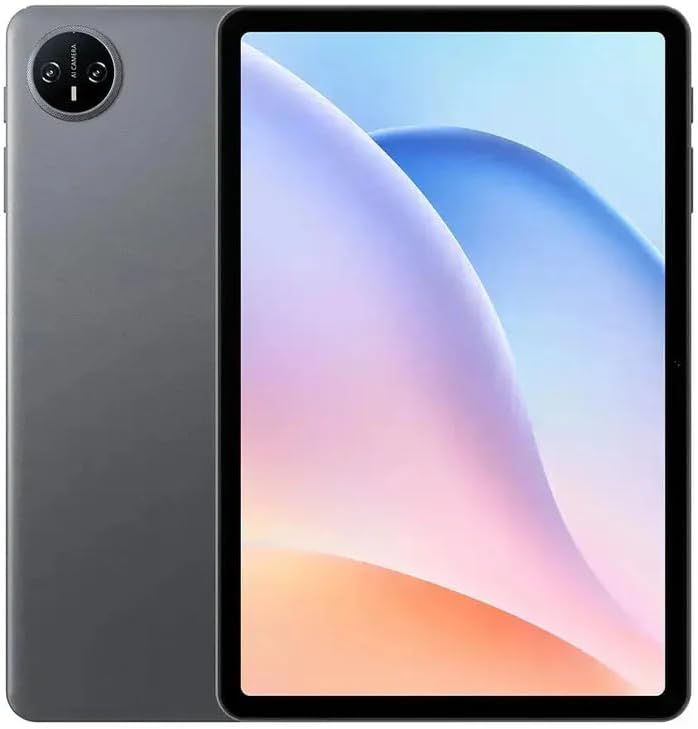
Imatge: Frontal view of the DOOGEE Tab A9 tablet with its display active, showing the user interface.
2. Connectivitat Wi-Fi
Per connectar-se a una xarxa Wi-Fi:
- Vés a Configuració > Xarxa i Internet > Wi-Fi.
- Activa/desactiva el Wi-Fi On.
- Seleccioneu la xarxa desitjada de la llista.
- Introduïu la contrasenya si us demana i toqueu Connecta't.
3. Emparellament Bluetooth
Per sincronitzar amb un dispositiu Bluetooth:
- Vés a Configuració > Dispositius connectats > Bluetooth.
- Commuta el Bluetooth On.
- Assegureu-vos que l'altre dispositiu Bluetooth estigui en mode d'emparellament.
- Seleccioneu el dispositiu de la llista de dispositius disponibles i seguiu les instruccions que apareixen a la pantalla per completar l'emparellament.
4. Ús de la càmera
La tauleta té una càmera frontal de 5 MP i una càmera posterior de 8 MP.
- Obriu el Càmera aplicació.
- Toqueu el botó de l'obturador per fer una foto.
- Canvieu entre la càmera frontal i la posterior mitjançant la icona de canvi de càmera.
- Seleccioneu el mode de vídeo per gravar vídeos.
5. Característiques de la pantalla

Image: Visual representation of the DOOGEE Tab A9's 10.1-inch IPS HD display, highlighting its 1280x800 resolution, 80.2% screen-to-body ratio, and 16.7 million screen colors.
The DOOGEE Tab A9 features a 10.1-inch IPS HD display with a resolution of 1280x800 pixels, offering a wide field of view and vibrant colors. The screen-to-body ratio is approximately 80.2%, providing an immersive viewexperiència.
6. Gestió de la bateria

Image: Infographic detailing the DOOGEE Tab A9's 6580mAh battery capacity and its estimated usage times for Wi-Fi standby, music playback, video watching, and web navegació.
The tablet is equipped with a 6580mAh battery. To optimize battery life:
- Ajusteu la brillantor de la pantalla.
- Tanca les aplicacions que no fas servir.
- Desactiva el Wi-Fi o el Bluetooth quan no estiguis en ús.
- Use power-saving modes available in Android settings.
Manteniment
1. Neteja
- Feu servir un drap suau i sense borrissol per netejar la pantalla i el cos de la tauleta.
- Eviteu utilitzar productes químics agressius, netejadors abrasius o aerosols.
- Per a taques persistents, lleugerament dampNetegeu el drap amb aigua o una solució de neteja específica per a pantalles.
2. Emmagatzematge
- Guardeu la tauleta en un lloc fresc i sec, allunyat de la llum solar directa i de temperatures extremes.
- If storing for an extended period, ensure the battery is charged to about 50% to prevent deep discharge.
3. Actualitzacions de programari
Comproveu i instal·leu regularment si hi ha actualitzacions de programari per assegurar-vos que la tauleta tingui les darreres funcions, pegats de seguretat i millores de rendiment. Aneu a Configuració > Sistema > Actualització del sistema.
Resolució de problemes
| Problema | Possible solució |
|---|---|
| La tauleta no s'encén | Assegureu-vos que la bateria estigui carregada. Connecteu el carregador i torneu-ho a provar. Si no respon, premeu i manteniu premut el botó d'engegada durant 10-15 segons per forçar un reinici. |
| No es pot connectar a la Wi-Fi | Check if Wi-Fi is enabled in settings. Restart your router and tablet. Verify the Wi-Fi password. |
| Applications are crashing or freezing | Close and reopen the application. Clear the app's cache (Settings > Apps > [App Name] > Storage & cache). Restart the tablet. |
| Rendiment lent | Tanca les aplicacions que no fas servir. Esborra la memòria cau i les aplicacions temporals files. Check for system updates. Consider a factory reset if issues persist (backup data first). |
| La pantalla tàctil no respon | Restart the tablet. Ensure the screen is clean and free of debris. If a screen protector is installed, ensure it is properly applied. |
Especificacions
| Característica | Detall |
|---|---|
| Nom del model | DOOGEE Tab A9 |
| Sistema operatiu | Android 15 |
| Processador | Unisoc T310 Octa-Core (1x Cortex-A75 @2.0GHz, 3x Cortex-A55 @1.8GHz) |
| GPU | Arm Mali G52 |
| RAM | 3 GB LPDDR3 |
| Emmagatzematge intern (ROM) | eMMC de 64 GB |
| Emmagatzematge ampliable | Admet targetes TF de fins a 2 TB |
| Mida de la pantalla | 10.1 polzades |
| Tipus de visualització | LCD IPS HD |
| Resolució de visualització | 1280 x 800 píxels |
| Relació pantalla-cos | 80.2% |
| Càmera frontal | 5MP |
| Càmera posterior | 8MP amb flaix |
| Gravació de vídeo | FHD 1080p @ 30fps |
| Wi-Fi | 802.11 a / b / g / n / ac (2.4 GHz / 5 GHz) |
| Bluetooth | Bluetooth 5.0 |
| Xarxa cel·lular | Not supported (Wi-Fi only model) |
| Capacitat de la bateria | 6580 mAh (38.38 Wh) |
| Carregant | 10W Max Charging Current, USB Type-C |
| Jack d'àudio | Conector d'auriculars de 3.5 mm |
| Sensors | Acceleròmetre |
| Dimensions | 242.5 × 160.9 × 9.7 mm (approx. 25L x 18W x 1.5T cm) |
| Pes | 512 grams (approx. 500 grams) |
| Color | Gris |
Garantia i Suport
Informació de la garantia
Your DOOGEE Tab A9 tablet comes with a limited one-year manufacturer's warranty from the date of purchase. This warranty covers defects in materials and workmanship under normal use. It does not cover damage caused by accidents, misuse, unauthorized repairs, or normal wear and tear. Please retain your proof of purchase for warranty claims.
Atenció al client
For technical assistance, warranty claims, or further inquiries, please contact DOOGEE customer support through their official website or the retailer where you purchased the device. Have your model number (Tab A9) and proof of purchase ready when contacting support.