
1. Introducció
This manual provides detailed instructions for the installation, operation, and maintenance of your GLEDOPTO Tuya SPI Pixel Controller, Model GL-SPI-206P. This device is designed to control various types of addressable LED strips, including RGBCCT, RGBW, and RGB, offering dynamic lighting effects and smart home integration via ZigBee protocol.
2. Producte acabatview
The GLEDOPTO GL-SPI-206P is a versatile SPI Pixel LED Controller that integrates with the Tuya/Smart Life ecosystem. It supports a wide range of digital LED strip types and offers advanced features such as dynamic lighting modes, music synchronization, segment control, and voice control compatibility with platforms like Google Assistant, Amazon Alexa, and Yandex Alice.

Image 2.1: GLEDOPTO Tuya SPI Pixel Controller GL-SPI-206P. This image displays the front view of the controller with its input and output terminals, QR code for app download, and regulatory markings. A smartphone screen showing the control app interface is also visible.

Image 2.2: Key features of the GLEDOPTO ZigBee Tuya SPI Pixel Controller. This image highlights features such as Music Sync, Multiple Color Scenes, Segmental Control, and compatibility with various IC chipsets, Amazon Alexa, Smart Life, and Home Assistant.
3. Especificacions
| Característica | Detall |
|---|---|
| Nom del producte | Tuya SPI Pixel LED Controller |
| Número de model | GL-SPI-206P |
| Entrada Voltage | DC 5-24V |
| Max IC Quantity | 1000 |
| Corrent total de sortida | 15 A màx |
| Dimensions | 108 x 45 x 18 mm |
| Temperatura de funcionament | -20 a 45 °C |
| Protocol | ZigBee + 2.4G RF |
| Supported LED Strips | WS2811, TM1814B (RGBW), TM1934A, SK6812 (RGBW), SK9822, UCS2904B (RGBW), UCS8904B (RGBW), WS2801, LPD6803, LPD8803, WS2805 (RGBCCT), etc. |
| Material | Policarbonat |
4. Configuració
4.1. Esquema de cablejat
Proper wiring is crucial for the correct functioning of the controller and LED strips. Ensure all connections are secure and match the polarity and data lines of your specific LED strip type.

Image 4.1: Wiring diagrams for various LED strip types. This image illustrates how to connect WS2811, WS2801, and TM1934A LED strips to the controller's V+, Data (DI/BI), Clock (CI), and Ground (GND) terminals.
- V+: Connect to the positive (+) terminal of your DC power supply.
- V-: Connect to the negative (-) terminal of your DC power supply.
- Data1/DI: Connect to the Data Input line of your LED strip.
- Clk1/CI: Connect to the Clock Input line of your LED strip (for strips requiring a clock signal).
- Gnd: Connect to the Ground line of your LED strip and the negative (-) terminal of your DC power supply.
- Assegureu-vos que l'entrada voltage (5-24V DC) matches the requirements of your LED strip and power supply.
4.2. Instal·lació de l'aplicació
To control the GLEDOPTO SPI Pixel Controller, download the Tuya Smart or Smart Life application on your smartphone or tablet.
- Scan the QR code on the controller or visit smartapp.smart321.com/smartlife per descarregar l'aplicació.
- Install the application and register an account if you don't already have one.
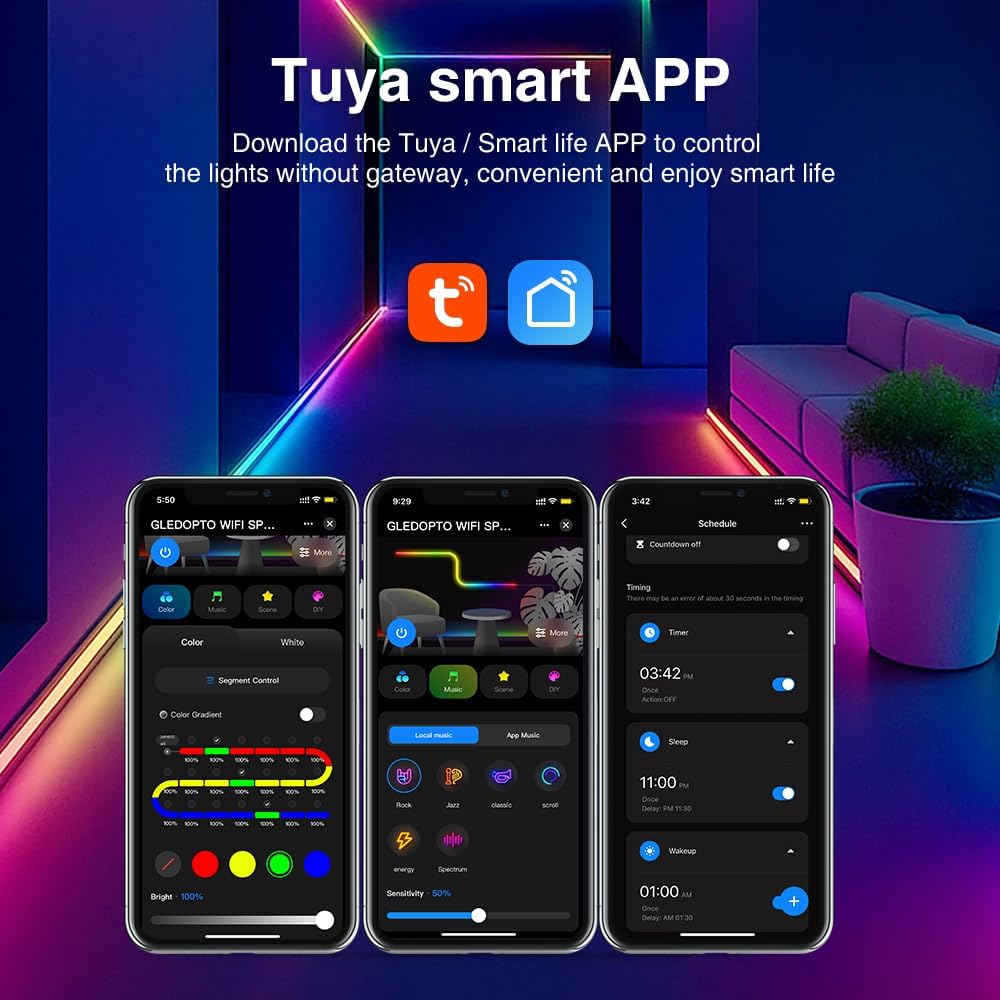
Image 4.2: Tuya Smart APP interface. This image shows various control screens within the Tuya/Smart Life app, including color selection, scene modes, and scheduling options.
4.3. Vinculació de dispositius
Follow these steps to pair your controller with the Tuya/Smart Life app:
- Assegureu-vos que el vostre telèfon intel·ligent estigui connectat a una xarxa Wi-Fi de 2.4 GHz.
- Obriu l'aplicació Tuya Smart o Smart Life.
- Add a new device by tapping the "+" icon in the top right corner.
- Select "Lighting" or "LED Controller" from the device list.
- Power on the GLEDOPTO controller. If it does not automatically enter pairing mode (indicated by a blinking light), press and hold the "Push" button on the controller for approximately 5-10 seconds until the indicator light blinks rapidly.
- Seguiu les instruccions que apareixen a la pantalla de l'aplicació per completar el procés de vinculació.
5. Instruccions de funcionament
5.1. Dynamic Effects and Customization
The controller offers over 40 built-in dynamic modes. You can also create and customize your own lighting effects through the app.

Image 5.1: App interface for DIY dynamic effects. This image shows options for selecting various dynamic effects like Gradient, Jump, Breathe, Flickering, and customizing their speed and colors.
- Navigate to the "DIY" or "Scene" section within the app.
- Choose from predefined effects or select "Add DIY" to create a new one.
- Adjust parameters such as color, speed, and effect type to achieve your desired lighting.
5.2. Segment Control
Divide your LED strip into up to 20 segments for individual dimming and color adjustments, allowing for intricate lighting designs.

Image 5.2: App interface demonstrating segment control. The image shows a slider for "Segment Control" and individual color/brightness controls for different sections of an LED strip.
- Access the "Segment Control" feature in the app.
- Define the number of segments and their respective lengths.
- Independently adjust the color and brightness for each segment.
5.3. Control de grup
Control multiple GLEDOPTO devices simultaneously by creating groups within the Tuya/Smart Life app.

Image 5.3: Diagram illustrating group control. This image shows a house layout with multiple GLEDOPTO devices (represented by Wi-Fi symbols) being controlled from a single smartphone app.
- In the app, go to the device settings and select "Create Group".
- Add other compatible GLEDOPTO devices to the group.
- Control all devices in the group with a single command.
5.4. Music Synchronization
The controller can synchronize lighting effects with music, either by capturing sound through its built-in microphone or your phone's microphone.

Image 5.4: App interface for music synchronization. This image shows options for "Local music" and "APP music" to create rhythmic lighting effects based on audio input.
- Access the "Music" section in the app.
- Choose between "Local music" (using your phone's microphone) or "APP music" (using the controller's built-in microphone).
- The lights will react to the rhythm and beat of the music.
5.5. Power-off Memory Function
The controller features a power-off memory function with two optional modes:

Image 5.5: Illustration of power-off memory modes. One mode remembers the last state before power failure, while the other lights up by default when powered on. The "Push" button on the controller is highlighted for mode selection.
- Remember Last State: The controller will resume its last settings (on/off, color, mode) after a power interruption.
- Activat per defecte: The controller will turn on with a default setting when power is restored.
- To switch between these modes, short press the "Push" button on the controller three times.
5.6. Control per veu
Integrate your GLEDOPTO controller with popular voice assistants for hands-free control.
- Ensure your controller is paired with the Tuya/Smart Life app and linked to your Google Assistant, Amazon Alexa, or Yandex Alice account.
- Utilitzeu ordres de veu com ara:
- "Alexa, activa [Nom del dispositiu]."
- "Hey Google, set [Device Name] to blue."
- "Yandex, dim [Device Name] to 50%."
6. Manteniment
- Keep the controller in a dry environment, away from direct sunlight and extreme temperatures.
- Netegeu el dispositiu amb un drap suau i sec. No utilitzeu netejadors líquids ni dissolvents.
- Ensure proper ventilation around the controller to prevent overheating.
7. Solució De Problemes
| Problema | Causa possible | Solució |
|---|---|---|
| La tira LED no s'il·lumina. | No power, incorrect wiring, faulty LED strip. |
|
| Controller cannot be paired with the app. | Incorrect pairing mode, Wi-Fi issues, app version. |
|
| Els colors són incorrectes o inconsistents. | Incorrect LED strip type selected in app, faulty strip. |
|
| El control per veu no funciona. | Not linked to voice assistant, incorrect device name. |
|
8. Garantia i Suport
Warranty information for the GLEDOPTO Tuya SPI Pixel Controller GL-SPI-206P is not explicitly provided in the product details. For specific warranty terms or technical support, please contact your retailer or the manufacturer directly.
For further assistance, please refer to the GLEDOPTO official weblloc o poseu-vos en contacte amb el seu servei d'atenció al client.