
Introducció
This manual provides comprehensive instructions for the installation, operation, and maintenance of your Fenvi FU-AX900BT Wi-Fi 6 USB Adapter with Bluetooth 5.2. Please read this manual carefully before using the device to ensure proper functionality and to maximize its performance. The FU-AX900BT is designed to provide high-speed Wi-Fi 6 (802.11ax) connectivity and Bluetooth 5.2 capabilities to your desktop or laptop computer.

Imatge 1: Fenvi FU-AX900BT Wi-Fi 6 USB Adapter. This image shows the compact USB adapter with its high-gain external antenna attached, ready for connection to a computer's USB port.
Contingut del paquet
Verifiqueu que tots els elements siguin presents al paquet:
- Fenvi FU-AX900BT Wireless USB Adapter
- Manual d'instruccions (aquest document)
Característiques clau
The Fenvi FU-AX900BT offers the following key features:
- Antena externa d'alt guany: Provides stronger signal reception and extended range, beneficial for systems located further from the router or in environments with obstacles.
- Combinació 2 en 1: Integrates both Wi-Fi 6 (802.11ax) AX900 and Bluetooth 5.2 connectivity.
- Velocitats de doble banda: Supports up to 600 Mbps on the 5 GHz band and 287 Mbps on the 2.4 GHz band for efficient data transfer.
- MU-MIMO i OFDMA: Enhances network efficiency and performance, especially in busy network environments with multiple devices.
- Seguretat WPA3: Provides advanced encryption for secure wireless connections.
- Interfície USB 3.0: Ensures high throughput for optimal Wi-Fi and Bluetooth performance.
- Àmplia compatibilitat: Compatible amb els sistemes operatius Windows 11 i Windows 10.

Imatge 2: Acabatview of Fenvi FU-AX900BT features. This graphic highlights Wi-Fi 6 (802.11ax) upgrade, dual-band speeds (900 Mbps total), high-gain antenna, 3-year warranty, Bluetooth 5.3 (note: product description states 5.2), WPA3 security, and OFDMA technology.

Imatge 3: Wi-Fi 6 Performance with OFDMA and MU-MIMO. This illustration compares Wi-Fi 5 and Wi-Fi 6 data transmission, showing how OFDMA and MU-MIMO improve efficiency by allowing multiple devices to communicate simultaneously without waiting.
Requisits del sistema
- Sistema operatiu: Windows 11 or Windows 10 (64-bit recommended).
- Port USB: Available USB 3.0 port (backward compatible with USB 2.0, but USB 3.0 is recommended for optimal performance).
- Processador: Intel Core i3 / AMD Ryzen 3 or higher recommended.
- RAM: 4 GB o més.
Instruccions de configuració
1. Instal·lació física
- Desempaqueteu l'adaptador: Carefully remove the Fenvi FU-AX900BT USB adapter from its packaging.
- Identifica un port USB 3.0: Locate an available USB 3.0 port on your desktop or laptop computer. USB 3.0 ports are typically blue internally or marked with a "SS" (SuperSpeed) symbol.
- Inseriu l'adaptador: Gently insert the FU-AX900BT adapter into the chosen USB 3.0 port. Ensure it is fully seated.
- Ajusteu l'antena: Position the high-gain external antenna for optimal signal reception. The antenna can typically be rotated 180 degrees and tilted 90 degrees to find the best orientation.

Imatge 4: Antenna Benefits and Adjustment. This image illustrates the benefits of the external antenna, including stronger signal, wider coverage, faster data transfer, and better penetration, along with showing its multi-directional adjustment capabilities (180° rotation, 90° tilt).
2. Instal·lació del controlador
For Windows 11/10, the operating system may automatically detect and install the necessary drivers. If automatic installation does not occur or if you experience issues, manual driver installation is required.
- Comproveu el Gestor de dispositius:
- Right-click on the Start button and select "Device Manager".
- Look for "Network adapters" and "Bluetooth" sections. If you see an unrecognized device or a device with a yellow exclamation mark, drivers need to be installed.
- Descarrega els controladors: Visit the official Fenvi support website (refer to the product packaging or Fenvi's main weblloc web per a l'exactitud URL) and download the latest drivers for the FU-AX900BT model.
- Instal·leu els controladors:
- Extract the downloaded driver file (si és un arxiu comprimit).
- Run the setup executable (e.g., "setup.exe" or "install.exe") and follow the on-screen instructions.
- Reinicieu l'ordinador si se us demana.
- Verifica la instal·lació: After restarting, check Device Manager again. The Fenvi FU-AX900BT should now appear correctly under "Network adapters" and "Bluetooth".
Instruccions de funcionament
1. Connexió a Wi-Fi
- Accés a la configuració de xarxa: Click on the Wi-Fi icon in the system tray (usually in the bottom-right corner of your screen).
- Selecciona la teva xarxa: Apareixerà una llista de xarxes Wi-Fi disponibles. Seleccioneu la xarxa desitjada (SSID).
- Introduïu la contrasenya: If prompted, enter the Wi-Fi password (security key) for your network.
- Connectar: Feu clic a "Connecta". L'ordinador ara hauria d'estar connectat a la xarxa Wi-Fi.
2. Emparellar dispositius Bluetooth
The FU-AX900BT supports Bluetooth 5.2, allowing you to connect various Bluetooth peripherals.
- Activa el Bluetooth:
- Vés a Configuració > Bluetooth i dispositius (Windows 11) o Configuració > Dispositius > Bluetooth i altres dispositius (Windows 10).
- Assegureu-vos que el Bluetooth estigui activat.
- Put Device in Pairing Mode: Refer to your Bluetooth device's manual to put it into pairing mode. This usually involves holding a button until an indicator light flashes.
- Afegeix un dispositiu:
- In Windows Bluetooth settings, click "Add device" or "Add Bluetooth or other device".
- Select "Bluetooth" from the options.
- Your computer will scan for nearby Bluetooth devices. Select your device from the list.
- Maridatge complet: Follow any on-screen prompts or enter a PIN if required by your device. Once paired, the device will appear in your list of connected Bluetooth devices.

Imatge 5: Bluetooth 5.3 Connectivity. This graphic illustrates the Fenvi adapter connecting to various Bluetooth devices such as headphones, mobile phones, gaming consoles, and wireless mice, highlighting improved connection stability over longer distances.
Manteniment
- Mantenir net: Periodically clean the adapter with a soft, dry cloth. Avoid using liquid cleaners or solvents.
- Eviteu les obstruccions: Ensure the antenna is not obstructed by other objects to maintain optimal signal strength.
- Connexió ferma: Ensure the adapter is always firmly seated in the USB port.
- Actualitzacions de programari: Regularly check the Fenvi official weblloc web per a controladors actualitzats per garantir la compatibilitat i les millores de rendiment.
Resolució de problemes
| Problema | Possible solució |
|---|---|
| No Wi-Fi connection or slow speeds. |
|
| Bluetooth devices cannot pair or connect. |
|
| Adapter not recognized by the computer. |
|
Especificacions
| Model | FU-AX900BT |
| Marca | Fenvi |
| Wi-Fi estàndard | IEEE 802.11ax (Wi-Fi 6) |
| Versió Bluetooth | 5.2 |
| Interfície | USB 3.0 |
| Velocitat de transferència de dades (Wi-Fi) | Fins a 600 Mbps (5 GHz), Fins a 287 Mbps (2.4 GHz) |
| Seguretat | WPA3 |
| Característiques | MU-MIMO, OFDMA, High-Gain External Antenna |
| Compatibilitat amb SO | Windows 11, Windows 10 |
| Dimensions del producte | 10 x 2 x 2 cm |
| Pes de l'article | 60 g |
| País d'origen | Xina |
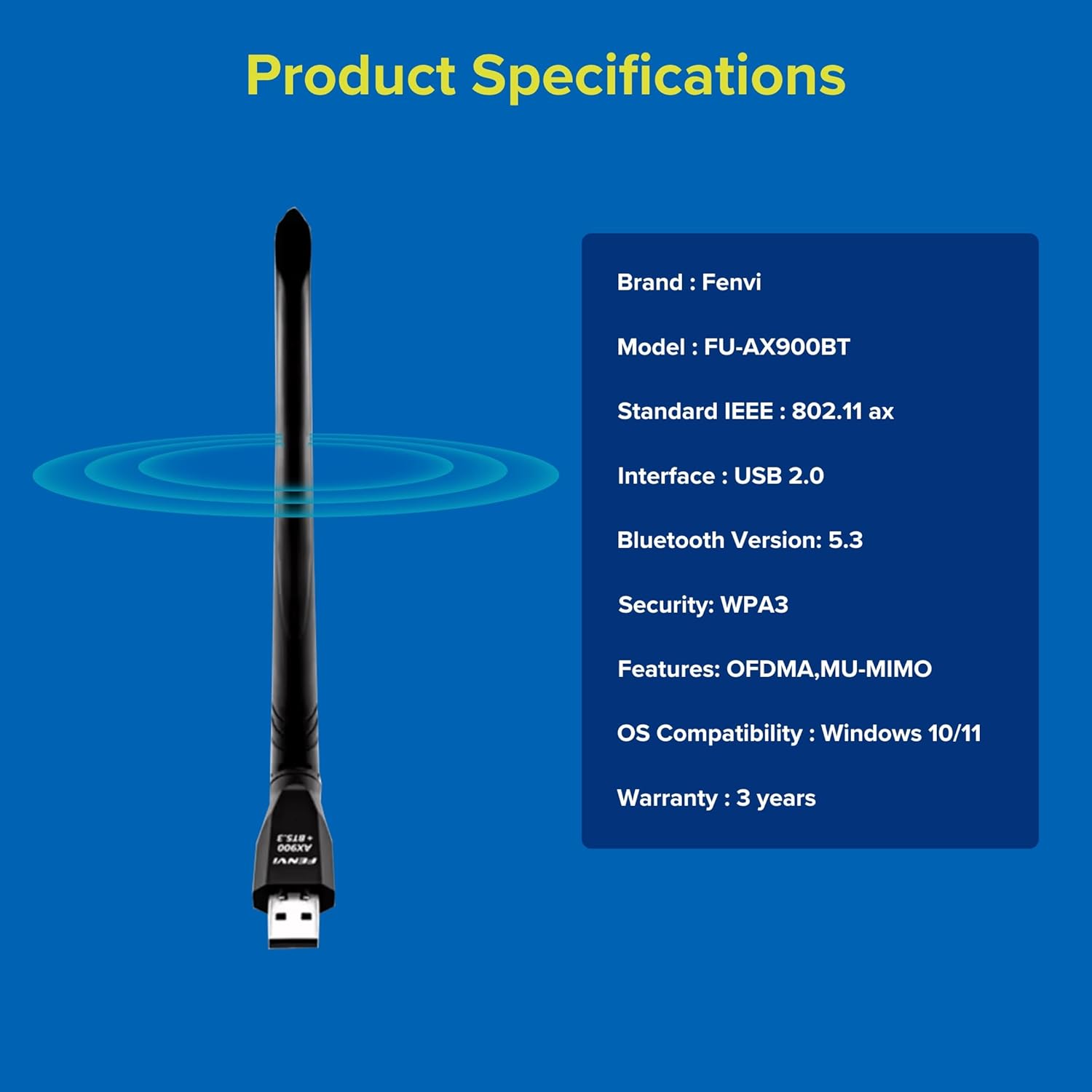
Imatge 6: Fenvi FU-AX900BT Product Specifications. This graphic summarizes key specifications such as brand, model, Wi-Fi standard, interface, Bluetooth version, security, features, OS compatibility, and warranty.
Garantia i Suport
The Fenvi FU-AX900BT comes with a 3-Year India Warranty. For technical support, warranty claims, or further assistance, please contact Fenvi customer support through their official weblloc web o el venedor on es va comprar el producte.
Si us plau, conserveu el rebut de compra com a comprovant de compra a efectes de garantia.


