
1. Introducció
This manual provides instructions for the Rapoo V700DIY-98 Wireless Mechanical Keyboard. It covers setup, operation, maintenance, troubleshooting, and product specifications. Please read this manual thoroughly before using the keyboard to ensure proper function and longevity.
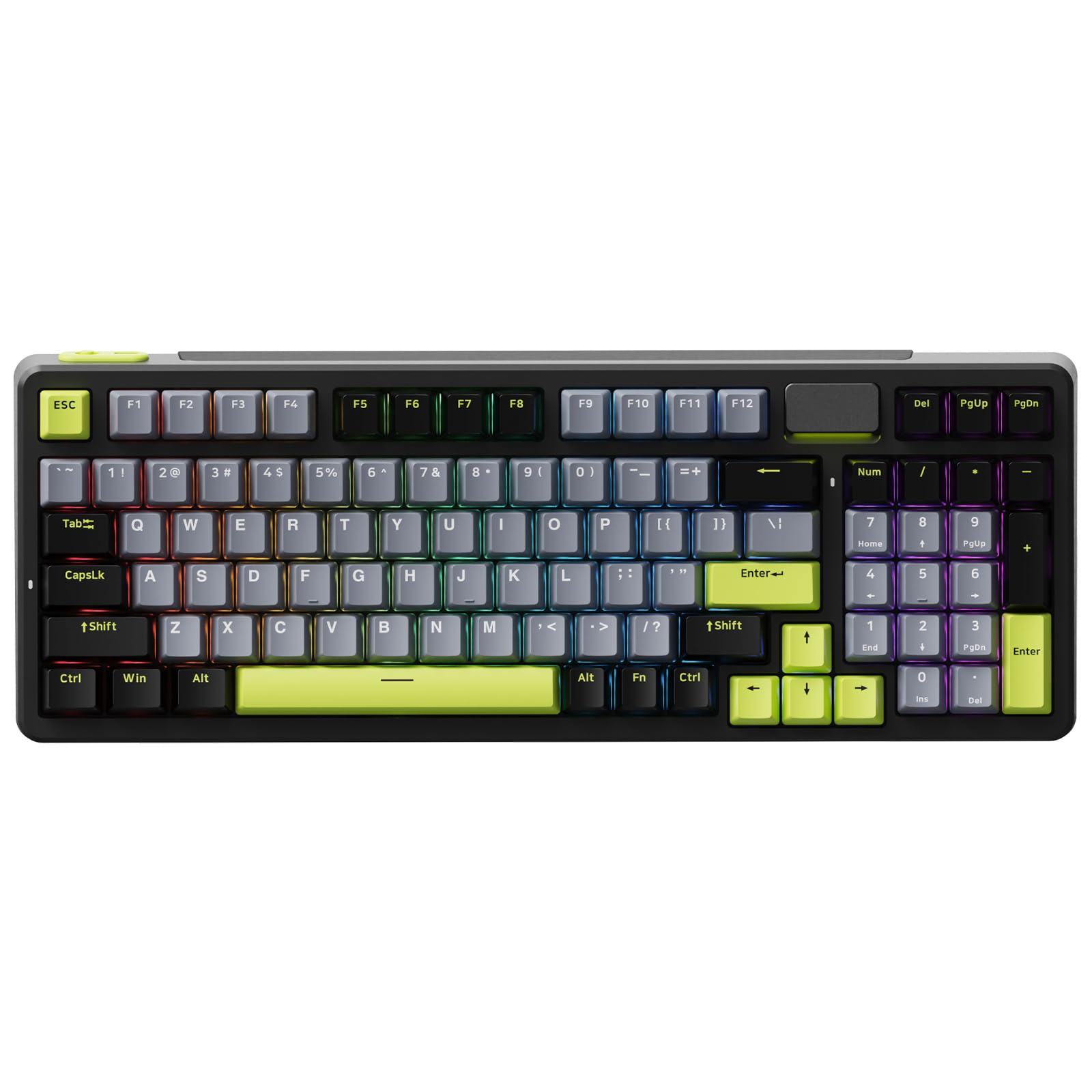
Image: The Rapoo V700DIY-98 Wireless Mechanical Keyboard in black.
2. Contingut del paquet
Verifiqueu que tots els elements siguin presents al paquet:
- 1 x Rapoo V700DIY-98 Mechanical Keyboard
- 1 x cable USB-C a USB-A
- 1 x Guia de l'usuari (aquest document)
3. Configuració
3.1 Càrrega inicial
Before first use, connect the keyboard to a USB power source using the provided USB-C to USB-A cable. The keyboard features a built-in 4000mAh battery. A full charge ensures extended wireless operation.

Image: Illustration of the keyboard's internal 4000mAh battery.
3.2 Connexió del teclat
The V700DIY-98 supports three connection modes: Wired (USB-C), 2.4GHz Wireless, and Bluetooth 5.0.

Image: The keyboard connected to multiple devices via wired, 2.4GHz, and Bluetooth modes.
3.2.1 Connexió per cable
- Connect the USB-C end of the cable to the keyboard.
- Connecteu l'extrem USB-A del cable al port USB de l'ordinador.
- El teclat canviarà automàticament al mode amb cable.
Connexió sense fil 3.2.2 de 2.4 GHz
- Locate the 2.4GHz USB receiver, typically stored in a compartment on the keyboard.
- Connecteu el receptor USB a un port USB disponible de l'ordinador.
- Switch the keyboard's mode selector to 2.4GHz. The keyboard should connect automatically.
3.2.3 Connexió Bluetooth
The keyboard supports connecting up to 3 Bluetooth devices.
- Canvieu el selector de mode del teclat a Bluetooth.
- Mantén premut Fn + 1, Fn + 2, o Fn + 3 for 3 seconds to enter pairing mode for the desired channel. The indicator light will flash rapidly.
- On your device (PC, laptop, tablet, or mobile), search for Bluetooth devices and select "Rapoo V700DIY-98" (or similar name) to pair.
- Un cop emparellat, l'indicador lluminós deixarà de parpellejar.
4. Instruccions de funcionament
4.1 Switching Connectivity Modes
Use the mode selector switch on the keyboard to switch between Wired, 2.4GHz, and Bluetooth modes. For Bluetooth, press Fn + 1/2/3 per canviar entre dispositius aparellats.
4.2 Key Functions and Hotkeys
The keyboard includes FN media hotkeys for quick access to various functions:
- Fn + F1: Compute
- Fn + F2: Calculadora
- Fn + F3: Bústia
- Fn + F4: Pàgina d'inici
- Fn + F5: Cerca
- Fn + F6: Reproductor multimèdia
- Fn + F7: Pista anterior
- Fn + F8: Pista següent
- Fn + F9: Reproduir/Pausa
- Fn + F10: Baixar el volum
- Fn + F11: Pujar el volum
- Fn + F12: Mut
- Fn + Win: Windows Key Lock

Image: A visual guide to the FN media hotkeys and their functions.
4.3 Control d'il·luminació RGB
The keyboard features 16.8 million per-key RGB backlighting with various customization options.
- Fn + Page Up/Down: Switch between preset backlight modes.
- Fn + ↑ / ↓: Ajusta la brillantor de la retroiluminació.
- Fn + ← / →: Adjust backlight speed.
- Fn + Del: Switch side lightbar effects (fixed/breathing).
- Fn + Esc (short press): Backlight on/off.
- Fn + Esc (long press over 3 seconds): Restore default settings.
More advanced settings and customization can be accessed via the Rapoo driver software, available on the official Rapoo website for Windows and Mac OS.

Image: Screenshot of the keyboard's RGB customization software interface.

Image: Diagram illustrating keyboard shortcuts for RGB mode switching.
4.4 Commutadors intercanviables en calent
The V700DIY-98 features hot-swappable sockets, allowing users to change switches without soldering. It is compatible with standard 3-pin/5-pin mechanical switches.

Image: The keyboard with keycaps and switches removed, highlighting the hot-swappable design.
4.5 Speed Silver Linear Switches
The keyboard is equipped with pre-lubed linear Speed Silver switches. These switches offer a low spring resistance and a fast actuation point, designed for quick and direct key triggers.

Imatge: Una explosió view illustrating the components of a Speed Silver linear switch.
4.6 Gasket Structure and Sound Profile
The keyboard features a gasket-mounted design with a 7-layer switch-dampening pad structure. This design absorbs pinging noises and echoes, contributing to improved keystroke acoustics and a consistent sound profile.

Image: An exploded diagram showing the multi-layer gasket structure of the keyboard.
4.7 Full NKRO Anti-Ghosting
The keyboard supports Full N-Key Rollover (NKRO) and anti-ghosting, allowing an unlimited number of keys to be registered simultaneously. This ensures accurate input, even during rapid or complex key presses.

Image: The keyboard in an active use scenario, demonstrating its anti-ghosting feature.
4.8 Doubleshot PBT Keycaps
The keycaps are made from Doubleshot PBT material, which offers resistance to fading and wear, contributing to long-lasting durability and a consistent texture.

Imatge: Un primer pla view of the Doubleshot PBT keycaps, highlighting their construction.
5. Manteniment
5.1 Neteja del teclat
To clean the keyboard, disconnect it from all power sources. Use a soft, dry cloth to wipe the surface. For deeper cleaning, keycaps can be removed using a keycap puller. Use compressed air to clear debris from under the keycaps.
5.2 Replacing Keycaps and Switches
Due to the hot-swappable design, switches can be replaced without soldering. Use a switch puller to carefully remove switches. Ensure replacement switches are compatible (3-pin or 5-pin).
6. Solució De Problemes
- El teclat no respon: Ensure the keyboard is charged. Check the connection mode (wired, 2.4GHz, or Bluetooth) and ensure it matches your device. For 2.4GHz, verify the receiver is properly inserted. For Bluetooth, re-pair the device if necessary.
- Wireless connectivity issues (keyboard only works when plugged in): This may indicate a battery issue or a problem with the wireless module. Ensure the keyboard is fully charged. If the issue persists, contact support.
- La il·luminació RGB no funciona o és incorrecta: Check the RGB lighting shortcuts (Fn + Page Up/Down, Fn + ↑/↓, Fn + ←/→, Fn + Del). If using software, ensure it is installed correctly and updated. Try resetting the keyboard to default settings (Fn + Esc, long press).
- Claus que no es registren: Ensure the keyboard is clean and free of debris. If a specific key is not working, consider replacing the switch if you have spare hot-swappable switches.
7. Especificacions
| Característica | Detall |
|---|---|
| Marca | Rapoo |
| Número de model | V700DIY-98 |
| Tecnologia de connectivitat | Bluetooth 5.0, sense fil de 2.4 GHz, USB-C amb cable |
| Descripció del teclat | Teclat mecànic sense fil per a jocs |
| Tipus de canvi | Lineal |
| Mechanical Keyboard Switch Model | Speed Silver |
| Característiques especials | Backlit, Customizable Display Keys, Hot-Swappable, Hotkeys and Media Keys, Rechargeable |
| Color | Negre |
| Il·luminació del teclat | RGB (16.8M Per-Key) |
| Nombre de claus | 97 |
| Capacitat de la bateria | 4000 mAh |
| Dimensions del producte (L x A x A) | 15.27" x 5.63" x 1.65" (38.8 cm x 14.3 cm x 4.2 cm) |
| Pes de l'article | 1030 grams |
| Dispositius compatibles | Gaming Console, Laptop, PC, Tablet |
| Minimum Required OS | Windows 11 |

Image: Dimensions comparison between the V700DIY-75 and V700DIY-98 keyboard models.
8. Informació de la garantia
The Rapoo V700DIY-98 Wireless Mechanical Keyboard comes with a 1 any de garantia from the date of purchase. This warranty covers manufacturing defects. For warranty claims or service, please retain your proof of purchase and contact Rapoo customer support.
9. Suport
For further assistance, technical support, or to download the latest driver software, please visit the official Rapoo weblloc: