
1. Introducció
This manual provides detailed instructions for the setup, operation, maintenance, and troubleshooting of your Gawfolk 24.5 Inch 300Hz Gaming Monitor, Model GF245C. This monitor features a 24.5-inch FHD 1080p VA panel, a 300Hz refresh rate, 1ms response time, Adaptive Sync technology, 98% sRGB color gamut, and low blue light/flicker-free technology for an enhanced viewexperiència.
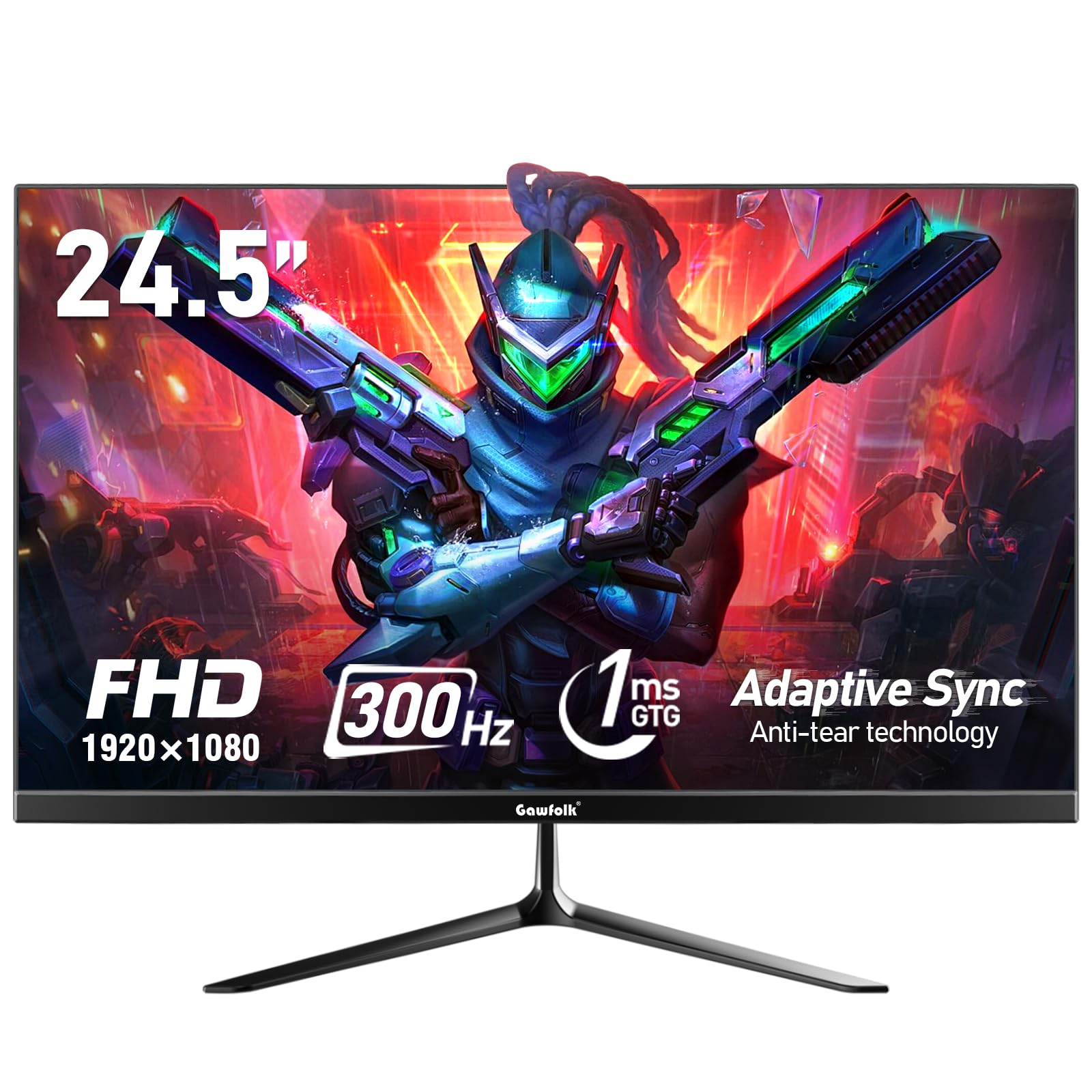
Figura 1: Frontal view of the Gawfolk 24.5 Inch 300Hz Gaming Monitor.
2. Instruccions de configuració
2.1 Contingut del paquet
- Gawfolk 24.5 Inch Gaming Monitor
- Suport de monitor (base i coll)
- Adaptador d'alimentació
- Cable DisplayPort (DP)
- Manual d'usuari
2.2 Muntatge del suport
- Traieu amb cura els components del monitor i del suport de l'embalatge.
- Fixeu el coll del suport al panell del monitor amb els cargols proporcionats.
- Attach the stand base to the stand neck, securing it with the designated screw.
- Col·loqueu el monitor muntat sobre una superfície plana i estable.
2.3 Cables de connexió
Assegureu-vos que el monitor i l'ordinador estiguin apagats abans de fer cap connexió.
- Connexió d'alimentació: Connect the power adapter to the monitor's DC input port, then plug the adapter into a power outlet.
- Connexió de vídeo: Connect one end of the provided DisplayPort (DP) cable to the DP port on your computer's graphics card and the other end to the DP input on the monitor. Alternatively, use an HDMI cable to connect to an HDMI port.
- Sortida d'àudio: If desired, connect external speakers or headphones to the 3.5mm audio output port on the monitor.
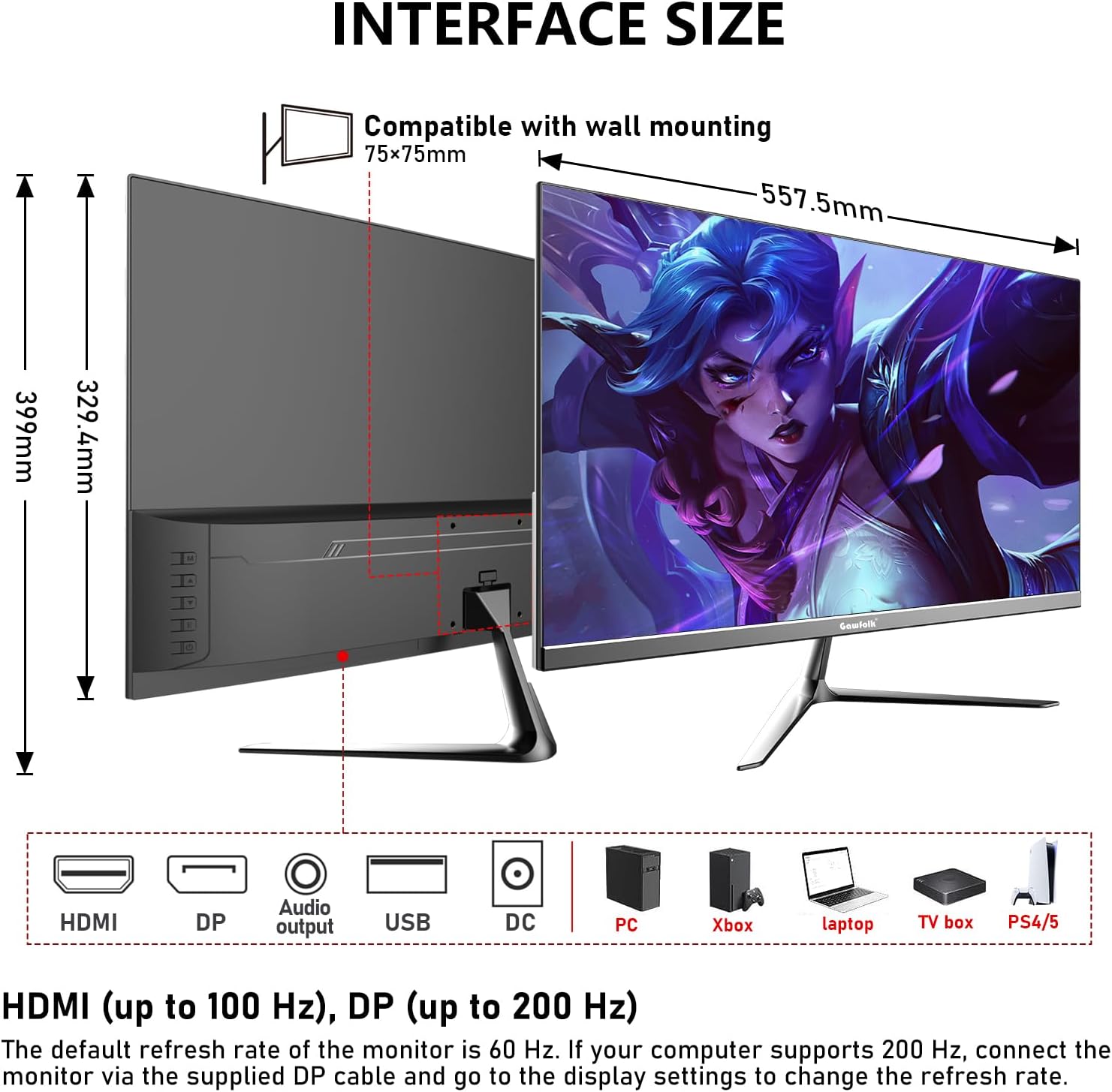
Figura 2: Dimensions del monitor i disposició dels ports.
2.4 Muntatge a la paret (opcional)
The monitor supports VESA wall mounting with a 75x75mm pattern. A wall mounting bracket is not included and must be purchased separately. Follow the instructions provided with your VESA mount for proper installation.

Figure 3: Monitor compatible with 75x75mm VESA wall mounting.
3. Instruccions de funcionament
3.1 Encès/Apagat
- To power on the monitor, press the power button located on the back or bottom of the monitor.
- To power off, press and hold the power button until the screen turns off.
3.2 Navegació pel menú OSD
The On-Screen Display (OSD) menu allows you to adjust various monitor settings. Use the joystick or buttons (location may vary slightly) on the back or bottom of the monitor to navigate the menu.
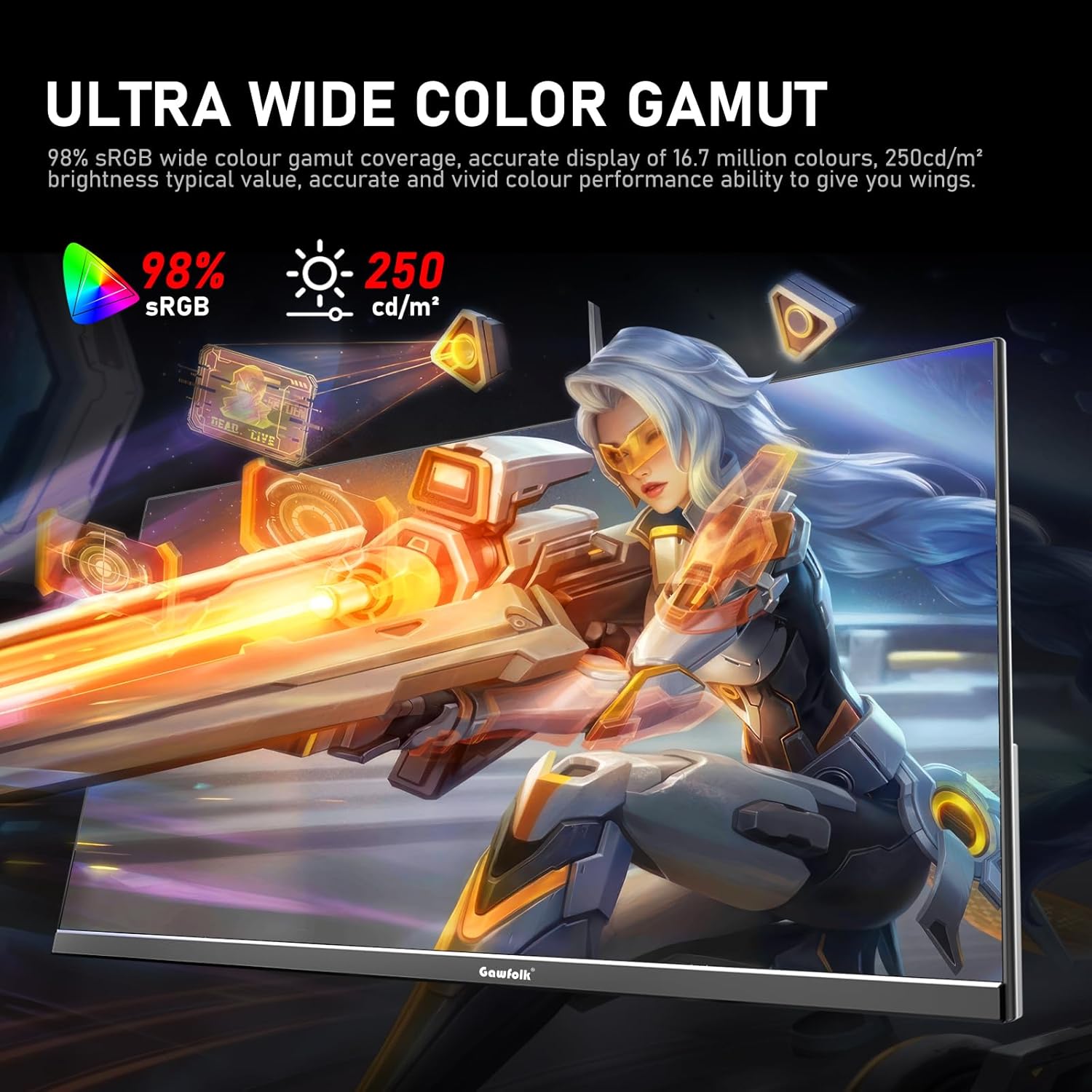
Figure 4: On-Screen Display (OSD) menu for monitor settings.
3.3 Selecció d'entrada
Access the OSD menu and navigate to the 'Input' or 'Source' section to select between HDMI and DisplayPort inputs.
3.4 Ajust de la configuració de la pantalla
- Brillantor/Contrast: Adjust these settings in the OSD menu to suit your viewmedi ambient.
- Configuració de color: Fine-tune color temperature, gamma, and other color parameters for optimal visual quality. The monitor supports 98% sRGB for rich colors.
- Freqüència d'actualització: The monitor supports up to 300Hz via DisplayPort and up to 120Hz via HDMI. To change the refresh rate, connect the monitor via the appropriate cable and adjust the display settings within your computer's operating system.

Figure 5: Connectivity options and refresh rate capabilities.
3.5 Tecnologia de sincronització adaptativa
This monitor supports Adaptive Sync (FreeSync/G-Sync compatible) to minimize input latency and reduce screen tearing and stuttering during gaming and video playback. Ensure Adaptive Sync is enabled in both the monitor's OSD menu and your graphics card settings.

Figure 6: Visual demonstration of Adaptive Sync technology reducing screen tearing.
3.6 Low Blue Light and Flicker-Free
The monitor incorporates DC global dimming technology for a flicker-free display and a low blue light mode. Activate the low blue light mode in the OSD menu to reduce eye strain during prolonged use.

Figure 7: Illustration of Flicker-Free Technology for eye comfort.
4. Manteniment
4.1 Neteja del monitor
- Apagueu i desendolleu sempre el monitor abans de netejar-lo.
- Utilitzeu un drap suau i sense pelusa dampesbandida amb aigua o un netejador de pantalles suau i no abrasiu.
- No ruixeu el netejador directament sobre la pantalla.
- Eviteu utilitzar alcohol, amoníac o productes de neteja abrasius, ja que poden danyar la superfície de la pantalla.
4.2 Atenció general
- Keep the monitor away from direct sunlight, excessive heat, and humidity.
- Assegureu-vos que hi hagi una ventilació adequada al voltant del monitor per evitar el sobreescalfament.
- Eviteu col·locar objectes pesats sobre el monitor o els seus cables.
5. Solució De Problemes
If you encounter issues with your monitor, please refer to the following common solutions:
5.1 Sense pantalla / Pantalla negra
- Assegureu-vos que el cable d'alimentació estigui connectat correctament tant al monitor com a la presa de corrent.
- Verify that the video cable (DP or HDMI) is firmly connected to both the monitor and your computer.
- Comproveu si s'ha seleccionat la font d'entrada correcta al menú OSD del monitor.
- Reinicieu l'ordinador.
- Test the monitor with another device or cable if possible to isolate the issue.
5.2 Pantalla parpellejant
- Ensure the video cable is securely connected. A loose connection can cause flickering.
- Revisa els controladors de la targeta gràfica i actualitza'ls si cal.
- Disable Adaptive Sync in your graphics card settings and the monitor's OSD menu to see if the issue persists.
- Verify that the refresh rate is set correctly in your computer's display settings.
5.3 Image Quality Issues (Blurry, Distorted)
- Assegureu-vos que la resolució de pantalla de l'ordinador estigui configurada a la resolució nativa del monitor (1920 x 1080).
- Ajusteu la brillantor, el contrast i el color al menú OSD.
- If using an analog connection (not applicable for this monitor's inputs but general advice), ensure auto-adjustment is performed.
5.4 No Audio from Monitor Speakers/Audio Out
- Ensure the audio output is selected correctly in your computer's sound settings.
- Check the volume level on both the monitor (via OSD) and your computer.
- If using external speakers/headphones, ensure they are properly connected to the monitor's audio output.
6. Especificacions
| Característica | Especificació |
|---|---|
| Marca | Gawfolk |
| Número de model | GF245C |
| Mida de la pantalla | 24.5 polzades |
| Resolució | FHD 1080p (1920 x 1080 píxels) |
| Relació d'aspecte | 16:9 |
| Freqüència d'actualització | 300 Hz (DP), 120 Hz (HDMI) |
| Temps de resposta | 1 mil·lisegon (GTG) |
| Tecnologia de visualització | Panell VA |
| Viewangle ing | 178 graus |
| Brillantor | 250 Candela |
| Gamma de colors | 98% sRGB |
| Relació de contrast | 3500:1 |
| Connectivitat | DisplayPort, HDMI, 3.5mm Audio Out |
| Sincronització adaptativa | FreeSync, G-Sync Compatible |
| Característiques addicionals | Flicker-Free, Low Blue Light, Frameless Design |
| Tipus de muntatge | Desk Mount, VESA Wall Mount (75x75MM) |
| Dimensions de l'article (D x W x H) | 6.42 "P x 21.93" W x 15.75" H |
| Pes de l'article | 3.48 quilos |
7. Garantia i Suport
7.1 Informació de la garantia
The Gawfolk 24.5 Inch 300Hz Gaming Monitor (Model GF245C) comes with a garantia d'un any covering quality problems from the date of purchase.
7.2 Servei postvenda
Oferim a Servei postvenda de 12 mesos. If you encounter any problems when using the monitor, please communicate with us in a timely manner for assistance. For support, please refer to the contact information provided with your purchase or visit the official Gawfolk weblloc.