
1. Introducció
This manual provides detailed instructions for setting up, operating, and maintaining your rockspace AC2100 Dual Band WiFi Extender. This device is designed to expand your existing Wi-Fi network coverage, eliminate dead zones, and provide a stable, high-speed internet connection throughout your home or office.
The rockspace AC2100 operates on both 2.4 GHz and 5 GHz bands, offering a combined speed of up to 2100 Mbps. It features strong wall penetration capabilities and a Gigabit Ethernet port for wired device connectivity.

Image: The rockspace AC2100 WiFi Extender illustrating its dual-band capabilities, with 300 Mbps for 2.4 GHz and 1734 Mbps for 5 GHz, suitable for various online activities.
2. Contingut del paquet
Si us plau, reviseu atentament el paquet per veure si hi ha els elements següents:
- rockspace AC2100 WiFi Extender (Repeater)
- Guia d'instal·lació ràpida (no inclosa en aquest manual digital)
- Power Adapter (integrated into the device)
If any item is missing or damaged, please contact rockspace customer support.
3. Característiques del producte
- Connectivitat de doble banda: Supports 2.4 GHz (up to 300 Mbps) and 5 GHz (up to 1734 Mbps) for a combined speed of 2100 Mbps, ensuring optimal performance for various devices and activities.
- Cobertura ampliada: Boosts Wi-Fi signal to cover areas up to 1292 sq.ft, effectively eliminating Wi-Fi dead zones.
- Smart Signal Switching: Utilizes 4T4R MU-MIMO technology to automatically select the best channel for a stable and reliable internet connection.
- Forta penetració a la paret: Designed to provide high-speed signal through walls, especially on the 5 GHz band, making it suitable for multi-story homes.
- Compatibilitat universal: Works with any standard wireless Wi-Fi router, gateway, or access point.
- Port Gigabit Ethernet: Allows for a stable wired connection to devices such as smart TVs, gaming consoles, or PCs.
- Configuració fàcil: Simple configuration via WPS button or web navegador.
- Indicador LED intel·ligent: Provides visual feedback on signal strength for optimal placement.

Image: The rockspace AC2100 WiFi Extender emitting strong signals, illustrating its capability to penetrate walls and provide coverage in challenging environments.

Image: A close-up of the rockspace AC2100 WiFi Extender's Gigabit Ethernet port, highlighting its use for connecting wired devices directly to the extended network.
4. Guia de configuració
There are two methods to set up your rockspace AC2100 WiFi Extender: using the WPS button or via a web navegador.
4.1. WPS (Wi-Fi Protected Setup) Method
- Encès: Plug the rockspace AC2100 WiFi Extender into an electrical outlet near your main router. Wait for the Power LED to turn solid.
- Premeu WPS al router: Within two minutes, press the WPS button on your main Wi-Fi router. Refer to your router's manual for the exact location of the WPS button.
- Premeu WPS a l'extensor: Immediately after pressing the WPS button on your router, press the WPS button on the rockspace AC2100 WiFi Extender.
- Espera la connexió: The Signal LED on the extender will blink during the connection process. Once connected successfully, the Signal LED will turn solid blue.
- Canvia l'extensor: Unplug the extender and move it to a location halfway between your router and the Wi-Fi dead zone. Ensure the Signal LED remains blue for optimal performance.
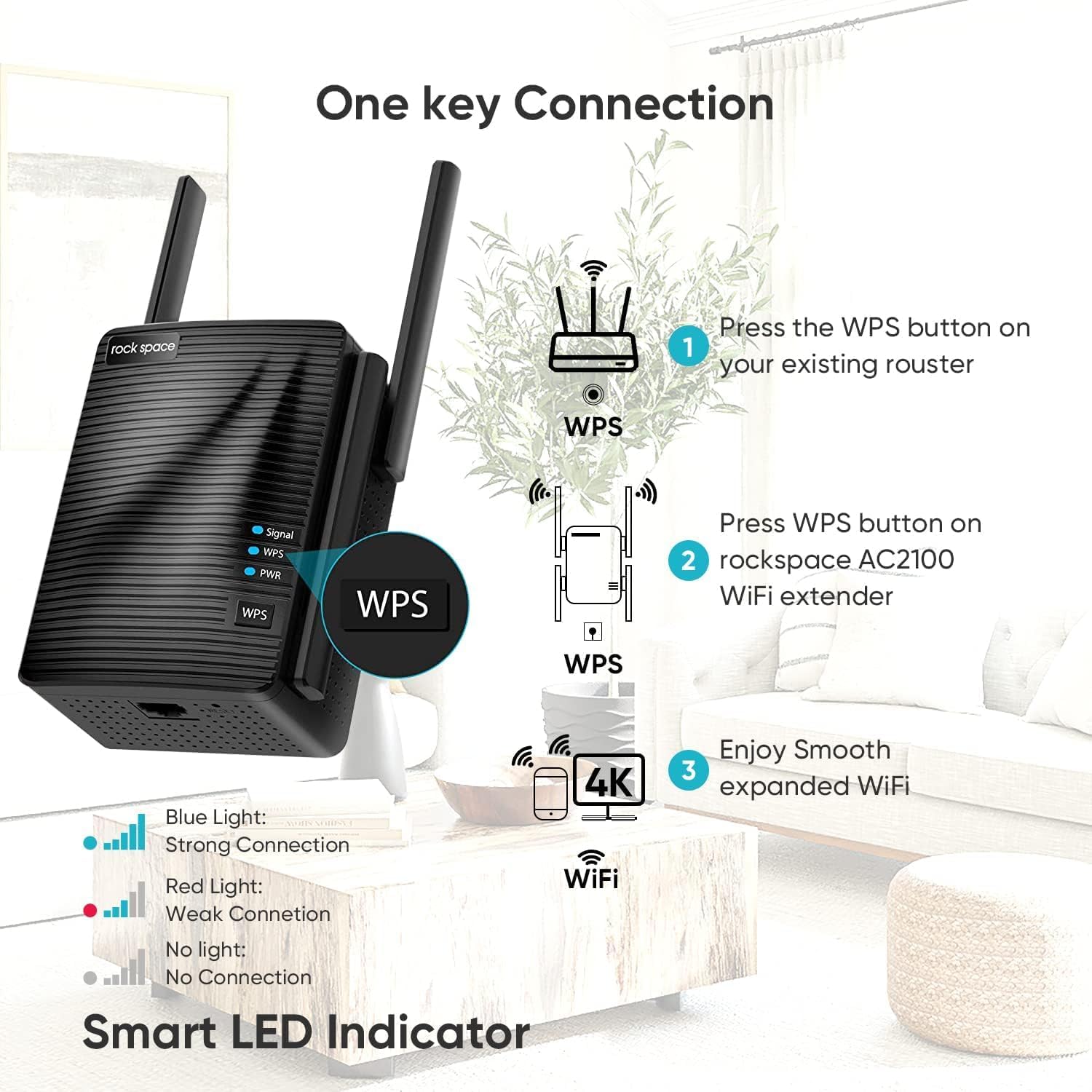
Image: Visual guide for WPS setup, showing the steps to press the WPS button on the router and then on the extender, along with the meaning of the LED indicators.
4.2. Web Browser Method
- Encès: Plug the rockspace AC2100 WiFi Extender into an electrical outlet near your main router. Wait for the Power LED to turn solid.
- Connecteu-vos al Wi-Fi de l'extensor: On your computer or mobile device, connect to the Wi-Fi network broadcast by the extender (e.g., "rockspace_EXT"). Do not connect to your main router's Wi-Fi at this step.
- Accés a la pàgina de configuració: Obre a web browser (e.g., Chrome, Firefox, Safari) and enter
re.rockspace.localor192.168.0.254a la barra d'adreces. - Inicieu sessió: Create a new login password when prompted.
- Seleccioneu la xarxa: Follow the on-screen instructions to scan for available Wi-Fi networks. Select your main router's 2.4 GHz and 5 GHz networks.
- Introduïu la contrasenya: Enter the Wi-Fi password for your main router's networks.
- Configure Extended Network: You can choose to keep the same network name (SSID) for the extended network or create new ones.
- Configuració completa: Confirm your settings. The extender will restart. Once the Signal LED turns solid blue, the setup is complete.
- Canvia l'extensor: Unplug the extender and move it to a location halfway between your router and the Wi-Fi dead zone. Ensure the Signal LED remains blue for optimal performance.
5. Instruccions de funcionament
5.1. Dispositius de connexió
After successful setup, your rockspace AC2100 WiFi Extender will broadcast an extended Wi-Fi network. You can connect your wireless devices (smartphones, tablets, laptops, etc.) to this extended network using the Wi-Fi name and password you configured during setup.
5.2. Ús del port Ethernet
The Gigabit Ethernet port on the bottom of the extender allows you to connect a wired device, such as a desktop computer, gaming console, or smart TV, to your extended network. This provides a stable and high-speed connection for devices that benefit from a direct link.
To use the Ethernet port:
- Ensure the extender is powered on and successfully connected to your main router (Signal LED is blue).
- Connect one end of an Ethernet cable to the Gigabit Ethernet port on the extender.
- Connect the other end of the Ethernet cable to the Ethernet port on your wired device.
- The device should automatically detect the wired connection and access the internet.
6. Indicadors LED
The rockspace AC2100 WiFi Extender features several LED indicators to provide status information:
- LED de senyal:
- Blau sòlid: Good connection to the main router. Optimal placement.
- Vermell sòlid: Weak connection to the main router. Relocate the extender closer to the router.
- Sense llum: No connection to the main router. Check power and setup.
- Parpellejant: Connecting via WPS or during initial setup.
- LED WPS:
- Parpellejant: Emparejament WPS en curs.
- Sòlid: WPS connection successful (may turn off after a short period).
- LED PWR (alimentació):
- Sòlid: El dispositiu està encès.
- Apagat: El dispositiu està apagat.
7. Solució De Problemes
If you encounter issues with your rockspace AC2100 WiFi Extender, refer to the following common solutions:
| Problema | Solució |
|---|---|
| Extender cannot connect to the router (Signal LED is red or off). |
|
| Slow internet speed when connected to the extender. |
|
| No es pot accedir a web management page (re.rockspace.local). |
|
| Forgot login password for the web pàgina de gestió. |
|
8. Especificacions
| Característica | Detall |
|---|---|
| Model | AC2100 |
| Marca | espai de roca |
| Estàndards sense fil | IEEE 802.11ac/n/g/b/a |
| Bandes de freqüència | 2.4 GHz i 5 GHz |
| Velocitat de transferència de dades | Fins a 300 Mbps (2.4 GHz), Fins a 1734 Mbps (5 GHz) |
| Port Ethernet | 1 x port Gigabit Ethernet |
| Característiques especials | MU-MIMO, WPS Button, Smart LED Indicator |
| Àrea de cobertura | Fins a 1292 peus quadrats |
| Dimensions | 5.91 x 4.65 x 4.29 polzades (paquet) |
| Pes | 13.1 unces |
9. Manteniment
- Col·locació òptima: Ensure the extender is placed in a location where the Signal LED is solid blue for best performance. Avoid placing it near large metal objects, concrete walls, or appliances that emit electromagnetic interference (e.g., microwaves, cordless phones).
- Actualitzacions de firmware: Periodically check the rockspace official website for firmware updates. Keeping your device's firmware up-to-date can improve performance, stability, and security.
- Neteja: Use a soft, dry cloth to clean the exterior of the extender. Do not use liquid cleaners or aerosols. Ensure the device is unplugged before cleaning.
- Restabliment: If the extender becomes unresponsive or you wish to reconfigure it from scratch, perform a factory reset by pressing and holding the reset button for 8-10 seconds. Note that this will erase all custom settings.
10. Garantia i Suport
rockspace products come with a standard manufacturer's warranty. For specific warranty terms and conditions, please refer to the warranty card included with your product or visit the official rockspace weblloc.
For technical support, troubleshooting assistance, or to inquire about warranty services, please contact rockspace customer support through their official channels. Contact information can typically be found on the rockspace weblloc o a l'embalatge del producte.
Si us plau, conserveu el rebut de compra per motius de garantia.