
1. Introducció
Thank you for choosing the iiyama G-Master Red Eagle G2471HS-B1 gaming monitor. This 24-inch Full HD (1920x1080) monitor features a Fast IPS panel, 240Hz refresh rate, and 0.3ms MPRT response time, designed to provide a competitive edge in gaming. It is also NVIDIA G-SYNC Compatible, ensuring smooth, tear-free gameplay. This manual provides essential information for setting up, operating, maintaining, and troubleshooting your monitor.

Figura 1.1: Frontal view of the iiyama G-Master Red Eagle G2471HS-B1 gaming monitor, showcasing its sleek design and thin bezels.
2. Informació de seguretat
Please read all instructions carefully before using the monitor. Keep this manual for future reference. Failure to follow these instructions may result in electric shock, fire, or damage to the product.
- No exposeu el monitor a la pluja ni a la humitat per evitar riscos d'incendi o descàrrega elèctrica.
- No obriu el monitor casing. No hi ha peces a l'interior que l'usuari pugui reparar. Demaneu totes les tasques de manteniment a personal de servei qualificat.
- Col·loqueu el monitor sobre una superfície estable i plana per evitar que caigui.
- Assegureu-vos que hi hagi una ventilació adequada al voltant del monitor. No bloquegeu les obertures de ventilació.
- Feu servir només el cable d'alimentació i l'adaptador que s'inclouen amb el monitor.
- Desendolleu el monitor de la presa de corrent durant tempestes o quan no el feu servir durant períodes prolongats.
3. Contingut del paquet
Verifiqueu que tots els articles que s'enumeren a continuació s'inclouen al vostre paquet. Si falta algun article o està malmès, poseu-vos en contacte amb el vostre distribuïdor.
- iiyama G-Master Red Eagle G2471HS-B1 Monitor
- Suport de monitor (base i coll)
- Cable d'alimentació
- Cable HDMI
- Cable DisplayPort
- Quick Start Guide / Safety Information (PDF documents available online)
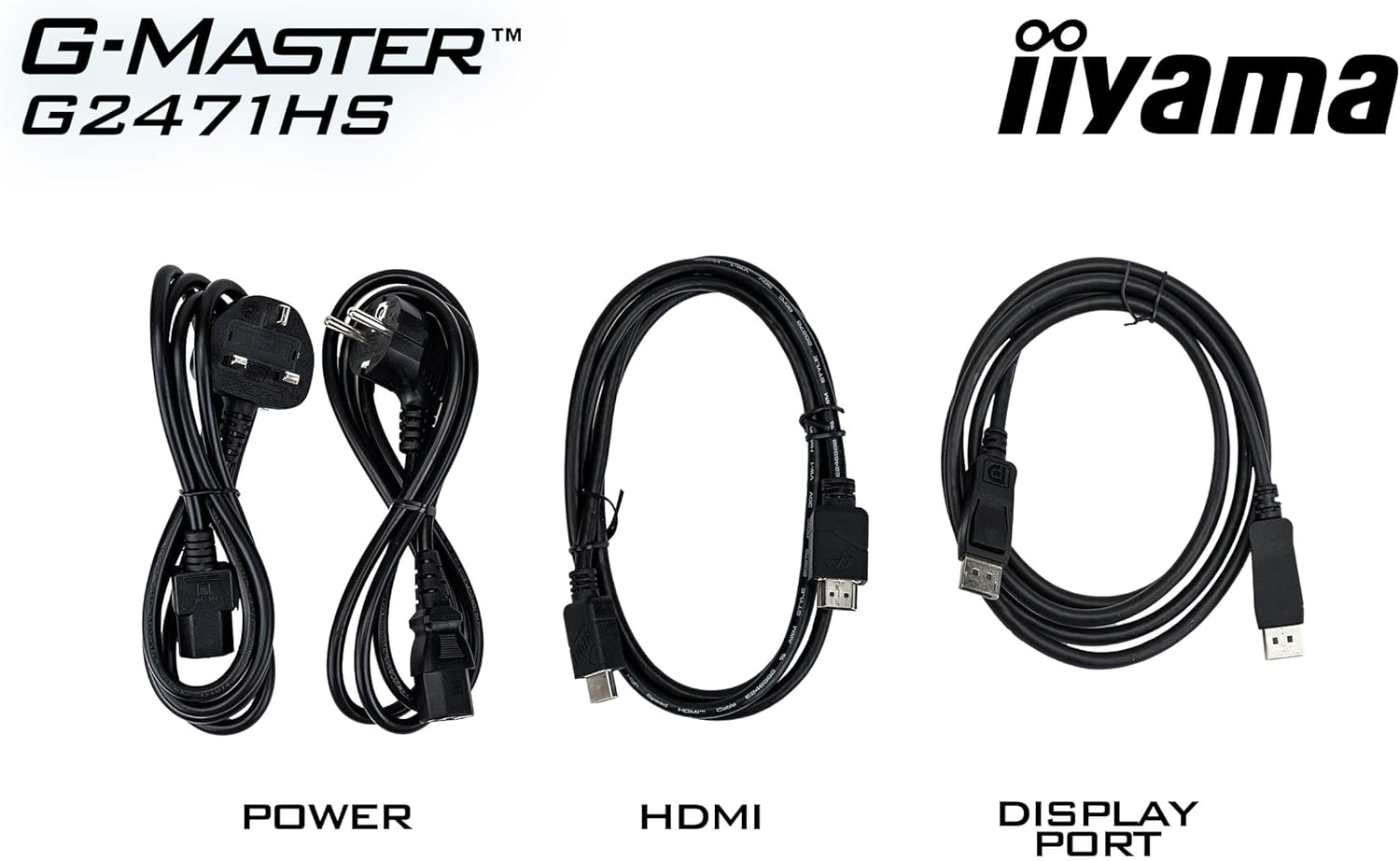
Figure 3.1: The monitor package includes power, HDMI, and DisplayPort cables for connectivity.
4. Configuració
4.1 Muntatge del suport
- Traieu amb cura el monitor del seu embalatge, mantenint-lo protegit sobre una superfície tova.
- Attach the stand neck to the back of the monitor until it clicks into place or is secured with screws (refer to the quick start guide for specific instructions).
- Fixeu la base del suport al coll i estrenyeu el cargol de la part inferior de la base.
- Col·loqueu el monitor muntat sobre un escriptori estable.
4.2 Cables de connexió
Connecteu els cables necessaris als ports corresponents de la part posterior del monitor i de l'ordinador.
- Connexió d'alimentació: Connecteu el cable d'alimentació a l'entrada d'alimentació del monitor i després a una presa de corrent.
- Connexió de vídeo:
- For optimal performance, use the supplied DisplayPort cable to connect the monitor to your computer's DisplayPort output.
- Alternatively, use an HDMI cable to connect to your computer's HDMI output. The monitor supports 2x HDMI inputs.
- Connexió d'àudio: If you wish to use external speakers or headphones, connect them to the 3.5mm audio output jack on the monitor.

Figura 4.1: posterior view of the monitor showing the various input and output ports for connectivity.
4.3 Encès inicial
After connecting all cables, press the power button on the monitor. The monitor should display an image from your connected device. If no image appears, ensure all cables are securely connected and your computer is powered on.
5. Funcionament del monitor
5.1 Navegació pel menú OSD
The On-Screen Display (OSD) menu allows you to adjust various monitor settings. Use the buttons located on the monitor (typically on the bottom or back) to navigate the menu.
- Press a button to open the OSD menu.
- Feu servir els botons de direcció per navegar per les opcions del menú.
- Press the select button to enter a sub-menu or confirm a setting.
- Press the exit button to go back or close the OSD menu.
5.2 Ajust de la configuració de la pantalla
Key settings you can adjust include:
- Brillantor/Contrast: Adjust these to suit your viewmedi ambient.
- Configuració de color: Modifiqueu la temperatura de color, el gamma i els nivells RGB individuals.
- Black Tuner: This feature allows you to adjust the brightness and dark shades in shadowed areas, improving visibility in dark game scenes.

Figure 5.1: The Black Tuner feature enhances visibility in dark game environments by adjusting dark shades.
5.3 Enabling G-SYNC Compatible
To utilize the NVIDIA G-SYNC Compatible feature, ensure your graphics card supports G-SYNC and that it is enabled in your graphics card's control panel (e.g., NVIDIA Control Panel). Connect the monitor using a DisplayPort cable for this feature to function correctly.

Figure 5.2: G-SYNC Compatible technology eliminates screen tearing and stuttering for a smoother gaming experience.
6. Manteniment
6.1 Neteja de la pantalla
Per netejar la pantalla, netegeu-la suaument amb un drap suau i sense borrissol. Per a marques difícils, dampen the cloth slightly with water or a mild, non-abrasive screen cleaner. Never spray liquid directly onto the screen.
6.2 Neteja de la Casing
Netegeu el monitor casing with a soft, dry cloth. Avoid using strong detergents or abrasive cleaners, as they can damage the surface.
7. Solució De Problemes
Si teniu problemes amb el monitor, consulteu els problemes i solucions més comuns següents:
| Problema | Possible causa/solució |
|---|---|
| No hi ha imatge a la pantalla |
|
| Imatge parpellejant o inestable |
|
| Incorrect resolution or aspect ratio |
|
| No hi ha so dels altaveus/auriculars |
|
8. Especificacions
Below are the technical specifications for the iiyama G-Master Red Eagle G2471HS-B1 monitor:
| Característica | Especificació |
|---|---|
| Marca | iiyama |
| Nom del model | G2471HS-B1 |
| Mida de la pantalla | 23.8 polzades |
| Resolució de visualització | 1920 x 1080 (Full HD) |
| Relació d'aspecte | 16:9 |
| Tipus de panell | IPS ràpid |
| Freqüència d'actualització | 240 Hz |
| Temps de resposta (MPRT) | 0.3 ms |
| Brillantor | 350 cd/m² |
| Relació de contrast | 1000:1 |
| Viewangle ing | 178 Degrees (Horizontal/Vertical) |
| Superfície de la pantalla | Anti-enlluernament |
| Connectivitat | 2x HDMI, 1x DisplayPort, 3.5mm Audio Out |
| Tecnologia de sincronització adaptativa | Compatible amb NVIDIA G-SYNC |
| Altaveus | Yes (2x 2W) |
| Dimensions de l'article (D x W x H) | 19.3 x 54 x 39.5 cm |
| Pes de l'article | 3.4 quilos |
| Color | Negre |

Figure 8.1: Energy label for the G2471HS-B1 monitor, indicating its energy efficiency rating.
9. Garantia i Suport
9.1 Informació de la garantia
This iiyama monitor comes with a Garantia del fabricant de 3 anys. Please retain your proof of purchase for warranty claims. The warranty covers defects in materials and workmanship under normal use. It does not cover damage caused by misuse, accidents, unauthorized modifications, or external factors.
9.2 Atenció al client
For technical assistance, warranty service, or further information, please visit the official iiyama website or contact their customer support. You may also refer to the official documentation provided with your product or available online.
- Official iiyama Weblloc: www.iiyama.com
- Informació de seguretat (PDF): Descarregar
- User Instructions (PDF): Descarregar