
1. Introducció
The ASUS ROG Harpe Mini Core is a lightweight (52g) wired gaming mouse designed for precision and comfort. It features a pro-approved shape, a high-performance 12,000 DPI optical sensor, and durable ROG Micro Switch II with push-fit sockets for customization. The mouse is equipped with a flexible ROG Paracord cable and 100% PTFE feet for smooth, unrestricted movement, catering to claw and fingertip grip styles.
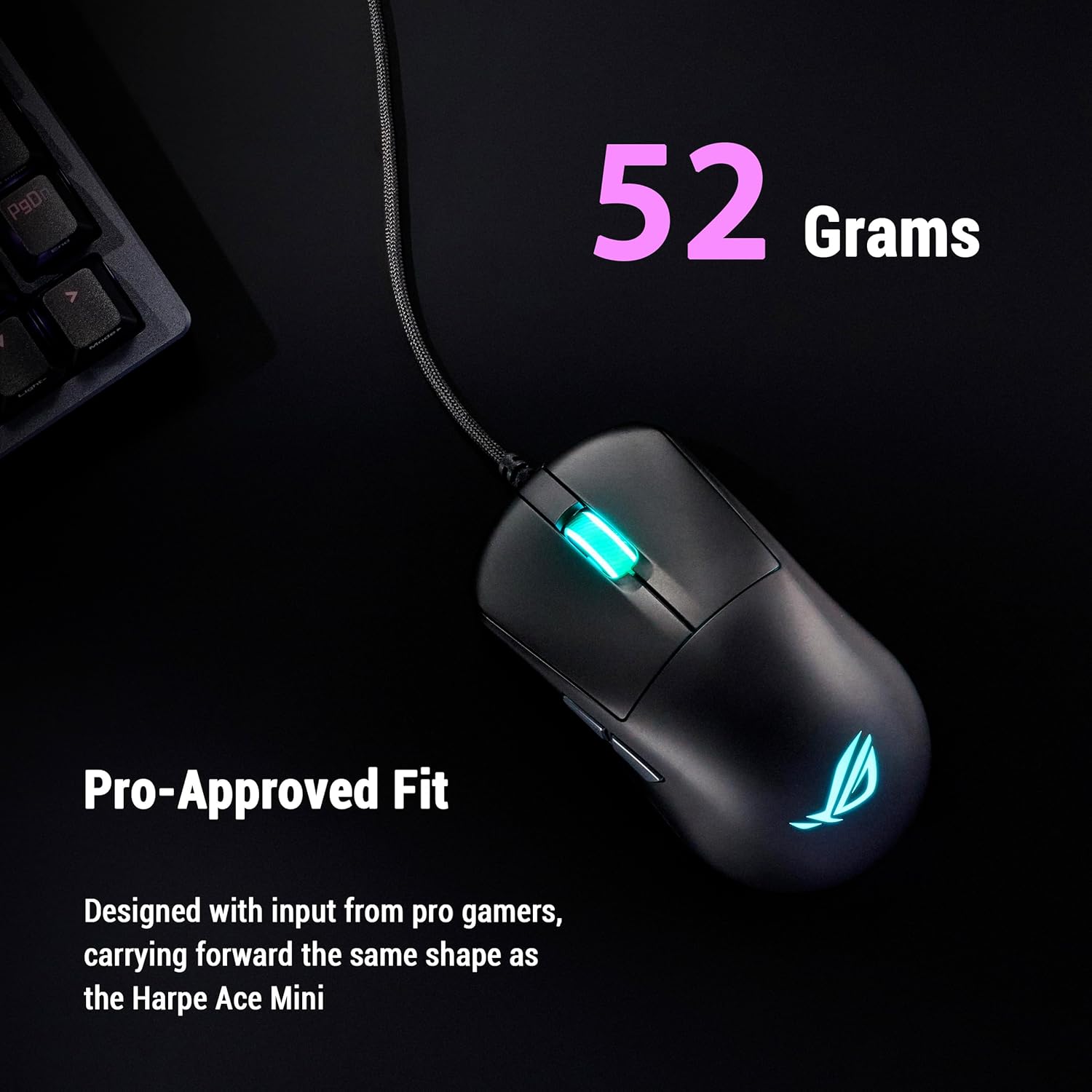
A dalt view of the ROG Harpe Mini Core, emphasizing its 52-gram lightweight design.
2. Contingut del paquet
Verifiqueu que tots els elements siguin presents al vostre paquet:
- P524 ROG Harpe Mini Core Gaming Mouse
- Targeta de garantia
- Guia d'inici ràpid
3. Configuració
3.1 Connexió del ratolí
- Unpack the ROG Harpe Mini Core gaming mouse and its accessories.
- Connect the USB cable of the mouse to an available USB port on your computer.
- Your operating system (Windows 10 or above, or Mac) should automatically detect and install the necessary drivers.
3.2 Instal·lació de programari (opcional)
For advanced customization and settings, it is recommended to use the ASUS Gear Link software. This web-based application allows you to configure your mouse without requiring a download.
- Obre a web browser and navigate to the ASUS Gear Link weblloc.
- Follow the on-screen instructions to connect and customize your mouse settings.

Screenshot of the ASUS Gear Link software for mouse customization.
4. Funcionament del ratolí
4.1 Funcions bàsiques
The ROG Harpe Mini Core features 6 programmable buttons:
- Botó de clic esquerre
- Botó de clic dret
- Roda de desplaçament (clicable)
- Two Side Buttons (typically Forward/Backward)
- DPI Cycle Button (usually located behind the scroll wheel)
4.2 Ajust de DPI
The mouse features a 12,000 DPI sensor with less than 3% deviation and a 1000Hz polling rate for precise tracking. You can cycle through preset DPI levels using the dedicated DPI button. For fine-tuning DPI settings and creating custom profiles, use the ASUS Gear Link software.
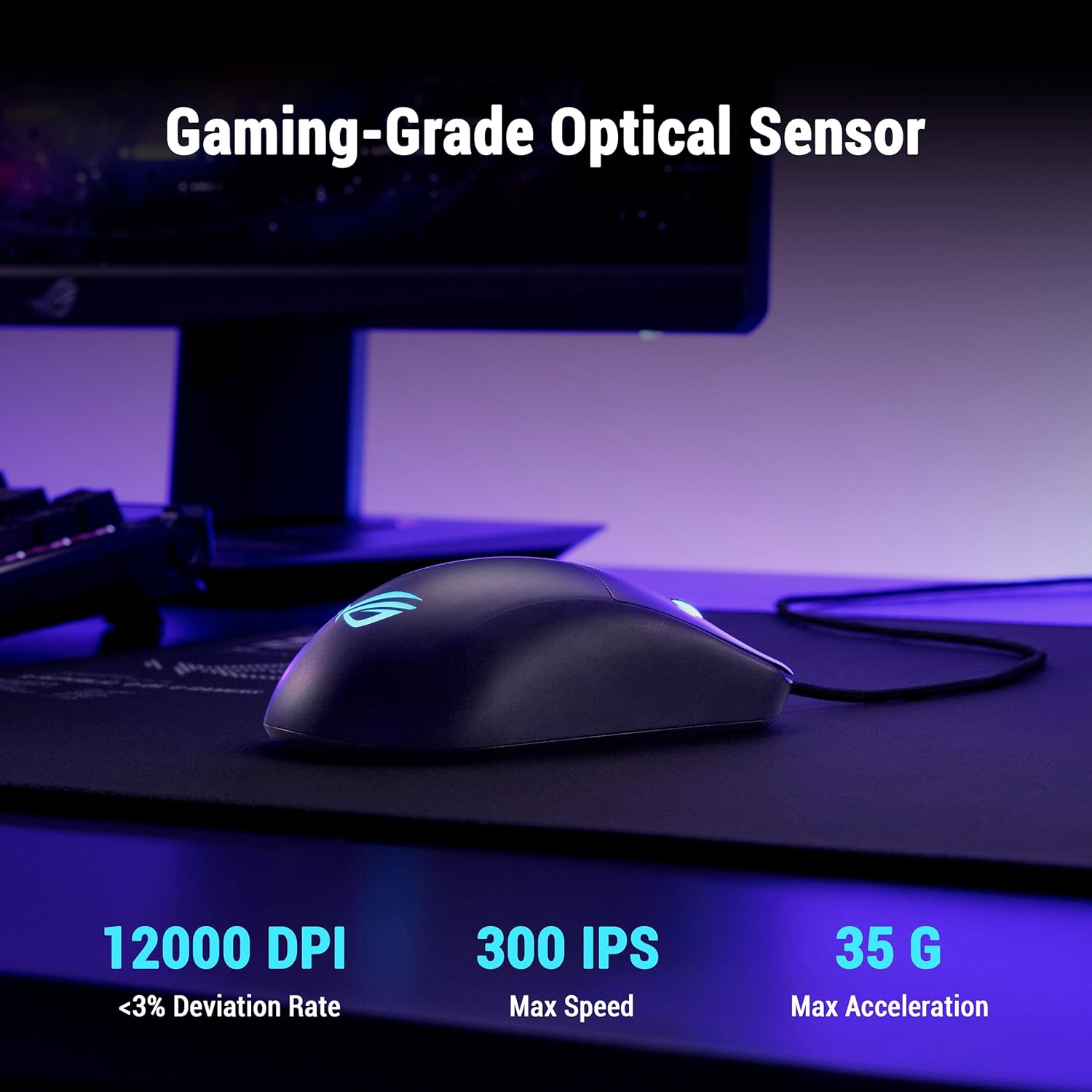
The ROG Harpe Mini Core on a mousepad, illustrating its gaming-grade optical sensor with 12000 DPI.
4.3 Personalització de botons
Utilize the ASUS Gear Link software to remap buttons, assign macros, and configure other performance settings to suit your gaming style.
5. Manteniment
5.1 Neteja
To clean your mouse, use a soft, dry cloth. For stubborn dirt, a slightly damp cloth can be used, ensuring no moisture enters the mouse's internal components. Avoid harsh chemicals or abrasive materials.
5.2 Substitució de l'interruptor
The ROG Harpe Mini Core features Push-Fit Switch Sockets, allowing you to easily replace the ROG Micro Switch II. This extends the mouse's lifespan and allows for customization of click force.
- Carefully open the mouse casing according to the instructions provided in the detailed manual (if available) or by consulting ASUS support.
- Gently pull out the existing switch from its socket.
- Insert the new compatible mechanical switch into the socket, ensuring it is seated correctly.
- Close the mouse casing de manera segura.

Close-up of the ROG Harpe Mini Core's Push-Fit Switch Socket.
5.3 Mouse Feet Replacement
The mouse comes with 100% PTFE mouse feet for optimal glide. Over time, these may wear down. Replacement feet can be purchased separately. To replace them, carefully peel off the old feet and apply new ones, ensuring the surface is clean and dry.

A baix view of the ROG Harpe Mini Core, showing the 100% PTFE mouse feet.
6. Solució De Problemes
6.1 El ratolí no respon
- Ensure the USB cable is securely connected to both the mouse and the computer.
- Prova de connectar el ratolí a un port USB diferent de l'ordinador.
- Proveu el ratolí en un altre ordinador per determinar si el problema és del ratolí o de l'ordinador.
6.2 Slow or Erratic Tracking
- Clean the optical sensor on the bottom of the mouse with a soft, dry cloth.
- Ensure you are using the mouse on a suitable surface, preferably a mouse pad.
- Check DPI settings in the ASUS Gear Link software or by using the DPI cycle button on the mouse.
- Reinstall or update the mouse drivers.
6.3 Software Installation Issues
If you encounter problems installing or using ASUS Armoury Crate or Gear Link:
- Assegureu-vos que el vostre sistema operatiu estigui actualitzat.
- Temporarily disable any antivirus or firewall software that might interfere with the installation.
- Download the latest software version directly from the official ASUS support weblloc.
7. Especificacions
| Característica | Detall |
|---|---|
| Marca | ASUS |
| Nom del model | P524 HARPE MINI CORE |
| Connectivitat | USB per cable |
| Pes | 52 g |
| Tipus de sensor | Òptic |
| DPI màxim | 12,000 punts_per_polzada |
| Taxa de votació | 1000 Hz |
| Interruptors | ROG Micro Switch II (100 million click lifespan) |
| Switch Sockets | Push-Fit Switch Sockets |
| Peus del ratolí | 100% PTFE |
| Cable | ROG Paracord |
| Botons | 6 |
| Orientació de la mà | D'acord |
| Sistema operatiu compatible | Windows 10 or above, Mac |
| Dimensions (L x A) | 6.3 cm x 4.37 cm |
| UPC | 199291014046 |
8. Garantia i Suport
8.1 Informació de la garantia
Aquest producte ve amb un Garantia limitada d'1 any des de la data de compra. Conserveu el comprovant de compra per a reclamacions de garantia. La garantia cobreix els defectes de fabricació, però no cobreix els danys causats per un mal ús, accidents, modificacions no autoritzades o desgast normal.
8.2 Suport tècnic
Per obtenir assistència tècnica, descàrregues de controladors o més informació, visiteu el lloc web de suport oficial d'ASUS. weblloc:
You may also refer to the included Quick Start Guide for initial setup instructions or contact ASUS customer service in your region.