
1. Producte acabatview
The avedio links HDMI ARC/eARC Audio Extractor Converter is designed to extract audio from an HDMI source and output it to optical SPDIF or 3.5mm stereo audio. It supports high-resolution video up to 8K@60Hz and 4K@120Hz, and includes ARC/eARC functionality for enhanced audio return from compatible televisions. This device allows integration of modern HDMI sources with various audio systems, including soundbars, amplifiers, and headphones.

Figure 1: avedio links 8K@60Hz HDMI Audio Extractor Converter.

Figure 2: The converter offers easy plug-and-play functionality for seamless integration into your home theater system.
2. Contingut del paquet
Verifiqueu que tots els elements que s'enumeren a continuació s'inclouen al vostre paquet. Si falta algun element o hi ha algun malmès, poseu-vos en contacte amb l'atenció al client.
- HDMI ARC/eARC Audio Extractor Converter (Main Unit)
- Adaptador d'alimentació DC 5V
- Cable d'alimentació USB a CC de 5 V
- 4FT HDMI Cable
- 3.5mm to 2 RCA Audio Cable
- Manual d'usuari (aquest document)

Figure 3: Visual representation of the accessories included with the converter.
3. Característiques del producte
- HDMI Audio Extraction: Extracts audio from an HDMI input source to separate optical SPDIF and 3.5mm stereo audio outputs. This allows connection to soundbars, amplifiers, or headphones without requiring a TV/monitor connection for audio.
- Suport d'alta resolució: Supports video resolutions up to 8K@60Hz and 4K@120Hz, including 4KX2K@60Hz, 3D, 1080p, 1080i, 720p, 576i, 480p, and 480i. Compatible with HDMI 2.1 and HDCP2.3.
- Advanced Color Formats: Supports 24bit, deep color 30bit, 36bit, and 48bit video color formats with synchronized sound.
- ARC/eARC Functionality: Audio Return Channel (ARC) and enhanced Audio Return Channel (eARC) allow your TV to send audio back to an external sound system through the HDMI connection, providing an immersive home theater experience.
- Three Audio Output Modes:
- Mode PASS: Audio passes through to the HDMI output (TV/Projector). Only the TV will have sound.
- Mode de 2 canals: 3.5mm audio output supports 2CH PCM LPCM stereo audio. Optical SPDIF output supports 2CH PCM. Both 3.5mm and optical audio outputs will have sound.
- Mode de 5.1 canals: Optical SPDIF output supports 5.1CH Dolby Digital, Dolby TrueHD, DTS-HD. The source audio must be 5.1CH. Both 3.5mm and optical audio outputs will have sound.
- Àmplia compatibilitat: Compatible with standard HDMI source devices such as Blu-ray/DVD/HD players, cable/satellite boxes, Fire TV Stick, Apple TV, PS3/4/5, Xbox, PC/laptops, HD cameras, and HD DVRs.

Figure 4: Key technologies supported by the converter, including HDMI 2.1 and eARC.

Figure 5: The converter supports stunning 8K resolution for clear visuals.

Figure 6: Explanation of the eARC (Audio Return Channel) function, enabling TV audio to external sound systems.

Figure 7: The device supports 5.1 channel Dolby Digital audio for immersive sound experiences.
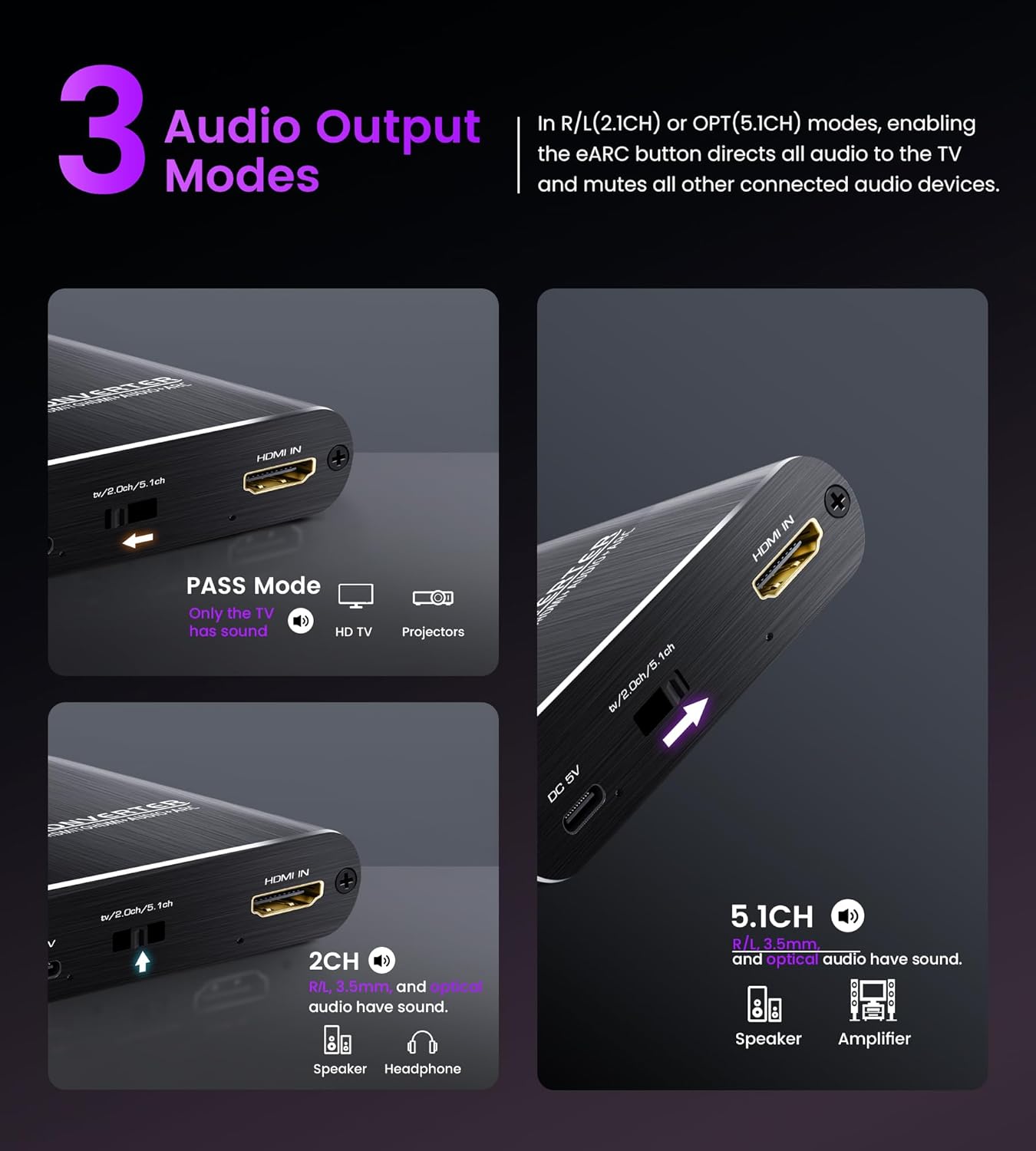
Figura 8: Mésview of the three selectable audio output modes: Pass, 2CH, and 5.1CH.

Figure 9: The converter offers broad compatibility with a range of HDMI input sources and audio output devices.
4. Instruccions de configuració
Follow these steps to connect your avedio links HDMI Audio Extractor Converter:
- Connexió d'alimentació: Connect the provided DC 5V power adapter to the converter's DC 5V port and then plug it into a power outlet.
- Entrada HDMI: Connect your HDMI source device (e.g., Blu-ray player, game console, TV box, laptop) to the "HDMI IN" port on the converter using an HDMI cable.
- HDMI Output (Video): Connect your display device (e.g., TV, monitor, projector) to the "eARC/ARC HDMI OUT" port on the converter using an HDMI cable. This port carries both video and, if ARC/eARC is not used, audio to the display.
- Audio Output (External Audio System):
- For optical audio, connect an optical cable from the "SPDIF OUT" port on the converter to your soundbar or ampmés viu.
- For stereo audio, connect the 3.5mm to 2 RCA audio cable from the "AUDIO OUT (3.5mm)" port on the converter to your amplifier o auriculars.
- ARC/eARC Setup (if applicable): If you intend to use the ARC/eARC function to send audio from your TV back to an external sound system:
- Connect your TV's HDMI ARC/eARC port to the converter's "eARC/ARC HDMI OUT" port.
- Connect the audio extractor's optical or 3.5mm output to your speaker or ampmés viu.
- In your TV settings, select ARC/eARC as the audio output.
- Ensure the ARC/eARC function is enabled on the audio extractor (if there's a dedicated switch, refer to the device itself).
Nota: Once ARC/eARC is enabled, your TV remote may lose its ability to control the volume of the external sound system. Volume adjustment will then be solely through the speaker/soundbar's controls.
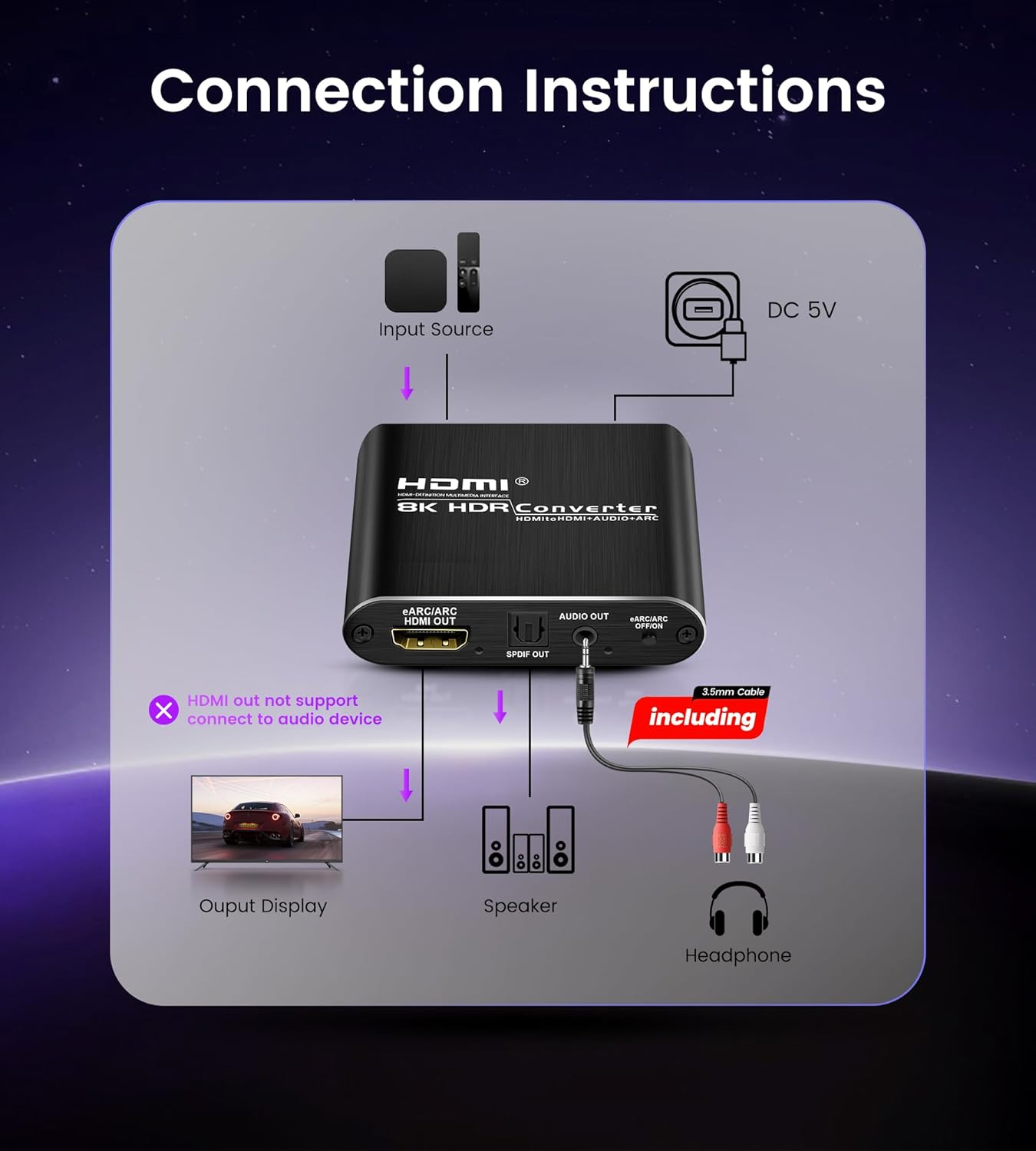
Figure 10: General connection diagram showing input source, converter, output display, and audio devices.

Figura 11: Detallada view of input and output ports on the converter and typical connected devices.

Figure 12: Close-up of the converter's ports, including HDMI IN, eARC/ARC HDMI OUT, SPDIF OUT, and 3.5mm AUDIO OUT.

Figure 13: Illustration emphasizing that the TV must support ARC/eARC for this function to work.

Figure 14: Step-by-step guide for configuring the ARC/eARC function.
5. Instruccions de funcionament
The converter features a mode switch to select the desired audio output format. Locate the switch on the device and select one of the following modes:
- Mode PASS: In this mode, the audio from the HDMI input is passed directly to the HDMI output. Only your connected TV or projector will produce sound. This mode is suitable when you want to use your display's built-in speakers or when your display is connected to an external audio system.
- Mode de 2 canals: Select this mode for stereo audio output. The 3.5mm AUX jack will output 2-channel PCM/LPCM stereo audio, and the optical SPDIF port will also output 2-channel PCM audio. This mode is ideal for connecting to stereo sound systems, headphones, or soundbars that support 2-channel audio.
- Mode de 5.1 canals: Choose this mode for multi-channel audio output via the optical SPDIF port. It supports 5.1 channel Dolby Digital, Dolby TrueHD, and DTS-HD. Ensure your audio source is configured to output 5.1 channel audio and your connected sound system supports these formats. The 3.5mm AUX output will also be active, providing stereo downmix if available.
To ensure proper audio output, always verify that your source device's audio settings (e.g., Blu-ray player, game console) are configured to match the selected mode on the converter and the capabilities of your audio receiving device.

Figure 15: Visual guide to the three audio output modes and their applications.
6. Manteniment
To ensure the longevity and optimal performance of your avedio links HDMI Audio Extractor Converter, follow these maintenance guidelines:
- Neteja: Use a soft, dry cloth to clean the exterior of the device. Avoid using liquid cleaners, aerosols, or abrasive solvents, as these can damage the casing o components interns.
- Ventilació: Assegureu-vos que el dispositiu estigui col·locat en una zona ben ventilada per evitar el sobreescalfament. No bloquegeu cap obertura de ventilació.
- Medi ambient: Keep the device away from direct sunlight, heat sources, and moisture. Avoid extreme temperatures.
- Manipulació: Manipuleu el dispositiu amb cura. Eviteu deixar-lo caure ni sotmetre'l a impactes forts.
- Apagar: Quan no l'utilitzeu durant períodes prolongats, desconnecteu l'adaptador de corrent de la presa de corrent.
7. Solució De Problemes
If you encounter issues with your avedio links HDMI Audio Extractor Converter, refer to the following common problems and solutions:
7.1 No sound from the Optical output port
- Verify that your audio receiving device (soundbar, amplifier) is correctly adjusted to play optical audio and is set to the correct input channel.
- Adjust the audio format on your source device. Optical fiber typically supports 5.1 channels, but some devices may require specific settings.
- If your TV or speaker does not support the current audio format, change the input source audio format to PCM or LPCM.
- For 4K resolution, ensure the total length of the HDMI cable (before and after the switch) does not exceed 3 meters (9.8 ft).
- Confirm that the audio format on the input source device is set to Stereo, DTS, or standard Dolby Digital. Note: Dolby Digital Plus is not supported.

Figure 16: Troubleshooting steps for resolving issues with optical audio output.
7.2 No sound from the L/R (3.5mm AUX) output port
- Ensure your audio receiving device (amplifier, headphones) is correctly adjusted to play analog audio and is set to the correct input channel.
- Adjust the audio format on your source device. The 3.5mm output typically supports 2.0CH stereo audio.
- If your TV or speaker does not support the current audio format, change the input source audio format to PCM or LPCM.
- For 4K resolution, ensure the total length of the HDMI cable (before and after the switch) does not exceed 3 meters (9.8 ft).
- Confirm that the audio format on the input source device is set to Stereo.

Figure 17: Troubleshooting steps for resolving issues with 3.5mm analog audio output.
General Note for Audio Output: To receive audio from both Optical and L/R output ports simultaneously, the input source device format must be set to PCM/stereo.
8. Especificacions
| Característica | Detall |
|---|---|
| Número de model | 8K@60Hz eARC |
| Versió HDMI | HDMI 2.1 |
| Versió HDCP | HDCP 2.3 |
| Resolució màxima | 8K@60Hz, 4K@120Hz |
| Formats de vídeo compatibles | 3D, 1080p, 1080i, 720p, 576i, 480p, 480i |
| Profunditat de color | 24bit, deep color 30bit, 36bit, 48bit |
| Ports de sortida d'àudio | Optical SPDIF, 3.5mm AUX Jack |
| Supported Audio Formats (Optical) | 2CH PCM, 5.1CH Dolby Digital, Dolby TrueHD, DTS-HD |
| Supported Audio Formats (3.5mm AUX) | 2CH PCM LPCM Stereo Audio |
| ARC/eARC Support | Sí |
| Font d'alimentació | DC 5V |
| Pes de l'article | 9.1 unces (aproximadament 258 grams) |
| Dimensions del paquet | 9.84 x 6.18 x 1.1 polzades (aprox. 25 x 15.7 x 2.8 cm) |
Nota: les especificacions estan subjectes a canvis sense previ avís.
9. Garantia i Suport
This avedio links product comes with a standard manufacturer's warranty. For specific warranty terms and conditions, please refer to the warranty card included in your product packaging or visit the official avedio links weblloc.
If you require technical assistance, have questions about product functionality, or need to report a defect, please contact avedio links customer support. Contact information can typically be found on the product packaging, the official weblloc web o a través del vostre distribuïdor.
Please have your product model number (8K@60Hz eARC) and purchase details ready when contacting support to facilitate a quicker resolution.