
1. Producte acabatview
El Negreview SCM6 is a 14-inch Full HD (1920x1080) IPS portable monitor designed to extend your laptop's display, enhancing productivity and multitasking capabilities. It features an ultra-light (1.3 lbs) and ultra-slim (0.17 inches) design, making it ideal for mobile use. The display is TÜV SÜD certified for low blue light and flicker-free operation, promoting eye comfort during prolonged use.
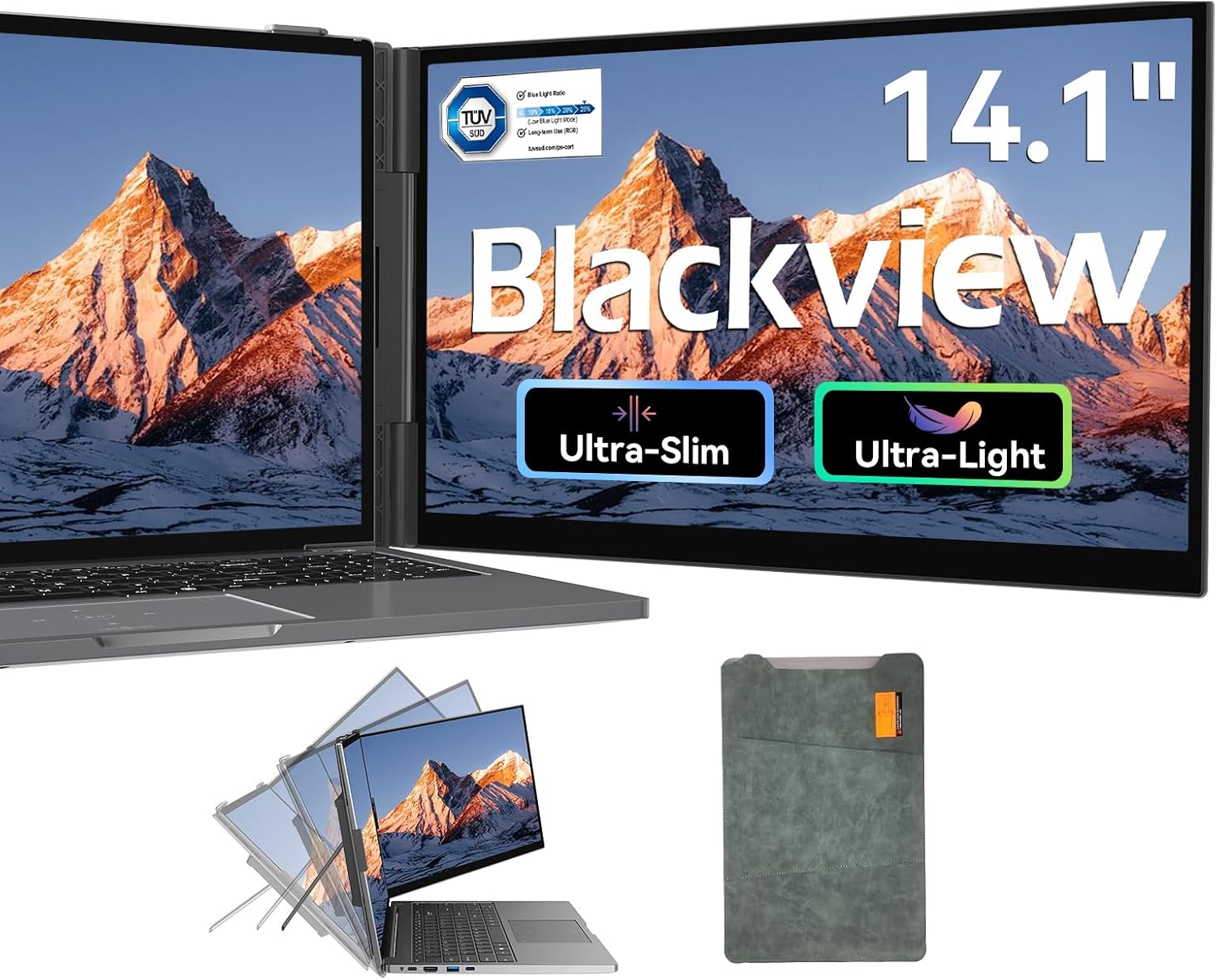
Image: Blackview SCM6 Portable Laptop Screen Extender attached to a laptop, showcasing its dual-screen functionality.
2. Contingut del paquet
Verifiqueu que tots els elements siguin presents al paquet:
- 1 x Negreview SCM6 Laptop Screen Extender
- 1 x funda protectora
- 1 x USB-C to USB-C Cable (Full-Featured)
- 1 x cable USB-A a USB-C
- 1 x HDMI to USB-C Cable
- 1 x User Manual & Quick Guide

Image: A visual representation of the Blackview SCM6 package contents, including the screen, protective case, and various cables.
3. Instruccions de configuració
3.1 Attaching the Screen Extender
The SCM6 features reinforced springs and non-slip pads to securely attach to laptops ranging from 13 to 17 inches. The integrated kickstand provides additional stability.
- Position the screen extender behind your laptop's display.
- Gently extend the side grips to fit around the edges of your laptop screen.
- Ensure the grips are securely fastened to prevent movement.
- Unfold the integrated kickstand to provide additional support and adjust the viewangle segons sigui necessari.

Image: The Blackview SCM6 attached to a laptop, showing its adjustable kickstand and 180° rotation capability.
3.2 Connexió del monitor
The SCM6 offers flexible connectivity options. No additional driver downloads are required for most systems.
Method 1: Single USB-C Cable (Full-Featured Port)
If your laptop has a full-featured USB-C port (supporting data transfer, video signal, and power delivery), use the provided USB-C to USB-C cable for a single-cable connection.

Image: Diagram illustrating a single USB-C cable connection from a laptop to the Blackview SCM6.
Method 2: HDMI and USB-A Cables
If your laptop does not have a full-featured USB-C port, use the HDMI to USB-C cable for video transmission and the USB-A to USB-C cable for power supply.

Image: Diagram illustrating a two-cable connection (HDMI to USB-C for video, USB-A to USB-C for power) from a laptop to the Blackview SCM6.
Connection Instructions Video
Video: This video provides a step-by-step guide on how to connect the Blackview SCM6 screen extender to various devices, demonstrating both single USB-C and dual cable (HDMI + USB-A) connection methods.
3.3 Instal·lació del controlador
El Negreview SCM6 is generally plug-and-play. However, for certain operating systems or specific functionalities, driver installation might be necessary. Refer to the included Quick Guide for detailed instructions.
Instal·lació del controlador de Windows
Locate the "USB Display" driver installation file on your computer. Double-click to install the driver, and follow the on-screen instructions to complete the installation. Once the installation is complete, the external screen should function properly.
Instal·lació del controlador per a Mac
Locate the "USB Display" driver installation file on your computer. Double-click to install the driver, and follow the on-screen instructions to move the application to the Applications folder. Find the privacy settings, tick the USB Display program. After the installation is complete, the external screen should function properly.
4. Instruccions de funcionament
4.1 Modes de visualització
The SCM6 supports multiple display modes:
- Mode mirall: Duplicates your laptop's display on the SCM6.
- Mode d'ampliació: Extends your desktop across both screens, providing more workspace.
- Landscape & Portrait: Supports both horizontal and vertical orientations.
4.2 Screen Adjustments
Adjust screen settings using the monitor's control buttons:
- Brillantor: Ajusta la lluminositat de la pantalla.
- Contrast: Modifica la diferència entre les zones clares i fosques.
- Il·luminació de fons: Control the intensity of the backlight.
- Nitidez: Enhance the clarity of images.
- Gamma de colors: The SCM6 offers 100% sRGB color gamut for vibrant and accurate colors.
5. Manteniment
Per garantir la longevitat i el rendiment òptim del vostre Blackview SCM6, follow these maintenance guidelines:
- Neteja: Utilitzeu un drap suau i sense pelusa lleugerament dampened with water or a mild screen cleaner. Avoid harsh chemicals or abrasive materials.
- Manipulació: Always handle the monitor with care. Avoid dropping it or applying excessive force. When not in use, store it in the provided protective case.
- Emmagatzematge: Guardeu el monitor en un lloc fresc i sec, allunyat de la llum solar directa i de temperatures extremes.
6. Solució De Problemes
If you encounter any issues with your Blackview SCM6, refer to the following common solutions:
- Sense senyal/Pantalla negra:
- Assegureu-vos que tots els cables estiguin ben connectats.
- Verify that your laptop's USB-C port is full-featured or that both HDMI and USB-A cables are correctly connected for video and power.
- Check your laptop's display settings to ensure the external monitor is detected and configured for mirror or extend mode.
- If using a USB-C to USB-C connection, confirm the port supports DP Alt Mode.
- Problemes d'alimentació:
- Ensure the monitor is receiving adequate power. If using a single USB-C cable, confirm your laptop provides sufficient power.
- If using HDMI, ensure the USB-A to USB-C cable is connected to a power source (e.g., laptop USB-A port or a 5V/2A power adapter).
- M1/M2/M3 Chip Compatibility: The SCM6 is compatible with all common laptop models, including those with M1/M2/M3 chips.
- La tensió de l'ull: The SCM6 is TÜV SÜD certified for low blue light, which helps minimize dryness, discomfort, and visual fatigue during prolonged use.
- Dificultat d'instal·lació: The setup process is designed to be simple. If you face difficulties, ensure the side grips are properly extended and the kickstand is unfolded correctly.
For further assistance, please contact Blackview atenció al client.
7. Especificacions
| Característica | Detall |
|---|---|
| Marca | Negreview |
| Número de model | SCM6 |
| Mida de la pantalla | 14 polzades |
| Resolució | FHD 1080p (1920 x 1080 píxels) |
| Relació d'aspecte | 16:9 |
| Freqüència d'actualització | 60 Hz |
| Tipus de visualització | IPS |
| Brillantor | 300 Candela |
| Relació de contrast | 1000:1 |
| Viewangle ing | 180 graus |
| Tecnologia de connectivitat | HDMI, USB tipus C |
| Característiques addicionals | Built-In Speakers, Eye Care, Lightweight, Portable, Ultra-Slim |
| Dimensions de l'article (D x W x H) | 13.89 "P x 8.14" W x 0.9" H |
8. Garantia i Suport
Negreview provides an industry-leading 24-month reliable warranty (typically 12 months) for the SCM6 Portable Laptop Screen Extender. This warranty includes a replacement-only policy to ensure every unit you receive is brand new and factory-sealed.
Should you encounter any issues or require assistance, please contact Blackview's professional customer support. They are committed to providing sincere and efficient support to resolve your concerns promptly.