
SOLAKAKA KI99 Pro
SOLAKAKA KI99 Pro Silent Wireless Mechanical Keyboard User Manual
Model: KI99 Pro
Introducció
This manual provides detailed instructions for the setup, operation, maintenance, and troubleshooting of your SOLAKAKA KI99 Pro Silent Wireless Mechanical Keyboard. Please read this guide thoroughly to ensure optimal performance and longevity of your device.
Producte acabatview
The SOLAKAKA KI99 Pro is a 96% layout mechanical keyboard designed for versatility and performance. It features triple-mode connectivity, hot-swappable silent switches, customizable RGB backlighting, and a durable gasket structure.
Característiques principals:
- Triple-Mode Connectivity: Supports Bluetooth 5.0, 2.4GHz wireless, and Type-C wired connections.
- Disseny del 96%: Compact design with 96 keys, including a numeric keypad, to save desk space.
- Silent Mechanical Switches: Equipped with pre-lubricated, hot-swappable linear switches for a quiet and smooth typing experience.
- Estructura de la junta: Advanced five-layer noise reduction design for enhanced typing feel and reduced sound.
- Tecles PBT: Durable, wear-resistant, and fade-resistant keycaps with clear legends.
- Retroil·luminació RGB personalitzable: Per-key RGB lighting with side light bars, offering 16.8 million colors and various effects.
- Pom multifunció: Controls volume, media playback, and lighting brightness.
- Bateria de gran capacitat: Integrated 10000mAh rechargeable battery for extended wireless use.
- Personalització del programari: Dedicated software for key remapping, macro programming, and advanced RGB control.

Imatge: Més deview of the SOLAKAKA KI99 Pro keyboard, showcasing its main features such as connectivity options, gasket structure, silent switches, RGB lighting, battery capacity, PBT keycaps, hot-swappable design, and operating system compatibility.
Configuració
1. Càrrega del teclat
Before initial use, fully charge the keyboard using the provided USB-C cable. Connect the cable to the keyboard's Type-C port and to a powered USB port on your computer or a USB wall adapter. The charging indicator will show the charging status.

Image: The keyboard's 10000mAh large capacity rechargeable battery, ensuring extended usage.
2. Connexió del teclat
The KI99 Pro supports three connection modes: Bluetooth 5.0, 2.4GHz wireless, and wired (USB-C).

Image: The keyboard supports 2.4GHz wireless, Bluetooth 5.0, and Type-C wired connections for multiple devices and systems.
2.1. Connexió sense fil de 2.4 GHz:
- Locate the 2.4GHz USB receiver, usually stored in a compartment on the keyboard.
- Connecteu el receptor USB a un port USB disponible de l'ordinador.
- Flip the switch on the side of the keyboard to the "2.4G" position.
- El teclat s'hauria de connectar automàticament. Si no, premeu Fn + 4 to enter 2.4G pairing mode. The indicator light will flash blue.
2.2. Bluetooth 5.0 Connection:
- Flip the switch on the side of the keyboard to the "BT" position.
- Mantén premut Fn + 1, Fn + 2, o Fn + 3 for 3-5 seconds to enter pairing mode for the desired Bluetooth channel. The indicator light for the selected channel will flash blue rapidly.
- On your device (PC, laptop, smartphone, tablet), enable Bluetooth and search for "SOLAKAKA KI99 Pro".
- Select the keyboard to pair. The indicator light will stop flashing once connected.
- You can switch between paired Bluetooth devices by pressing Fn + 1/2/3.
2.3. Type-C Wired Connection:
- Connect the USB-C cable to the keyboard's Type-C port and the other end to your computer's USB port.
- Flip the switch on the side of the keyboard to the "Wired" position (usually indicated by a cable icon or middle position).
- The keyboard will be recognized as a wired device and is ready for use.

Image: The side operation panel with the connectivity mode switch (BT, 2.4G, Wired), the metal knob, and the side RGB light strip.
Instruccions de funcionament
1. Funcions bàsiques de les tecles
The KI99 Pro features a 96% layout. Standard key functions operate as expected. Some keys may have secondary functions accessed via the Fn clau.
2. Pom multifunció
The metal knob located on the top right of the keyboard provides quick control over several functions:
- Girar: Adjusts system volume (clockwise to increase, counter-clockwise to decrease).
- Premsa: Silencia/activa l'àudio.
- Fn + Rotate: Adjusts RGB lighting brightness.
- Fn + Prem: Changes RGB lighting effects/modes.
3. Control de la il·luminació RGB
The keyboard features extensive RGB backlighting with 16.8 million colors and various effects. You can control lighting via keyboard shortcuts or the dedicated software.
- Fn + \ (Backslash): Cicle entre diferents efectes d'il·luminació.
- Fn + Tecles de fletxa: Adjust lighting speed and direction (specific combinations may vary, refer to software for full control).
- Fn + Knob: Ajusta la brillantor.
4. Personalització del programari
For advanced customization, download the SOLAKAKA KI99 Pro software from the official SOLAKAKA weblloc. El programari us permet:
- Remap individual keys.
- Crear i assignar macros.
- Customize RGB lighting effects, colors, and patterns in detail.
- Gestionar profiles per a diferents aplicacions o jocs.

Image: The customization software interface for the KI99 Pro, enabling users to adjust RGB lighting, assign keys, program macros, and synchronize lighting with music.
Manteniment
1. Neteja del teclat
- Desconnecteu el teclat de totes les fonts d'alimentació i dispositius abans de netejar-lo.
- Utilitzeu un drap suau i sense pelusa lleugerament dampRenteu-les amb aigua o una solució netejadora suau per netejar les tecles i el xassís.
- Per a la pols i les restes entre les tecles, feu servir aire comprimit.
- Eviteu l'ús de productes químics agressius, abrasius o dissolvents.
2. Substitució de la tapa de les tecles i l'interruptor
The KI99 Pro features hot-swappable switches and PBT keycaps, allowing for easy customization and replacement.
- Tecles de tecles: Use the provided keycap puller to gently remove keycaps. Align new keycaps and press firmly until seated.
- Interruptors: Use the provided switch puller to carefully remove switches. Ensure the new switch pins are straight before aligning them with the PCB sockets and pressing down gently until they click into place. The PCB supports 3-pin and 5-pin switches.
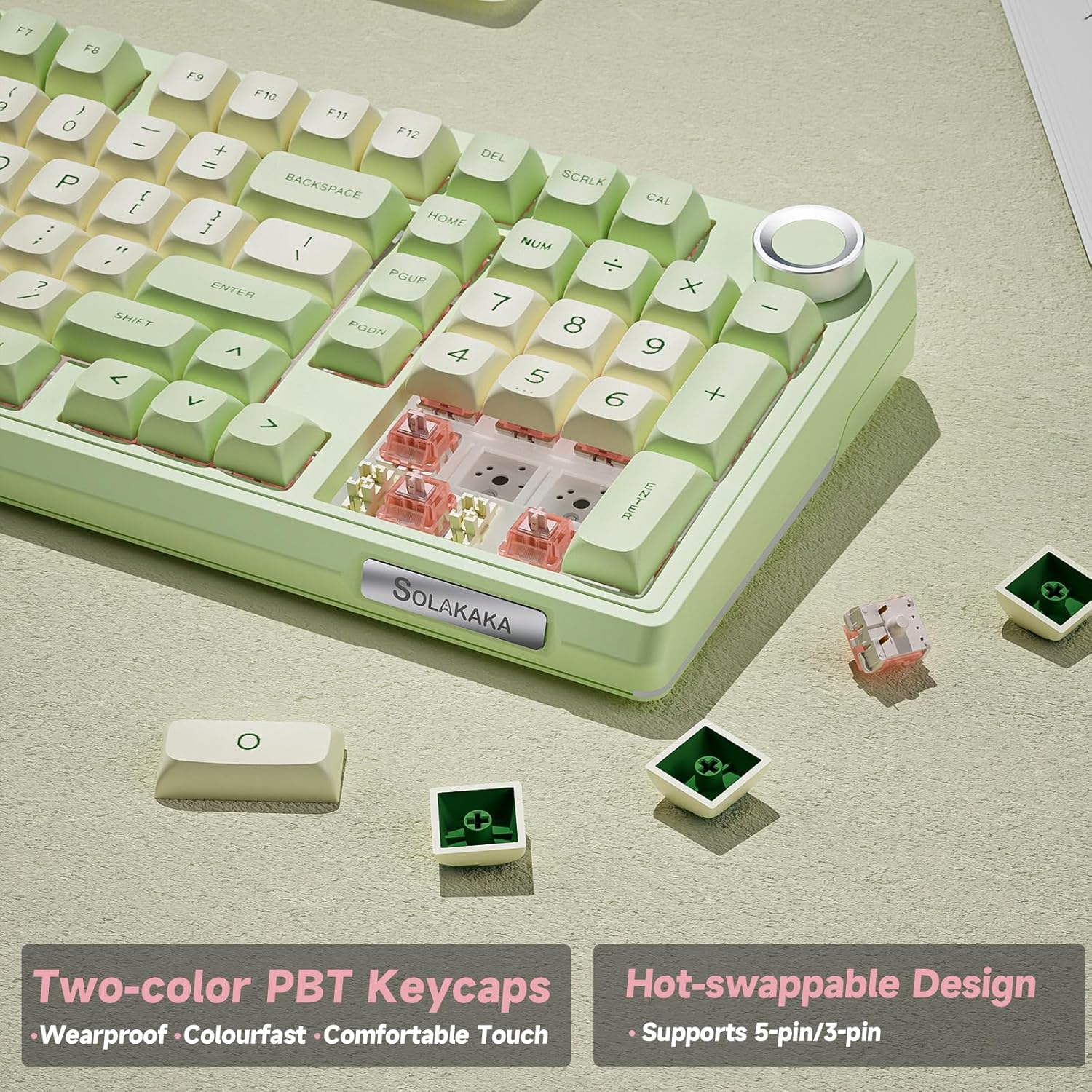
Image: The keyboard's two-color PBT keycaps and hot-swappable design, supporting both 3-pin and 5-pin switches for easy customization.

Image: Detailed specifications of the LEOBOG Silent Switch, including key stroke, pressure points, and mechanical lifespan.
Resolució de problemes
1. Keyboard Not Responding:
- Mode per cable: Ensure the USB-C cable is securely connected to both the keyboard and the computer. Check if the mode switch is set to "Wired". Try a different USB port or cable.
- Sense fil de 2.4 GHz: Ensure the USB receiver is plugged in and the mode switch is set to "2.4G". Re-pair by pressing Fn + 4. Check battery level.
- Bluetooth: Ensure Bluetooth is enabled on your device and the mode switch is set to "BT". Re-pair by holding Fn + 1/2/3. Check battery level.
- Bateria: Connect the keyboard to a power source to charge. A low battery can cause connectivity issues.
2. Keys Not Registering or Double-Typing:
- Ensure switches are fully seated. Gently press down on the affected keycap.
- If a specific switch is faulty, it can be replaced due to the hot-swappable design.
- Netegeu al voltant de la tecla afectada per eliminar qualsevol residu.
3. RGB Lighting Not Working or Incorrect:
- Check lighting brightness using Fn + botó.
- Cicle pels efectes d'il·luminació utilitzant Fn + \.
- Ensure the keyboard software is up-to-date and settings are correctly applied. Sometimes, software settings can override onboard controls.
- Perform a factory reset (refer to software or advanced key combinations if available, usually Fn + Esc for 3-5 seconds).
4. Software Not Detecting Keyboard:
- Ensure the keyboard is connected via USB-C cable and the mode switch is set to "Wired". Most customization software requires a wired connection for detection and firmware updates.
- Reinicieu el programari i l'ordinador.
- Reinstall the software from the official SOLAKAKA weblloc.
Especificacions
| Característica | Detall |
|---|---|
| Número de model | KI99PRO |
| Marca | SOLAKAKA |
| Connectivitat | Bluetooth 5.0, sense fil de 2.4 GHz, USB-C amb cable |
| Disposició del teclat | 96% QWERTY |
| Nombre de claus | 96 |
| Tipus de canvi | Linear (LEOBOG Silent Switch) |
| Intercanviable en calent | Sí (interruptors de 3/5 pins) |
| Taps de claus | PBT (Two-color) |
| Il·luminació de fons | RGB (16.8 million colors, side light bars) |
| Capacitat de la bateria | 10000 mAh |
| Sistemes operatius compatibles | Windows, macOS |
| Dispositius compatibles | PC, Laptop, Smartphone, Tablet, Game Console |
| Material | Plàstic |
| Característiques especials | Metal Knob, Customizable, Programmable, Gasket Structure |

Imatge: Explosió view illustrating the internal gasket structure and various components of the KI99 Pro keyboard.
Garantia i Suport
For warranty information, technical support, or to download the latest software and drivers, please visit the official SOLAKAKA weblloc web. Si us plau, conserveu el comprovant de compra per a reclamacions de garantia.
Note: Software updates are guaranteed until "Information non disponible" (Information not available) as per product specifications.
Ask a question about this manual
Ask about setup, troubleshooting, compatibility, parts, safety, or missing instructions. Manuals+ will review the question and use this page’s manual context to help answer it.