
Introducció
The SOLAKAKA KI99 Pro is a versatile wireless mechanical keyboard designed for both gaming and productivity. It features a 96% layout, silent hot-swappable switches, RGB backlighting, and multiple connectivity options. This manual provides detailed instructions for setting up, operating, and maintaining your keyboard.
Contingut del paquet
Si us plau, assegureu-vos que tots els elements estiguin presents al paquet:
- SOLAKAKA KI99 Pro Mechanical Keyboard
- Cable USB-C
- Receptor sense fil 2.4G
- Extractor de tecles
- Tirador de commutació
- Manual d'usuari (aquest document)
Configuració i connectivitat
The KI99 Pro keyboard supports three connection modes: Wired (USB-C), Bluetooth (BT5.0), and 2.4G Wireless.
1. Mode amb cable
- Locate the mode switch on the side of the keyboard.
- Toggle the switch to the wired mode position (usually indicated by a cable icon).
- Connect the provided USB-C cable to the keyboard and your device (PC, laptop, etc.).
- El teclat es reconeixerà automàticament i estarà llest per al seu ús.


2. Mode Bluetooth
- Toggle the mode switch to the Bluetooth ("BT") position.
- Premsa curta Fn + 1/2/3 to select a Bluetooth channel. The corresponding key will flash blue, indicating pairing mode.
- On your device (PC, laptop, smartphone, tablet), turn on Bluetooth and search for "KI99pro 5.0".
- Click to connect. The blue light will become solid when connected.
3. Mode sense fil 2.4G
- Toggle the mode switch to the 2.4G wireless position (usually indicated by a wireless icon).
- Remove the 2.4G wireless receiver from its storage slot on the keyboard.
- Connecteu el receptor 2.4G a un port USB del vostre dispositiu.
- The keyboard will automatically connect.
Instruccions de funcionament
Control d'il·luminació RGB
The KI99 Pro features full-key RGB backlighting and side light bars with 16.8 million colors. Adjustments can be made via hotkeys or the dedicated software.
- Fn + \|: Switch RGB backlight effects.
- Fn + Fletxa esquerra/dreta: Adjust lighting effects (speed/direction).
- Fn + Fletxa amunt/avall: Adjust brightness.
- Fn + Shift: Switch side light mode.
- Fn + Alt: Switch side light brightness.
- Fn + ?: Switch side light color.
- Fn + >: Switch side light speed.
- Fn + Esc: Restore factory settings for lighting.

Pom multifuncional
The metal knob located on the top right of the keyboard provides quick control over media and lighting:
- Girar: Adjust volume (default) or lighting brightness.
- Premeu: Play/Pause media (default) or cycle through lighting modes.

Customizable Software (Windows Only)
The KI99 Pro supports custom software for advanced key programming, RGB effects, and macros. This software is compatible with Windows operating systems only.
- Download the driver from the official SOLAKAKA weblloc.
- Install the software on your Windows PC.
- Use the software to:
- Program individual keys.
- Create and assign macros for complex tasks.
- Fine-tune RGB lighting effects and colors.
Manteniment
Neteja del teclat
- Desconnecta el teclat del dispositiu abans de netejar-lo.
- Utilitzeu un drap suau i sense pelusa lleugerament dampRenteu-les amb aigua o una solució netejadora suau per netejar les tecles i el xassís.
- For deeper cleaning, use a keycap puller to remove keycaps and clean underneath with compressed air or a small brush.
- Eviteu ruixar líquids directament sobre el teclat.
Interruptors intercanviables en calent
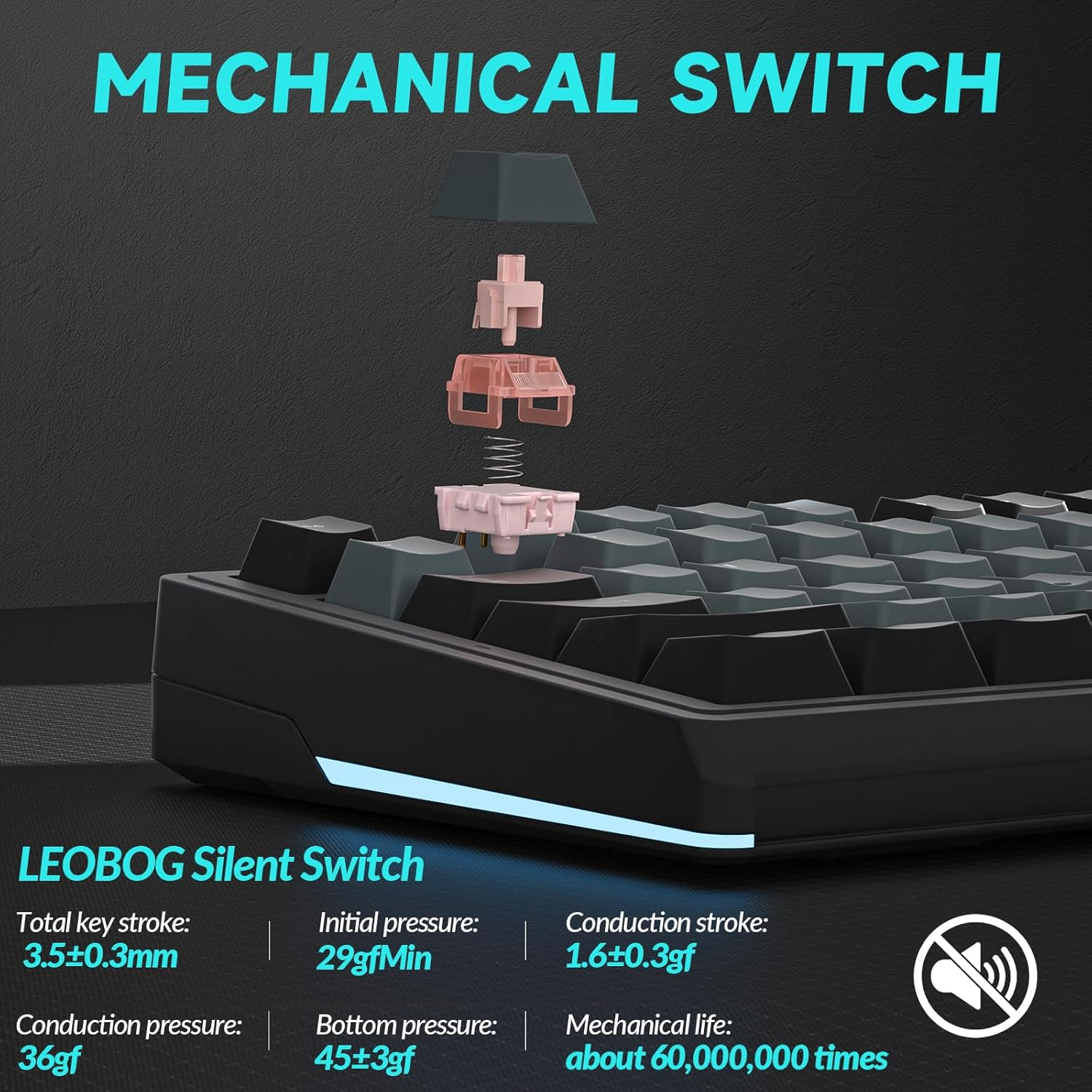
The KI99 Pro features hot-swappable switches, allowing you to change switches without soldering. It supports both 3-pin and 5-pin mechanical switches.
- Using the provided switch puller, carefully grip the switch and pull it straight up to remove it.
- Alineeu els pins del nou interruptor amb els forats de la placa de circuit imprès. Assegureu-vos que els pins estiguin rectes per evitar que es dobleguin.
- Premeu suaument el nou interruptor al seu lloc fins que faci clic de manera segura.
- Proveu el nou interruptor per assegurar-vos que funciona correctament.


Resolució de problemes
- El teclat no respon:
- Ensure the keyboard is charged. Connect it via USB-C to charge.
- Check the connection mode switch (Wired, BT, 2.4G) and ensure it matches your connection method.
- For Bluetooth, ensure the keyboard is paired and selected on your device.
- For 2.4G, ensure the receiver is securely plugged in.
- Prova de reiniciar el dispositiu.
- La il·luminació RGB no funciona o és incorrecta:
- Use the Fn key combinations to adjust brightness and effects.
- If using the software, ensure it is running and correctly configured.
- Perform a factory reset using Fn + Esc.
- Claus que no es registren o s'escriuen dues vegades:
- Clean around the affected keycap.
- If the issue persists, the switch may need to be replaced. Use the switch puller to replace the faulty switch.
- Software compatibility with macOS:
- The customization software is currently only compatible with Windows operating systems. macOS users can use the keyboard's built-in hotkeys for most functions.
Especificacions
| Característica | Detall |
|---|---|
| Marca | SOLAKAKA |
| Número de model | KI99PRO |
| Tecnologia de connectivitat | 2.4G wireless, Bluetooth 5.0, USB-C Wired |
| Descripció del teclat | Mecànica |
| Tipus de canvi | Linear (Silent Switch) |
| Nombre de claus | 96 |
| Característiques especials | Backlit, Customizable, Hot-Swappable, Metal Knob, Programmable |
| Il·luminació del teclat | RGB (16.8 million colors) |
| Capacitat de la bateria | 10,000 mAh |
| Dispositius compatibles | Consola de jocs, ordinador portàtil, PC, telèfon intel·ligent, tauleta |
| Sistema operatiu compatible | Windows, macOS |
| Material | Plastic (PBT Keycaps) |


Garantia i Suport
The SOLAKAKA KI99 Pro keyboard comes with a limited manufacturer's warranty. For specific warranty details and duration, please refer to the product packaging or contact SOLAKAKA customer support.
For technical support, troubleshooting assistance, or warranty claims, please contact SOLAKAKA directly through their official weblloc web o la informació de contacte proporcionada amb la compra.