
1. Introducció
This manual provides comprehensive instructions for the setup, operation, maintenance, and troubleshooting of your ASprink A64M Bluetooth Shipping Label Printer. This compact thermal printer is designed for efficient label printing for various applications, including shipping, address labels, barcodes, and more.
The ASprink A64M features a revolutionary built-in label bin, supporting up to 250 4x6 roll labels, and offers upgraded Bluetooth 5.0 connectivity for wireless printing from computers (Windows/macOS) and mobile devices (iOS/Android), alongside traditional USB connectivity.
2. Què hi ha a la caixa
Si us plau, verifiqueu que tots els components siguin presents abans de continuar amb la configuració:
- A64M Shipping Label Printer (1 unit)
- Built-in label holder (1 unit)
- Etiquetes (rotlle inicial)
- Adaptador de corrent (1 unitat)
- USB Cord & Type C Convertor (1 unit)
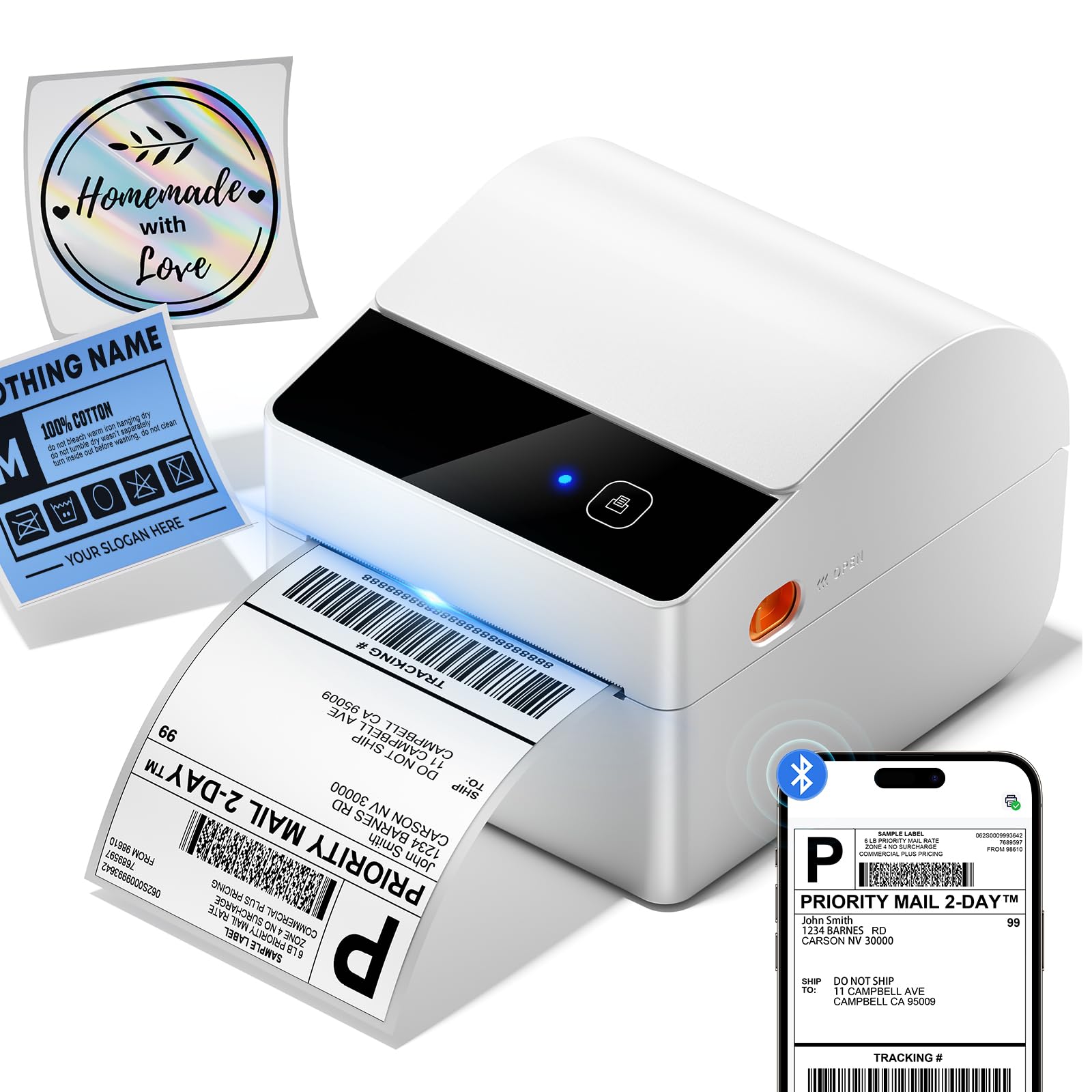
3. Guia de configuració
3.1 Configuració física
- Connectar l'alimentació: Plug the power adapter into the printer's power port and then into a wall outlet. The power indicator light should illuminate.
- Carrega etiquetes:
- Open the printer lid.
- Place the roll of thermal labels into the built-in label bin. Ensure the labels feed from the bottom of the roll and the printable side (usually smoother and brighter white) faces upwards.
- Adjust the movable baffle and guide rail to fit the label roll snugly, preventing excessive side-to-side movement.
- Feed the leading edge of the labels through the printer's output slot until it protrudes slightly.
- Close the printer lid. The printer will automatically detect and calibrate the label size.

3.2 Instal·lació de controladors i programari
The ASprink A64M supports both Bluetooth and USB connectivity. For optimal performance, it is recommended to install the appropriate drivers or mobile application.
- For PC (Windows/macOS) via USB: Connect the printer to your computer using the provided USB cable. The operating system may automatically install necessary drivers. If not, please visit the official ASprink support weblloc per a la descàrrega de controladors.
- For PC (Windows/macOS) via Bluetooth: Ensure your computer's Bluetooth is enabled. Follow the pairing instructions in Section 4.1. You may still need to install a specific driver from the ASprink support weblloc per a una funcionalitat completa.
- For Mobile Devices (iOS/Android) via Bluetooth: Download the official ASprink printing application from your device's app store. A QR code for direct download may be found in the quick start guide included with your printer.

4. Instruccions de funcionament
4.1 Connecting Your Printer
- Emparellament Bluetooth:
- Turn on the ASprink A64M printer.
- On your device (computer or mobile), go to Bluetooth settings and ensure Bluetooth is enabled.
- Cerca available devices. The printer should appear as "ASprink A64M" or similar.
- Seleccioneu la impressora que voleu emparellar. Si us demana un PIN, introduïu "0000" o "1234".
- Once paired, the Bluetooth indicator on the printer will show a steady blue light.
- Connexió USB: Simply connect the printer to your computer using the provided USB cable. The printer should be recognized automatically.
4.2 Impressió d'etiquetes
- Ensure the printer is powered on and connected (via Bluetooth or USB) to your device.
- Open the document or label file you wish to print (e.g., a shipping label PDF).
- Access the print function in your application (File > Imprimeix).
- Select the ASprink A64M printer from the list of available printers.
- Verify print settings such as paper size (e.g., 4x6 inches) and orientation.
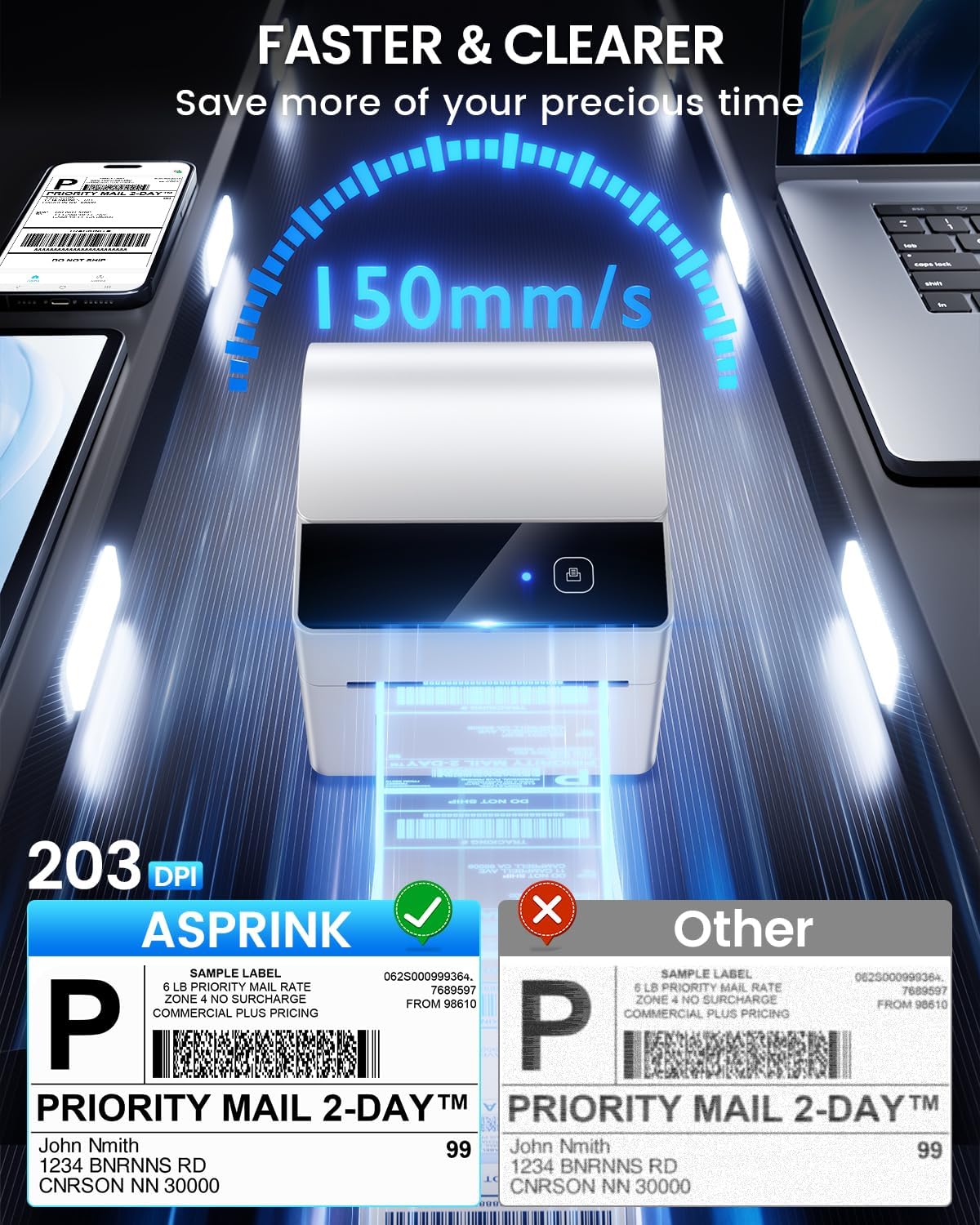
- Click "Print". The printer will rapidly produce your labels.
4.3 Mides d'etiquetes compatibles
The ASprink A64M thermal printer handles labels from 1 to 4.6 inches wide, accommodating various label types:
- Shipping Labels (4"x6")
- Mailing Labels (3"x3")
- Address Labels (3"x2")
- Barcode Labels (2.25"x1.25")
- Circle Labels (2"x2")

5. Manteniment
Regular maintenance ensures optimal performance and extends the lifespan of your thermal printer.
5.1 Neteja del capçal d'impressió
The print head is a critical component and should be cleaned regularly, especially if print quality degrades or after every few rolls of labels.
- Apagueu la impressora i desconnecteu el cable d'alimentació.
- Open the printer lid.
- Use an alcohol swab (70% isopropyl alcohol) or a specialized thermal printer cleaning pen to gently wipe the print head surface. Avoid touching the print head with bare hands.
- Allow the print head to dry completely (a few minutes) before closing the lid and powering on the printer.
5.2 Neteja del rodet de la platina
The platen roller helps feed labels smoothly. Dust or adhesive residue can affect feeding and print quality.
- Apagueu la impressora i desconnecteu el cable d'alimentació.
- Open the printer lid.
- Gently wipe the rubber platen roller with an alcohol swab or a lint-free cloth dampamb alcohol isopropílic.
- Rotate the roller manually to clean the entire surface.
- Allow the roller to dry completely before closing the lid and powering on the printer.
6. Solució De Problemes
If you encounter issues with your ASprink A64M printer, refer to the common problems and solutions below. For further assistance, please contact ASprink support.
| Problema | Causa possible | Solució |
|---|---|---|
| La impressora no s'encén | Power cable not connected; power outlet issue | Ensure power cable is securely connected to printer and a working outlet. Try a different outlet. |
| Sense impressió d'etiquetes | Labels incorrectly loaded; out of labels; printer not connected | Check label loading direction and ensure enough labels are present. Verify printer connection (USB/Bluetooth). |
| Mala qualitat d'impressió (tèbil, amb ratlles) | Dirty print head; incorrect label type; low quality label stock | Clean the print head (see Section 5.1). Ensure you are using direct thermal labels. Try a different roll of labels. |
| Problemes de connexió Bluetooth | Printer not in pairing mode; device Bluetooth off; interference | Ensure printer is on and Bluetooth indicator is active. Restart printer and device. Re-pair the device. Move closer to the printer. |
| Labels feeding incorrectly or jamming | Labels not aligned; platen roller dirty; label bin too loose/tight | Adjust label guide rails. Clean platen roller (see Section 5.2). Ensure labels are loaded correctly and the bin is adjusted. |
7. Especificacions
Key technical specifications for the ASprink A64M Bluetooth Shipping Label Printer:
- Nom del model: A64M
- Marca: ASprin
- Tecnologia d'impressió: Tèrmica
- Tecnologia de connectivitat: Bluetooth, USB
- Mida màxima del suport: 4 x 6 polzada
- Sheet Size (Paper Width): 1"-4.6" (25.4-117mm) Inches
- Dimensions del producte: 7.24" de profunditat x 6.3" d'amplada x 5.3" d'alçada (18.4 x 16 x 13.5 cm)
- Pes de l'article: 2.18 lliures (0.99 kg)
- Sortida de la impressora: Monocrom
- Velocitat màxima d'impressió en monocrom: 127 mm/s (approximately 72 labels per minute for 4x6)
- Resolució: 203 DPI
- Característica especial: Compact design with built-in label bin
- Usos específics: Home, Office, Small Business, Warehouse
8. Garantia i Suport
ASprink is committed to providing excellent customer service and support for your A64M printer.
8.1 Lifetime Support
Your ASprink A64M printer comes with lifetime support. If you encounter any issues or have questions, please do not hesitate to contact our support team.
8.2 Informació de contacte
For assistance, please use the following contact methods:
- Suport telefònic: Available Monday-Friday, 9:00 AM - 5:00 PM EST
- Xat en directe: Available Monday-Friday, 7:30 PM - 4:30 AM EST
- Suport per correu electrònic: Available 24/7 (response within 24-48 hours)
- Remote Desktop Assistance: Available upon request for complex issues
Please refer to the contact details provided in your product packaging or on the official ASprink weblloc per obtenir la informació més actualitzada.