
1. Introducció
This manual provides detailed instructions for the AOOSTAR MACO PRO 6850H Mini PC. Please read this guide thoroughly before using the device to ensure proper operation and to maximize its performance and lifespan. This mini PC is designed for a variety of tasks, including office work, creative projects, gaming, and home theater applications, offering high performance in a compact form factor.

The AOOSTAR MACO PRO 6850H Mini PC is versatile for various applications, from professional use to entertainment.
2. Contingut del paquet
Verifiqueu que tots els elements siguin presents al paquet:
- 1 × AOOSTAR MACO PRO 6850H Mini PC
- 1 × cable HDMI
- 1 × adaptador de corrent

Ensure all listed components are included in your package.
3. Sobrecàrrega físicaview
Familiarize yourself with the ports and features of your AOOSTAR MACO PRO 6850H Mini PC.
Panell frontal
- Power Button with Fingerprint Sensor: For powering on/off and secure login via Windows Hello.
- Conector d'àudio de 3.5 mm: Per a auriculars o altaveus externs.
- Ports USB 3.2 Gen 2 (x2): Per connectar dispositius USB.
- USB4 Port (x1): Transferència de dades d'alta velocitat i sortida de visualització.
Panell posterior
- Entrada d'alimentació de CC: Connecteu l'adaptador d'alimentació inclòs.
- Ports LAN de 2.5 G (x2): Per a connexions de xarxa per cable d'alta velocitat.
- Port HDMI 2.1 (x1): Per connectar-se a una pantalla.
- DisplayPort 1.4 (x1): Per connectar-se a una pantalla.
- Ports USB 2.0 (x2): Per connectar perifèrics com el teclat i el ratolí.
- USB4 Port (x1): Transferència de dades d'alta velocitat i sortida de visualització.
Panell lateral
- OCuLink Port (x1): Dedicated port for external GPU connection.

Front and rear panel connectivity options for the AOOSTAR MACO PRO 6850H Mini PC.
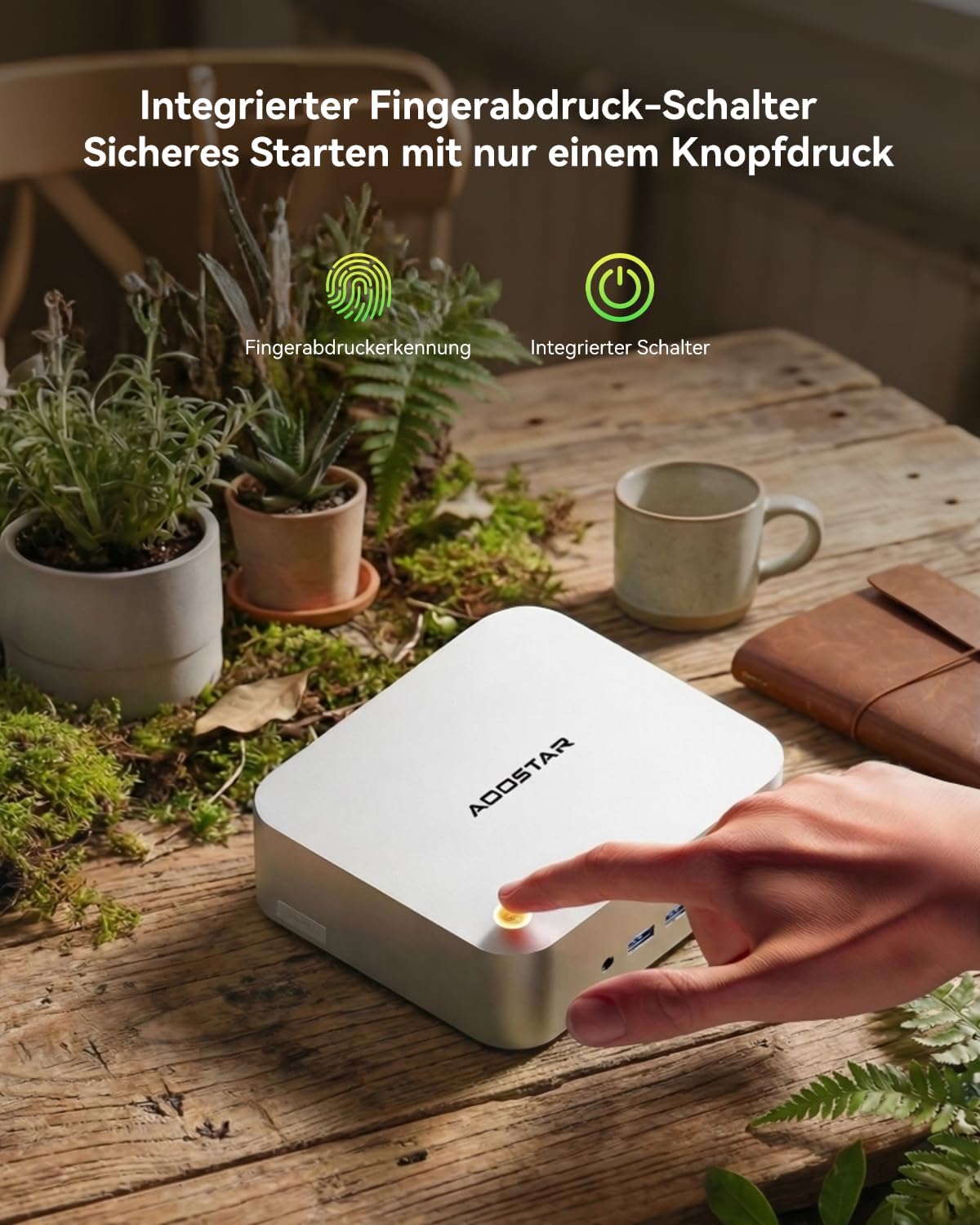
Integrated fingerprint sensor for secure one-button startup.
4. Instruccions de configuració
Follow these steps to set up your AOOSTAR MACO PRO 6850H Mini PC:
- Connect to a Display: Use the included HDMI cable or a DisplayPort cable to connect the Mini PC to your monitor or TV. You can also use a USB4 port for display output.
- Connecteu els perifèrics: Connecteu el teclat i el ratolí als ports USB disponibles.
- Connecteu-vos a la xarxa: For a wired connection, connect an Ethernet cable to one of the 2.5G LAN ports. For wireless, the device supports Wi-Fi 6 and Bluetooth 5.2, which can be configured after initial boot.
- Connectar l'alimentació: Plug the power adapter into the DC power input on the rear panel, then connect it to a power outlet.
- Encès: Press the power button on the front panel to turn on the Mini PC.
- Configuració inicial de Windows: The Mini PC comes with Windows 11 Pro pre-installed. Follow the on-screen instructions to complete the initial setup, including language, region, and user account creation.

The Mini PC is ready for use after connecting essential peripherals and power.
5. Instruccions de funcionament
Funcionament bàsic
- Encès/apagat: Press the power button to turn on the device. To shut down, use the Windows Start menu. A short press on the power button can put the PC to sleep.
- Fingerprint Login: Utilize the integrated fingerprint sensor for quick and secure login via Windows Hello. Register your fingerprint in Windows Settings > Accounts > Sign-in options.
Funcions avançades
- Configuració de pantalla múltiple: The Mini PC supports up to four 4K displays simultaneously via HDMI, DisplayPort, and two USB4 ports. Connect your displays to the respective ports.

Achieve enhanced productivity with a quad-display setup.
- OCuLink External GPU: For demanding graphical tasks, connect an external GPU (eGPU) using the dedicated OCuLink port (PCIe 4.0 x4, 64 Gbit/s). This provides high bandwidth for improved graphics performance. Nota: Hot-plugging is not supported for OCuLink. Ensure the system is powered off before connecting or disconnecting an eGPU.

Expand graphics capabilities with an OCuLink external GPU.
- Expansió d'emmagatzematge: The Mini PC features three M.2 PCIe 4.0 x4 slots, allowing for storage expansion up to 8TB (in addition to the pre-installed 1TB SSD). Refer to the specifications for compatible M.2 SSD types.

Expand storage with additional M.2 SSDs.
6. Manteniment
Un manteniment adequat garanteix la longevitat i el rendiment òptim del vostre Mini PC.
- Neteja: Regularly clean the exterior of the Mini PC with a soft, dry cloth. Use compressed air to gently clear dust from ventilation openings to prevent overheating. Do not use liquid cleaners directly on the device.
- Ventilació: Ensure the Mini PC is placed in a well-ventilated area. Do not block the air vents.
- Actualitzacions de programari: Keep your Windows operating system and drivers updated to ensure system stability and security.
- Temperatura: Operate the Mini PC within recommended temperature ranges. Avoid exposing it to extreme heat or cold.

The Glacier cooling system ensures efficient heat dissipation.
7. Solució De Problemes
If you encounter issues with your Mini PC, refer to the following common problems and solutions:
- Sense energia:
- Assegureu-vos que l'adaptador de corrent estigui connectat correctament tant al Mini PC com a una presa de corrent que funcioni.
- Verifiqueu que la presa de corrent funciona connectant-hi un altre dispositiu.
- Sense sortida de pantalla:
- Check that the HDMI or DisplayPort cable is securely connected to both the Mini PC and the monitor.
- Assegureu-vos que el monitor estigui encès i configurat a la font d'entrada correcta.
- Prova un cable de pantalla o monitor diferent si estàs disponible.
- System Does Not Boot / No Operating System Detected:
- If the system boots directly into BIOS or reports no boot device, ensure the internal SSD is properly seated. If you are comfortable, you may open the case to check the M.2 SSD connection.
- Contact support if the issue persists, as it may indicate a hardware problem or an issue with the pre-installed OS.
- Fan Noise is Loud:
- Ensure the Mini PC has adequate ventilation and is not obstructed.
- Dust accumulation can cause fans to work harder; clean the vents as described in the Maintenance section.
- Advanced users may adjust fan curves in the BIOS settings, though this requires caution and testing to avoid overheating.
- Problemes de connectivitat Wi-Fi/Bluetooth:
- Assegureu-vos que el Wi-Fi i el Bluetooth estiguin activats a la configuració de Windows.
- Check for updated wireless drivers from the AOOSTAR support weblloc.
- Reinicieu el vostre encaminador/mòdem.
8. Especificacions
Detailed technical specifications for the AOOSTAR MACO PRO 6850H Mini PC:
| Característica | Detall |
|---|---|
| Marca | AOOSTAR |
| Model | MACO PRO 6850H |
| Sistema operatiu | Windows 11 Pro (preinstal·lat) |
| Model de CPU | AMD Ryzen 7 PRO 6850H (8 Cores/16 Threads, up to 4.7 GHz) |
| Model de GPU | Integrated AMD Radeon 680M Graphics (2200 MHz) |
| RAM | 24GB LPDDR5 6400 MHz (Non-expandable) |
| Emmagatzematge | 1TB M.2 NVMe PCIe 4.0 SSD |
| Ampliació d'emmagatzematge | 3 × M.2 2280 PCIe 4.0 x4 slots (up to 8TB total) |
| Sortida de vídeo | 1 × HDMI 2.1 (8K@60Hz), 1 × DisplayPort 1.4 (8K@60Hz), 2 × USB4 (4K@120Hz) - Supports Quad 4K Displays |
| Ports USB | 2 × USB4 (40 Gbps, 100W PD), 2 × USB 3.2 Gen 2, 2 × USB 2.0 |
| Xarxa | 2 × 2.5G LAN, Wi-Fi 6, Bluetooth 5.2 |
| Àudio | 1 × Jack d'àudio de 3.5 mm |
| Característiques especials | OCuLink Port (PCIe 4.0 x4 for eGPU), Fingerprint Recognition (Windows Hello) |
| Mètode de refrigeració | Air Cooling (Glacier cooling system with vapor chamber) |
| Dimensions | 13 × 15 × 5.5 cm |
| Pes | 0.66 kg |
9. Garantia i assistència
Your AOOSTAR MACO PRO 6850H Mini PC comes with a 12 mesos de garantia from the date of purchase. AOOSTAR also provides lifetime technical support for this product.
If you encounter any issues or have questions that are not covered in this manual, please contact AOOSTAR customer support:
- Correu electrònic: Refer to your product packaging or the official AOOSTAR weblloc web per obtenir l'adreça electrònica d'assistència més actualitzada.
- Assistència en línia: Visit the AOOSTAR official website for FAQs, driver downloads, and further assistance.
When contacting support, please have your product model (MACO PRO 6850H) and purchase information readily available.


