
1. Producte acabatview
The VENTION 6-in-1 USB C Docking Station is a versatile adapter designed to expand the connectivity of your USB-C enabled laptop or device. It integrates multiple essential ports into a single, compact unit, making it ideal for mobile professionals and streamlined workstations.

Figure 1: VENTION 6-in-1 USB C Docking Station with various connected devices.
Característiques principals:
- Sortida HDMI 4K: Connect to external displays for high-resolution video output.
- Lliurament de potència (PD) de 100 W: Charge your host device while using the hub.
- Transferència de dades USB 3.0: Two USB-A ports for high-speed peripheral connections.
- Lectors de targetes SD/TF: Direct access to photos and files de targetes de memòria.
- Disseny durador: Constructed with an aluminum body for effective heat dissipation and portability.

Figura 2: Detallada view of the VENTION 6-in-1 USB C Docking Station ports.
2. Instruccions de configuració
2.1 Contingut del paquet
Abans de començar, assegureu-vos que hi hagi tots els elements:
- VENTION 6-in-1 USB C Docking Station (Model THJHB)
- Cable amfitrió USB-C integrat
2.2 Connexió de l'estació d'acoblament
- Connect the integrated USB-C host cable from the docking station to a compatible USB-C port on your laptop or device. Ensure your device's USB-C port supports DisplayPort Alternate Mode (DP Alt Mode) for video output and Power Delivery for charging.
- For Power Delivery (PD) charging, connect your laptop's original USB-C power adapter to the USB-C PD IN port on the docking station. This allows the hub to pass power through to your host device while providing power to connected peripherals.
- The docking station is plug-and-play and typically does not require driver installation for basic functionality.

Figure 3: Connecting the docking station for 100W Power Delivery.
2.3 Compatibilitat
The VENTION 6-in-1 USB C Docking Station is widely compatible with various operating systems and devices:
- Sistemes operatius: Windows, Mac OS, iPad OS, Chrome OS, Android.
- Dispositius compatibles: MacBook Air, MacBook Pro, iMac, Mac mini, iPad Pro, iPad Air, iPad, iPad mini, Galaxy Tab, Surface Pro, Samsung S22/S21, OnePlus 11, Steam Deck, and other USB-C devices that support DP Alt Mode.
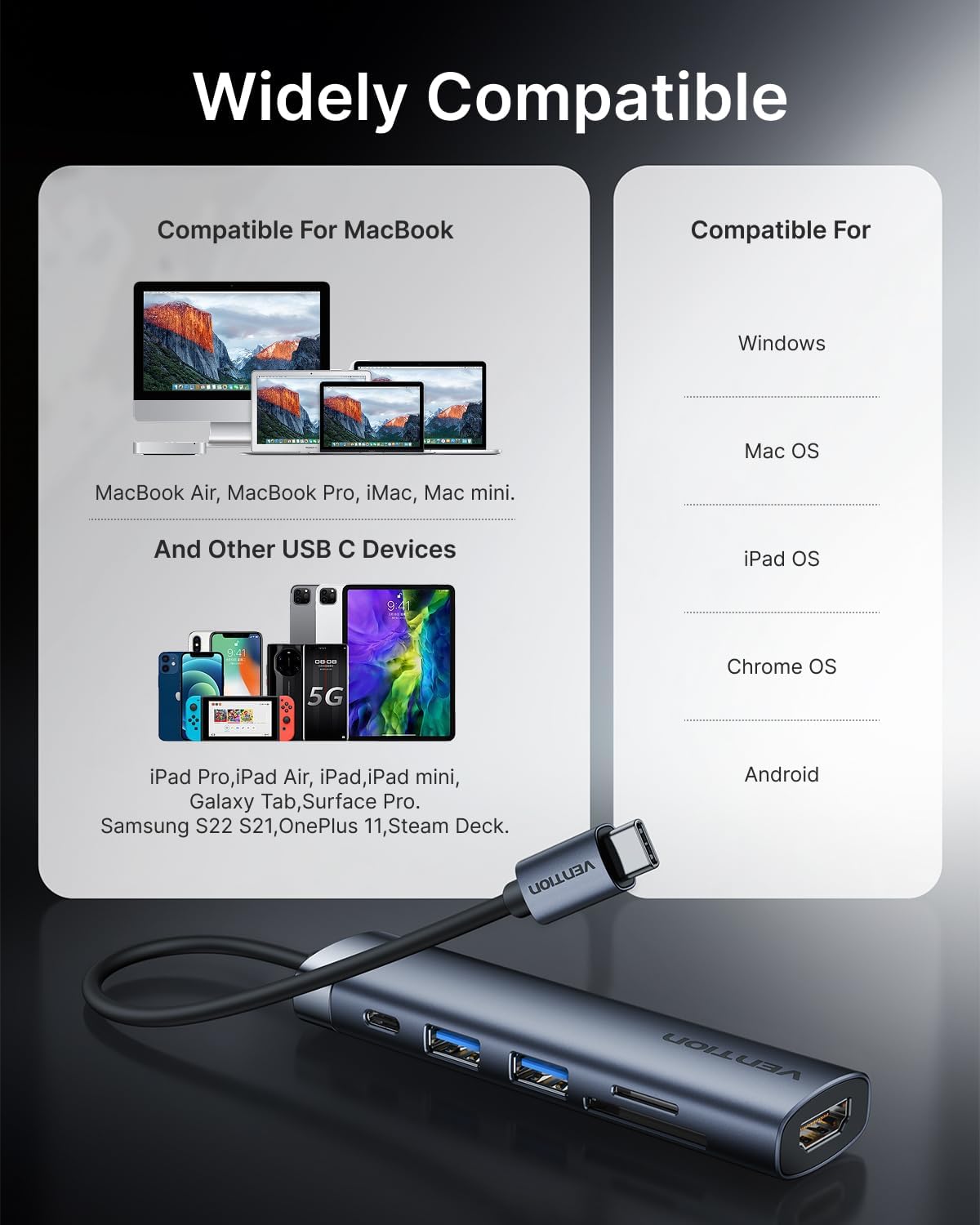
Figura 4: Compatibilitat sobreview for the docking station.
Important: For full functionality, especially video output and Power Delivery, ensure your host device's USB-C port supports DisplayPort Alternate Mode (DP Alt Mode) and Power Delivery. Refer to your device's specifications or user manual.
3. Operating the Docking Station
Sortida de vídeo HDMI 3.1
Connect an HDMI cable from the docking station's HDMI port to your external monitor, TV, or projector. The hub supports resolutions up to 4K at 30Hz.
- Mode mirall: Duplicate your laptop's screen on the external display.
- Mode d'ampliació: Extend your desktop across multiple screens for increased workspace.
Adjust display settings through your operating system's display preferences.
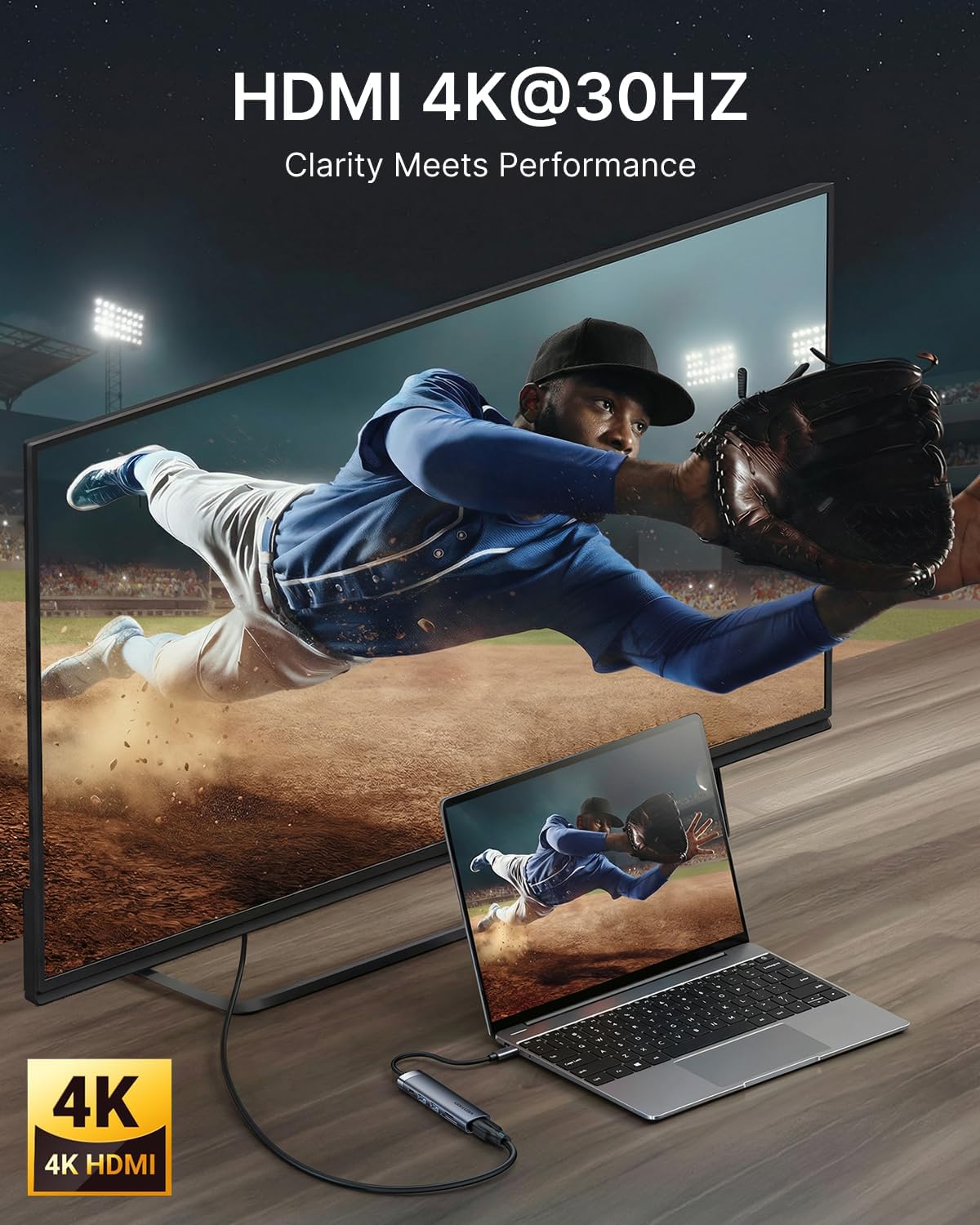
Figure 5: 4K HDMI output connection.
3.2 Transferència de dades USB
The docking station features two USB 3.0 ports, offering data transfer speeds up to 5Gbps. These ports are suitable for connecting a variety of USB peripherals:
- Discs durs externs
- Unitats flash USB
- Teclats i ratolins
- Printers and other USB-enabled accessories

Figure 6: USB 3.0 ports for high-speed data transfer.
Lector de targetes SD/TF 3.3
Insert your SD or microSD (TF) card into the corresponding slot for quick access to your media files. The card readers support various card types and offer fast data transfer speeds (up to 104MB/s).

Figure 7: Using the integrated SD and TF card readers.
4. Manteniment
4.1 Neteja
To maintain optimal performance and appearance, clean the docking station regularly:
- Disconnect the device from all power sources and host devices before cleaning.
- Use a soft, dry, lint-free cloth to wipe the exterior.
- Avoid using harsh chemicals, abrasive cleaners, or solvents, as these can damage the finish.
- For ports, use compressed air to gently remove dust and debris.
4.2 Emmagatzematge i manipulació
Proper storage and handling will extend the life of your docking station:
- Guardeu el dispositiu en un lloc fresc i sec, allunyat de la llum solar directa i de temperatures extremes.
- Avoid bending or twisting the integrated USB-C cable excessively.
- The aluminum body is designed for heat dissipation; ensure adequate airflow around the device during operation.
5. Solució De Problemes
If you encounter issues with your VENTION 6-in-1 USB C Docking Station, refer to the following common problems and solutions:
5.1 No Display on External Monitor
- Comproveu les connexions dels cables: Ensure the HDMI cable is securely connected to both the docking station and the monitor.
- Verifica el port USB-C: Confirm that your laptop's USB-C port supports DisplayPort Alternate Mode (DP Alt Mode). Not all USB-C ports support video output.
- Entrada del monitor: Select the correct HDMI input source on your monitor.
- Configuració de resolució: Try lowering the display resolution on your laptop to see if the monitor detects the signal.
- Reinicieu els dispositius: Disconnect and reconnect the docking station, then restart your laptop and monitor.
5.2 Dispositius USB no reconeguts
- Torneu a connectar: Unplug and re-plug the USB device into the docking station.
- Prova un altre port: Try connecting the USB device to a different USB port on the docking station or directly to your laptop.
- Font d'alimentació: If using power-hungry USB devices (e.g., external hard drives), ensure your laptop's power adapter is connected to the docking station's USB-C PD IN port.
- Actualitzacions de controladors: Ensure your laptop's USB-C drivers are up to date.
5.3 Slow Data Transfer Speeds
- Compatibilitat USB 3.0: Ensure both the connected device and your laptop's USB-C port support USB 3.0 or higher for optimal speeds.
- Interferència: Avoid placing the docking station near sources of electromagnetic interference.
5.4 Charging Issues (PD)
- Adaptador d'alimentació: Use your laptop's original power adapter or a certified USB-C PD charger with sufficient wattage (up to 100W supported).
- Port USB-C: Confirm your laptop's USB-C port supports Power Delivery.
- Qualitat del cable: Ensure the USB-C cable connecting your power adapter to the hub is rated for Power Delivery.
6. Especificacions
| Característica | Detall |
|---|---|
| Dimensions del producte | 4.34 x 1.12 x 0.59 polzades |
| Pes de l'article | 2.08 unces |
| Número de model de l'article | THJHB |
| Marca | VENCIÓ |
| Color | Gris |
| Velocitat de transferència de dades | 5 gigabits per segon (USB 3.0) |
| Material | Alumini |
| Característiques especials | Fast Data Transfer, Lightweight, Pass Through Charge, Plug and Play, Portable |
| Sortida HDMI | 4K@30Hz |
| Entrada USB-C PD | Fins a 100 W |
| Lector de targetes | SD, MicroSD (TF) |
7. Garantia i Suport
For warranty information or technical support, please refer to the documentation included with your purchase or visit the official VENTION website. Contact details for customer service can typically be found on the product packaging or the manufacturer's support page.