
1. Introducció
The Trezor Safe 7 is a crypto hardware wallet designed for secure storage and management of digital assets. It incorporates advanced security features, including a dual-chip architecture and quantum-ready protection, alongside user-friendly elements such as a color touchscreen and Bluetooth connectivity.
This manual provides essential information for setting up, operating, maintaining, and troubleshooting your Trezor Safe 7 device.
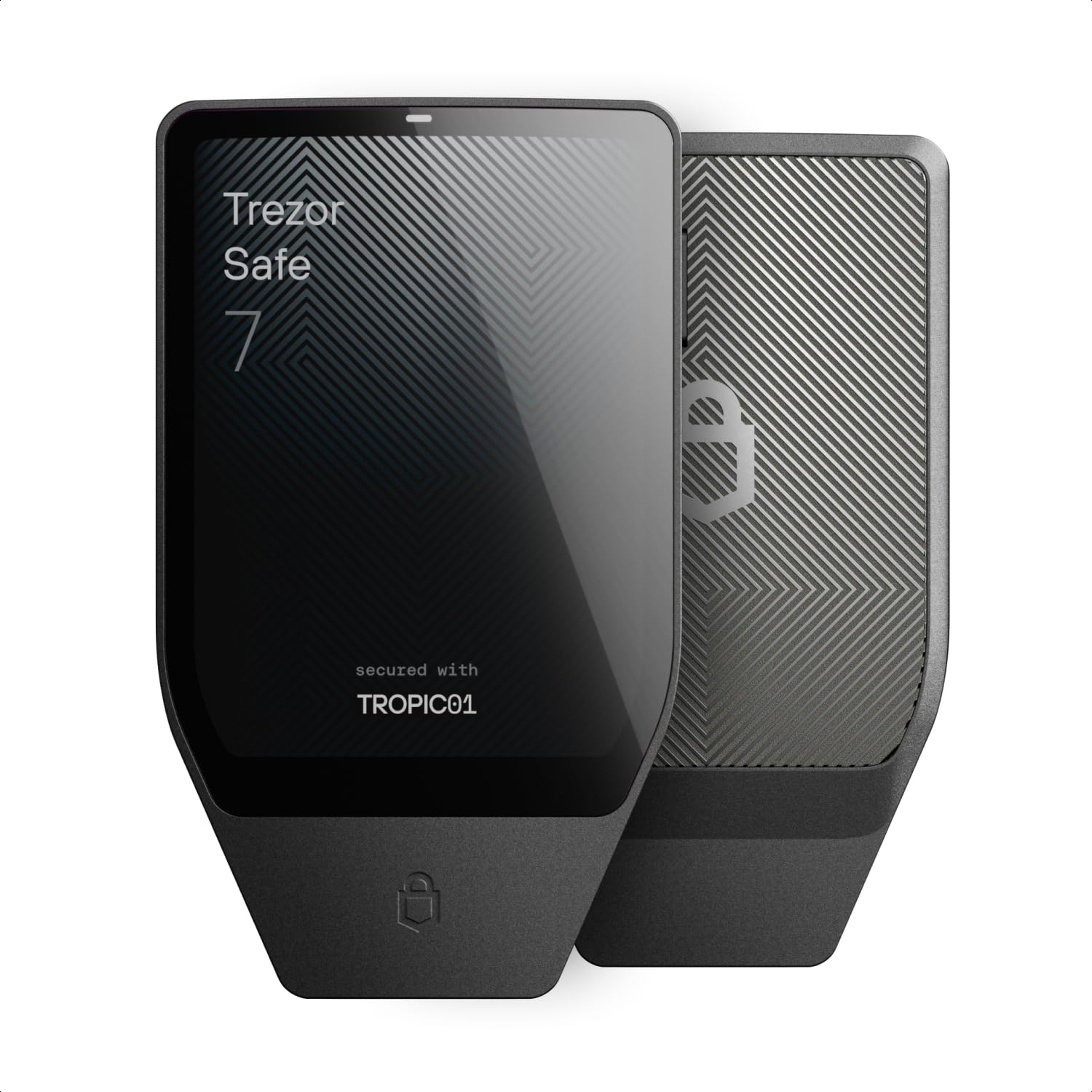
Descripció de la imatge: Un front view of the Trezor Safe 7 hardware wallet in Charcoal Black, showcasing its sleek design and color touchscreen.
Què hi ha a la caixa
- Trezor Safe 7 hardware wallet
- Cable USB-C
- 2× wallet backup cards
- Guia de posada en marxa
- Adhesius
Descripció del vídeo: This video introduces the Trezor Safe 7, highlighting its design, internal components, and user interface. It demonstrates the device's physical appearance and some of its key features.
2. Configuració
Follow these steps to set up your Trezor Safe 7 for the first time:
- Desembalatge i inspecció inicial: Carefully remove the Trezor Safe 7 from its packaging. Inspect the device for any signs of tampering or damage. Ensure the security seals are intact.
- Encès: Press the power button on the side of the device to turn it on. The device will guide you through the initial setup process on its color touchscreen.
- Connect to Trezor Suite: Download and install the official Trezor Suite application on your computer or mobile device. Connect your Trezor Safe 7 to your computer using the provided USB-C cable, or connect wirelessly via Bluetooth to your mobile device.
- Actualització del firmware: The Trezor Suite will prompt you to update the device firmware if a new version is available. Always ensure your device runs the latest official firmware for optimal security and functionality.
- Create or Recover Wallet:
- New Wallet: If you are setting up a new wallet, the device will generate a unique recovery seed. Write down this recovery seed on the provided backup cards in the correct order. Store these cards in a secure, private location. Do not store your recovery seed digitally or share it with anyone.
- Recover Wallet: If you are recovering an existing wallet, follow the on-screen instructions to enter your recovery seed using the device's touchscreen.
- Estableix el PIN: Create a strong PIN for your device. This PIN will be required to unlock your Trezor Safe 7 for transactions.
- Optional Passphrase: For enhanced security, consider setting up a passphrase. This adds an extra layer of protection beyond your recovery seed.
3. Instruccions de funcionament
The Trezor Safe 7 is designed for intuitive operation. Here are key functionalities:
3.1. Navegació per la pantalla tàctil
The large, high-resolution color touchscreen allows for easy navigation. Swipe to browse menus and tap to select options. All critical actions, such as confirming transactions, are performed directly on the device screen.

Descripció de la imatge: Un primer pla view of the Trezor Safe 7's 2.5-inch color touchscreen displaying a cryptocurrency transaction with total amount and transaction fee. The screen shows a "Hold to sign" prompt, indicating user interaction is required for confirmation.
3.2. Connecting to Trezor Suite
Use the Trezor Suite application on your desktop or mobile device to manage your cryptocurrencies. Connect your Trezor Safe 7 via:
- Cable USB-C: For a direct, wired connection to your computer.
- Bluetooth: For wireless connectivity with compatible mobile devices (Android, iOS) and desktops. Ensure Bluetooth is enabled on both your Trezor Safe 7 and your host device.

Descripció de la imatge: The Trezor Safe 7 hardware wallet is shown alongside a laptop and a smartphone, both displaying the Trezor Suite interface. This illustrates the device's wireless connectivity via Bluetooth to various platforms.
3.3. Managing Cryptocurrencies
Through Trezor Suite, you can perform various actions:
- Send/Receive: Generate receiving addresses and send transactions. All outgoing transactions require physical confirmation on your Trezor Safe 7.
- Buy/Sell/Swap: Utilize integrated services within Trezor Suite to acquire, exchange, or sell cryptocurrencies.
- Estaca: Participate in staking for supported cryptocurrencies directly from your wallet.
- Portfolio Tracking: Monitor your asset balances and transaction history.

Descripció de la imatge: A person is shown holding a Trezor Safe 7 and a smartphone, actively managing cryptocurrency. The image illustrates the convenience of mobile management with the hardware wallet.
3.4. Càrrega sense fil
The Trezor Safe 7 supports Qi2-compatible wireless charging. Place the device on a compatible wireless charger to power it up. Ensure proper alignment for efficient charging.
4. Manteniment
To ensure the longevity and optimal performance of your Trezor Safe 7:
- Neteja: Feu servir un drap suau i sec per netejar el dispositiu. Eviteu materials abrasius o productes químics agressius.
- Emmagatzematge: Store your Trezor Safe 7 in a safe, dry place away from extreme temperatures, direct sunlight, and strong magnetic fields.
- Cura de la bateria: While the device has a durable LiFePO₄ battery, avoid fully discharging it frequently. Charge it periodically even if not in active use to maintain battery health.
- Actualitzacions de firmware: Regularly check for and install firmware updates via Trezor Suite. These updates often include security enhancements and new features.
5. Solució De Problemes
If you encounter issues with your Trezor Safe 7, consider the following:
- El dispositiu no respon: Try connecting the device via USB-C to a computer. If unresponsive, ensure it is charged.
- Problemes de connectivitat Bluetooth:
- Ensure Bluetooth is enabled on both your Trezor Safe 7 and the host device.
- Prova de desvincular i tornar a vincular el dispositiu.
- Assegureu-vos que cap altre dispositiu interfereixi amb el senyal Bluetooth.
- Transaction Confirmation Problems: Verify that the transaction details displayed on your Trezor Safe 7 screen match those in Trezor Suite before confirming.
- PIN oblidat: If you forget your PIN, you will need to wipe the device and recover your wallet using your recovery seed. This is why secure storage of your recovery seed is critical.
- El dispositiu no es carrega:
- Assegureu-vos que el cable USB-C estigui completament inserit i que funcioni.
- For wireless charging, ensure the device is correctly positioned on a Qi2-compatible charger.
For further assistance, refer to the official Trezor support resources.
6. Especificacions
| Característica | Detall |
|---|---|
| Nom del model | Safe 7 (TS7) |
| Mida de la pantalla | 2.5 polzades |
| Resolució de pantalla màxima | 520 x 380 píxels |
| Processador | 160 MHz ARM |
| Mida de la memòria flash | 12 MB |
| Tipus sense fil | 802.11ac (Bluetooth) |
| Sistema operatiu | Trezor OS |
| Pes de l'article | 1.6 unces (45 g) |
| Dimensions del paquet | 5.59 x 3.9 x 1.57 polzades |
| Color | Charcoal Black (variant) |
| Bateria | 1 Nonstandard LiFePO₄ Battery (included) |
| Característica especial | Encrypted, Quantum-Ready Architecture, Dual-chip (TROPIC01 & EAL6+ Secure Element) |
| Dispositius compatibles | Android, PC, iOS |

Descripció de la imatge: An image illustrating the physical dimensions of the Trezor Safe 7, showing its length (75.4 mm / 2.97 in), width (44.5 mm / 1.75 in), thickness (8.3 mm / 0.33 in), and weight (45 g / 1.6 oz).
7. Garantia i Suport
For warranty information and technical support, please refer to the official Trezor weblloc web o contacteu directament amb el servei d'atenció al client. Conserveu el rebut de compra com a comprovant de compra per a reclamacions de garantia.
Recursos en línia:
- Official Trezor Weblloc: trezor.io
- Trezor Support: trezor.io/support


