
Introducció
This manual provides comprehensive instructions for the setup, operation, maintenance, and troubleshooting of your KNAON Portable Thermal Printer. This device offers convenient wireless and USB printing capabilities, designed for efficiency and portability. Please read this manual thoroughly before using the printer to ensure optimal performance and longevity.
Guia de configuració
1. Contingut del paquet
Verifiqueu que tots els elements siguin presents al vostre paquet:
- KNAON Portable Thermal Printer
- 3 Rolls of A4 Thermal Paper
- 4 Rolls of A4 Thermal Paper
- Cable USB
- Manual d'usuari (aquest document)
2. Càrrega de paper tèrmic
The printer is designed to work exclusively with thermal paper. Standard paper is not compatible.
- Obriu la coberta del compartiment de paper.
- Insert the A4 thermal paper roll or folded sheets into the compartment, ensuring the printable side faces the print head.
- Tanqueu la coberta de manera segura.
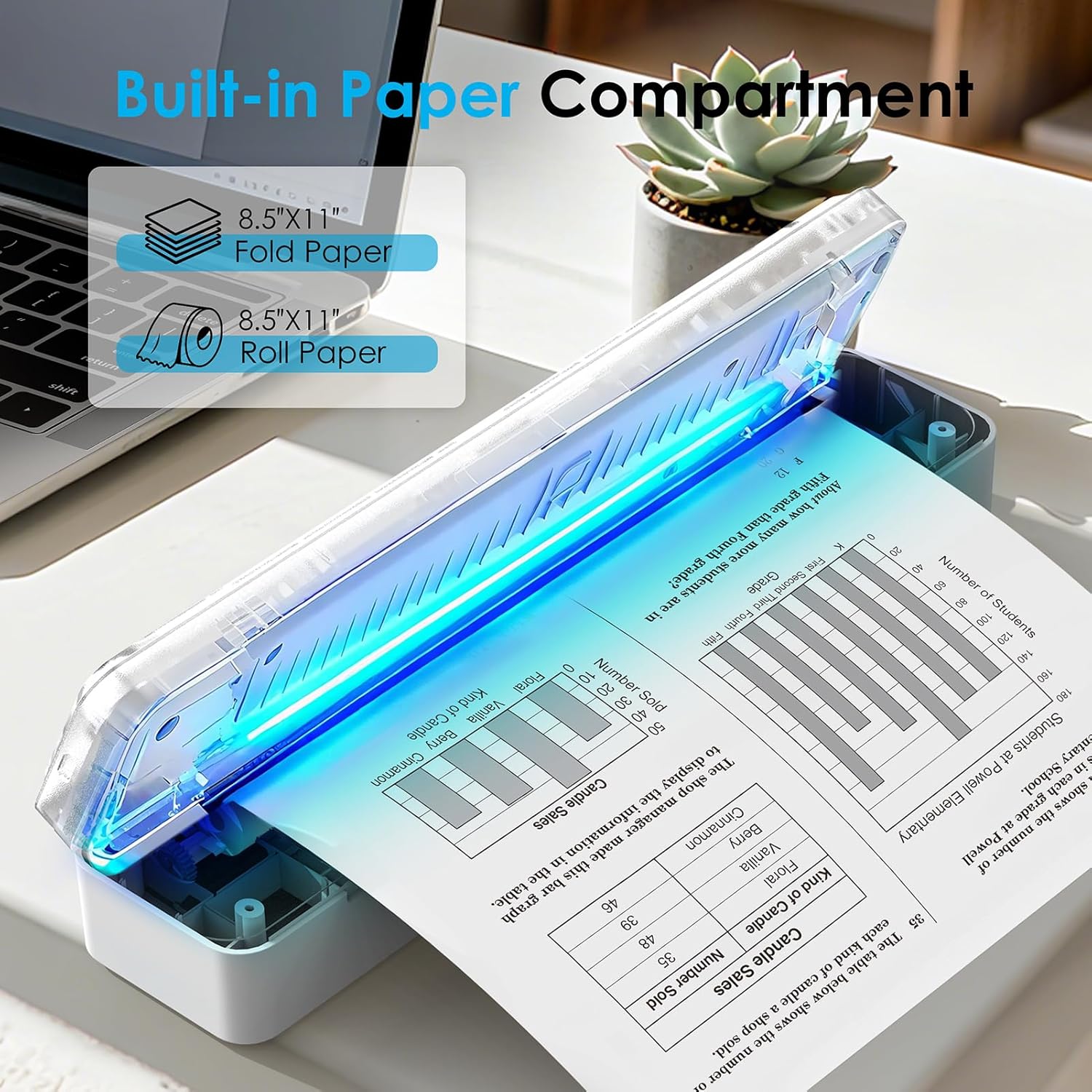
Image: The KNAON Portable Thermal Printer with its built-in paper compartment open, showing how to load 8.5"x11" fold paper or roll paper.
3. Encendre i carregar
- Per engegar-lo, premeu i manteniu premut el botó d'engegada fins que s'il·lumini l'indicador lluminós.
- Connect the printer to a power source using the provided USB cable for charging. The indicator light will show charging status.
4. Connexió inicial
Bluetooth Connection (iOS/Android)
- Download the 'FlashToy' app from the Apple App Store or Google Play Store.
- Assegureu-vos que el Bluetooth estigui habilitat al vostre dispositiu mòbil.
- Open the 'FlashToy' app and follow the in-app instructions to connect to your printer. Direct Bluetooth pairing through device settings is not supported; connection must be made via the app.

Image: A smartphone displaying the 'FlashToy' app interface for easy mobile printing, connected to the KNAON Portable Thermal Printer.
USB Connection (Windows/macOS)
- For Windows (7 and above) and macOS, you must download and install the appropriate printer driver. Refer to the Secció de suport for driver download information.
- Connecteu la impressora a l'ordinador mitjançant el cable USB proporcionat.
- After driver installation, the printer will be recognized by your operating system.

Image: The KNAON Portable Thermal Printer connected to a laptop via a USB cable, demonstrating versatile connectivity options.
Instruccions de funcionament
1. Printing via Bluetooth (FlashToy App)
- Ensure your printer is powered on and connected to the 'FlashToy' app.
- Within the app, select the document or image you wish to print.
- Ajusteu la configuració d'impressió (per exemple, la mida del paper, l'orientació) segons calgui.
- Inicieu l'ordre d'impressió des de l'aplicació.
2. Printing via USB (Windows/macOS)
- Ensure your printer is connected to your computer via USB and the drivers are installed.
- Open the document or image on your computer using your preferred application.
- Seleccioneu "Imprimeix" al menú de l'aplicació (per exemple, File > Imprimeix).
- Choose the KNAON Portable Thermal Printer from the list of available printers.
- Adjust print settings as required and confirm the print job.
3. Admet File Formats
The printer supports various file formats for printing, including:
- Word documents (.doc, .docx)
- Excel spreadsheets (.xls, .xlsx)
- PowerPoint presentations (.ppt, .pptx)
- Web pàgines
- Text files (.txt)
- Imatge files (e.g., .jpg, .png)
Image: An illustration showing the KNAON Portable Thermal Printer's compatibility with multiple file formats, including Word, Excel, PowerPoint, Web Page, TXT, and Picture files.
Manteniment
1. Neteja de la impressora
- Ensure the printer is powered off and disconnected from any power source before cleaning.
- Utilitzeu un drap suau i sense pelusa lleugerament dampened with water or isopropyl alcohol to gently wipe the exterior of the printer.
- To clean the print head, use a specialized thermal printer cleaning pen or a cotton swab lightly dampened with isopropyl alcohol. Wipe the print head gently and allow it to dry completely before use.
- Avoid using abrasive cleaners or solvents that could damage the printer's surface or internal components.
2. Thermal Paper Handling and Storage
- Store thermal paper in a cool, dry place away from direct sunlight, heat, and humidity to preserve its print quality and longevity.
- Avoid touching the thermal coating of the paper excessively, as oils from your skin can affect print quality.
- Only use thermal paper specifically designed for thermal printers.

Image: A package of KNAON US Letter 8.5" x 11" thermal paper rolls, indicating the type of paper required for the printer.
3. Cura de la bateria
- For optimal battery life, charge the printer regularly and avoid completely draining the battery frequently.
- If storing the printer for an extended period, charge it to approximately 50% capacity and store it in a cool, dry place. Recharge every few months to prevent deep discharge.
Resolució de problemes
Problemes comuns i solucions:
- La impressora no s'encén: Ensure the printer is charged. Connect it to a power source using the USB cable and try again.
- No es pot connectar mitjançant Bluetooth:
- Confirm Bluetooth is enabled on your mobile device.
- Ensure you are connecting through the 'FlashToy' app, not directly via device Bluetooth settings.
- Reinicieu tant la impressora com el dispositiu mòbil.
- Printer not recognized by computer (USB):
- Verify that the correct printer drivers for Windows or macOS are installed.
- Prova amb un port o cable USB diferent.
- Reinicieu l'ordinador i la impressora.
- Mala qualitat d'impressió o pàgines en blanc:
- Ensure you are using thermal paper and it is loaded correctly with the printable side facing the print head.
- Netegeu el capçal d'impressió tal com es descriu a la secció Manteniment.
- Check if the thermal paper is old or improperly stored.
- Embús de paper: Power off the printer, carefully open the paper compartment, and gently remove any jammed paper. Ensure paper is loaded correctly and not wrinkled.
If you encounter issues not covered here, please refer to the Secció de suport per a més ajuda.
Especificacions
| Marca | KNAON |
| Número de model | B0G2XBJX2T |
| Tecnologia de connectivitat | Bluetooth, USB |
| Tecnologia d'impressió | Tèrmica |
| Sortida de la impressora | Monocrom (blanc i negre) |
| Mida màxima del suport | A4 (US Letter) |
| Mitjans impresos | Només paper tèrmic |
| Capacitat màxima del full d'entrada | 200 |
| Maximum Copy Resolution | 203 ppp |
| Dimensions | Aproximadament 12 x 2.17 x 1.65 polzades |
| Components inclosos | Printer, 7 Rolls A4 Thermal Paper (3+4), USB Cable |
Informació de la garantia
The KNAON Portable Thermal Printer comes with a garantia limitada. For specific terms and conditions, please refer to the warranty card included in your product packaging or contact KNAON customer support.
Atenció al client
For further assistance, including driver downloads, additional instructional guides, and troubleshooting videos, please visit the official KNAON support weblloc o poseu-vos en contacte amb el nostre equip d'atenció al client.
- Official KNAON Store: Visit KNAON Store on Amazon
- Driver Downloads: Available on the KNAON support weblloc (URL not provided in source data, user should search for "KNAON printer drivers").
- Vídeos de resolució de problemes: Available on the KNAON support website or official channels.
KNAON is committed to providing a seamless user experience and rigorous quality testing for all products.